

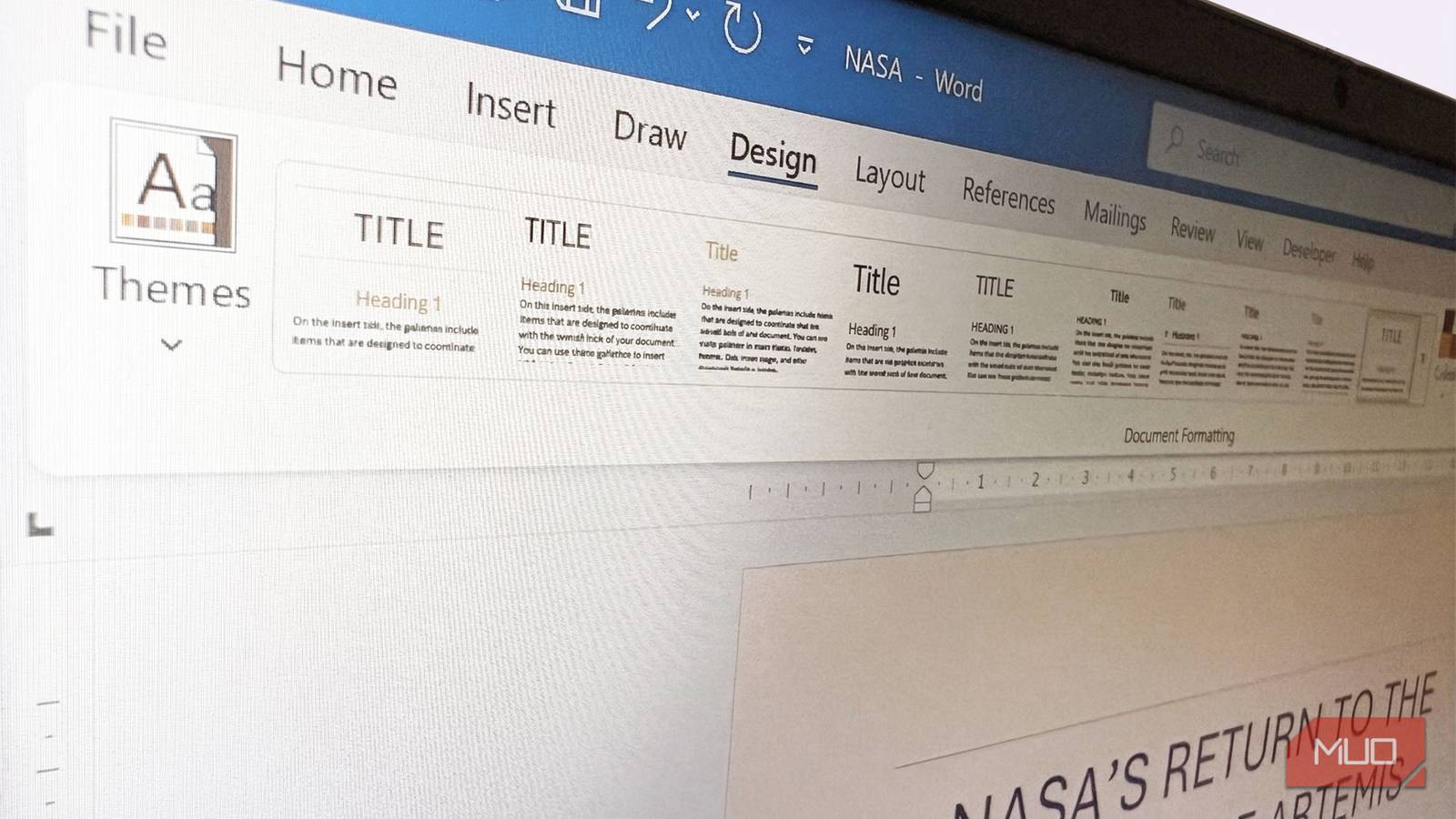

With a rich set of formatting features comes a great responsibility. You have to get the look right if you expect to be taken seriously. Every time I received a Word document, I’d lose 20 minutes fixing mismatched fonts, inconsistent headings, and rogue spacing. It was the most tedious part of an editor’s job. It took me some time to realize that Word is designed to reward thought structure over tinkering. It has the tools for it.
That’s why Microsoft Word power users swear by the Design tab. The Design tab will take you beyond basic formatting habits and help you apply changes at scale, especially when you are formatting lengthy reports in Word.

The Design tab does what it’s meant to do
It transforms your document instantly
The Design tab sits quietly between the Home and Layout tabs in Word’s ribbon. The Home tab has its own formatting toolbar and the Style dialog. But for those who want to make beautifully formatted documents, the Design tab is where the real work is done.
The Design tab controls your document’s entire visual identity with Themes, Style Sets, color palettes, and font pairings. Change any one of them, and the makeover ripples across the whole document. For me, themes took some getting used to. Once I did, I realized I could achieve a more polished and consistent look in seconds than I ever could by hand.
Let’s look at what each tool does: Themes apply a harmonious set of fonts, colors, and effects across the document. Styles define the look of your headings and body text; Colors swap every accent color at once; and Fonts pair a heading font with a body font as a matched set. As you might notice, each tool is more atomic than the other.
But here’s an important rule to remember: Style Sets in the Design tab work by modifying the built-in styles. If your text is manually formatted (bold, font sizes, and colors applied directly without styles), the Design tab’s Style Sets will have little to no visible effect on it. So, it is a companion to Word’s styles system. If you receive an unformatted document, spend some time applying the basic styles from Home -> Styles.
Themes replace manual formatting work
One click updates the entire look

When you select a theme, Word applies it across headings, body text, and other elements instantly. Instead of tweaking each visual detail, let themes handle the heavy lifting. It applies a pre-designed combination of fonts, colors, and visual effects, so headings, body text, tables, and shapes all update together.
Most built-in themes felt a little corporate and safe to me at first glance. As everyone uses Microsoft Word, themes can come across as generic.
But themes don’t have to be the final destination. They can be like the first coat of paint on your document. Once you apply one, you can tweak the Colors or Fonts options right next to it in the same tab to personalize it. You get time-saving automation in Word with the custom controls instead of manual design. Once tweaked, you can save your custom theme using the Save Current Theme option.
Style Sets clean up messy documents
Apply to add structure to your text

Style Sets are the most underrated tool in the Design tab. They apply pre-built formatting rules to every paragraph style in your document. For instance, Heading 1, Heading 2, body text, and captions in one click. I find this a big saver for collaborative documents when multiple people format them. A single Style Set swap brings back a uniform look.
But Style Sets only work if your document actually uses Styles properly. If you manually bold a line and bump the font to 18pt to fake a heading, Word has no idea it’s a heading. The Design tab simply can’t reach it. And again, this is common in collaborations.
I used to ignore styles completely and just bold or resize text to create headings. It felt quicker in the moment, especially when working on short documents. But this method breaks down in longer documents. Without styles, Design features can’t be applied neatly, and you end up stuck fixing errors again and again.
AutoFormat can apply Styles as you type. Go to File -> Options -> Proofing -> AutoCorrect Options -> AutoFormat As You Type, and enable Built-in Heading styles. Word will detect and tag your headings automatically, so your document is already structured before you ever open the Design tab. See screenshot above.
Coordinate fonts and colors automatically
No more mismatched formatting

The Fonts option in the Design tab reassigns the heading and body font for the entire document as a matched pair. The Colors option applies the same settings to every color combination in the document. This speeds up your work because you are working at the document level rather than diving into individual words and sentences.
For everyday writing, I assumed it was overkill. I’d just pick a font I liked and move on. But choosing the right fonts and font pairings for a report’s topic is extremely critical.
Paired fonts also eliminate the “multiple fonts in one document” problem that happens when you paste content from different sources. Setting them once at the document level is simply cleaner and faster than tweaking every paragraph later.
Microsoft 365 Copilot can suggest formatting. If you’re on a Microsoft 365 subscription, Copilot can recommend Themes and apply Styles based on your document’s content and tone. It’s not always perfect, but as a first-pass formatting assistant paired with the Design tab, it cuts setup time down considerably.
The Design tab won’t save a document every time
It works best with built-in styles

The Design tab stumbles on documents packed with direct formatting. For instance, if you get an unformatted document or the original author changed fonts, sizes, and colors manually without using Styles. The Design tab can control only what has been properly styled.
Imported documents are particularly irksome. Content pasted from websites, PDFs, or other apps typically strips Style information and replaces it with direct formatting. Your Design tab changes look inconsistent because half the document isn’t using Styles at all.
But the solution is there with Styles. Select the problematic paragraphs, press Ctrl + Space to clear direct formatting, then reapply the correct Style before going to the Design tab. It takes a few extra minutes up front, but it makes everything that follows completely effortless.
Try a theme swap in your next document
Pick the most chaotic Word file on your computer, make sure your headings use Heading 1 and Heading 2, then open the Design tab and click through the five Themes. This will help you understand the utility of the Design tab and see how much time you can save by letting Word handle formatting for you.
