

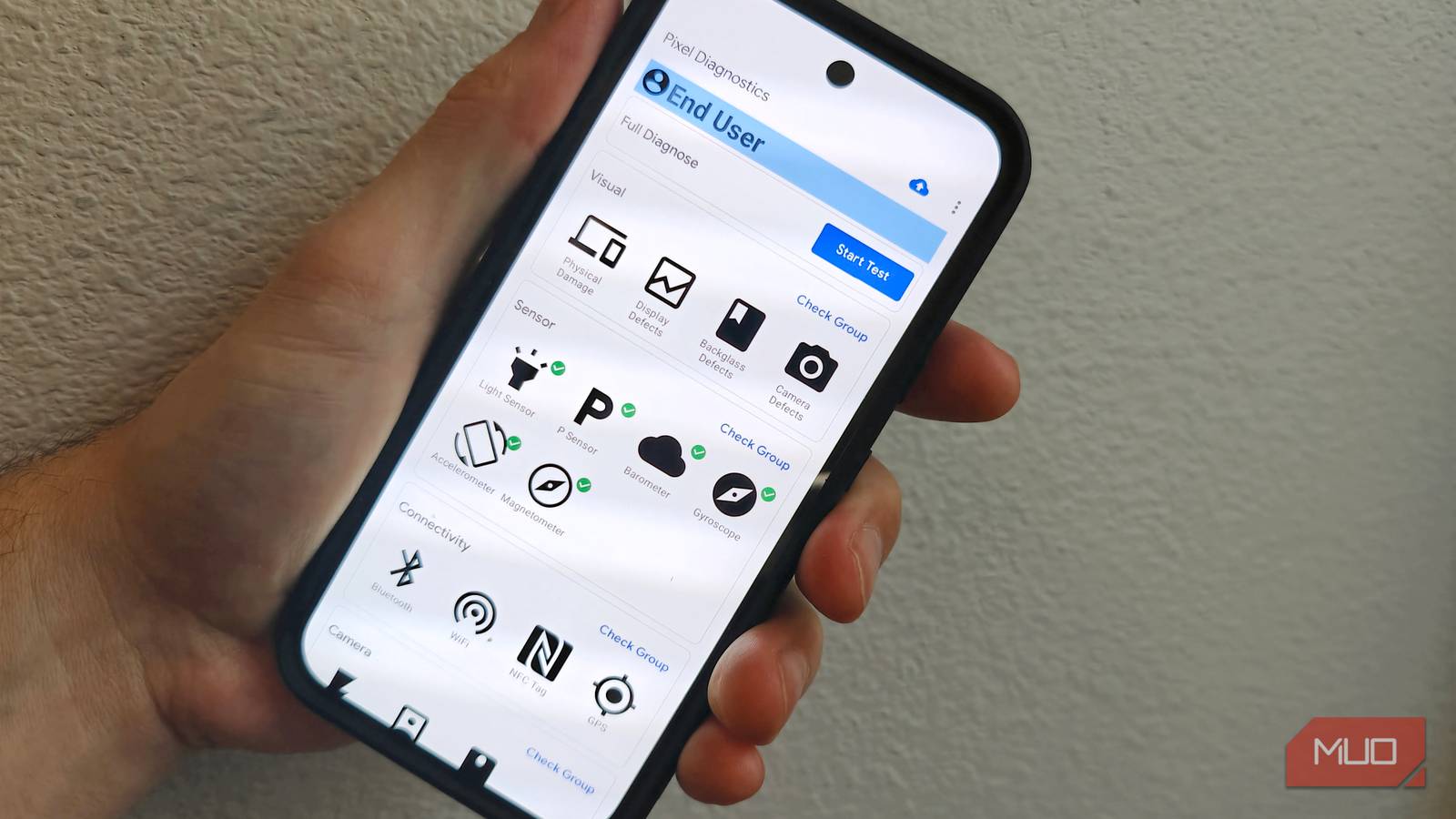

I never realized that there’s a built-in tool to test pretty much every hardware component on my PIxel 9. You might not have known about this tool, either, as it’s mostly for professionals trying to fix a problem with your phone.
Still, there’s no reason why you can’t check it out yourself, like if your speakers sound off, a sensor is not working as expected, or you just want to confirm everything is working after you drop your phone. I’ll run every test I can find within this app, using no third-party tools or developer options. Here’s what this tool does, how to find it, and when it might be useful for you to try.

Android phones would be better if they copied these Pixel features
Some of Pixel’s smallest features leave the biggest impression.
Easy to access, tricky to find

Pixel Diagnostics is a first-party Google tool that comes pre-installed on Pixel devices, but it’s not an app you can tap or find in your Settings. It’s likely designed to help users and Google support techs confirm whether hardware is functioning correctly. You access this tool via the Phone app.
Once you launch your Phone app, simply dial *#*#7287#*#* and the Diagnostics tool will launch. YOu need a strong Wi-Fi signal for the tool, so your Pixel may ask if you one. Just tell it yes if so.
I ran this tool on my Pixel 9 running Android 16; if you have an older Pixel or Android version, it may look different.
Once the tool launches, you’ll see a grid of tests you can perform individually, in groups, or all at once. To start the latter, just hit the big Start Test button near the Full Diagnose option at the top. My screen says End User at the very top, as well.
There are eight categories to test, including VIsual, Sensor, Connectivity, Camera, Audio, Screen, and Others. Each group has a “Check Group” link you can tap to run through all the tests in that specific area.
What I tested using Pixel Diagnostics
It’s really fairly thorough
I hit the Start Test button to run through all the diagnostic areas at once, but if I did this again, I’d rather go group by group. If there’s a specific problem with your phone, you could try each test individually, too.
All the Visual tests rely on you checking the device itself, so they ask whether there are signs of physical damage, display defects, back glass issues, or camera problems. I tapped No to each of these questions, as my pixel is still pretty pristine.
The Sensor section has you hold your hand over the top part of the front of your phone to check the light sensor and the proximity sensor, while the barometer and magnetometer are just automatic tests. The testing tool has you move your Pixel around a bit for the gyroscope and accelerometer tests. My Pixel passed all of these tests for my sensor systems with flying colors.
Connectivity was next, and the tool checked the Bluetooth, WiFi, GPS, and NFC tag abilities. All of mine passed, except the NFC one, since I didn’t have an NFC tag to hold near the phone. Camera testing showed my still and video capabilities all work for both the front and back camera, and all of my audio tests went well, except the speaker test, oddly. While I’m able to hear sound from my Pixel’s speakers while listening to music or watching a video on YouTube, for some reason, the Speaker test just does not work. The same issue happens with my Bluetooth headphones, but I don’t have a USB-C headset to run that specific test.
The Screen tests were my favorite. For the Touch Panel test, I had to swipe on every spot on the screen and turn it from green to white. Those corners were a little tricky to make happen. It’s like coloring your phone, and I’m glad it gave me 90 seconds to get it all colored in. Then there are three red dots you have to drag to green dots with three fingers at once (I’m guessing to test the multi-touch abilities), which my Pixel passed, as well. The Backlight check dimmed and lit the screen, then asked if it had actually dimmed and lit up. I said yes. The Display test was also fun, as it had me swipe through a series of one-color screens and tell it whether it worked or not. Then it put a bunch of copies of the word Test up on the screen, which changed to a smaller font when I swiped. Again, I told my Pixel that it all worked.
Finally, the Others group included Wired Charging (which my Pixel didn’t pass, even though it charges just fine), Reverse Charging (I can charge my iPhone with the Pixel), Fingerprint (passed), Wireless Charging (I don’t have a wireless charger, so this “failed,” but really just didn’t get tested. Battery Health, SIM, Vibration, and Button tests all passed easily, too.
There’s also a section called Other Defects that requires a tech (or you) to check things that are going wrong, like OS software update failure, or Data wipe failure — all things I don’t have a problem with, so those tests passed, too.

- SoC
-
Google Tensor G4
- Display
-
6.3-inch 1280 x 2856 LTPO OLED
- RAM
-
16GB
- Storage
-
128 GB / 256 GB / 512 GB / 1 TB
- Battery
-
4700 mAh
The Google Pixel 9 Pro features a sophisticated design with the powerful Tensor G4 processor and 16 GB of RAM, making it ideal for advanced AI applications, stunning photos, and videos. It includes a pro triple rear camera system, a 42 MP front camera, and the brightest Super Actua display, offering an immersive experience in two sizes, with pricing starting at $999.
When should you actually use Pixel Diagnostics?

If you’re having issues with your Pixel, this could be your first step towards figuring out what to do about it. For example, when the Speaker test failed at first, I had to go and see if I could make it work in the real world of YouTube and music apps. My speaker is acting just fine in those scenarios, just not in the testing. If it really bugged me, I’d maybe take it to a professional. Other times you might consider using Pixel Diagnostics include:
- Before sending in your phone for repair
- After you get it back from the repair shop
- When you buy a used Pixel
- After a drop or water exposure
- When Google support asks you to run a diagnostic
- When a hardware issue feels intermittent
Once you’ve done the testing, you can share the results with Google (in the case of a warranty claim or return) or a professional you’re taking the phone to.
Pixel Diagnostics won’t fix any problems you find; it just diagnoses them. It also won’t tell you what’s wrong with specific apps.
Is Pixel Diagnostics actually worth using?

Honestly? I love being able to drop into this tool and see what’s going on with my smartphone. I wish my other smartphones (looking at you, iPhone) had a similar built in tool. It makes me feel powerful, knowing that I can diagnose an issue before having to take it to the shop. If your Pixel starts acting up, here’s a great place to go before you start escalating to Google or a local repair store.
