


My first “phone” was a 4th generation iPod Touch. I belong to the generation that was essentially raised online. Similar to most people nowadays, my relationship with my phone was never something I chose. Instead, it just naturally became part of me. As I’ve grown up though, I’ve realized how such a tiny device has done more damage than good.
A shorter attention span, losing time to mindless doomscrolling that could be better spent, excessive comparison, and a restlessness that makes it hard to just sit still. Over the last few years, I’ve been working on setting better boundaries and simply gaining back the hours that used to disappear without me noticing. Here are four of the most basic settings that quietly give me an extra hour every day…
Focus modes
How I protect my most important hours

I’ve always thought that the most underrated feature on phones nowadays is Focus mode. For the longest time, I’d leave my phone on Do Not Disturb all day, every day, and I realized that I’d still miss important messages or forget to re-enable notifications for things that actually mattered.
I’ve set up a bunch of focus modes that are all customized differently depending on the specific task the mode is dedicated to. I have one for Work, one for Studying, one for Mindfulness, and one for Sleep. The Work one automatically enables 30 minutes after my Sleep focus mode turns off at 5 AM, and runs through until the Studying focus mode turns on (which is configured based on location and activates when I reach my university).
Each mode filters notifications depending on the task. For example, in Studying mode, apps like Slack and even Gmail are completely blocked because I know they’ll pull my attention away when I need to concentrate. But when I switch to Work mode, those notifications are enabled again, since I actually need them to stay on top of tasks and messages.
Turning off notification sounds
Stop letting your phone decide when you get distracted

This is a hack I’ve seen pretty much no one talk about, which surprises me because it’s the single change that made the biggest difference for me. Think about the last time your phone made a sound. Did you pick it up? I bet you did. There’s a reason your phone makes noise when something happens — it’s designed to pull you back in and keep you distracted.
So, rather than silencing your phone completely (which a lot of people do) and risking missing important calls, try turning off notification sounds specifically. I’ve had notification sounds for WhatsApp, Instagram, Snapchat, X, Messages, Facebook, TikTok, etc., turned off for years. This way, you aren’t distracted immediately when your phone pings. Instead, it becomes something you check completely on your own terms.
Screen time limits
Turns out the biggest threat to my screen time limit was me


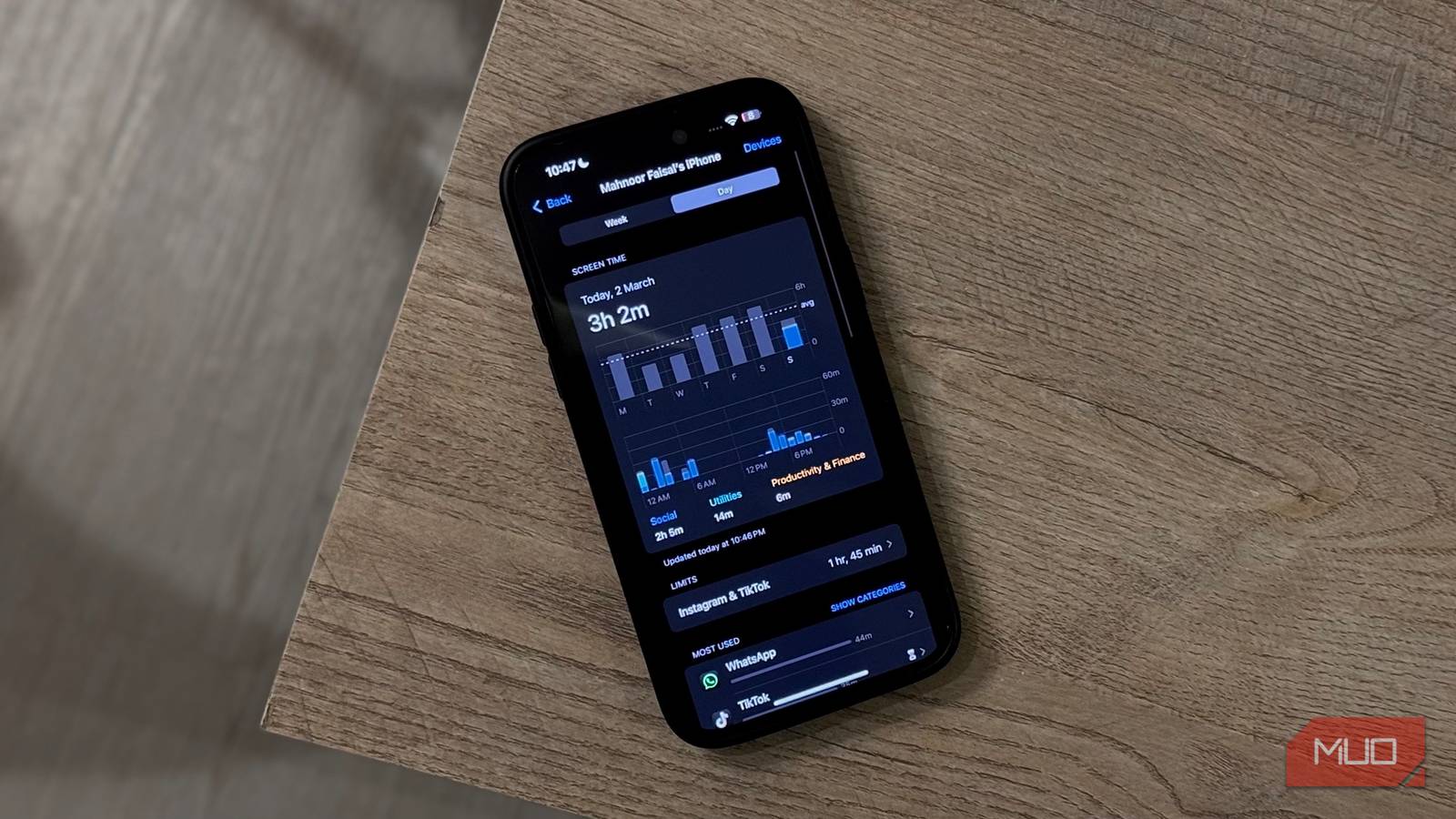
In Atomic Habits, the author states that if you want to break a habit, you have to make it hard to do. The same philosophy applies when it comes to phone usage, and the option to set screen time limits on specific apps is godsent. For instance, the App Limits feature on iPhone lets you restrict specific apps or entire categories. For example, the apps that I find myself spending the most time on are Instagram and TikTok.
Rather than limiting the entire Social category, I’ve set a limit of 1 hour on each of these apps. Once I hit that limit, I get a gentle nudge reminding me that my time is up, which helps me stop scrolling without even thinking about it. The problem with this feature on iOS specifically is that there’s an Ignore Limit button right below the OK button that you can click to bypass the limit. Once you do, you get three options: One more Minute, Remind me in 15 Minutes, and Ignore Limit for Today.
There have admittedly been a bunch of times when I’ve simply tapped the third option and gone back to scrolling mindlessly. To combat this, I asked a family member to set a Screen Time password that only they know and enabled the Block at End of Limit option in the App Limit settings. This way, when my hour is up, the app locks completely, and the only way to bypass the limit is to ask my family member to input the password. My ego doesn’t allow that, so the limit holds every single time.
Auto-lock
The laziest setting on your phone is also the most underrated


Finally, this feature is so basic that even writing about it makes me laugh. Auto-lock, like the name suggests, automatically turns off your screen after a set period of inactivity. This forces you to consciously decide when to pick your phone back up. Most people have this set to 2 minutes or longer without ever thinking about it, but I keep mine at 30 seconds.
It’s an excellent way to reduce passive scrolling naturally. For instance, there are times when I embarrassingly have auto-scroll on TikTok enabled while brushing my teeth! With auto-lock set to 30 seconds, my screen shuts off mid-video before I’ve even finished rinsing. Ultimately, as embarrassing as it is to admit, this is probably the most effective intervention I’ve ever made for my morning routine.
Together, these give me back more than an hour each day
Something I’ve recently done for my productivity is DIY-ing my own $59 Brick device with an NFC tag and a third-party app. However, the basic settings above are what quietly make the biggest difference day to day.
