

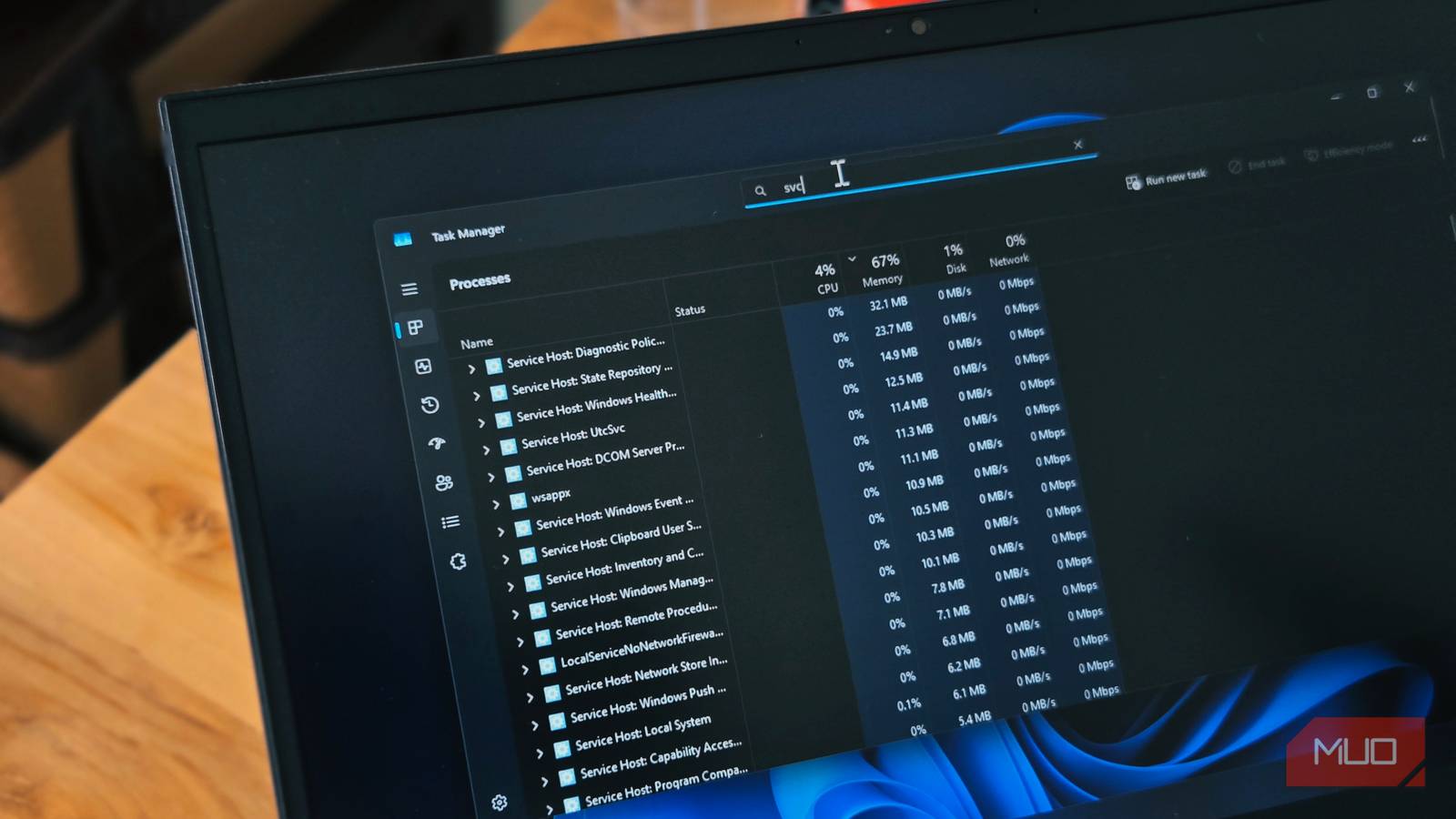

Windows 11 comes with dozens of background services that start automatically when you turn on your PC. Most are essential, handling networking, audio, and security. But a few are relics from a different era of computing, services like Fax and Distributed Link Tracking that made sense in the Windows 2000 days but serve no purpose on a modern personal computer. After I finally disabled some of these Windows services, I realized most of them had been quietly running for years without doing anything useful for me.
To be fair, many of the riskier services already come disabled by default or need a manual trigger to activate. So, this isn’t about performance gains or freeing up system resources, because these services use a negligible amount of both, but about not running things you genuinely don’t need.
Distributed Link Tracking Client
A shortcut repair tool from the Windows 2000 era
The Distributed Link Tracking Client is one of those services that sounds important until you learn what it actually does. Its job is to maintain links between files so that shortcuts keep working after you move or rename the target. If you had a Start Menu shortcut pointing to a folder and then moved that folder to a different drive, this service would update the shortcut automatically.
It used to cause issues with external drives, too. On Windows 10, the service kept an open handle to a tracking log file on USB-connected drives, which prevented the “Safely remove hardware” option from working. Microsoft eventually fixed that specific bug, but the service itself stuck around.
If you don’t care about automatic shortcut repair and are fine fixing the occasional broken shortcut manually, there’s no reason to keep this running. To disable it, press Win + R, type services.msc, click OK. Now locate and double-click the Distributed Link Tracking Client service, choose Disabled, and click OK. Alternatively, set it to Manual so that it’s only triggered when required.
Fax
A legacy service for hardware most people don’t own

The Fax service lets you send and receive faxes through a fax modem or fax-capable device directly from your desktop. It supports routing, archiving, delivery receipts, and network sharing of fax hardware. It’s a surprisingly full-featured service for something almost nobody uses at home.
The only time I’ve ever had to deal with a fax was years ago when I needed to send some important documents to my father, who lived abroad. Even then, I went to a local shop that still had a fax machine.
Fax machines do still have a place in certain industries. Hospitals and legal offices use them to transmit personally identifiable information and HIPAA-protected data because fax transmissions are considered more secure than standard email. But on a personal computer, unless you have a fax modem plugged in and actively send faxes, this service is doing nothing.
Download Maps Manager
Background map updates for an app you probably don’t use

The Download Maps Manager service, listed as MapsBroker in Services, handles downloading and updating offline map data for the built-in Windows Maps app. It’s set to Automatic (Delayed Start) by default, meaning it quietly runs after every boot to check for map updates.
If you’ve never opened the Windows Maps app or downloaded offline maps through Settings > Offline maps, this service has nothing to manage. It still starts and waits for work that never comes.
Disabling it means the Maps app won’t be able to download or update map data in the background. If you rely on Google Maps or another navigation app on your phone, as most people do, you can safely turn this off.
Connected User Experiences and Telemetry
Microsoft’s data collection service that phones home regularly

Connected User Experiences and Telemetry, also known as DiagTrack, is the service responsible for collecting diagnostic and usage data from your PC and sending it to Microsoft. It records your device configuration, installed programs, app usage patterns, error reports, and update status. Microsoft says this data helps improve Windows and deliver personalized experiences.
The privacy concern, however, is real. The telemetry data, even when anonymized, can include enough device and activity information to build a detailed fingerprint of how you use your PC. Researchers have repeatedly shown that anonymized datasets can be correlated with other information to identify individuals.
Disabling this service cuts down on background data uploads. The trade-off is that Microsoft gets less diagnostic data, which could theoretically slow improvements for your specific hardware configuration. In practice, most users report zero functional loss. Keep in mind that even with this service disabled, other Windows components can still send limited telemetry, so it’s not a complete off switch for all data collection, and you are off using a third-party telemetry blocker such as O&O ShutUp++ for complete control.
SysMain
A prefetching service that’s less useful on modern SSDs

SysMain, formerly known as Superfetch, monitors which apps you use frequently and preloads their data into RAM so they launch faster. If you open Excel every morning, SysMain will start loading parts of Excel into memory right after boot, so it opens instantly when you click it.
On older systems with mechanical hard drives, this actually helped. On modern PCs with fast SSDs, the benefit is negligible. Apps already load quickly from an SSD, and SysMain’s background activity, scanning usage patterns and generating extra disk reads, can sometimes cause more harm than good. It’s a common cause behind random 100% disk usage spikes, especially right after boot.
That said, some argue SysMain still has value. There’s even a case to be made that the SysMain feature can speed up your Windows PC on the right hardware. If you’re on an SSD with 16 GB of RAM or more, disabling SysMain is a low-risk, easily reversible change. You can always re-enable it through Services by setting the startup type back to Automatic.
Print Spooler
A printing service with a history of security vulnerabilities

The Print Spooler service manages all print jobs sent from your PC to a printer. It queues documents, handles communication with the printer, and manages driver installation. If you print regularly, you need it running.
But if you don’t have a printer connected, the Print Spooler is an unnecessary process with a rough security history. In 2021, a critical vulnerability dubbed PrintNightmare allowed attackers to execute code with full system privileges through this service. The flaw was severe enough that CISA recommended disabling the Print Spooler entirely on systems that didn’t need it. Microsoft has since patched the specific vulnerabilities, but the service’s complexity and legacy code continue to attract security researchers.
Disabling it means you can’t print from your PC, locally or over the network. If you rarely print, that’s an easy trade-off. You can always re-enable it when you need to send something to a printer.
Not every service needs to run at boot
Disabling these services won’t have any effect on your PC’s performance or free up significant resources. It’s about not running processes that serve no purpose on your specific setup. A Fax service on a machine with no fax hardware, a telemetry service on a privacy-conscious setup, or a Print Spooler on a PC with no printer are all dead weight.
The key is knowing what you’re turning off and why. While some Windows services are safe to disable, there are some you should never touch, because they handle networking, security, or core system functions that Windows depends on. Stick to the ones you understand, and you’ll end up with a cleaner system that only runs what it needs.
