



USB-C cables are basically impossible to identify without a cable tester these days. It’s not your fault — manufacturers ship countless cables without any labels, or worse, sell noncompliant cords that don’t live up to their claims. You could be holding a blank USB-C cable and have no idea what USB or Thunderbolt version it supports. Even if you do know a cable supports USB4, key specs like data transfer speed, charging speed, and maximum display resolution are impossible to discern by just looking at it.
I own hundreds of USB-C cables, but the simple truth is that the overwhelming majority of them are useless. I can’t tell whether they are data-only or charge-only cables, if they support DisplayPort Alt Mode, or their maximum speeds and display resolution. When it comes to cables, knowing their exact capabilities is everything, and that’s why only a handful of cables in my kit are actually worth their salt. Identifying the features and specs of a random USB-C cable is still tricky, but knowing what these three numbers mean will give you a fighting chance.

Not all USB-C cables are the same
I only buy Thunderbolt 4 cables now, because USB-C cables aren’t made equal. These are the key differences to watch out for.
USB version
This is the number to look at first, but exercise caution

A good place to start is by identifying the USB or Thunderbolt version of a USB-C cable. This isn’t a foolproof solution, because it assumes your cable is labeled properly and meets the claimed specifications. However, it is an excellent baseline, especially when buying new cables. Looking for a USB version or Thunderbolt generation, if nothing else, guarantees the minimum specification of your cable.
The latest USB version is USB4 Version 2.0, and it upgrades the maximum data transfer capabilities of supported USB-C cables. The base USB4 spec only requires 20Gbps data transfer speeds and 7.5W charging speeds. The more common USB4 configuration supports 40Gbps speeds. Now, USB4 Version 2.0 is here with 80Gbps bidirectional speeds and 120Gbps unidirectional speeds. All USB4 cables support up to 240W power delivery, but they can be limited as low as the aformentioned 7.5W.
What does this tell you? If you see a USB4 cable, you know it will support data transfer speeds between 20Gbps and 80Gbps. USB4 Version 2.0 is backwards-compatible with Thunderbolt 4 and Thunderbolt 3, and Thunderbolt 5 is backwards-compatible with USB4 Version 2.0. In other words, although USB4, Thunderbolt 3, Thunderbolt 4, and Thunderbolt 5 are all different specifications, they offer similar feature sets.
Looking beyond USB4, the USB versions get a bit complicated. Here’s a chart showing the USB Type-C versions and their data transfer speeds:
|
USB Version |
Speed |
Connector Type |
|---|---|---|
|
USB 2.0 |
480Mbps |
Type-A, Type-B, Type-C, Mini, Micro |
|
USB 3.0, USB 3.1 Gen 1, USB 3.2 Gen 1 |
5Gbps |
Type-A, Type-B, Type-C, Micro |
|
USB 3.1 Gen 2, USB 3.2 Gen 2 |
10Gbps |
Type-A, Type-C |
|
USB 3.2 Gen 2×2 |
20Gbps |
Type-C |
|
USB4 |
20Gbps, 40Gbps |
Type-C |
|
USB4 Version 2.p |
80Gbps, 120Gbps (asymmetric) |
Type-C |
I’ve omitted USB 1.0 and USB 1.1 because these standards are unavailable as Type-C cables. The above USB versions are what you’ll encounter as Type-C cables, and the speeds you can expect from them. Use this as a cheat sheet for identifying cables. If you know the USB version number, this chart will tell you the maximum data transfer speed a cable will support.

I finally learned the difference between Thunderbolt 5 and USB4 — and it’s not just speed
USB4 can theoretically match Thunderbolt 5 speeds with the right hardware, but Thunderbolt is all about standardizing minimum requirements.
Data transfer speed
This is the most important number for data cables
Now, let’s fully explain what those speed and power delivery numbers actually mean. The term “Gbps” stands for Gigabits per second, and it’s a measure of how much data something can transfer. For example, a USB4 cable supporting 40Gbps speeds has 40Gbps of bandwidth to split between connected devices and accessories in both directions. If you connect that USB4 cable to a hub or docking station, that 40Gbps of bandwidth needs to be enough for your external SSD, display, and peripherals.
As such, data transfer speed is arguably the most important spec to consider when purchasing a USB-C cable. Specs like 20Gbps or 40Gbps sound like a lot, but bandwidth is consumed fast by demanding devices. A 4K monitor set to 60Hz might use over 10Gbps of bandwidth by itself, and it’s not unheard of to see monitor setups demand 40Gbps to 80Gbps. A modern NVMe PCIe Gen5 SSD might use 80Gbps of bandwidth.
This is why you need to identify the data transfer speeds and bandwidth a USB-C cable supports, especially if you plan to use it for a hub, docking station, monitor, storage device, or NVMe accessory. The good news is that the USB Implementers Forum finally takes the importance of data speed seriously. USB cables are starting to get branded by their speeds, rather than their versions. So, you might see the following logos on your USB-C cables or packaging:

Now, you know what they mean — these fancy logos are just representations of a USB-C cable’s data transfer speed. You might want to pay for a 40Gbps cable for high-bandwidth setup, or go with a 5Gbps cable if you’re only using it for charging.

These USB-C symbols actually matter (and what each one means)
USB-C isn’t universal. The tiny symbols tell the truth—if you know them.
Charging speed
This is the most important number for charging cables

Finally, keep an eye out for a cable’s charging speeds. The minimum USB Power Delivery speed for USB-C cables is 7.5W, which isn’t much. That’s enough to power earbuds or a smartwatch, but not enough for phones, tablets, and laptops. By comparison, the maximum USB Power Delivery speed for USB-C cables is 240W. This is a huge swing, and high-speed data cables might not support fast charging speeds, and vice versa. You need to confirm that a cable supports fast data transfer and/or charging separately, because they aren’t a package deal.
On the bright side, charging speed is usually easier to find printed on USB-C cables than data speed. If you see a cable labeled as “100W,” that’s how fast it can charge your devices. There are even USB-C cables with small LED screens that display the current charging speed in real time. Keep in mind that a USB-C cable’s maximum charging speed is just that — the very fastest it can be — and you need the right power source and device to achieve it.
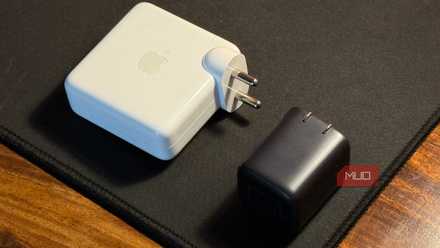
Why Picking the Right Charger Is More Confusing Than It Should Be (And How to Fix That)
Having the right charger for your smartphone makes all the difference.
When in doubt, go with Thunderbolt
Without a cable tester, an unlabeled USB-C cable is an unknown quantity. This underscores the importance of buying USB-C cables that meet certain specifications, like USB4 or Thunderbolt 4/5. Buying from trusted brands is crucial, too, as a noncompliant or fraudulent cable can throw a wrinkle in your entire setup.
The only way to be sure exactly what you’re getting from a USB-C cable is to buy a Thunderbolt one. Thunderbolt cables guarantee specific data speeds, charging speeds, and display resolutions, and they’re well-labeled. They are backwards-compatible with USB, so there’s no downside to going with Thunderbolt instead of USB4.
For basic charging and casual data transfer, I use the cable below. It’s not Thunderbolt or USB4, but it supports 100W charging speeds and has that handy screen for real-time monitoring. Plus, it’s cheap and has served me well for years.

- Charging Rate
-
100W
- USB Version
-
USB 2.0
- Materials
-
Braided cable, LED display
The SOOPII USB-C to USB-C cable is a 100W fast charger with an inbuilt LED display. The small display shows the current charging speed in real time. It sports a premium metal housing with a braided cable. Best of all, it’s under $10.
