


Smart TVs aren’t the most ideal devices to browse the web on, mainly because typing is slow and navigation feels awkward. The problem, though, is not just the TV remote but also the built-in browser. Most of them are clunky, difficult to navigate, and lack the features you’d want while browsing from the comfort of your couch.
TV Bro is different. It’s a free, open-source browser that doesn’t force a desktop-style browsing on your TV. Instead, it’s built specifically for TVs and has every feature you might need, from voice search and bookmarks to built-in ad-blocking. After trying it, I’ve found myself browsing on my TV more instead of avoiding it altogether.

If your TV has Bluetooth, you need to install this free app
This app makes the TV experience so much smoother
Finally, a browser that’s designed for your TV remote
Designed for your couch, not your desk

Most TV browsers I’ve tried feel like they were built for a keyboard and mouse, then awkwardly dropped onto a TV. And that mismatch is exactly what kills the experience. Thankfully, TV Bro is nothing like that.
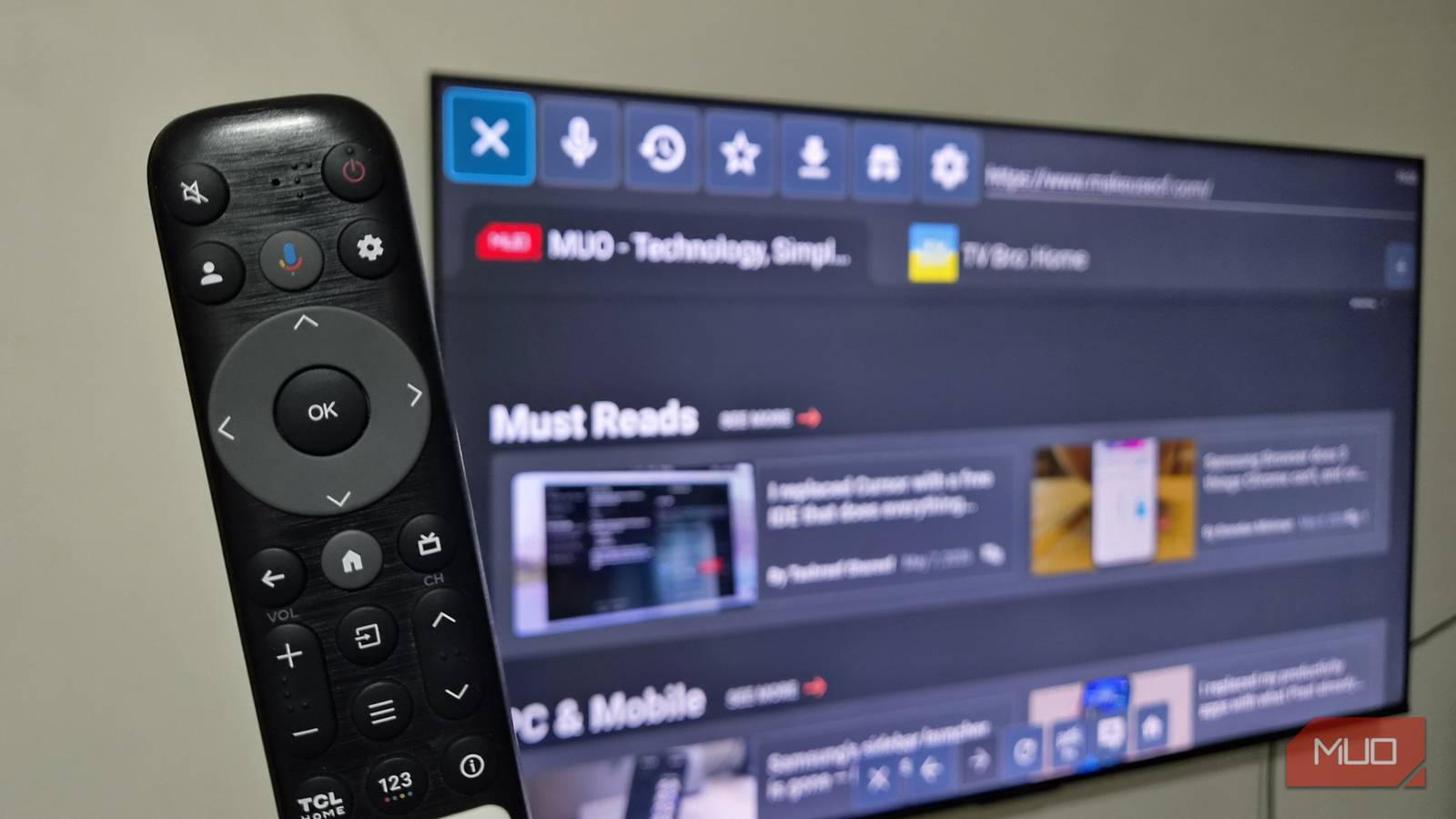
The first thing you’ll notice about it is that it’s designed specifically for a TV remote. Right at the top, you get a clean row of icons that give you all the necessary controls. You can move through them using the D-pad on your remote, and it just works the way you expect.
Once you drop into a website, the browser switches into pointer mode, so you can interact more precisely. You can then hover, click, and interact just like you’d with a mouse. Hit back, and you’re snapped right back to the top navigation buttons. It’s a small thing, but it gives you a clear sense of where you are, which is something most TV browsers completely fail at.
What really sold me on TV Bro, though, is custom shortcuts. In the Settings, you can map remote buttons to actions like back, home, refresh, media controls, and even voice search. This lets you take advantage of your TV remote’s buttons, which makes the entire browsing experience feel smooth.
It has everything you’d expect from a browser
Basics done right
Just because TV Bro is designed for a TV doesn’t mean it lacks features. It still gives you all the features you’d expect from a browser, and honestly, that’s what makes it stick.
For starters, there’s voice search, which is a lifesaver because typing website names with a TV remote is nobody’s idea of fun. Click the voice icon, and you can simply speak the name of the website you want to browse. You can also bookmark your favorite sites so you don’t have to repeat that same search process every time.
There’s also your usual toolkit. There’s a browsing history so you can retrace your steps, a download manager for grabbing wallpapers and APKs, and an incognito mode for when you want to keep your browsing sessions private. All of this means TV Bro doesn’t feel like some stripped-down browser, but rather a complete package.
It also takes care of any interruptions or distractions
No ads, no pop-ups, no autoplay chaos

Ads are already a big part of what makes browsing annoying on certain sites. On a TV, tolerating them becomes even more difficult, especially when there are flashing banners, endless pop-ups, and autoplaying videos that completely hijack your browser.
Thankfully, TV Bro comes with a built-in ad blocker. It strips away most of that noise right from the start. This speeds up page loading and also makes the browsing feel clean. And if a website doesn’t play nice with ad blocking, or if it’s the one you actually want to support, there’s a simple toggle in the bottom toolbar that lets you turn off the ad blocker quickly. So yes, you don’t have to dive into the settings just for that.
There’s also a pop-up blocker that takes care of random dialogs and prevents sites from automatically opening new tabs and windows. Finally, TV Bro can block automatic media playback too, though it’s something you need to enable first from the settings menu. Once you do, you won’t see a website randomly blasting audios or videos out of nowhere.
Works well on a remote, but shines with a keyboard and mouse
Yes, TV Bro’s biggest appeal is how brilliantly it works with a remote. But even then, it can’t quite match the speed and comfort of a keyboard and mouse. It’s something I personally prefer to do for long browsing sessions.
Once you pair your mouse and keyboard to the TV, it almost feels like you’re browsing on a large computer monitor. Everything from typing URLs to clicking around becomes so much easier.
If you don’t want to bother with physical accessories, though, your phone can also step in just fine. Fire up the Google TV app, tap the remote icon at the bottom, and you can use your phone as a touchpad and keyboard.
