


Antigravity IDE is Google’s revolutionary AI-powered development environment, but getting it to run smoothly on Windows 11 can sometimes be challenging. If you’re facing a startup crash, a blank login screen, or a missing interface, don’t worry. In this post, we will see what to do if Antigravity IDE is not working or opening on Windows 11.
Antigravity IDE is not working or opening on Windows 11
Antigravity IDE often has issues due to version conflicts between the main Antigravity apps, such as the Agentic Desktop App and the IDE. This can cause them to overwrite each other’s files. Additionally, incorrect permissions or running the installer with full administrator rights can disrupt the OAuth token handoff, which stops you from logging in. For Windows users, specific bugs, such as the language server pointing to an internal staging server, can also prevent all functionality from working. Often, a corrupted user data file or a simple configuration error is the main issue.
If Antigravity IDE is not working or opening on Windows 11, follow the solutions mentioned below.
- Perform a Clean install
- Fix the “Sign in with Google” button not working
- Restore the missing interface
- Isolate a problematic conversation.
Let us talk about them in detail.
1] Perform a Clean install
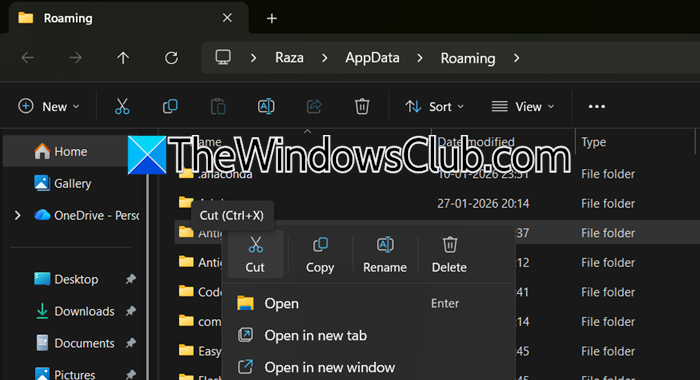
A clean reinstall resolves conflicts and repairs corrupted core files by removing all installation traces before setting up the IDE with the correct permissions. You need to follow the steps mentioned below to do the same.
- First, uninstall Antigravity IDE from your computer.
- Now, hit Win + R, type %APPDATA%, and delete any Antigravity folder you find there.
- Navigate to C:\Users\
\ and delete the .antigravity folder. - Download the latest installer from the official website and run it on your computer/
- During installation, choose the Just Me option if prompted.
Finally, open the IDE and see if the issue persists.
2] Fix the “Sign in with Google” button not working
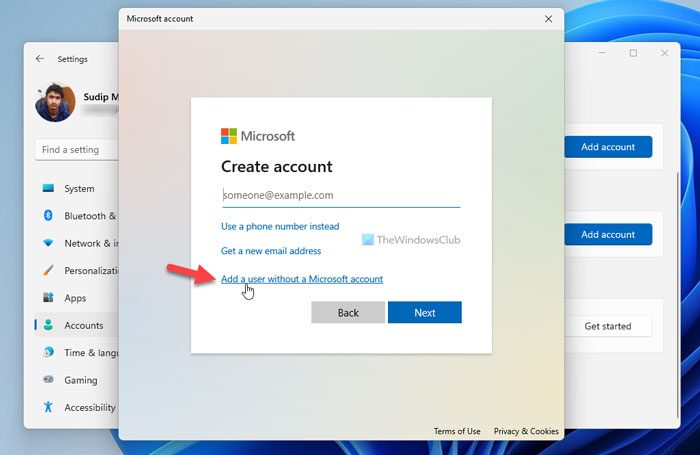
At times, you may encounter a peculiar issue where the Sign in with Google button does not respond. The fix, in this case, is to bypass the broken OAuth token handoff by using a clean Windows user profile and installing the IDE in a shared system folder. Follow the steps mentioned below to do the same.
Finally, check if the issue persists.
3] Restore the missing interface
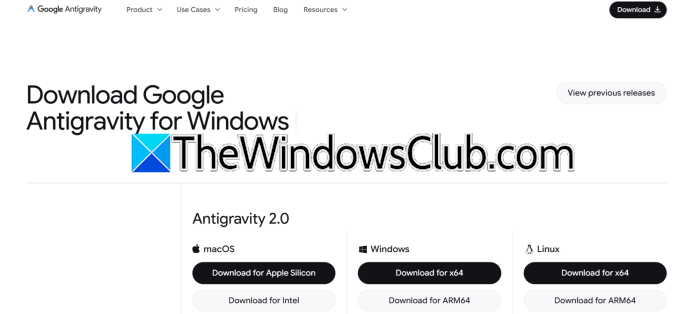
By restoring the missing interface, we can ensure that you have installed the correct developer version of the product, as Google has split its offering into two separate applications. So, first, uninstall any existing Antigravity installation (both the main app and the IDE). Then, go to the official Google Antigravity website (antigravity.google) and download the version named Antigravity IDE (the developer version). Then, install only the Antigravity IDE first.
Only after the IDE is fully installed and set up can you choose to install the standard “Antigravity” app. Finally, launch Antigravity IDE; your full code workspace should now appear.
4] Isolate a problematic conversation
A single corrupted conversation file can crash the entire IDE on launch. Therefore, we need to isolate the problematic file without losing your other work.
To do so, close Antigravity IDE completely and ensure it is not running in the system tray or Task Manager. Then, open File Explorer and paste %USERPROFILE%\.gemini\antigravity\conversations into the address bar.
Then, create a new folder in this location, name it _quarantine, and move the most recent conversation folder into this folder.
Now, reopen the IDE, and if it works, you have identified the corrupted conversation. If the IDE still crashes, close it again and retry quantentining until you find the corrupted conversation.
After figuring out the corrupted conversation, remove it permanently, and your issue will be fixed.
Read: Best alternatives to Cusor AI on Windows 11
Does antigravity work with Windows?
Antigravity works on Windows, including full support for Windows 11 (64-bit) and Windows 10. The IDE is available for Windows, macOS, and Linux. While it runs on Windows 11, some users have experienced stability issues, such as freezes and problems with certain features, particularly when the agent runs Linux commands in WSL. For the best performance, use the dedicated Antigravity IDE for developers rather than the standard app for non-coders.
Read: Visual Studio crashing on startup in Windows 11
How to reset Antigravity IDE?
To reset Antigravity IDE on Windows, first, close the application completely. Then, go to %APPDATA%\Google\Antigravity and %LOCALAPPDATA% to delete any folders related to Antigravity. This reset removes any corrupted settings and cache, giving you a fresh installation without affecting your code projects. If you want a full reset that includes all extensions and settings, delete the main configuration folders: %USERPROFILE%\.antigravity and %APPDATA%\Antigravity, then reinstall the IDE. Before you reset, make sure to end any Antigravity processes using Task Manager.
Also Read: Best Free PHP IDE for Windows 11.
