


Taking screenshots on a Windows PC is easy. We can use the Print Screen key on the keyboard or the Snipping Tool, which comes pre-installed on Windows. We can also use third-party screenshot programs that offer additional features and editing capabilities. However, some Windows users are unable to take screenshots on Windows 11. It would be a frustrating experience. In this guide, we show you how to fix the issue when you cannot take screenshots on a Windows PC.
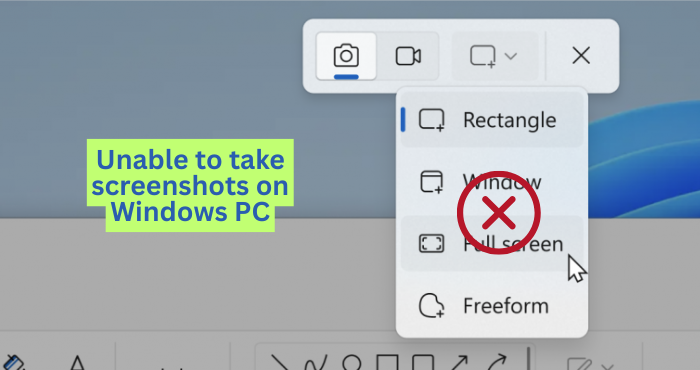
Unable to take screenshots on Windows 11
If you cannot take screenshots on a Windows 11/10 PC in any way, you can use the following methods to fix the issue and take screenshots again.
- Enable the Print Screen key to open the Snipping Tool
- Use alternative keyboard shortcuts
- Check the folder location to save screenshots
- Enable Clipboard history
- Repair or reset the Snipping Tool
- Check if any apps are preventing screenshots
- Run SFC scan
- Contact your organizational admin
Let’s get into the details of each method and fix the issue.
1] Enable the Print Screen key to open the Snipping Tool
If the Print Screen key isn’t capturing screenshots, you can enable a setting that opens the Snipping Tool when you press Print Screen. After it opens the Snipping Tool, you can use the on-screen options to capture screenshots, however you want.
To enable the Print Screen key to open the Snipping Tool on Windows 11, open the Settings app. Click Bluetooth & devices. Select Keyboard. Then, toggle the button beside Use the Print screen key to open screen capture.
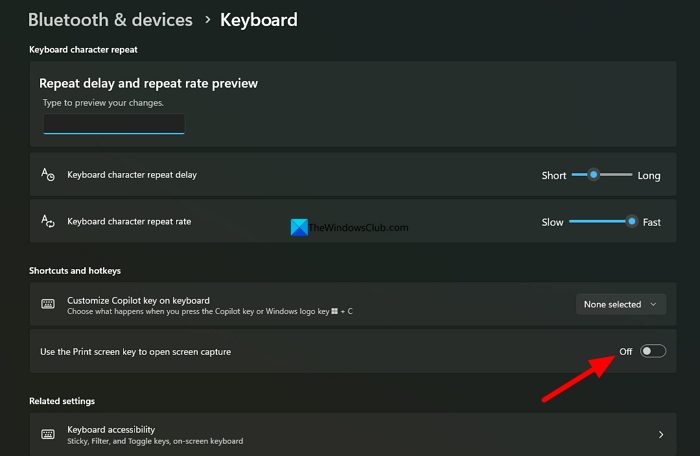
It will open the Snipping tool, henceforth, on your PC and let you take screenshots easily.
2] Use alternative keyboard shortcuts
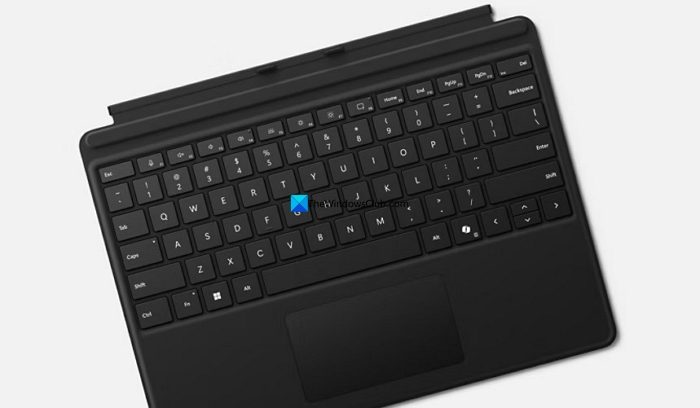
There are multiple keyboard shortcuts that can help you take screenshots on a Windows PC. Try using the following keyboard shortcuts to take screenshots, and then follow the one that works for you.
- Win + Shift + S
- Prt Sc
- Fn + Prt Sc
- Win + Prt Sc
- Alt + Prt Sc
Sometimes, adding the Fn key to the above shortcuts makes the shortcut work based on the manufacturer.
3] Check the folder location to save screenshots
It might be that when you press the keyboard shortcuts to take screenshots, they are saved to the folder set in the Snipping Tool without showing you the editor. Open the Snipping Tool on your PC and click the three-dot button on the toolbar. Select Settings.
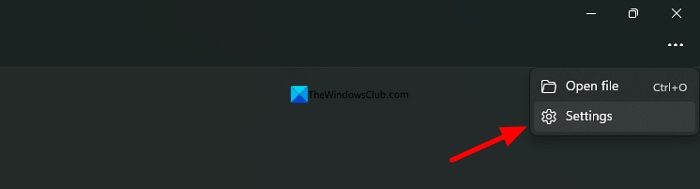
In the Settings page, click on the Automatically save original screenshots tab to expand it. You will see Screenshots are saved to the option. Click Open folder to see if there are any screenshots saved in the location.
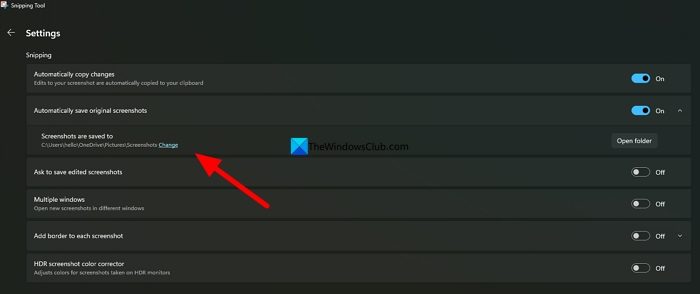
If you find screenshots there or want to change the location for convenience, click Change and update the folder.
4] Enable Clipboard history
When you take screenshots using the Print Screen key on Windows, you need to paste them somewhere to edit or save them as images. The screenshots are temporarily stored in the Clipboard manager. If the Clipboard history is disabled, they are cleard automatically and treated as one-time use. If you do not paste the screenshot somewhere and copy some text or a file afterward, the screenshot is removed. Enabling Clipboard history makes it easy to choose screenshots to paste and use them later, even if you do not paste them immediately.
To enable Clipboard history, press the Win + V shortcut on your keyboard. Then, click the Turn on button to enable.
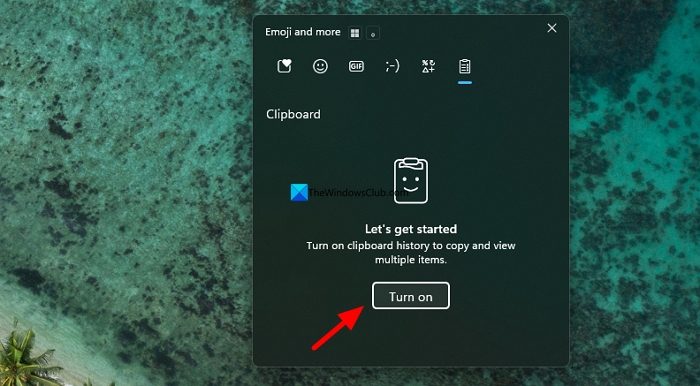
From now on, you can see the screenshots captured with the Print Screen key in the clipboard history, where you can paste and save them.
5] Repair or reset the Snipping Tool
An issue with the Snipping Tool on your Windows PC might be preventing you from taking screenshots. Repairing or resetting the Snipping Tool fixes the issues and lets you use the tool again easily. Open the Settings app and click Apps. Then, select Installed apps. Find Snipping Tool in the installed apps, click the three-dot menu beside it, and select Advanced options. Scroll down to the Reset section and click the Repair button.
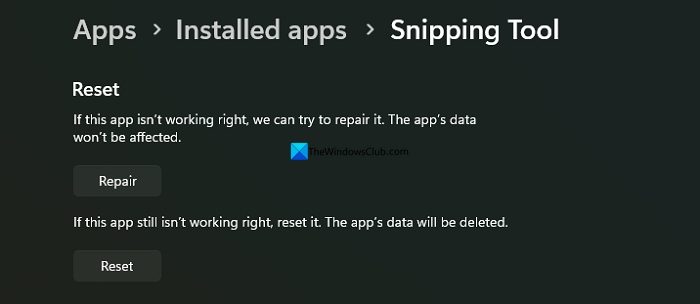
See if you can take screenshots after repairing. If it does not work, click the Reset button.
6] Check if any apps are preventing screenshots
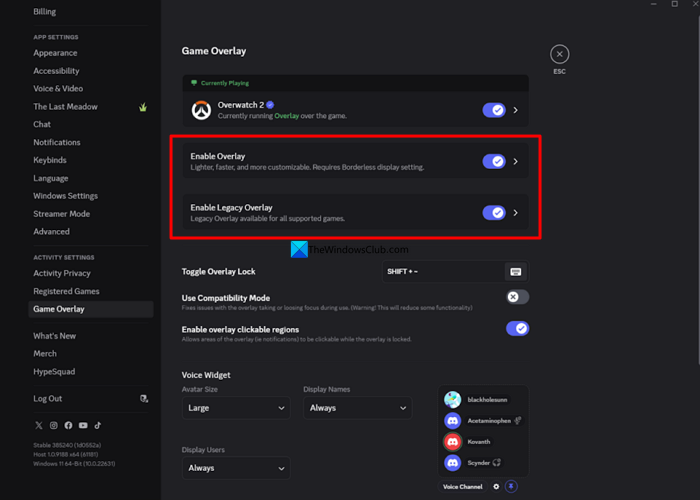
Overlays of certain apps like Discord, Screen recorders, NVIDIA, etc., prevent screenshots from saving on the local drive, and automatically upload them to their services on your account. If you have gaming apps or any apps with overlay enabled on your PC, disable overlay to take screenshots normally.
Additionally, if you have installed apps that let you take and edit screenshots, they prevent you from using the Print Screen key or other keyboard shortcuts until you open the app. Make sure you have opened the third-party screenshot-taking app before you try keyboard shortcuts.
Read: Free Screen Capture Software For Windows 11
7] Run SFC scan
If you cannot take screenshots on your Windows PC yet, there might be a system-level issue. Some system files may be missing or corrupted, making it hard to take screenshots. Running an SFC scan on your PC can help you find the issues and fix them automatically. Open Command Prompt as an administrator, then type the following command and press Enter.
sfc /scannow
8] Contact your organizational admin
If your Windows device is managed by your organization, they might have disabled screenshot capture for security reasons. You need to contact your organization’s admin to have it enabled.
Read: Snipping Tool keeps taking screenshots on Windows 11
How do I enable screenshots in Windows 11?
Screenshots on Windows 11 are enabled by default. You need to press the Print Screen key or the Fn + Print Screen key. It captures the entire screen. Then open the Paint app, paste it there, make changes, and save it to your PC. Alternatively, you can use the Win + Shift + S keyboard shortcut to open Snipping Tool options to take a screenshot.
Why is my PC not letting me screenshot?
If you are unable to take screenshots on your PC, it might be due to gaming app overlays, key disabling or remapping or screenshots being saved to an unknown folder automatically. If any third-party screenshot apps are installed on your PC, they override the default keyboard shortcuts for screenshots and won’t let you take a screenshot until you open the app.
Related read: Snipping tool locked up, freezes, or crashes in Windows 11.
