


A few users have recently reported that their folder customizations are no longer working in Windows 11. For some, custom folder icons are not appearing in File Explorer, while others find that localized folder names are no longer displayed in their preferred language. Instead, folders show their original names and default icons, even though the customization settings are still in place.
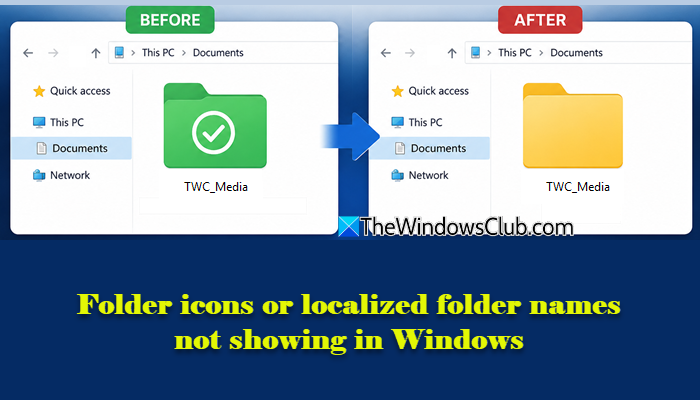
For most users, the issue began appearing after a recent Windows update. If you are experiencing the same problem, don’t worry. In this guide, we will explain why this happens and show you how to resolve the issue.
Why are folder icons or localized folder names not showing in Windows 11?
Before we explain how to resolve the issue, it is important to understand why it occurs. What may appear to be a bug at first is actually the result of a security hardening change introduced by Microsoft as part of the June 2026 Windows security updates.
According to Microsoft, starting with the security updates released on or after June 9, 2026, Windows performs additional trust checks before processing Desktop.ini files, which are commonly used to define custom folder icons, localized names, infotips, etc. If Windows cannot verify that the source of a Desktop.ini file is trusted, it ignores the file and behaves as though it does not exist. Desktop.ini files from trusted sources continue to work normally.
Examples of sources that Windows may treat as untrusted include:
- Files downloaded from the internet that carry the Mark of the Web (MOTW).
- Files copied from certain remote locations, such as some WebDAV or HTTP-based locations.
- Files stored on network paths that are not classified as intranet or trusted by Windows zone policies.
While this change does not affect access to the folder or the files stored inside it, it may prevent custom folder icons and localized folder names from appearing. If you rely on these customizations, you can restore the previous behavior using one of the methods described below.
Folder icons or localized folder names not showing in Windows 11
If folder icons or localized folder names are not showing in Windows 11, use these fixes:
- Add the source to Trusted Sites
- Restore the default behavior using Group Policy
- Remove the Mark of the Web (MOTW) from the Desktop.ini file
- Clear Icon cache
- Run System File Checker.
Let us see these methods in detail.
1] Add the source to Trusted Sites
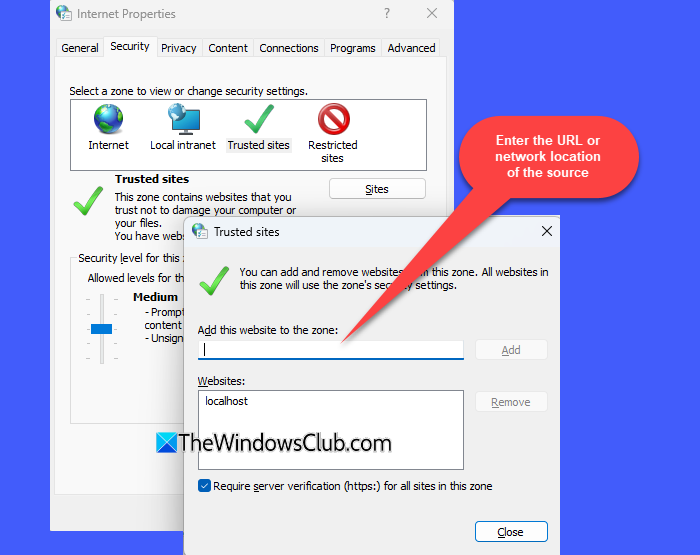
This solution is mainly intended for organizations and users whose folders are stored on network locations or managed internal resources. If your customized folder is stored locally on your PC, you may not need this fix.
To restore custom folder icons or their localized names, add the source of the affected Desktop.ini file to the Trusted Sites list (source refers to the location from which Windows is accessing the file). Once the source is treated as trusted, Windows processes the file normally, and the custom folder icon or localized folder name should appear again.
Type ‘Internet Options‘ in the Windows Search bar. Click Open next to the search results.
Switch to the Security tab in the Internet Properties window. Select Trusted Sites under ‘Select a zone to view or change security settings’. Then click Sites.
In the Trusted sites window, enter the URL or network location of the source and click Add. Click Close and then OK.
Restart File Explorer and check if the folder customization has been restored.
2] Restore the default behavior using Group Policy
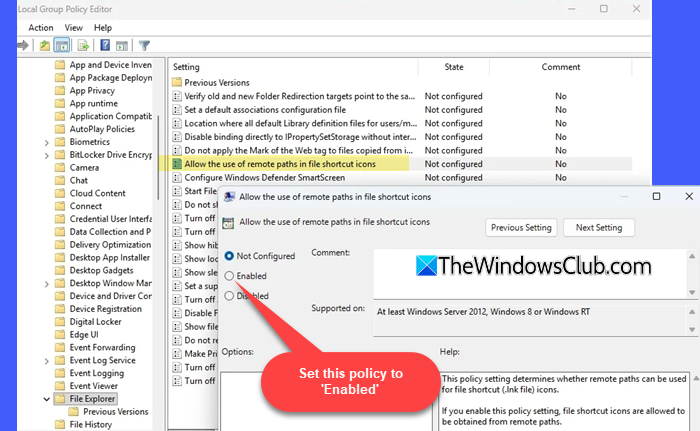
Administrators can restore the default folder behavior by enabling the Allow the use of remote paths in file shortcut icons policy through the Group Policy Editor. This policy instructs Windows to process folder customizations from remote locations, even when those locations would otherwise be considered untrusted.
Press Win + R, type gpedit.msc, and press Enter. Navigate to the following path in the Group Policy Editor window:
Computer Configuration > Administrative Templates > Windows Components > File Explorer
Locate Allow the use of remote paths in file shortcut icons in the right pane. Double-click the policy and select Enabled.
Click Apply and OK. Restart your computer.
Note:
- Enabling this policy reduces protection against potentially malicious remote content. Before enabling it, ensure that the affected network locations are controlled and trusted. Keep the scope of trust as limited as possible and avoid organization-wide exceptions unless necessary.
- The policy can also be configured through the Registry by using the EnableShellShortcutIconRemotePath value. However, this value is primarily intended for shortcut (.lnk) icons. Custom folder icons and localized folder names are stored in Desktop.ini files. Shortcut icons, on the other hand, are stored in the shortcut (.lnk) file itself and do not use Desktop.ini.
3] Remove the Mark of the Web (MOTW) from the Desktop.ini file
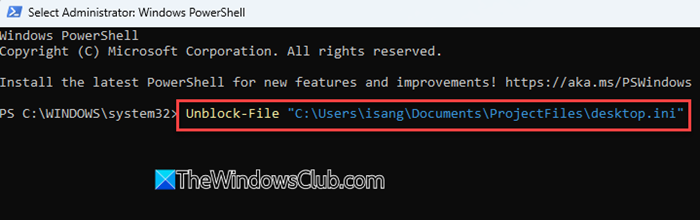
Mark of the Web (MotW) is a security label that Windows attaches to files downloaded from the internet or other untrusted sources. It helps Windows identify potentially unsafe files and apply additional security restrictions when they are opened or used. If a Desktop.ini file has a MotW tag, Windows may ignore it and prevent custom folder icons or localized folder names from appearing. If you trust the file source, you can remove the MotW tag using PowerShell.
Open PowerShell by searching for it from the Start menu and selecting Run as administrator. Then run the command below.
For a single Desktop.ini file, run:
Unblock-File "C:\Your\Folder\Path\desktop.ini"
For all Desktop.ini files in a folder and its subfolders, run:
Get-ChildItem "C:\Your\Folder\Path" -Recurse -Filter desktop.ini -Force | Unblock-File
After removing the MotW tag, restart File Explorer or sign out and sign back in to Windows.
Note: Only remove the MotW tag from files that come from a trusted source, as doing so removes the associated security protection.
4] Clear Icon cache
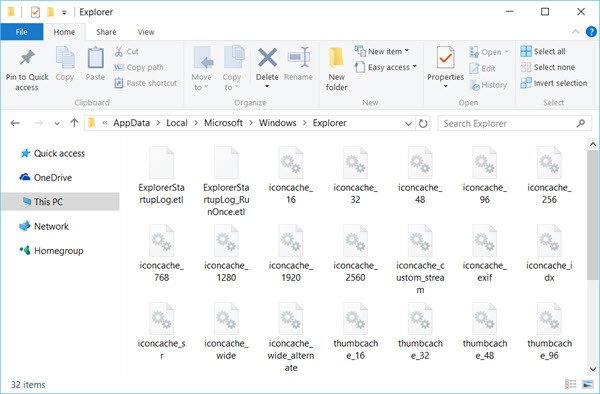
You should also clear the Icon cache and see if that helps.
5] Run System File Checker

Run the System File Checker scan to replace potentially damaged system files and see if that helps you.
I hope this helps.
Read: Folder and file names are not showing in Windows.
Why are my folder icons not showing?
Folder icons may stop showing on your system for several reasons. The icon cache may be corrupted, or the icon file may be missing. In some cases, Windows may also stop displaying custom folder icons after a security update changes how folder customizations are handled.
How do I fix icons not displaying?
If desktop icons are not showing on your Windows 11 PC, check that the icon file exists and that the folder settings are correct. You can also rebuild the icon cache and restart File Explorer. If the issue started after a recent Windows update, follow the fixes explained in this post.
Read Next: How to fix Broken Icons in Windows.
