



If there’s one thing that’s almost inevitable after you’ve used a smart TV for a few years, it’s the slowdown. And it’s hard to miss because most smart TVs aren’t that powerful to start with. But the thing is, it’s not always the hardware that’s to blame. After all, it’s the same hardware that your TV had when you first bought it.
I’ve experienced this exact problem with my 3-year-old TCL Google TV. But since the slowdown wasn’t caused by the hardware, I was able to fix it with a few simple tweaks.
Years of clutter was weighing my smart TV down
A quick cleanup made a huge difference
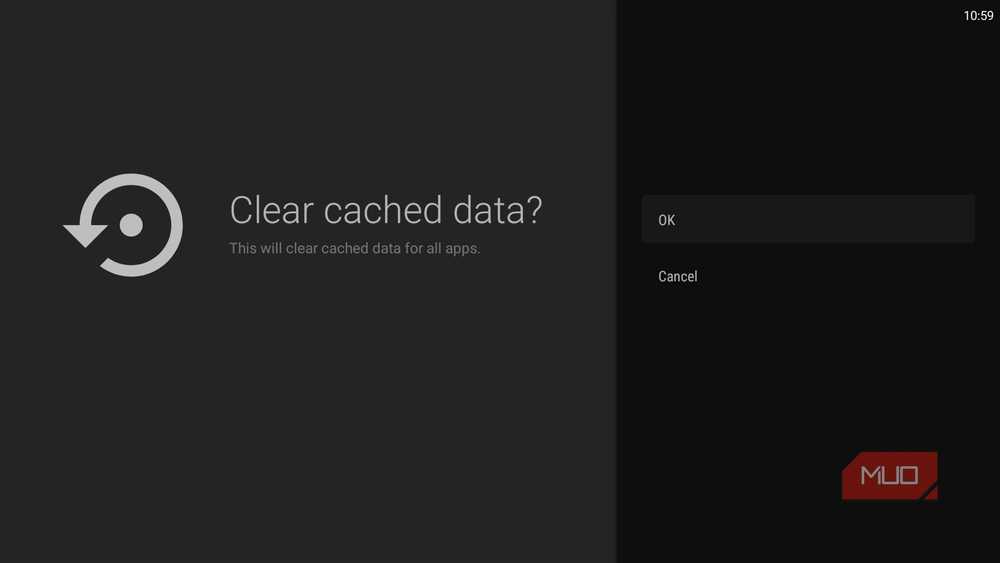
The more you use your smart TV, the more cache it collects. And to be fair, that cache is actually what allows your smart TV and its apps to load the same things over and over again without having to grab them from servers every time. But that only works up to a point. Once that cache gets outdated or corrupted, it can do more harm than good.
That’s also why Android TVs still include an option to clear the cache for all apps at once. To use it, head to Settings > System > Storage > Internal shared storage > Cached data > OK. That’s all it takes, but you shouldn’t stop here. From the Storage menu, head to Apps > See all apps and go through the entire list. If you see apps that you no longer use or need, delete them. And if you come across apps that don’t have an uninstall option, you can still get rid of them using ADB TV.
This will do two things. First, it’ll stop those apps from using any system resources. Second, it’ll free up storage space on your TV, which affects the performance more than you think.

- OS
-
Android TV OS
- Price model
-
Free, Pro version available
ACR was affecting more than just my privacy
The tracking feature everyone should disable

ACR (short for Automatic Content Recognition) is a feature that most smart TVs have. I won’t blame you for not knowing about it because it works entirely behind the scenes. Manufacturers basically use ACR to monitor your viewing habits and serve targeted ads. In fact, most budget TVs rely as much on this data collection as they do on hardware sales. It’s a privacy nightmare, but that’s not the only issue with it.
The way this feature works is by constantly analyzing your TV’s pixels and matching that data against the manufacturer’s database to identify what you’re watching. And this doesn’t happen only when you’re streaming. Even when you’re watching cable TV or gaming on your PS5, ACR is still active.
In a sense, it’s like your TV is taking screenshots every few seconds and matching them with a database, which, of course, requires processing power. And above all, ACR doesn’t actually benefit you in any way, which means there’s no reason to leave it on.
To turn it off on an Android TV, head to Settings > Privacy > Usage and diagnostics and turn off the toggle. Similarly, you can disable ACR on most other smart TVs, but the steps can vary.
The home screen was doing far more than I cared about
Replacing the default launcher made everything feel better
Most smart TV home screens are very different from the ones we have on our phones. They’re often packed with recommendation rows, autoplaying previews, sponsored content, trending shows, and what not. The obvious downside of all of this is they make the home screen distracting and difficult to navigate. But the bigger issue is that loading those previews and recommendations also takes resources, which can slow things down. And that slowness is easily noticeable if your TV is a few years old.
But the good thing is that there’s an easy fix. All you have to do is replace the default interface with Projectivy Launcher. It’s a free app that gives you a clean, distraction-free home screen. All you see is your apps and a couple of other sections. There are no recommendations or trailers that autoplay the moment you land on them. This makes the entire home screen experience feel snappier. Even better, you can customize the home screen with custom backgrounds, themes, icons, and a lot more.
If your TV still feels a bit sluggish, especially while opening menus or switching between apps, you can also reduce the animation speeds or turn them off entirely. It’s a classic trick that works on all Android devices, including smart TVs. For this, you need to unlock the Developer Options menu on your Android TV and tweak the Window animation scale, Transition animation scale, and Animator duration scale.

- OS
-
Android TV, Google TV
- Pricing model
-
Free, Pro version available
The usual performance tweaks are still necessary
The above tips are genuinely useful, but they don’t replace the basics. The most important one is restarting your TV regularly. And no, simply pressing the power button doesn’t cut it. Most TVs only enter standby mode when you do that. You either need to perform a reboot from the settings menu or unplug and replug your TV’s power cable.
Another thing you need to do is keep your TV’s software up to date. These updates often include performance improvements and bug fixes that can speed things up.
