

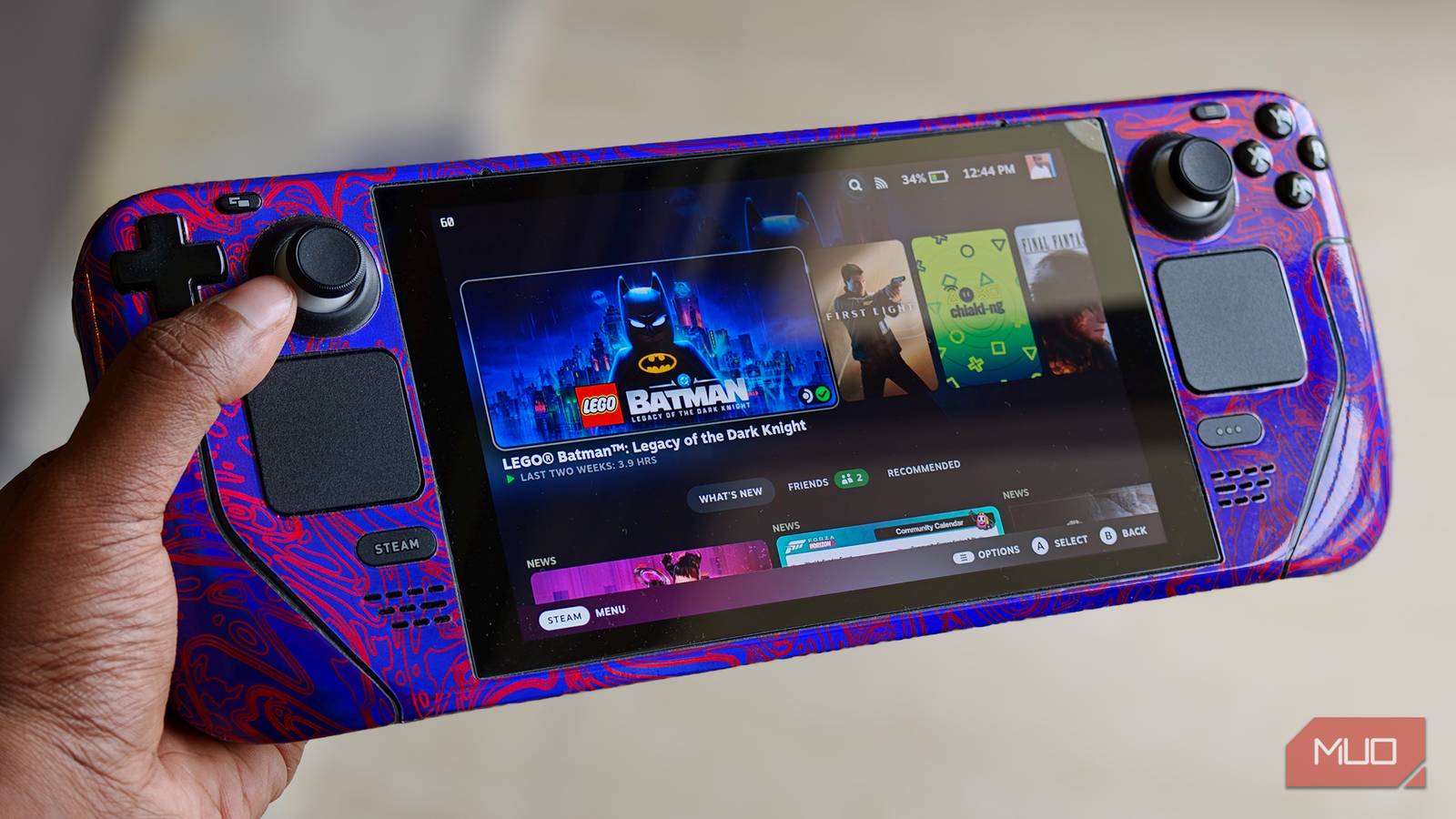

The Steam Deck is one of the few pieces of hardware I’ve owned where the software feels almost as considered as the hardware itself. Gaming Mode is quick, the interface makes sense on a handheld, and Valve clearly put real thought into how you actually use the thing on a couch. But the more time I spent with it, the more I kept running into small gaps, the kind of things I assumed it would just do on its own, and didn’t.
The fix for nearly all of them is Decky Loader, a community-built plugin platform that adds a small store right inside the Quick Access menu. Once it’s set up, you tap a plug icon, browse the catalog, and install what you want with a single press. What struck me as I added these was how few of them feel like hacks. Most of them feel like features that should have been part of SteamOS from the start. These are the eight I personally use.
Install Decky Loader first
Everything else lives behind one plug icon

Before any of this works, you’ll need Decky Loader, and it’s the only piece you install by hand. To do this:
- Switch to Desktop Mode
- Head to the official Decky Loader page
- Run the installer.
That’s the extent of the fiddly part. Back in Gaming Mode, you’ll find a new plug icon sitting in the Quick Access menu, and tapping the shop icon inside it opens the full plugin catalog. There’s one caveat worth stating up front, because it shapes how you should treat everything below. Decky and the plugins it loads are made by the community, not Valve. A SteamOS update will occasionally knock a plugin offline until its developer pushes a fix, so it’s worth sticking to the official source for Decky itself rather than a mirror, and not building any critical part of your setup around a single plugin.
Reskin the interface with CSS Loader
The customization SteamOS keeps to itself

CSS Loader is the one I’d keep if I had to strip my list down to a single plugin. It comes with its own small theme store, and it lets you rework how SteamOS looks in ways the built-in settings never allow. I run a theme that rounds off the corners of the game tiles, which sounds trivial until you’ve spent a few months looking at the sharp default boxes. There’s another I keep on that swaps the battery icon for a plain percentage readout, so I can tell at a glance whether I’ve got twenty minutes left or a couple of hours.
That barely covers what it can do. You can blow up the home screen, so your recent games fill most of the display with large background art, or rework the layout entirely to suit how you browse. It’s the closest the Deck gets to proper personalization, and it’s a little strange that it sits in a community plugin rather than the settings menu.
Stop guessing how long a game will take with HLTB
Know what you’re committing to before you start

On a handheld, my gaming time comes in short, unpredictable bursts, so the last thing I want is to start something only to realize it needs a forty-hour run I’m never going to finish. HLTB, short for How Long to Beat, solves that by pulling average completion times straight onto a game’s library page. You get a figure for the main story, one for the story plus extras, and a completionist time for anyone chasing everything.
That single number changes how I pick. If I’ve got a busy weekend, I’ll reach for a tidy six-hour game I can actually see through rather than sink the session into something I’ll abandon.
The deep settings, the stock sliders won’t give you

The Deck’s built-in performance controls are fine for quick adjustments, but PowerTools is where I go when I want to properly tune how the machine behaves. You can set the number of active CPU threads, cap clock speeds, and toggle SMT, going well past what the stock sliders expose.
The part I rely on most is the way it saves settings per game. You open PowerTools while a game is running, dial in the settings you want, and save a profile. From then on, those settings come back every time you launch that title, and a different game loads its own saved profile instead. That’s the bit that makes it click for me. A heavy 3D game and a lightweight 2D indie have completely different needs, and being able to clamp one down while letting the other stretch its legs makes a real difference in both heat and battery life. It takes a little reading to get comfortable with, but it does far more than the built-in options ever have.
See what actually runs with ProtonDB badges
Compatibility ratings without opening a browser

Not every game runs cleanly on the Deck’s Linux base, and ProtonDB is the community resource that tracks how well each one behaves. ProtonDB Badges pulls that rating directly onto the game’s page, so you see a status badge that runs from borked at the bottom up to platinum for games that work perfectly out of the box.
Before this, checking compatibility meant opening a browser, finding ProtonDB, and searching the game by hand, which is a real chore on a device with no second screen. Now the verdict is sitting right there on the page, so I know whether something like LEGO Batman: Legacy of the Dark Knight is a safe bet on the Deck before I even start it, and tapping the badge opens the full breakdown if I want the detail. It’s a small addition that saves me a genuine hassle almost every time I’m browsing the store.
Track your real playtime with PlayTime
A clearer picture than Steam’s own counter

Steam tracks playtime in the broadest sense, but PlayTime goes further by breaking down where your hours go. It shows when you last played a game, how many minutes you’ve put into the Deck on a given day, your daily average, and a per-day breakdown across the week, on top of the running total for each individual game. It also covers non-Steam games, which Steam’s built-in counter quietly ignores.
It’s the plugin I open when I’m in a reflective mood about whether that impulse-bought roguelike was worth it, and the honest answer is usually that I’ve sunk far more hours into it than I’d own up to. It won’t change how you play, but for anyone who likes knowing exactly where their gaming time goes, it scratches an itch the native stats never quite reach.
Borrow your PC’s power with MoonDeck
Streaming from your big rig, properly integrated

My desktop has far more headroom than the Deck ever will, and MoonDeck is how I lean on it. It works with Moonlight and Sunshine to stream games from a host PC, and it stitches the result into Gaming Mode, so a streamed game behaves almost like a native library entry rather than something you launch through a separate, clunkier app.
When the network cooperates, I can sit on the couch and play something off my desktop’s GPU at settings the Deck couldn’t manage locally. The setup asks for a bit of patience, since you’re configuring the streaming host on the PC side as well, but once it’s dialed in, the Deck effectively borrows a much stronger machine.

- Brand
-
Valve
- Screen
-
7-inch touchscreen (1280 x 800, 16:10)
- Processing Power
-
AMD RDNA 2 with 8 Compute Units, up to 1.6 GHz
- CPU
-
AMD Zen 2: 2.43.5 GHz
Steam Deck is a portable PC gaming handheld that runs your Steam library on the go, offering a 7″ touchscreen, high-performance AMD chipset, and built-in controls. It supports full PC games, customizable settings, and optional external display output — delivering console-like convenience with PC-level flexibility.
This is how the Deck should ship
None of these are hacks, and that’s the whole point. They’re the small, sensible things I kept expecting the Deck to do on its own, and once they’re in place, the handheld finally feels complete rather than just very good. Decky makes them a one-tap install, so the only real cost is a few minutes in Desktop Mode and the occasional patch wait after a SteamOS update.
