

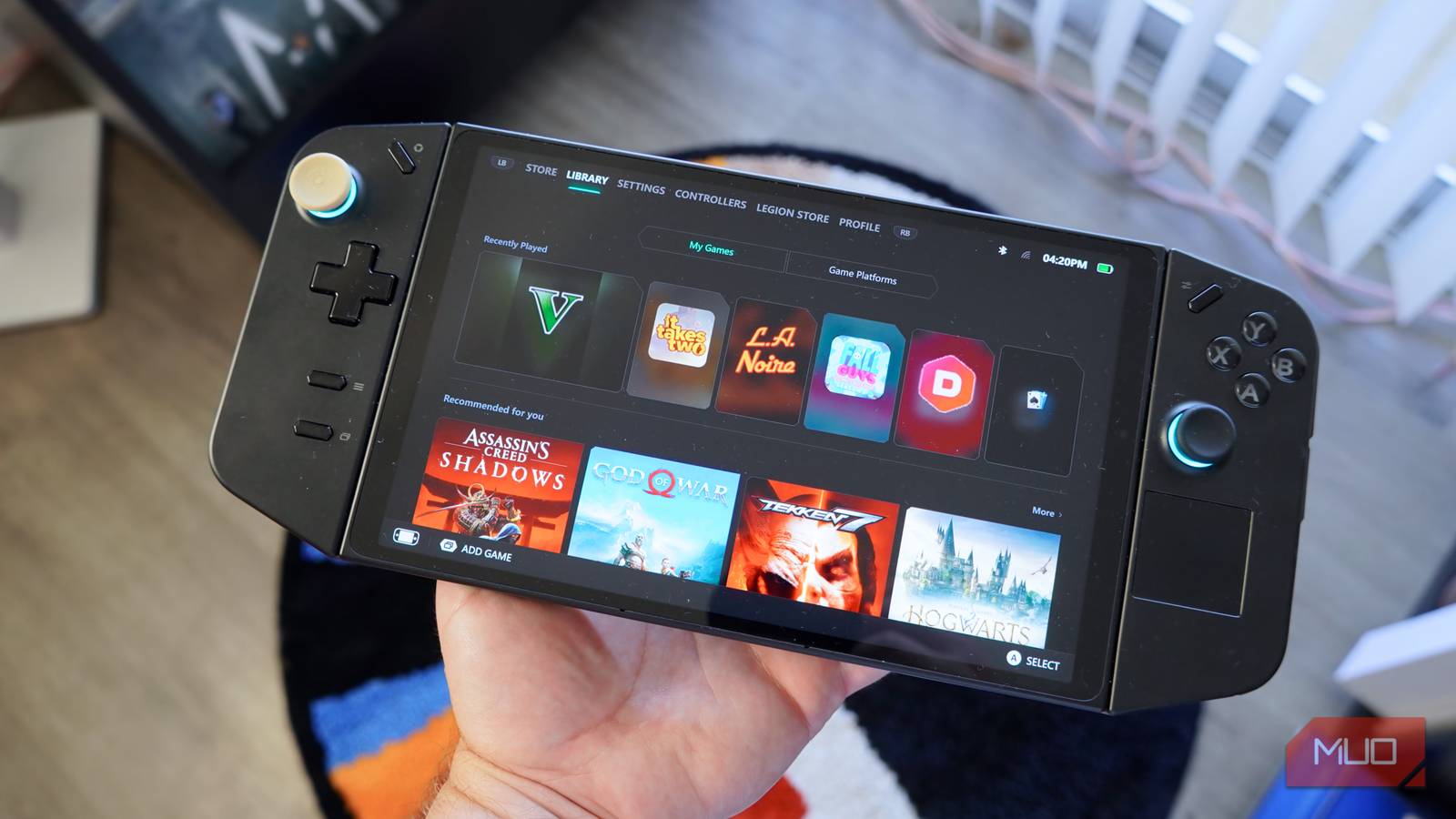

Gaming handheld buyers gravitate toward the Steam Deck, and the PC hardware inside isn’t the reason. Both the Steam Deck and Steam Deck OLED are powered by years-old hardware, and handhelds from Lenovo, MSI, and Asus offer newer chips. To use something like the Asus ROG Ally or Lenovo Legion Go instead, you need to use Windows 11, and that’s the hang-up for most people. Valve nailed Steam Deck software with SteamOS, but Windows-based gaming handheld software doesn’t have to be terrible.
I switch between a Steam Deck, Asus ROG Ally, and Lenovo Legion Go — and I finally found the Windows launcher app fit to challenge SteamOS. It’s Legion Space, the official Lenovo launcher I mostly ignored for months on my Legion Go. Now, it’s my go-to way of launching and streaming games on my PC handheld.
I own 3 PC gaming handhelds, and this is the one I barely use
Until Linux gets serious about multiplayer gaming, my Steam Deck will collect dust while I play on my Windows gaming handhelds instead.
Legion Space is handy for launching games
It pulls from all the top digital storefronts, and can handle cloud gaming
SteamOS is based on Linux, and it has a traditional desktop environment just like Windows 11. The difference is that you never have to see it on a Steam Deck, because the device boots into the “Gaming Mode” of SteamOS — a controller-friendly UI optimized for gaming handhelds. There isn’t a direct competitor available for Windows handhelds, although Microsoft’s Xbox mode and Valve’s own Steam Big Picture mode certainly try.
Lenovo’s gaming handhelds stand out amongst the competition with their large, high-refresh-rate screens and detachable controllers. They also include software that deeply integrates with Legion Go hardware, namely the Legion Space app. It’s the default method for launching apps, changing settings, and monitoring your Legion Go handheld. There are two physical buttons on Lenovo’s controllers that launch Legion Space’s full-screen interface or the compact Quick Menu sidebar when pressed.
I can launch Legion Space or the Quick Menu from anywhere using these hardware buttons, and as a Steam Deck user, the experiences feel surprisingly similar — only the Lenovo alternative is more versatile. Legion Space rounds up all the gaming platforms and services you’d ever need to play on your handheld, from Steam and the Epic Games Store to Xbox Game Pass.
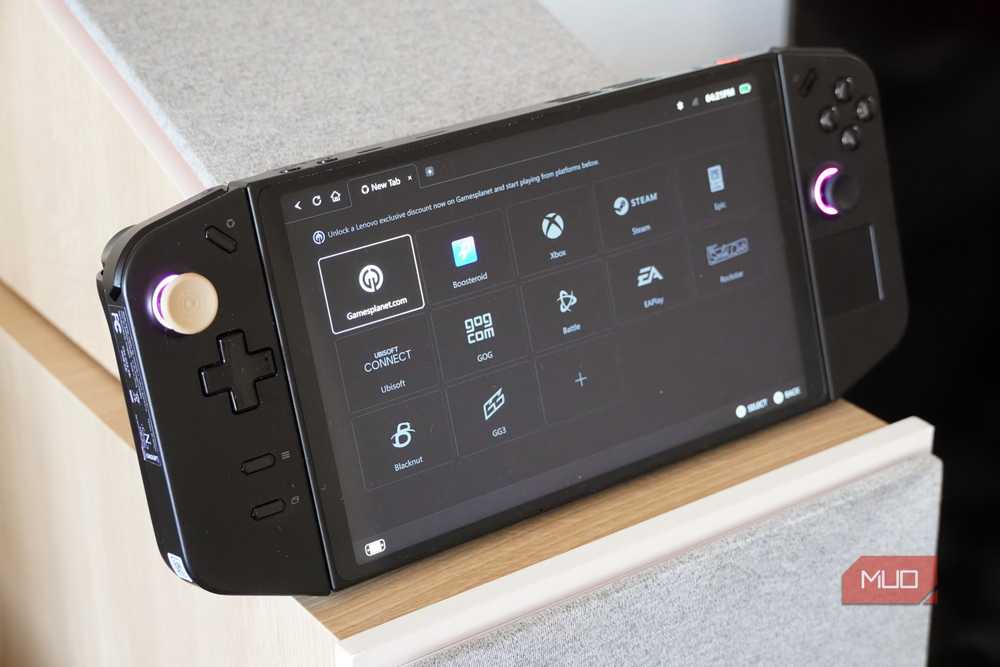
Better yet, it’s built around cloud gaming and game streaming. Press the cloud gaming button in the Store tab of Legion Space, and you’ll jump into a lightweight browser with direct links to the service of your choice. There are 12 cloud gaming platforms ready to go in Legion Space by default, and you can always add another if it’s not there. SteamOS is more locked down, whereas Legion Space can launch or stream your games from virtually any service.
I can load individual games or platforms like Steam directly from Legion Space without ever seeing the Windows 11 desktop, and it’s similar to the Steam Deck experience people love.
Adjust settings without leaving the app or game you’re running

Even if you find the Legion Space launcher to be cluttered, you’ll probably end up using the Quick Menu. It’s activated by pressing the top button on the right controller, and it opens an information-dense sidebar. You can change key settings here, like brightness and volume levels. More importantly, there are easy toggles for adjusting the resolution or refresh rate. One of the Lenovo Legion Go’s highlights is its 144Hz refresh rate, but it runs in 60Hz mode by default.
By opening the sidebar and tapping a few buttons, I can ensure my Legion Go display is showing the highest possible resolution and refresh rate. It’s a performance monitor, too. The Quick Menu, powered by Legion Space, will show usage stats for your handheld’s system resources. Based on what you can see, the power and performance settings can be adjusted on the fly. Since this is an overlay, you can find and change these settings from anywhere — just like the Steam Deck equivalent.

Legion Space is still just a wrapper for the Windows 11 operating system running underneath, but it’s one that simplifies the experience. It makes using my Legion Go just as convenient as using my Steam Deck, even when relying on touch and controller input.
Legion Space has one critical flaw
It’s loaded with ads, and that may be a deal-breaker for some

There’s one thing I dislike about Legion Space, and it’s the app’s ads. Open the launcher, and you’ll start on the Store page. The entire point of this page is to sell you both digital games and hardware accessories. If that wasn’t enough, there are more game ads on the Library page. There’s even a dedicated Legion Store page exclusively reserved for Lenovo Legion accessory purchases. At times, the app feels like it’s always trying to sell me something — and I already shelled out for my Legion Go handheld in the first place.
If the Legion Space app was lighter on the ads, it’d be perfect. The app still makes my Windows 11 gaming handheld feel like a true Steam Deck competitor, and I always use it to launch games on my Legion Go.

- OS
-
Windows 11
- Developer
-
Lenovo
- Pricing model
-
Free
- Useage
-
Manage games and resources
Legion Space is a Lenovo app designed for the brand’s gaming desktops, laptops, and handhelds. It runs excellently on the Lenovo Legion Go, Legion Go S, and Legion Go 2. After setup, you’ll rarely need to use the Windows 11 desktop environment on your PC gaming handheld.
