

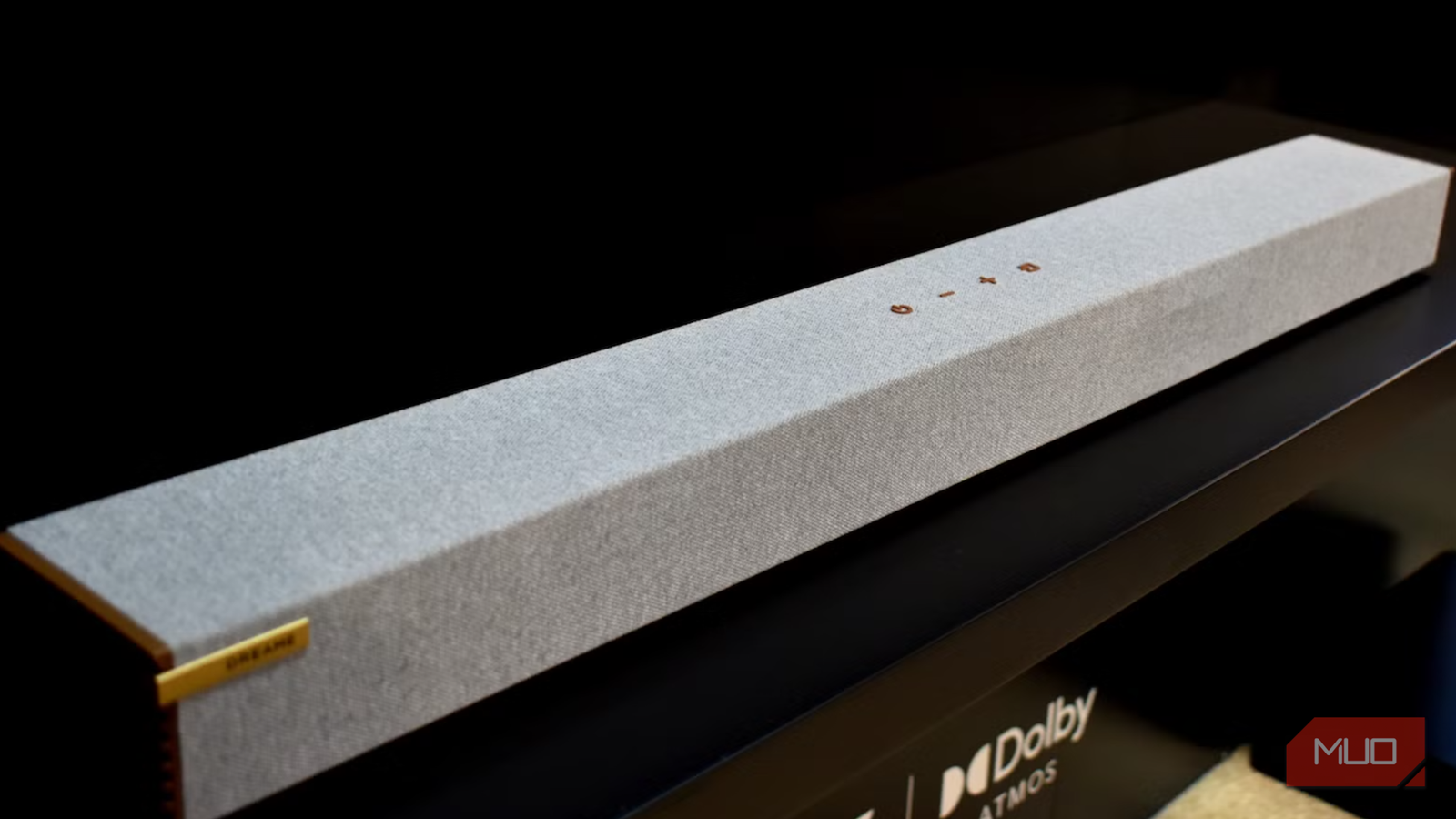

I bought a Dolby Atmos soundbar last year, ran the setup wizard, watched the little animation showing sound moving around my living room, and figured I was done. For months, I sat through movies that sounded fine but never quite lived up to the “object-based audio” pitch. No overhead rain, no helicopters actually passing overhead, nothing that split the difference between “loud” and “immersive.” I assumed my room was just too small, or that Atmos on the often troublesome streaming services was overhyped.
Then a friend asked what my TV’s audio output was set to, and I didn’t have an answer. I dug into the sound settings and found it: buried two menus deep, my TV had been set to output stereo PCM audio over HDMI the entire time. Every Atmos track from every app was getting flattened into two channels before it even left the TV. My soundbar had never once received an actual object-based audio stream.
I switched it to bitstream pass-through, put on a movie I’d already seen twice, and just about missed the difference while checking my phone. Then something crashed behind me. Actually, behind me, not just loud — I turned around before I caught myself. That’s when it clicked that this soundbar had been sitting there for months doing basically nothing.
Why your TV might be silently downgrading Dolby Atmos to stereo
The Atmos badge still shows up even when it’s lying to you
Most TVs default to stereo or basic PCM over HDMI, because that’s what works with everything — an old soundbar, a cheap TV speaker, whatever someone’s had plugged in since 2015. It’s a compatibility setting dressed up as a sound setting, and nobody adjusts it because nothing on screen tells you it’s wrong. The Atmos badge still shows up. The app still says Atmos. Your TV just isn’t sending it.
The problem is that this “safe” setting doesn’t announce itself. Your TV still shows a Dolby Atmos badge on the movie you’re playing. The app still reports Atmos in its info panel. Nothing on screen tells you the actual audio leaving your HDMI port has already been mixed down to stereo before it reaches your receiver or soundbar. You only find out by digging into a settings menu most people never open after the initial setup wizard.
There’s also eARC to worry about. It’s the HDMI connection standard with enough bandwidth for a full Atmos bitstream, but only if you’re on the right port, with a cable that actually supports it, and eARC is enabled and negotiating properly on both ends. Miss any one of those, and you land right back where I was: real Atmos hardware on both sides of the cable, playing stereo the whole time and giving no indication why.
How to turn off stereo-only audio mode on every major TV brand
Samsung, LG, and Sony

The setting is almost always labeled something like “Digital Audio Output,” “HDMI Audio Format,” or “Sound Output,” and it’s usually found in Sound settings rather than anywhere near the picture or connection menus.
Samsung (Tizen TVs): Head to Settings -> Sound -> Expert Settings -> HDMI Input Audio Format. Some models bury the same setting under Digital Output Audio Format instead, inside Sound Output — Samsung isn’t consistent about where this lives from year to year. Either way, you want Dolby Digital+ or Pass Through, not PCM, and while you’re in Expert Settings, make sure eARC Mode is actually on.
LG (webOS TVs): Settings -> All Settings -> Sound -> Sound Out -> HDMI eARC/ARC is where you confirm eARC is enabled. Scroll down a bit further to Digital Sound Output and switch that from PCM to Auto or Pass Through — which label you see depends on how old your TV is.
Sony (Google TV models): This one’s annoying because Sony splits it across two separate menus. HDMI Signal Format lives under Settings -> Watching TV -> External Inputs, but eARC itself is a completely different path: Settings -> Sound -> Speakers -> HDMI eARC. Easy to fix one and assume you’re done.
Google TV / Android TV (non-Sony): Look under Settings -> System -> Audio -> Digital output. If you don’t see it there, try Device Preferences -> Sound instead — it moves around depending on the TV brand running the software. Switch it from PCM to Dolby Digital or Auto.
Roku TV: Try Settings -> Audio -> HDMI signal format first. A handful of Roku models don’t even have that menu — you just get a “TV speakers” or “external speakers” toggle, and that’s the whole setting. Auto-detection here is decent once eARC is confirmed on both ends, but I still went in and checked manually instead of trusting it.
Vizio (SmartCast): Settings -> Audio -> HDMI Output Options, then confirm the eARC or ARC port designation matches the physical port your soundbar is plugged into.
If your menu wording doesn’t match any of this exactly, look for anything mentioning PCM, bitstream, Dolby Digital, or Pass Through, and choose the option that isn’t plain PCM or stereo.
What changed after I fixed my Dolby Atmos setup
A few limitations worth knowing about

Action movies were the biggest jump — a proper Atmos mix went from generically loud to having stuff genuinely happening above and behind me. Cable didn’t change at all; obviously, there’s nothing extra baked into that signal to unlock in the first place. Weirdly, the category I noticed least was dialogue-heavy stuff. Two people arguing in a kitchen just doesn’t ask much of the overhead channels, so on a random Tuesday watching some sitcom, I probably wouldn’t clock the difference at all.
I also had to accept a few limitations along the way. My HDMI cable running to the soundbar was several years old and not officially rated for eARC, so I ended up replacing it, since a cable that can’t handle the bandwidth will silently cap you back down to stereo or a compressed format even with every setting correct. And not every app cooperates equally. A couple of streaming apps on my TV still default to stereo output regardless of the system-wide audio setting, so the fix has to happen at both the TV level and sometimes within individual app settings.
Worth the five minutes it takes
This is one of those settings that should probably default to auto-detecting the best format your hardware supports, but doesn’t, so it sits there quietly undoing the point of buying dedicated audio hardware in the first place. If you’ve got a soundbar or AVR that supports Dolby Atmos, and it’s never quite sounded like what the marketing promised, check this setting before you blame the room, the content, or the speakers themselves. There’s a decent chance your TV has been serving you stereo the whole time.
You might also be interested to know that your HDMI cable is what’s blocking Dolby Atmos in your home.
