

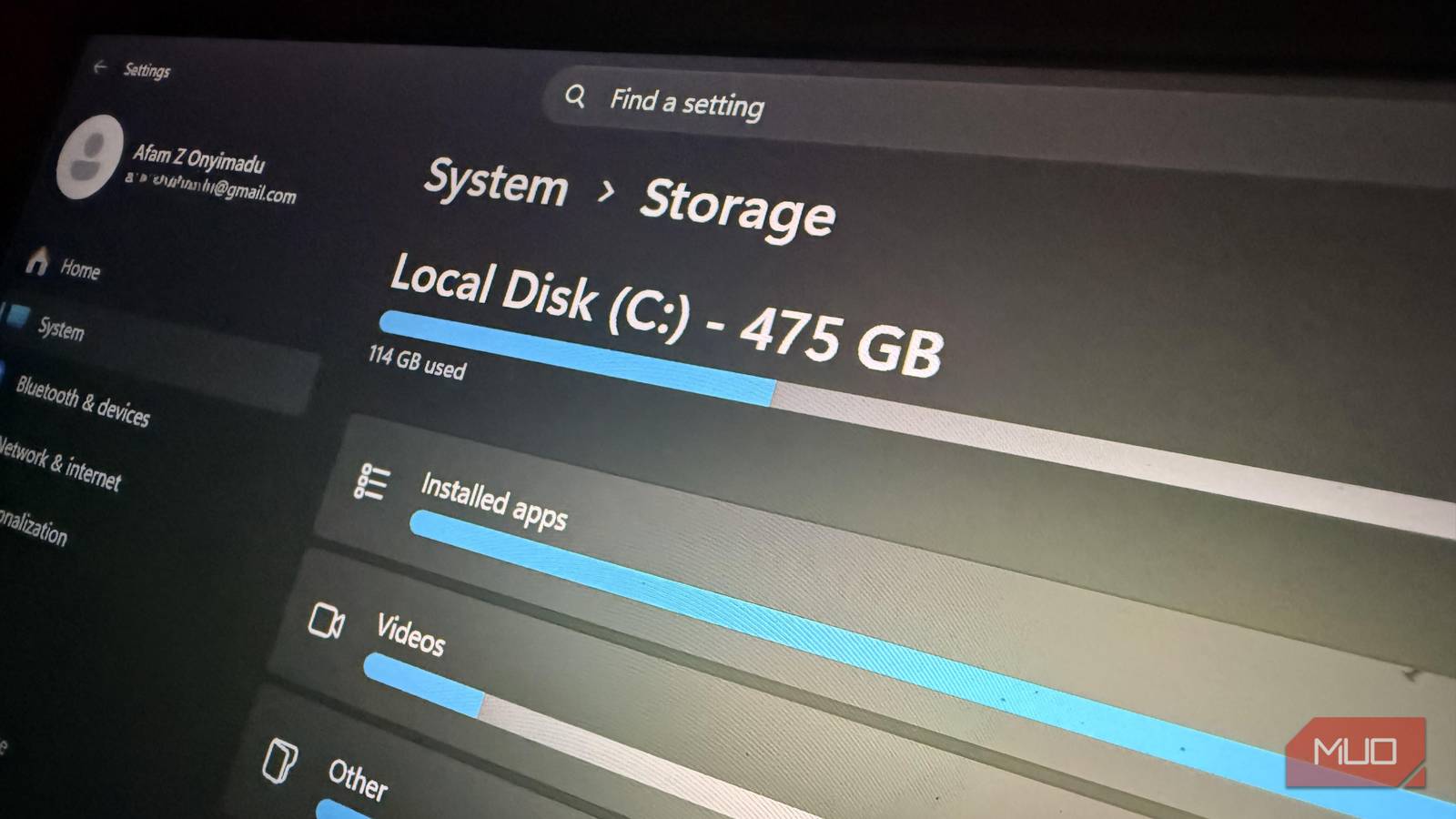

My C: drive was running out of free space, but the files I had on it did not match reality. I turned to the traditional cleanup tools but didn’t get great results. However, after running a single command, I recovered 11GB of storage that I didn’t think existed.
This happened without me deleting my documents, photos, downloads, apps, or anything personal. The command addressed the space that Windows’ recovery snapshots had consumed. It’s become one command I never overlook on a Windows installation when I’m running low on storage but can’t let go of any personal data.
The shadow-storage number File Explorer doesn’t show you
What vssadmin reported

I ran the command: vssadmin list shadowstorage and it revealed three numbers I’d never thought to check.
The most important of the three was “Used.” It stood at 11.47GB on my device. This number symbolized actual space shadow copies already occupied on the drive. The “Allocated” figure was slightly higher at 12.03GB, representing the amount currently allocated to shadow-copy storage.
The “Maximum” is an upper limit (23.85 GB here); it is not space already used but the potential amount Windows could occupy. So of all these, what was actually eating up storage was “Used.” My SSD is roughly 500GB, so 11GB is actually a big deal — enough space to put to use.
These figures don’t appear in File Explorer or Disk Cleanup. That’s why the sizes shown in File Explorer didn’t seem to match the drive’s actual free space. I could only get the full picture by running the vssadmin command (vssadmin list shadowstorage).
You can only run vssadmin from an elevated terminal because it requires admin privileges.
Those gigabytes were storing recovery history
What Windows was keeping in the shadow-copy storage

11.47GB belonged to shadow-copy data. The Volume Shadow Copy Service is a mechanism that the operating system employs to create point-in-time snapshots needed for System Restore (and the “Previous Versions” feature) to rebuild an earlier state of the system. The Volume Shadow Copy Service doesn’t duplicate the whole drive; it stores only changed blocks, allowing Windows to reconstruct previous points as needed.
Restore points may be created before events such as Windows Update and qualifying application installations; users and software may also create them. However, old restore points may remain on your system longer than you expect, gradually increasing “Used” space that doesn’t show up as a File Explorer folder you can simply empty.
If your “Used” figure is high, shadow copy storage is consuming more of your drive. A higher “Maximum” gives Windows more room to retain that history. However, lower numbers mean more free space on your drive but less recovery history if something breaks.
Windows intentionally reserves this space; whether to keep it depends on whether the recovery history is worth the space cost. For me, the answer was no.
I lowered the shadow-copy storage limit
One command, and the number actually moved
Here’s the command that I ran:
vssadmin resize shadowstorage /for=C: /on=C: /maxsize=2GB
The /for and /on flags point the command to the volume I’m trying to change, and /maxsize defines the ceiling I need to apply. This command doesn’t delete files; it changes the maximum storage the service can use.
However, lowering the limit may cause the system to discard some existing shadow copies. This pruning is expected behavior and isn’t the same as deleting personal files, documents, photos, or programs.
After the initial command had completed, I ran this command again vssadmin list shadowstorage. I was able to compare the effects before and after:
|
Metric |
Before |
After |
Change |
|---|---|---|---|
|
Used Shadow Copy storage |
11.47GB |
0.42GB |
11.05GB |
|
Allocated Shadow Copy storage |
12.03GB |
0.61GB |
11.42GB |
|
Maximum Shadow Copy storage |
23.85GB |
2.00GB |
21.85GB |
On my machine, Used dropped from 11.47 GB to 0.42 GB, freeing roughly 11 GB on the C: drive in just a few seconds.
Now, these numbers are from a specific machine. I ran the same command on a different machine and freed up just 5GB. Results will vary, but a high initial “Used” value often means you can reclaim significant space.
The trade-off was less recovery history
Once I ran that command, my older shadow copies were gone. The direct result is less rollback history than before. My drive was really tight on space, so this was a necessary step that didn’t require spending money or deleting data I still valued.
I set the maximum to 2GB, but you shouldn’t copy this value blindly. If you check your “Used” number first, it shows how much is being used right now. The data showed me that 2GB was a compromise I was willing to make: it gave me more free space while retaining some room for restore points.
