

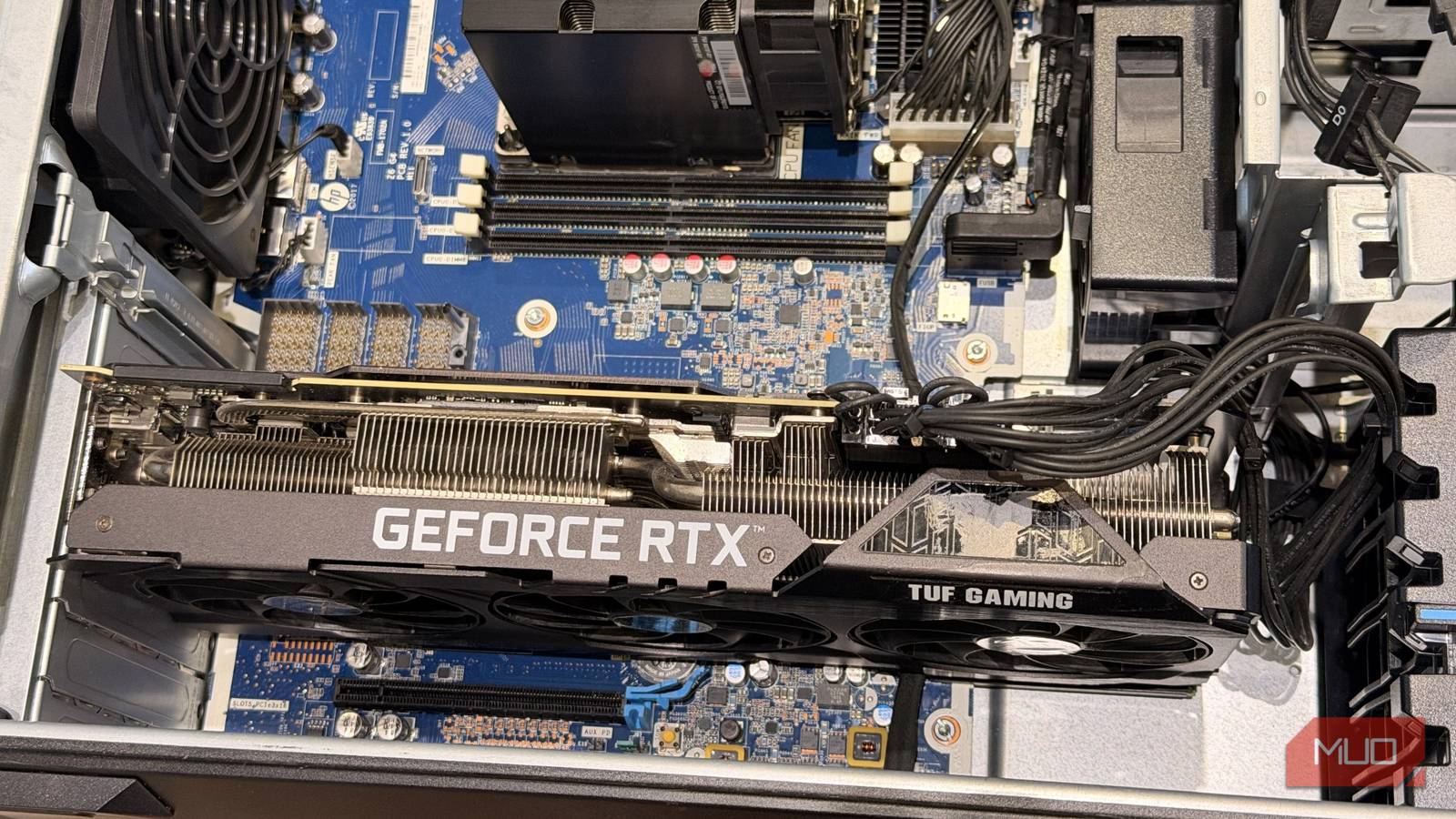

Now, the obvious tips and tweaks to get the most out of your PC include adjusting BIOS settings to change hardware-level configurations and Windows settings for OS-level optimizations. However, these are surface-level changes, and you can squeeze more juice from your system with some advanced adjustments.
Specifically, you can change how your GPU communicates with the CPU. Traditionally, it uses shared physical lines with other components, which come with their own limitations. Instead, you can let the GPU communicate directly with the CPU via MSI mode, not to be confused with the computer hardware brand.
What MSI mode actually does
It gives your GPU a direct line to the CPU instead of a shared one

The legacy method of communication between devices and the CPU is via IRQs, physical interrupt lines that handle multiple requests simultaneously. The CPU then sorts each request by its IRQ number and forwards it to the OS.
These interrupts are triggered by dedicated physical IRQ pins on your GPU, which then travel through a shared line to the CPU. Since a GPU is the fastest component on your system, using the shared line for interrupt messages adds slight latency and additional interrupt-handling work.
In contrast, MSI mode assigns a special memory address to signal an interrupt that is directly associated with the device. The GPU can signal the CPU directly, without going through the CPU’s shared interrupt-handling process, so you’ll have less CPU overhead and more efficient communication.
MSI comes in two variants: MSI mode and MSI-X. The difference is that MSI can handle only up to 32 vectors at a time, while MSI-X can handle up to 2048 independently configured interrupt vectors.
How to check if MSI mode is enabled for your GPU
AMD turns it on by default for most GPUs; Nvidia is hit or miss
MSI mode has been supported since PCI 2.2, but its implementation remains lacking. Nearly all modern AMD GPUs have enabled MSI mode by default. However, adoption of Nvidia GPUs remains inconsistent. Even with the newer RTX cards, some are shipped with MSI mode while others aren’t. The reason is hardware support and compatibility, but enabling MSI mode doesn’t cause compatibility issues for the most part.
- To find out if MSI mode is enabled or not, follow these steps:
- Open Device Manager.
- Select Display Adapter and select your GPU.
- Select Properties and go to Details.
- In the Properties, select Device Instance Path and copy the address.
Device Manager doesn’t show whether your MSI mode is enabled. To check, head to the Registry Editor, where this key is located.
- Open Registry Editor.
-
Paste this address:
HKEY_LOCAL_MACHINE\SYSTEM\CurrentControlSet\Enum\PCI. - Find your GPU entry by pasting the device instance path from the Device Manager.
- Now, go check Device Parameters -> Interrupt Management -> MessageSignaledInterruptProperties -> MSISupported.
- Check the value; if it’s 0, it’s disabled; change it to 1 to enable.
I highly recommend backing up your registry settings before making any changes, no matter how big or small, since one mistake can cost you dearly, in which case a Windows reinstall becomes almost necessary.
MSI mode alone doesn’t make a difference; you have to change interrupt priority too
The performance difference is substantial

Even if MSI mode is enabled, you can still improve performance, since it alone doesn’t change interrupt priority. You can do that with a small Windows tool called MSI Utility v3. After downloading, open the application as an admin, select your GPU, and change the interrupt priority from undefined to high, so Windows can service those interrupts ahead of everyone else.
While you’re guaranteed to get an FPS boost with the MSI interrupt priority set to high, the real improvement lies in frame times and 1% lows. I tested two different games with MSI mode interrupt priority set to high, then without it, to check the difference, and I was astonished by the results. Here’s what I got:
|
Game |
Average FPS |
Minimum FPS |
Maximum FPS |
Average FPS (Interrupt Priority High) |
Minimum FPS (Interrupt Priority High) |
Maximum FPS (Interrupt Priority High) |
|---|---|---|---|---|---|---|
|
Assassin’s Creed Black Flag Resynced |
55FPS |
19FPS |
71FPS |
59FPS |
42FPS |
75FPS |
|
Apex Legends |
125FPS |
65FPS |
145FPS |
140FPS |
95FPS |
150FPS |


The minimum FPS increase in Assassin’s Creed Black Flag Resynced was substantial, which I wasn’t expecting. In Apex Legends, I started noticing fewer stutters and frame drops, and the game felt smoother; I no longer experienced visual lag in open areas.
Conclusion
For Nvidia users, I highly recommend checking whether MSI mode is enabled, because even if Nvidia keeps it disabled most of the time, you won’t have compatibility issues unless you’re on hardware more than a decade old. Even with cards that have their settings enabled, you won’t get the performance upgrades if you don’t change the scheduling priority for interrupt messages to prioritize your GPU’s requests.
Now, MSI mode doesn’t magically increase your raw hardware power; it just improves response time, which can, in turn, increase frame pacing and frame rates in areas that were previously bottlenecked by sharing the same line with other devices.
