

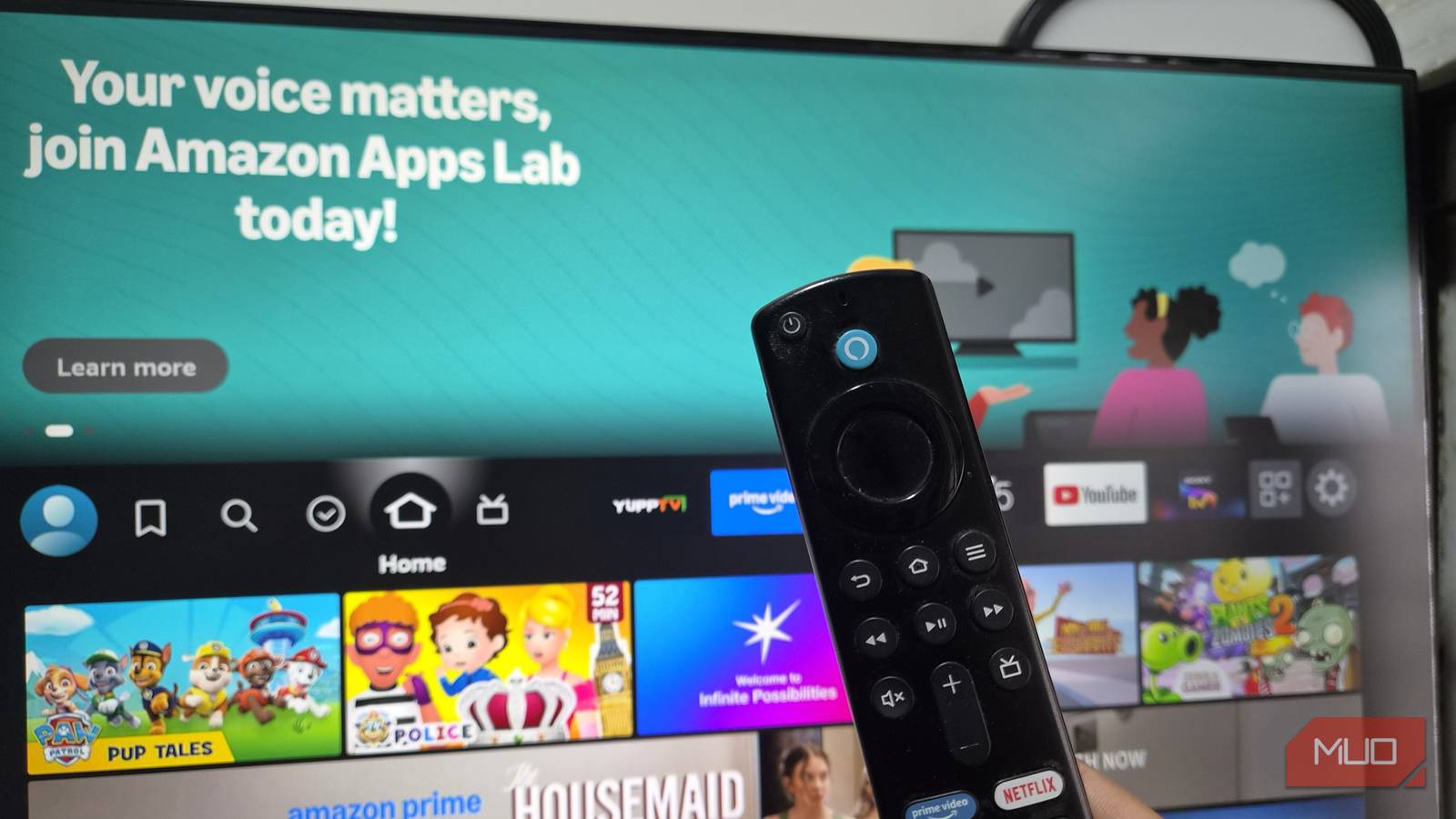

Fire TV Sticks aren’t exactly known for their performance. That’s not a problem once you’ve actually started streaming something, but it sure does test your patience getting there.
In my case, that lag had become intolerable, to the point where I’d genuinely started considering an upgrade to a newer model. But then Amazon went and hiked the prices on its Fire TV lineup, so I skipped that idea altogether and decided to see if I could make my old stick feel new again instead. Funnily enough, it took just a couple of free apps to make my Fire TV Stick worth using again.
My Fire TV Stick had gotten painfully slow
Two things were slowing it down

The biggest issue with Fire TV Sticks is how slow they become over time. You might be using it the exact same way you did on day one, but everything from launching apps to just navigating around the home screen can feel like wading through mud.
That was exactly the case for me too, and it’s not like I didn’t try anything to fix it. I installed the latest updates, cleared all the caches, turned off the data-collection features Amazon keeps hidden in the settings, and even uninstalled apps I never used. All of it would work for a bit, and then I’d be right back where I started.
And sometimes, that lag would get unbearable. I’d press a button, wait, press it again thinking it didn’t register, and end up skipping two rows instead of one. When this keeps happening every few seconds, it simply ruins the whole experience.
The issue came down to two things: the default launcher and background apps wasting resources. And once I realized that, I decided to fix those instead of replacing my Fire TV Stick.
Taotlus fixed one of my biggest Fire TV annoyances
My home screen finally feels like mine
The biggest issue with Fire TV is its default launcher, and it’s not just about it being slow. I also genuinely can’t stand those ads and auto-playing video banners that appear every time you land on the home screen. Even if you ignore them, they still use resources, which adds to the slowness.
Another problem is the layout itself, which makes finding apps harder than it needs to be. Sure, you can move them around, but you still need to click that All Apps icon to view your occasionally used apps.
All of this stopped being a problem once I started using Taotlus for launching apps. It’s a free, lightweight launcher that arranges apps in a grid layout. All you see is your app icons and nothing else. It automatically arranges apps based on your usage, so your favorite apps always appear at the top.
It’s customizable too. You can sort apps by name or size, in either ascending or descending order. There’s also a search tool that lets you get to your apps quickly. And it gets better. You can change the icon width and height, and even the number of apps that appear in a row.
The only caveat with Taotlus is that the Fire TV stick doesn’t let you set it as the default launcher, which means the whole experience isn’t as seamless. But there are a couple of workarounds. The first is pinning the Taotlus to the top so you can open it easily. Some Fire TV Stick models also support resuming the last-used app, which makes it even easier to get to Taotlus.
This app keeps background processes in check
See and stop what’s running

By default, Fire TV lets your apps run in the background even after you’ve backed out of them, which means as you switch apps, things get worse. Those background apps continue to use RAM and that’s a big part of why things start crawling after a while. Sure, you can close those apps manually, but that’s not exactly practical.
Background Apps and Process List is a free app that helps me deal with this. It’s a simple app that shows me all the apps that are open in the background. From there, you can then use the Close All Apps button to shut them all down or go through and pick which ones to leave running.
To be fair, it’s not some magic one-tap fix. The app actually takes you to each app’s info page one by one, where you then hit force stop yourself. So yes, it’s not exactly automatic cleanup and doing this takes a couple of minutes, but it’s worth it for the performance boost. I just reach for this app any time my Fire TV Stick starts feeling sluggish again.
