


Outlook Rules are automated filters and instructions that help you organize your Outlook mailbox and automate emails based on your requirements. Some users cannot create rules in Microsoft Outlook. Some of them encounter the “We can’t create your rule right now” error while creating a new rule in Outlook. If you encounter the same issue with Microsoft Outlook, use the fixes provided in this article.
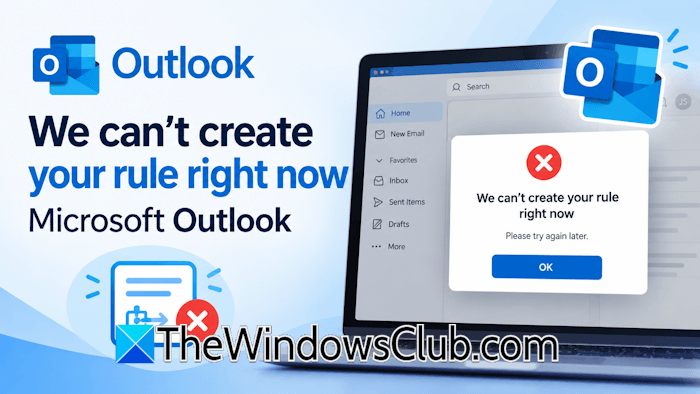
The complete error message is:
We can’t create your rule right now. Please try again later.
We can’t create your rule right now says Outlook
Use the following fixes if you cannot create rules in Outlook or encounter the “We can’t create your rule right now” error while creating a new rule:
- Check Rule Quota and clear Outlook Rules cache
- Update Office
- Check your internet connection
- Are you creating rules for third-party email accounts?
- Some rule features are not supported by the New Outlook app
- Try creating the rule in the New Outlook app or Outlook.com
- Disable add-ins
- Create a new Outlook profile
- Repair or reinstall Office
All these fixes are explained in detail below:
1] Check Rule Quota and clear Outlook Rules cache
Check the Outlook Rule Quota. Outlook has a storage limit of 256 KB for all rules combined. So if you face this issue,delete old, unused rules or shorten your rule names to free up space.
To clear the Outlook Rules cache, close Outlook. Then press Win+R, type %appdata%\Microsoft\Outlook, and rename or delete local data files like Rules.dat or your .srs files.
2] Update Office
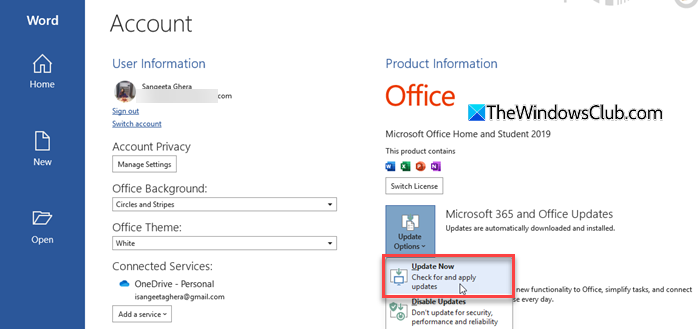
You might be using an outdated version of Microsoft Office. Check for updates manually and install them. In Microsoft Outlook, navigate to File > Office Account. Now, click Update Options and then click Update Options > Update Now. If an update is available, Office will download and install it. If you are already using the latest version of Office, you will see the message “You’re up to date.”
3] Check your internet connection
A weak or unstable internet connection might be causing this problem. Switch to another available network and try creating rules. If another network is unavailable, you can use your mobile data to connect your computer to the internet via a mobile hotspot. If this works, switch back to the original network after creating the rules. To prevent the issue from happening again, power-cycle your WiFi router.
The following steps will guide you:
- Turn off your WiFi router and unplug its adapter from the wall socket.
- Wait for a few minutes, then connect the adapter.
- Turn on the router.
4] Are you creating rules for third-party email accounts?
Are you creating rules for third-party email accounts? If so, you cannot do that with the New Outlook app. This is because the New Outlook app does not support rules for third-party email accounts. If you try to create a rule for third-party email accounts in the New Outlook app, you will see the following message:
Inbox rules are not supported for the selected account.
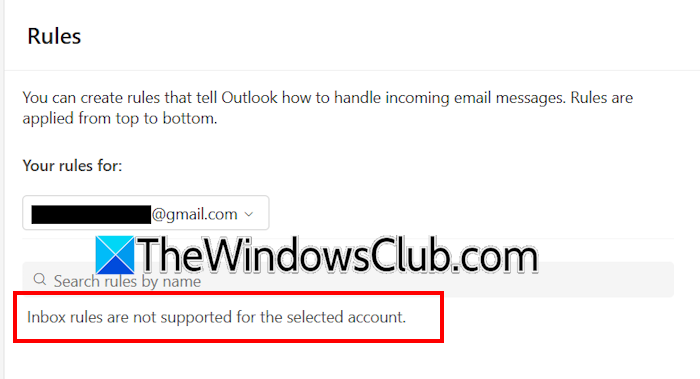
In this case, you can add your third-party email account to Microsoft Outlook and create rules there. However, such rules will be client-side rules and work only on the system on which you create them. Alternatively, you can create rules in the respective email client. For example, if you have a Google account, you can use Gmail to create rules.
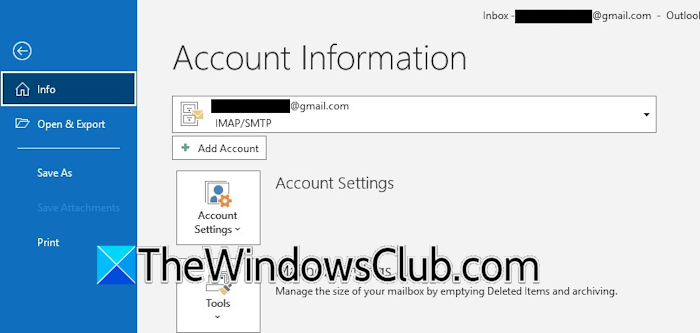
To add a third-party email account to Microsoft Outlook, navigate to File > Add Account. Type the email address and click Connect. The default web browser will open where you have to sign in to that account. After signing in, grant the required permissions to complete the setup.
5] Some rule features are not supported by the New Outlook app
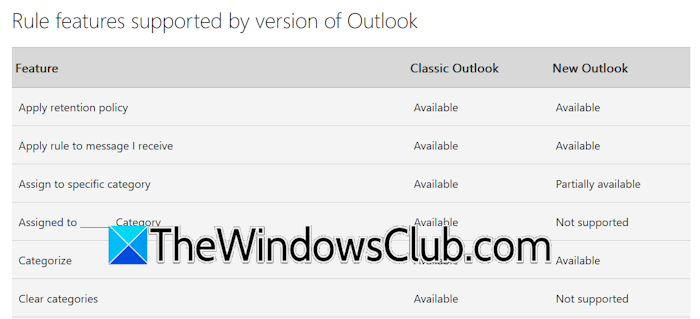
Some rules are not supported in the New Outlook app. Therefore, if you create these rules, you must use Microsoft Outlook instead of the New Outlook app. For example, if you want to create a rule to assign an email to a category like Work, Personal, or Urgent, the New Outlook app doesn’t support it. For this, you have to use Microsoft Outlook.
6] Try creating the rule in the New Outlook app or Outlook.com
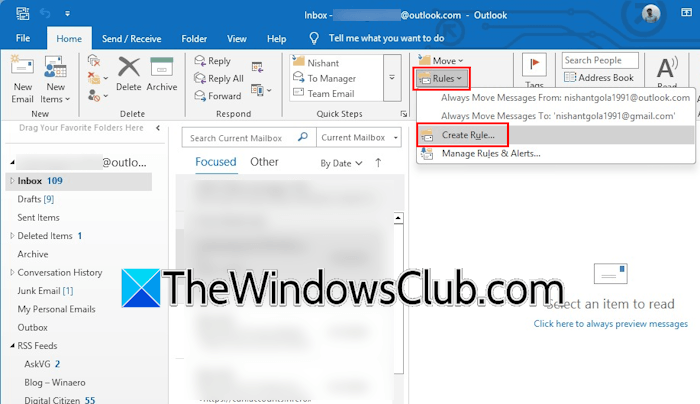
If you cannot create a rule in the New Outlook app or Outlook.com, you can try creating it in Microsoft Outlook. For this, you need to add that email account to Microsoft Outlook. After adding an email account to Microsoft Outlook, click Home > Rules > Create Rules. Now, go through the on-screen prompts to create a new Outlook rule.
Read: Outlook Rules are not supported for this account
7] Disable add-ins
Sometimes, issues in Microsoft Office applications occur because of installed add-ins. Therefore, it is important to find those problematic add-ins to fix the issue. To verify whether this is happening to you, disable all the add-ins.
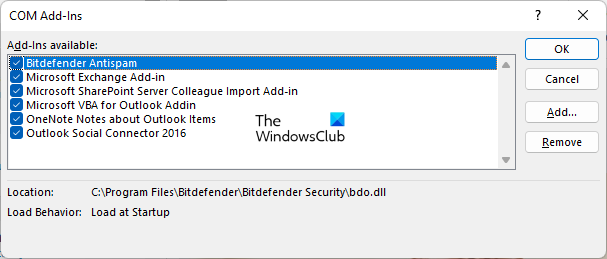
Go through the following instructions:
- Launch Microsoft Outlook.
- Navigate to File > Options.
- Select Add-ins > COM Add-ins and click GO.
- Uncheck all the checkboxes and click OK. This will disable all the add-ins.
Relaunch Outlook and check if you can create rules. If so, the next step is to find the problematic add-in. For this, enable the add-ins one at a time and create a new rule. When the problem reappears, the add-in you have just enabled is the culprit. Now, contact the support of that add-in for further assistance.
8] Create a new Outlook profile
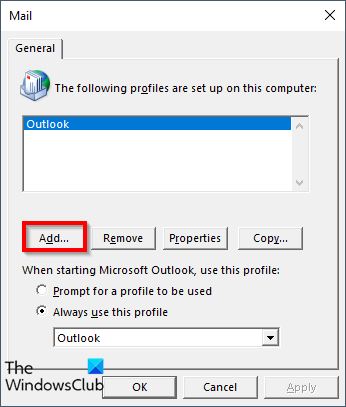
Sometimes, issues are associated with a particular Outlook profile. In such a case, creating a new Outlook profile helps. Create a new profile in Outlook and add an email account to that profile. Now, log in to that profile and try creating a rule. If you can create a rule, your previous Outlook profile may be corrupted. You can use the Inbox Repair Tool to repair the corrupted OST and PST files.
9] Repair or reinstall Office
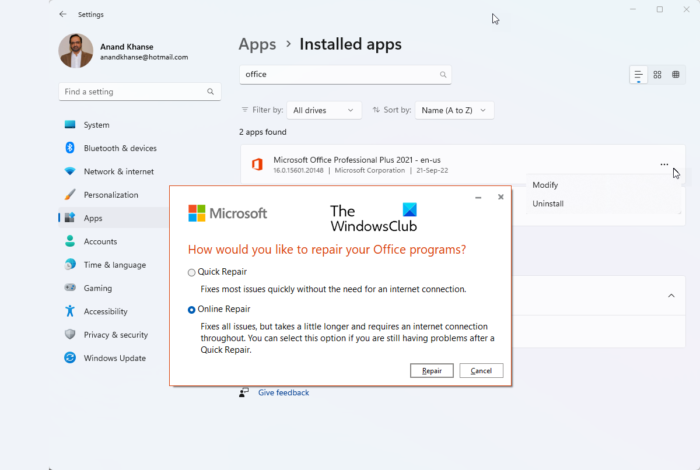
Some Office files may be corrupted, causing this problem. Run an Online Repair to repair the entire Office suite. After the process completes, check whether the issue persists. If so, uninstall and reinstall Office. Remove Microsoft Office completely from your system using a third-party tool, such as Revo Uninstaller, and then reinstall it. Before removing Office, make sure you have the product key, as you’ll need it to activate Office after reinstallation. Also, check if Office is added to your Microsoft account because you can download it only from there.
That’s it. I hope this helps.
Why is Outlook not letting me create a rule?
You cannot create rules for third-party email accounts in the New Outlook app. For this, use Microsoft Outlook or the respective email account client, such as Gmail for a Google account. Additionally, some rule features available in Microsoft Outlook are unsupported in the New Outlook app. This can sometimes be due to corrupt Office files. Repairing Office can help.
Why aren’t my rules working in Outlook?
There are many reasons your rules may not work in Outlook. If the rule is a client-side rule, it will work only on the PC where you created it. Another reason is an unsupported condition or action. The New Outlook app does not support all conditions available in Microsoft Outlook. If the rule refers to a deleted folder, it will not work.
Read next: Outlook removes attachments when replying.
