


If Gemini is not generating images of people or others properly anymore on your PC, this post will help you fix the issue.
![Gemini not generating images [Fix]](https://www.thewindowsclub.com/wp-content/uploads/2026/09/Gemini-not-generating-images.png "Gemini not generating images [Fix]")
Google currently provides image generation in Gemini using its Nano Banana 2 model. However, some users have reported that Gemini says it cannot generate images, even for prompts that appear valid and normal. In most cases, it keeps replying with different messages instead of creating the image, such as:
I’m getting more image requests than usual, so I can’t create that for you right now. Please try again later.
or
I can’t create more images for you today, but I can still find images from the web.
In this guide, we explain why this happens and how to fix it effectively.
Gemini not generating images
To fix Google Gemini if it is not generating images on Windows 11/10, use these fixes:
- Start a new Gemini chat
- Check if your prompt is being blocked
- Check your region
- Verify your age in your Google Account
- Check usage limits or account restrictions
- Clear browser cookies and cache
- Use an alternative image-generation service
Before trying these fixes, check whether Gemini is experiencing a temporary server-side issue. You can check services such as Downdetector to see whether other users have reported similar problems. If reports spike suddenly, wait a while and try again later.
Let’s now look at the above solutions in detail.
1] Start a new Gemini chat
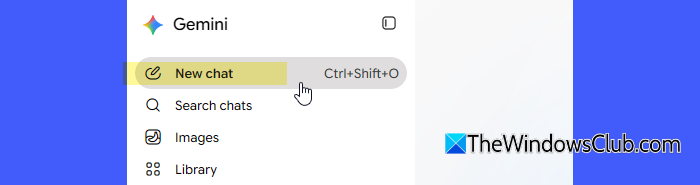
If a Gemini conversation has become very long or contains many prompts and images, start a new chat before trying to generate another image. A fresh conversation gives Gemini a clean context and may help if the current chat is behaving unexpectedly.
In some cases, Gemini may also incorrectly interpret an image-generation request as a normal text conversation. It may then respond that it cannot create images even though image generation is available for your account. Users have reported that this behavior was tied to a particular conversation, while starting a new chat allowed the same image prompt to work normally.
- Open Gemini in your web browser.
- Click New chat in the left pane.
- Enter a simple image-generation prompt.
- Press Enter and check whether Gemini generates the image.
If Gemini generates the image in the new chat, the issue was likely related to the previous conversation or its context.
2] Check if your prompt is being blocked
Gemini has specific Terms of Service and safety policies that apply to image generation. If Gemini detects that a prompt is violating these policies, it may refuse to generate the requested image. This can happen with requests involving sensitive or restricted content.
To check whether your prompt is being blocked, try a simple image-generation request first.
- Start a new chat.
- Enter a simple prompt, such as “Create an image of a mountain landscape at sunset.“
- Press Enter and check whether Gemini generates the image.
If the image is generated successfully, try your original prompt again. If Gemini refuses the original prompt, review the prompt and remove any unnecessary sensitive or potentially restricted details.
3] Check your region
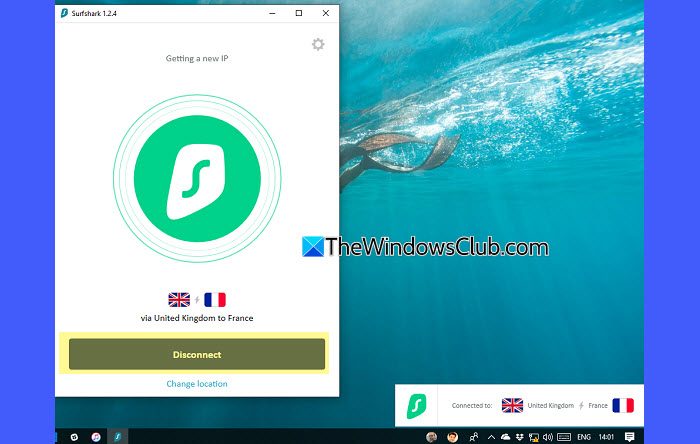
The Gemini web app is currently available in more than 70 languages and over 230 countries and territories. However, if you are in a region where the feature is unavailable or is being rolled out differently, Gemini may not generate images for you.
Google maintains a list of supported countries and territories for the Gemini web app. Click here to check whether Gemini is available in your country.
- If your country is supported but Gemini still refuses to generate images, check whether you are connected to a VPN. If you are, temporarily disconnect it and try generating an image again.
- If image generation is not officially supported in your country, you can try connecting to a VPN server in a supported region and then check whether the feature becomes available.
4] Verify your age in your Google Account
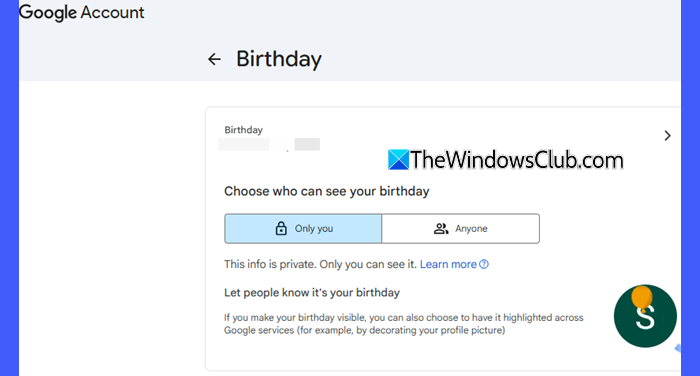
Gemini has age requirements that can affect access to its features. For a personal Google Account, Google currently requires users to be 13 or older (or the applicable age in their country) to generate images. However, image editing requires users to be 18 or older.
There are also different requirements depending on the type of Google Account you use. For example, users with a Google Workspace work account must be 18 or older to use Gemini Apps. Children under 13 may also be able to use Gemini Apps with a supervised Family Link account when a parent enables access, although availability for supervised accounts varies by region.
To check your age information:
- Open your Google Account.
- Click Personal info.
- Scroll down and select Birthday.
- Check whether your date of birth is correct.
- If necessary, update your birthday and complete any age-verification steps that Google requests.
- Open Gemini again and try generating an image.
5] Check usage limits or account restrictions
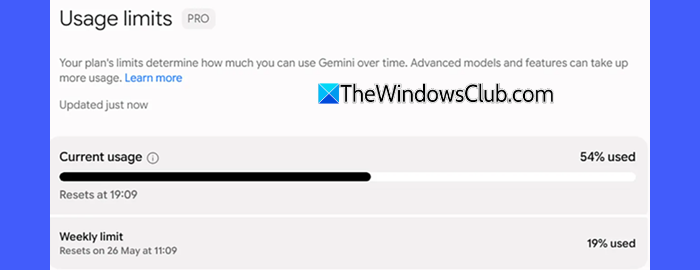
Gemini uses compute-based usage limits that can affect access to models and features, including image generation. As of now, these limits refresh every 5 hours until you reach your weekly limit. The amount of usage you consume depends on factors such as the complexity of your prompt, the features you use, and the length of your chat.
Image generation is considered a premium feature and can use more of your available usage. If you have generated several images or used other resource-intensive Gemini features, you may reach your usage limit faster.
Your available limits also depend on your Google AI plan:
- Without a plan: Standard limits
- AI Plus: 2× higher than standard limits
- AI Pro: 4× higher than standard limits
- AI Ultra: 5× or 20× higher than AI Pro, depending on your subscription
If Gemini has stopped generating images, check whether you have reached your current usage limit.
- Open Gemini in your web browser.
- Click Settings in the bottom-left corner.
- Select Usage limits.
- Check whether you have reached a usage limit and when it will refresh.
If you have reached the limit, wait for it to refresh, then try generating the image again.
Your account type can also affect access to Gemini. For example, work and school accounts may have different terms and feature availability depending on the license and administrator settings. If you are using a managed Google Account, check with your organization’s administrator if Gemini or its features are restricted. If possible, try Gemini with a personal Google Account to determine whether the issue is specific to your organization’s account.
6] Clear browser cookies and cache
Outdated or corrupted browser data may sometimes prevent Gemini from functioning correctly. First, open Gemini in an Incognito or Private window and check whether image generation works there. If it does, clear the cookies and cached data associated with Google or Gemini and try again. Refer to our detailed guide on how to clear cookies and cache for one site in Chrome, Edge, or Firefox.
After clearing the browser data, reopen Gemini, sign in to your Google Account if required, and try generating an image again.
7] Use an alternative image-generation service
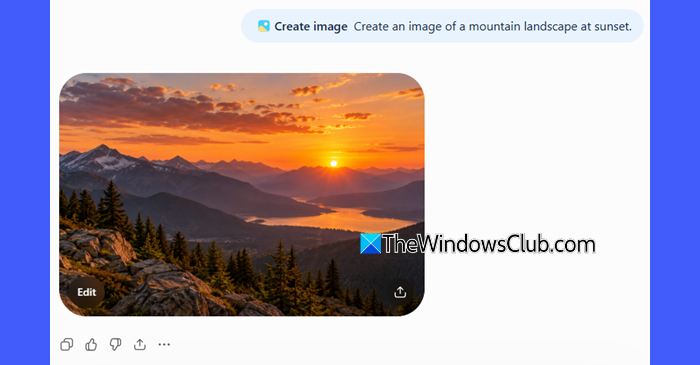
If none of the above solutions work and you need to create an image immediately, try another AI image-generation service. Several services can generate images from text prompts, including Microsoft Designer and ChatGPT.
That’s all! I hope this helps.
Read: Top AI Manga Filters to convert your photos to anime.
Why can’t I generate images with Gemini?
Gemini may not generate images if image generation is unavailable in your region, you have reached a usage limit, or your prompt triggers a safety restriction. In some cases, account eligibility or a problem with a specific conversation can also prevent image generation in Gemini.
How to enable Gemini to create images?
You don’t need to enable a separate setting if image generation is available for your account and region. Open Gemini, start a new chat, and enter a prompt that begins with words such as “Create” or “Generate”, followed by a clear description of the image you want.
Read Next: Fix Gemini AI Something went wrong error.
