


If the Header and Footer are not printing in Windows 11, here is what you can do to fix this problem. Whether this happens when printing Word documents, PDFs, Excel spreadsheets, or PowerPoint presentations, you can use these solutions to fix it in Windows 11.
Why are Headers and Footers not printing in Windows 11?
If the header and footer are not printing in Windows 11, these could be the reasons:
- Your default print settings are blocking you from printing those elements.
- You are using the system print dialog to set things up.
- Custom scaling might cause this issue.
- Other browser extensions might be blocking this feature.
- Headers and footers are not selected in Word, Excel, and PowerPoint.
- The PDF viewer may have issues.
Header and Footer not printing in Windows 11
If Headers and Footers are not printing in Word, Excel, PowerPoint, and PDF, follow these solutions:
- Check print settings in apps
- Use app-specific print dialog
- Choose default scaling
- Check header and footer settings in Word, Excel, PowerPoint
- Use a different PDF viewer
- Check print settings in manufacturer app
- Choose correct page dimensions
- Reinstall printer driver
To learn more about these solutions, continue reading.
1] Check print settings in apps
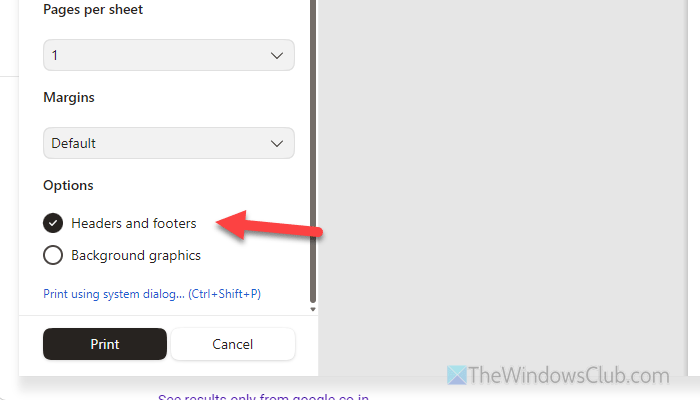
To enable headers and footers in any document while printing, you can use the Microsoft Edge or Google Chrome browser. For example, if you want to print a webpage, you can open the page and press CTRL+P to open the print dialog. Then, click on the More settings option and find the Headers and footers option.
Next, tick the checkbox and click the Print button.
Read: How to print from the Microsoft Edge browser in Windows 11/10
2] Use app-specific print dialog
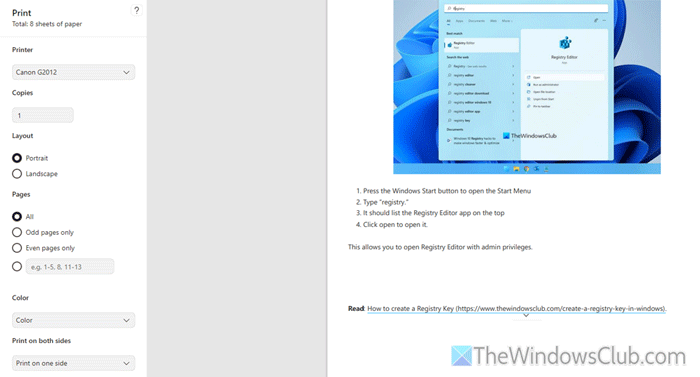
If you have enabled the System Print Dialog, we suggest disabling it and using the app-specific print dialog. The main reason is that the built-in or generic Print Dialog doesn’t always show the headers and footers options.
On the other hand, most browsers such as Microsoft Edge and Google Chrome often show the same option.
Read: How to enable or disable System Print Dialog in Chrome browser
3] Choose default scaling
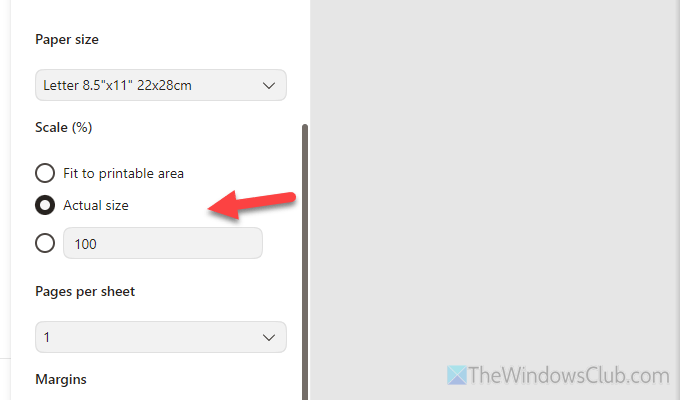
By default, almost all browsers and apps use Actual size or 100% as the scaling level. However, if you changed it to something else, you may get this problem when printing. That is why we suggest using the default scaling level.
To verify that, open the print dialog in the Edge browser, go to More settings, and find the Scale menu. Then, either choose Actual size or 100% (if custom).
4] Check header and footer settings in Word, Excel, PowerPoint
If you are using Word, ensure your document includes a header and footer. For that, go to the Insert tab, click the Header, and add a header. Then do the same for the footer.
If you are using Excel, go to the Insert tab, click on the Header & Footer menu, and add them accordingly.
If you are using PowerPoint, do the same thing as in Excel. However, a couple of options need to be checked, so review them carefully.
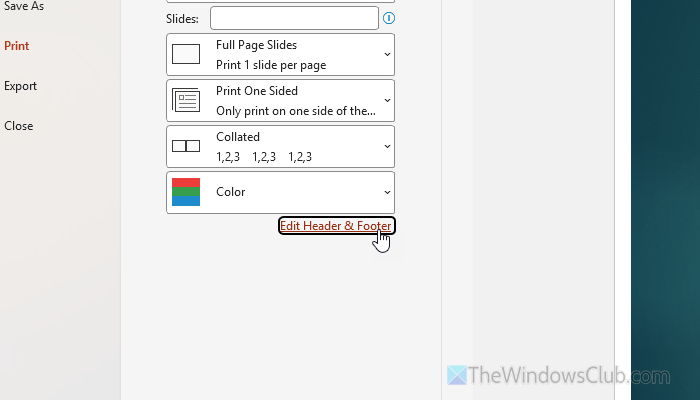
While printing in any of those apps, you can check the header and footer. For that, go to the Print section and click on Edit Header & Footer. You must check the correct header and footer here.
Read: How to insert Header and Footer into Word document
5] Use a different PDF viewer
If you get this problem with PDF files, try a different viewer and use that app’s print dialog. For example, if you use Google Chrome, switch to Microsoft Edge and vice versa. You can go through these PDF viewers for Windows to find the most suitable one.
6] Check print settings in manufacturer app
If your printer has a dedicated wizard or application to manage print, page, ink, etc., the same app may also let you manually override settings. Many manufacturers include options to bypass app-specific changes so users get the same experience regardless of the app.
If your printer manufacturer offers a similar option, check that app and the options it includes.
7] Choose correct page dimensions
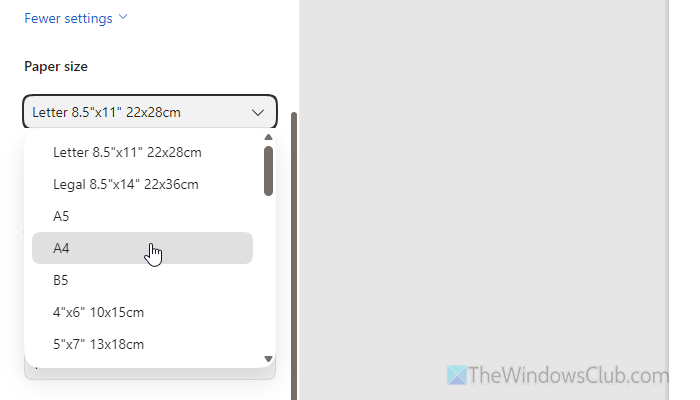
It is highly recommended to check the page dimensions and size before clicking the Print button. If you have a regular document, you might want to print it on A4 paper instead of A5 or B5. Also, if your document is in landscape format, you might not want to choose a paper size that isn’t compatible with that orientation.
That is why itis best to check the file’s orientation first. Then choose the correct page size for that orientation.
Read: Wrong paper size, Paper mismatch error in Printer
8] Reinstall printer driver
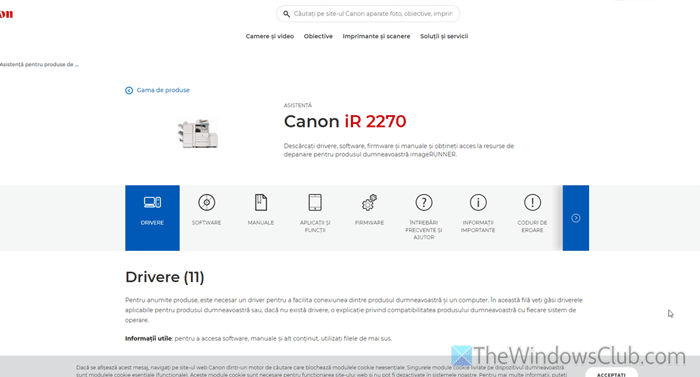
It is probably the last option you can try. Even if you have the driver, it may be broken for some reason. That is why we suggest uninstalling the existing driver, disconnecting your device, reconnecting it, and reinstalling the driver.
We highly recommend downloading the printer driver only from the official website. For your information, you can uninstall the driver from the Device Manager. To do that, open Device Manager, expand Print queues, right-click your printer, and uninstall it.
Read: Download and Install Printer Driver and Firmware for Windows 11
Why are my header and footer not showing?
If the header and footer are not showing in Word, Excel, or PowerPoint, it is possible that the corresponding setting is disabled. Check the page margins and whether the header and footer are included in the visible content area.
How do I turn on header and footer when printing?
To turn on headers and footers when printing, open the Edge browser’s printer settings wizard first. Click on More settings and go to the Options area. Then, choose the Headers and footers option and click the Save button. If you use the Google Chrome browser, you will find a similar option.
Read: How to print from the Microsoft Edge browser in Windows.
