


Comet is one of the first AI browsers to integrate conversational search and agentic capabilities; however, many users have recently complained that they can’t install the browser on their Windows computers. Even if the installation goes through, the browser won’t open or load. If you’re in a similar situation, the fixes below should help.
Comet Browser not working, installing or opening on Windows PC
We have discussed some scenarios and solutions to help you if your Comet browser isn’t working or installing on your PC:
Comet browser won’t install
Right-click the downloaded Comet setup file and choose Run as administrator. See if this helps.
Comet browser won’t launch
First, restart and relaunch. Fully close Comet in Task Manager to ensure no background process is running. After that, reopen the browser and see if it loads.
Also, if you are on a work or school computer, IT policy may be blocking Comet from installing or launching. If so, contact your system administrator.
If the issue persists, reinstalling the app may help.
Check your antivirus, firewall, VPN, or proxy
If Comet isn’t opening at all, or it opens but won’t connect to any website, your security software could be the culprit.
To fix this, start by checking your antivirus and firewall and ensure that Comet isn’t blocked. Or temporarily turn off your security software to see if you can use the browser.
If the browser works fine after disabling your security software, whitelist the browser. This will prevent further issues.
Try Comet without extensions
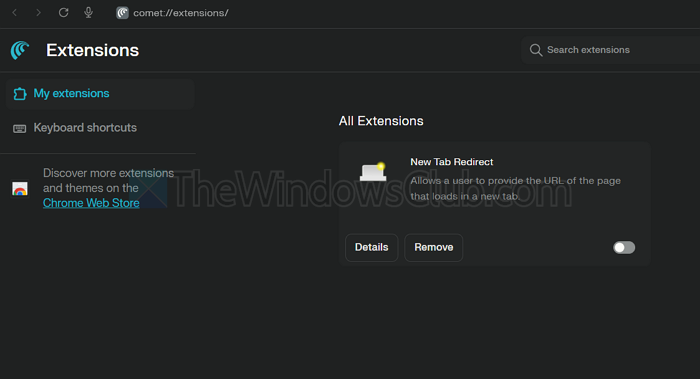
If your browser opens up but you see a blank screen or websites fail to load, then extensions could be the reason. If you installed any extensions recently or use sketchy ones, disabling them might solve the issue.
Open the browser in incognito mode, where extensions are disabled by default, and see if it works.
Comet feels slow or unresponsive
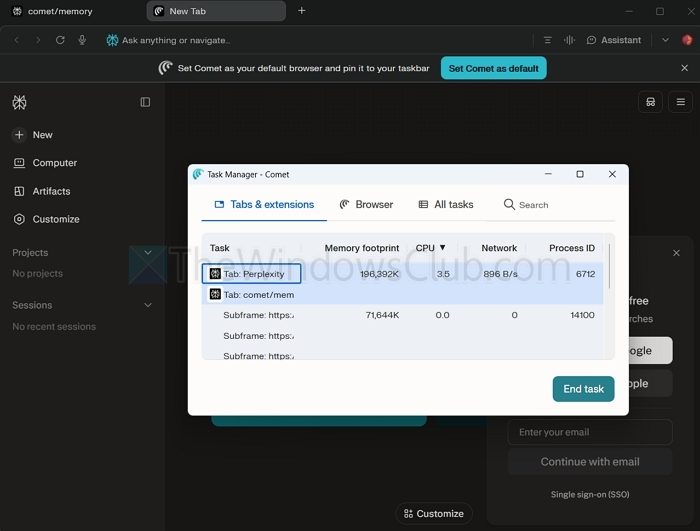
If Comet opens and loads pages but performance is poor, then there could be multiple reasons, such as having too many tabs open or an extension causing the problem.
To fix this, press Shift+ESC inside Comet to open its task manager. From here, you will be able to see which tabs or extensions are using the most memory. Click the problematic tab, then click End task to free up memory and see if performance improves.
Delete User Data of Comet browser
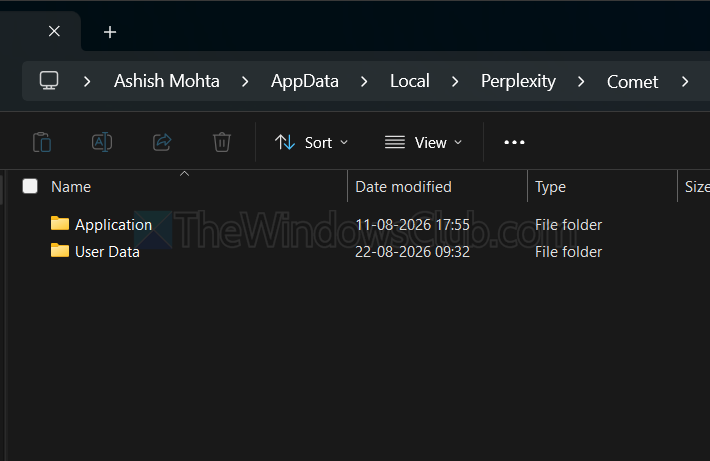
- If Comet opens but shows a blank/loading screen, press Win + R and enter:
%localappdata%\Perplexity\Comet\User Data - Do not delete it yet. Rename the User Data folder to “User Data Backup”
- Then launch Comet. It will create a clean profile.
Final steps
If nothing helps, take these steps:
- Uninstall Comet browser.
- Delete the leftover folder: %localappdata%\Comet\User Data.
- Update Windows and GPU drivers.
- Disable antivirus and firewall temporarily.
- Download the Comet setup file from the official site.
- Run the downloaded Installer file as Administrator and complete the installation wizard.
Overall, you shouldn’t face any trouble using or launching the Comet browser. However, if your PC has less than 8GB of RAM, then it might be lagging on your machine. Try launching the browser in safe mode to rule this out. Lastly, you can reinstall it and pay close attention to any permissions it asks for. This will help you rule out any permission issues shown in the picture.
Can Comet fill forms and book things for me automatically?
Comet was one of the first browsers to come with an agentic mode i.e. it can control your browser, understand what is on the screen, and then take action. It means it could fill forms, book tickets, etc.
Is Comet Browser free to use?
Comet Browser is free to use. There is a paid version, but you need it for higher usage limits, a choice of AI models, and Comet Plus bundled in. Otherwise, you get access to the AI assistant, but with limited daily AI queries/credits for agent tasks.
