

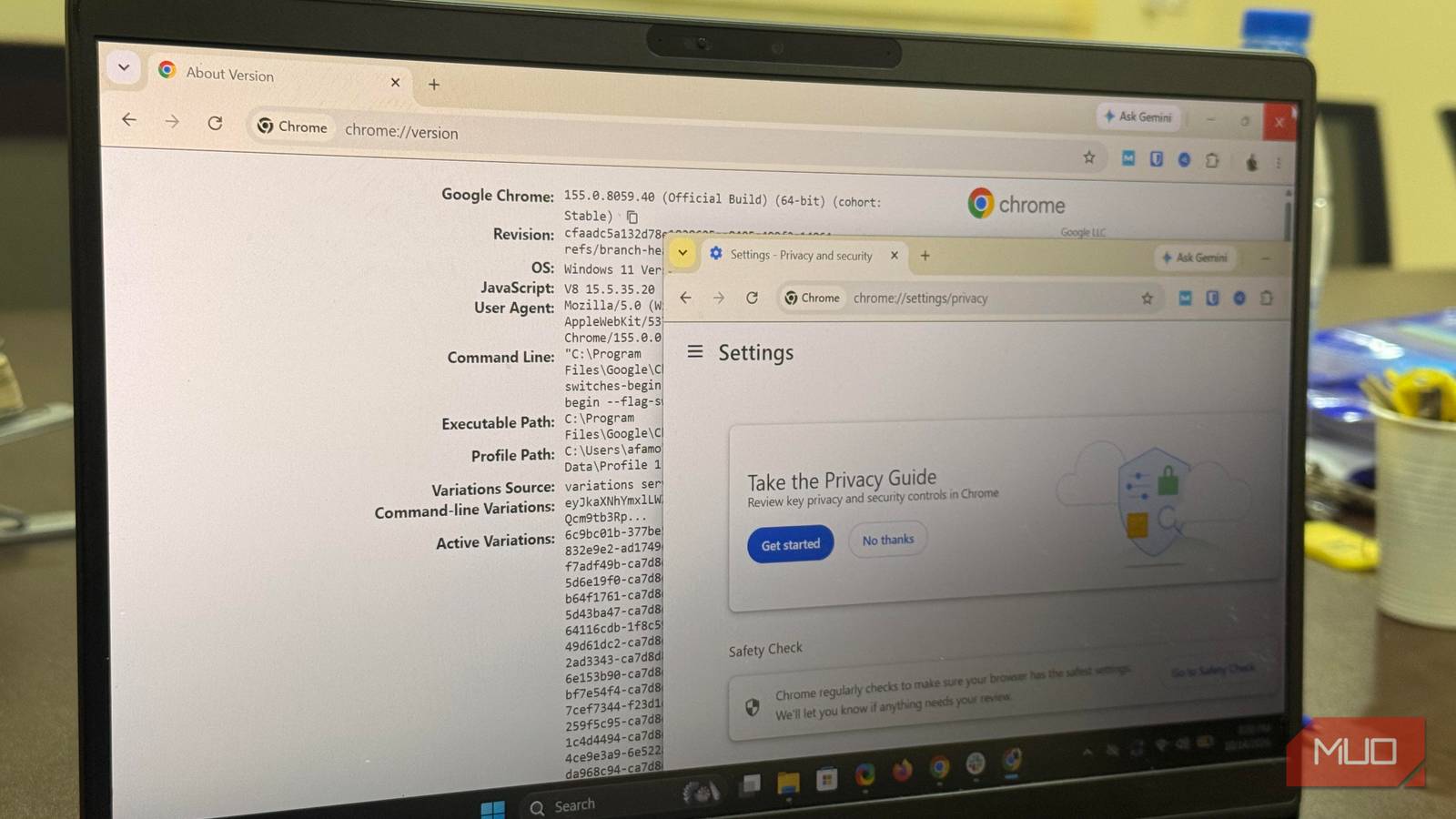

Chrome has a comprehensive Settings menu, but you’d be mistaken to think it tells you everything you need to know about your browser. Google doesn’t include certain important pages in the Settings menu, and they’re worth a look because they show a clearer picture of what shapes my browsing experience.
I realized that even though I hadn’t set up any organizational management or policies on my own instance, Google’s variations system was active. Several different mechanisms can influence a browser that looks perfectly normal.
Chrome admits when it’s managed
Heading to chrome://management spills the beans on who’s really in control
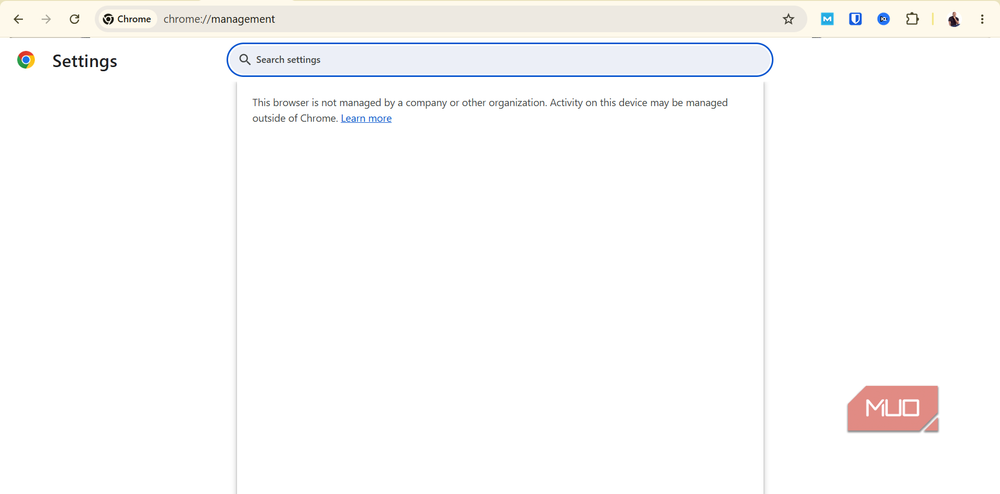
I typed chrome://management into my address bar and got a two-sentence reply:
This browser is not managed by a company or other organization. Activity on this device may be managed outside of Chrome.
If I ever needed to know whether an organization was controlling my browser, that first sentence told me my Chrome instance wasn’t. This page will read differently if you are on a work laptop. But instead of attaching to the entire laptop, management can choose to attach only to a signed-in profile.
That signed-in Chrome account (for example, a Google Workspace or school account) can load policies onto a personal machine.
I read the second sentence on the management page as a word of caution; Chrome’s way of saying it can only vouch for what it can see. The management page will tell you whether an organization is in charge, but it won’t say whether anyone else can call the shots. That extra detail requires the rulebook.
The rulebook
What chrome://policy shows when no one has written one
I checked my policy page chrome://policy, and it showed “No policies set” across all sections: the main list, the precedence list, the extension sections, and Google Update.
Each section is a table with identical columns: name, value, source, applies to, level, and status. You should see what an administrator has set any of these values to if they have made any configurations. You will also see where it came from, and whether it’s mandatory or merely recommended.
This page also shows the current precedence order and how conflicting policies are resolved, so don’t assume it ranks everyone who can influence Chrome. For me, it was Platform machine > Cloud machine > Platform user > Cloud user.
Pay special attention to these entries if they show up on the policy page:
|
Policy |
What it controls |
Legitimate reason |
|---|---|---|
|
ExtensionInstallForcelist |
Extensions Chrome must install |
Required workplace tools |
|
HomepageLocation |
The configured homepage URL |
A company’s standard page |
|
DefaultSearchProviderEnabled |
Whether a default search provider is on |
Standardized search setup |
|
ProxySettings |
Proxy configuration |
Routing through an office network |
|
IncognitoModeAvailability |
Whether Incognito is available |
An organizational restriction |
It’s worth tracing if any unfamiliar entry shows up, even though it doesn’t automatically mean something is wrong. There weren’t any on my device, so I don’t have a populated table to display.
However, I got two surprises from my policy page. The top banner had this message: “This instance of Chrome is running with command line flags manually set.” I just don’t remember enabling any flags.
I also had 28 extensions installed, but only four of them had policy sections. My best guess is that these four are the ones that accept admin configuration.
Google needs no invitation
What chrome://version shows about the other party steering your browser
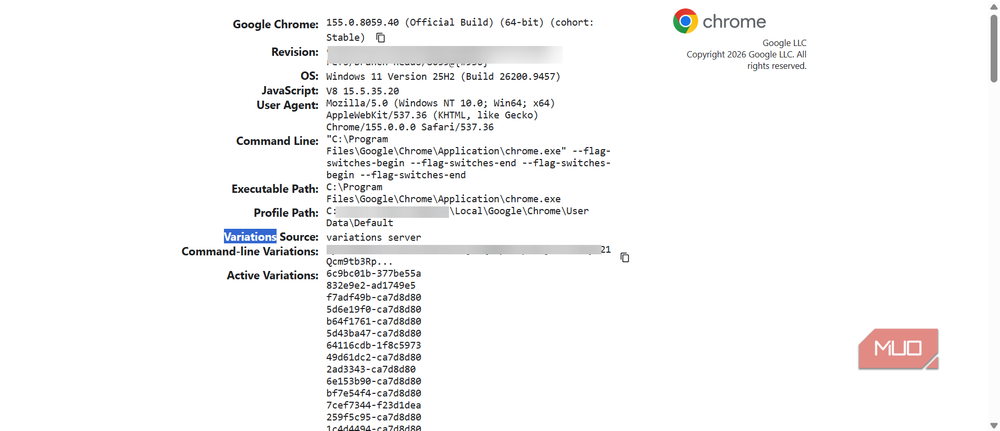
Here is the value on the Command Line field of my chrome://version page:
"C:\Program Files\Google\Chrome\Application\chrome.exe" --flag-switches-begin --flag-switches-end --flag-switches-begin --flag-switches-end
Although the page contains two empty flag-switch blocks, that doesn’t mean Chrome is running without experimental or performance-related settings. When I verified my chrome://flags page, hardware-accelerated video decode and encode, accelerated 2D canvas, and partial swap flags were enabled.
However, I learned more from the Variations Source, which had a value of “variations server.” There were 20 active variations listed. This is Google’s reach; Chrome periodically downloads a configuration from Google that can switch features on or off for selected user groups, or roll features back.
I decoded the very long Command-line Variations field and found four lists: features to disable, features to enable, field-trial parameters, and field trials. Most are related to Gemini and autofill.
None of this is unexpected. Since Chrome is made by Google, it’s expected that Google can control some of its elements. Nothing in it looked unusual for a Chrome install.
Who can steer Chrome, and what these pages can actually prove
|
Who |
Where to look |
What you can establish |
|---|---|---|
|
You |
chrome://settings, chrome://flags |
Your visible preferences and enabled flags |
|
An administrator |
chrome://management, chrome://policy |
Reported management and applied policies |
|
|
Variations on chrome://version |
That the variations system is active, not what each ID does |
|
Extensions |
chrome://extensions |
What’s installed; judging its effects takes more digging |
On my machine, Google’s variations system and I were calling the shots. But you may find an unfamiliar policy, extension, or startup argument in yours. That’s a cue to trace its source before removing it. This may be more common on managed devices, and you should ask the administrator first.
You may learn about the official control channels that Chrome has in place from these pages, but they don’t cover every other possible influence. Some extensions may change your browser behavior without even appearing on the policy page. However, these pages answer specific control questions that Settings don’t.
