


An SSD is faster than an HDD. That’s why many users prefer installing an SSD, even as secondary storage. Some users report that their Windows PC won’t boot after installing a second SSD. This problem can happen for several reasons. We have already seen what to do if your Windows PC won’t boot after upgrading or installing a new SSD. Now let us see what to do if it will not boot after installing a second SSD.
PC won’t boot after installing a second SSD
If your Windows PC won’t boot after installing a second SSD, use the following solutions:
- Check all connections properly
- Check the boot order
- Did you install the SSD in the right port?
- Check for SATA and M.2 port conflicts
- Did you see any error message on your computer screen?
- Check for LED indicators and beep sounds
- Test your RAM
- Reset BIOS
- Update BIOS
All these fixes are detailed below.
1] Check all connections properly
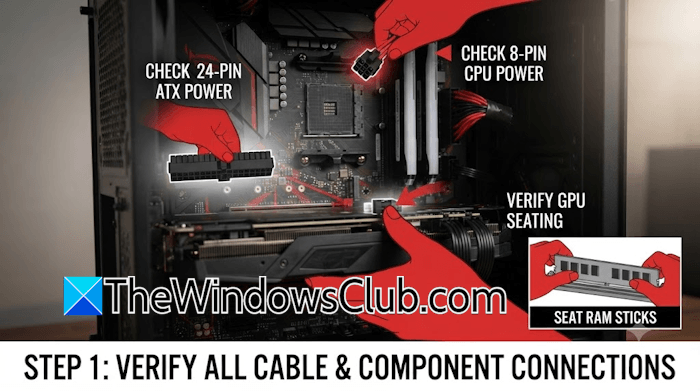
This is the first step. Check all cable connections properly. Make sure the cable connecting your second SSD is not loose. If another cable is available, change it. Additionally, verify that your GPU is properly plugged in and your RAM sticks are firmly seated. Sometimes, while installing a hardware component, we mistakenly loosen or disconnect other hardware components, such as RAM or GPU. This might have happened to you. Check and fix this.
2] Check the boot order
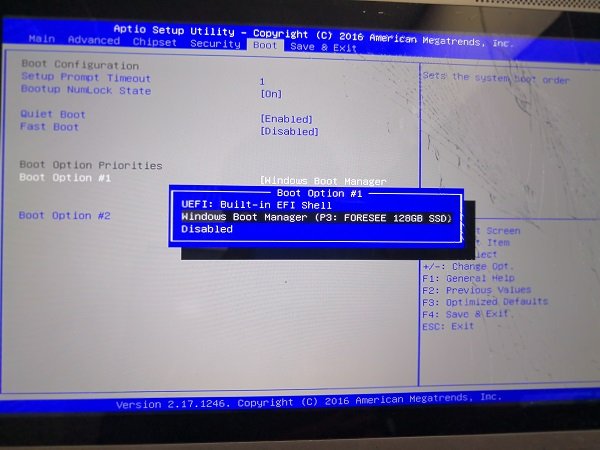
If all the hardware components are connected properly and your system is not turning ON, the issue may be the incorrect boot order. After installing the second SSD, your system might have selected it as the primary boot device. In that case, your computer is trying to boot from the second SSD. If no operating system is installed on it, the computer cannot boot into Windows. To verify if this has happened to you, check the boot order. Use the right BIOS key to enter your system BIOS. Once you are in BIOS, navigate to the boot order screen and change the boot order (if the wrong SSD is selected as a boot device).
3] Did you install the SSD in the right port?
Make sure you installed the SSD in the correct slot. For example, install the M.2 SSD in the M.2 slot. Verify this with your motherboard user manual. Sometimes, the SSD still doesn’t work even when installed in the right slot. In that case, try installing it in another slot (if available).
4] Check for SATA and M.2 ports conflict
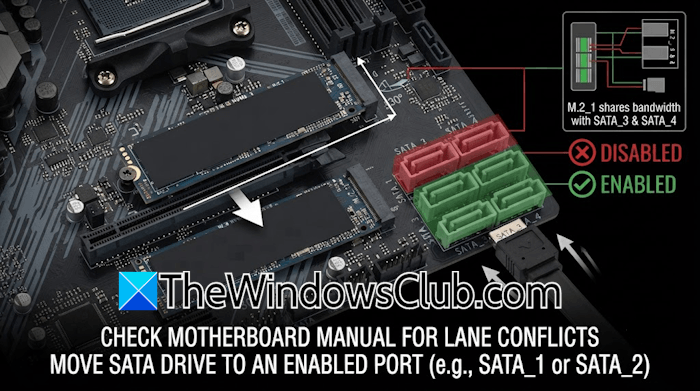
If the issue persists, check for SATA and M.2 port conflicts. On some motherboards, installing an M.2 SSD disables specific SATA ports. As a result, the computer stops detecting the existing SATA SSD or hard drive. To check this, refer to your motherboard’s user manual and see which SATA ports are disabled when using a particular M.2 slot. Once you find it, connect your SATA SSD or hard drive to a different SATA port that remains unaffected by the M.2 slot.
5] Did you see any error message on your computer screen?
In some cases, the computer displays an error message when you turn on the power. If your computer won’t boot after installing a second SSD, you may see the following error message on the screen after turning the power ON:
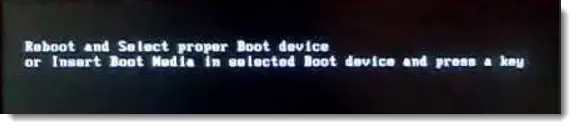
Reboot and Select proper Boot device
or Insert Boot Media in Selected Boot device and press a key
This error indicates an issue with the boot order. Therefore, you need to check the boot order in the BIOS.
6] Check for LED indicators and beep sounds
Did you hear any beep sound when turning on your system? If yes, some of your hardware components might be faulty. Motherboards of different brands make different beep sounds to indicate different hardware problems. If you hear any beep sound, you need to decode it. All the beep codes and their meanings are available in your motherboard’s user manual.
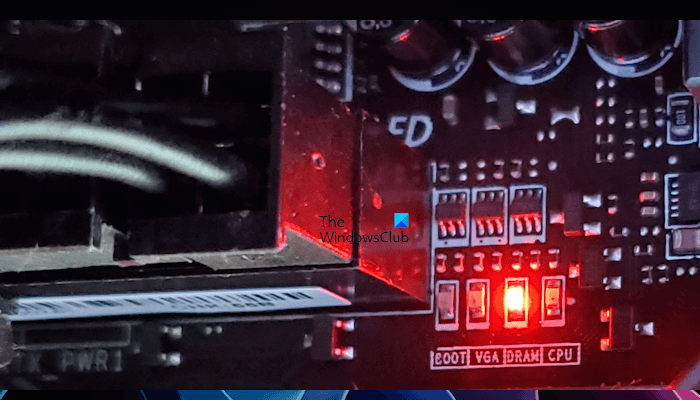
If you do not hear any beep sound, there might still be an issue with your computer’s hardware. Motherboards also have LED indicators to indicate an issue with a particular hardware component, including RAM, CPU, VGA, etc. To verify this, you have to open your computer case. First, make sure the computer is turned off. Open your computer case and then turn on the computer. If any of the LED indicators on your motherboard turn on, the issue is with that hardware component. For example, if the DRAM light turns ON, the problem is with your RAM stick(s). Either they are not seated properly, or one of them might be faulty.
7] Test your RAM
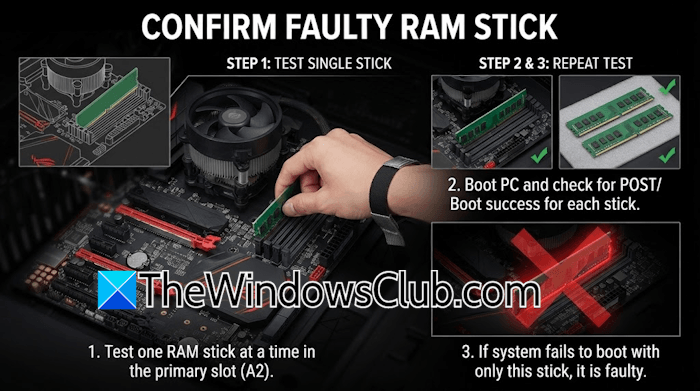
If your system has multiple RAM sticks, one of them might be faulty. To confirm this, turn on your system with only one RAM stick at a time. Repeat this step to test all the RAM sticks. If the computer turns ON with all RAM sticks except one, that RAM stick might be faulty.
8] Reset BIOS
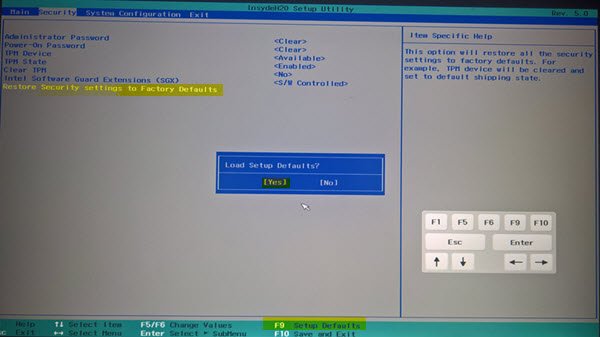
If the issue occurred due to misconfigured BIOS settings, resetting it to the factory defaults can fix it. Reset BIOS and see if it helps. For this, you have to enter your system BIOS. If you cannot enter BIOS, use another way to reset it to the default. Make sure your computer is turned off. Now, open your computer case and locate a small coin-shaped battery. It is the CMOS battery. Remove it gently from the socket and wait for a few minutes. Now, reinstall the battery with the right polarity. This process will reset your system’s BIOS.
9] Update BIOS
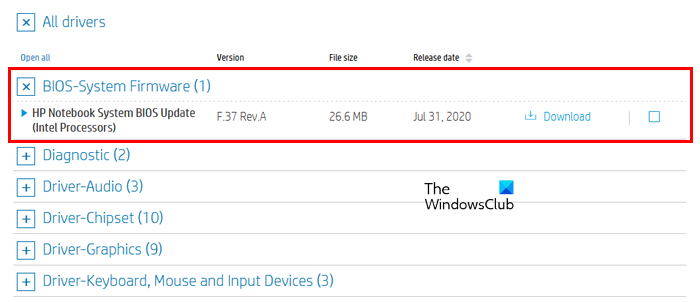
When we install a new hardware component, it is important to check for the BIOS update and install it if it is available. Since you cannot turn on your system after installing the new SSD, remove it and then turn on your system. Check the current BIOS version in System Information. Now, visit your computer manufacturer’s official website and check if a new BIOS version is available. If yes, download and install it. Turning off your system during the BIOS update may brick the motherboard. So, make sure your system has a continuous power supply during the process.
That’s it. I hope this helps.
Why won’t my PC boot after adding an SSD?
If your PC is not booting after adding a new SSD, the boot order might have been changed, and the new SSD might have been selected as a primary boot device. Because it doesn’t have the Windows operating system, your system won’t boot. Check the boot order to confirm this. Another cause is the incorrect SSD installation.
Why isn’t my PC reading my second SSD?
To confirm whether your PC can read your SSD, open Disk Management and check whether the SSD appears. If yes, the SSD might be in RAW format and needs to be formatted properly to become visible in File Explorer. If the SSD does not appear in Disk Management, it might be damaged or not connected properly.
Read next: Windows is booting from the D drive instead of the C drive.
