

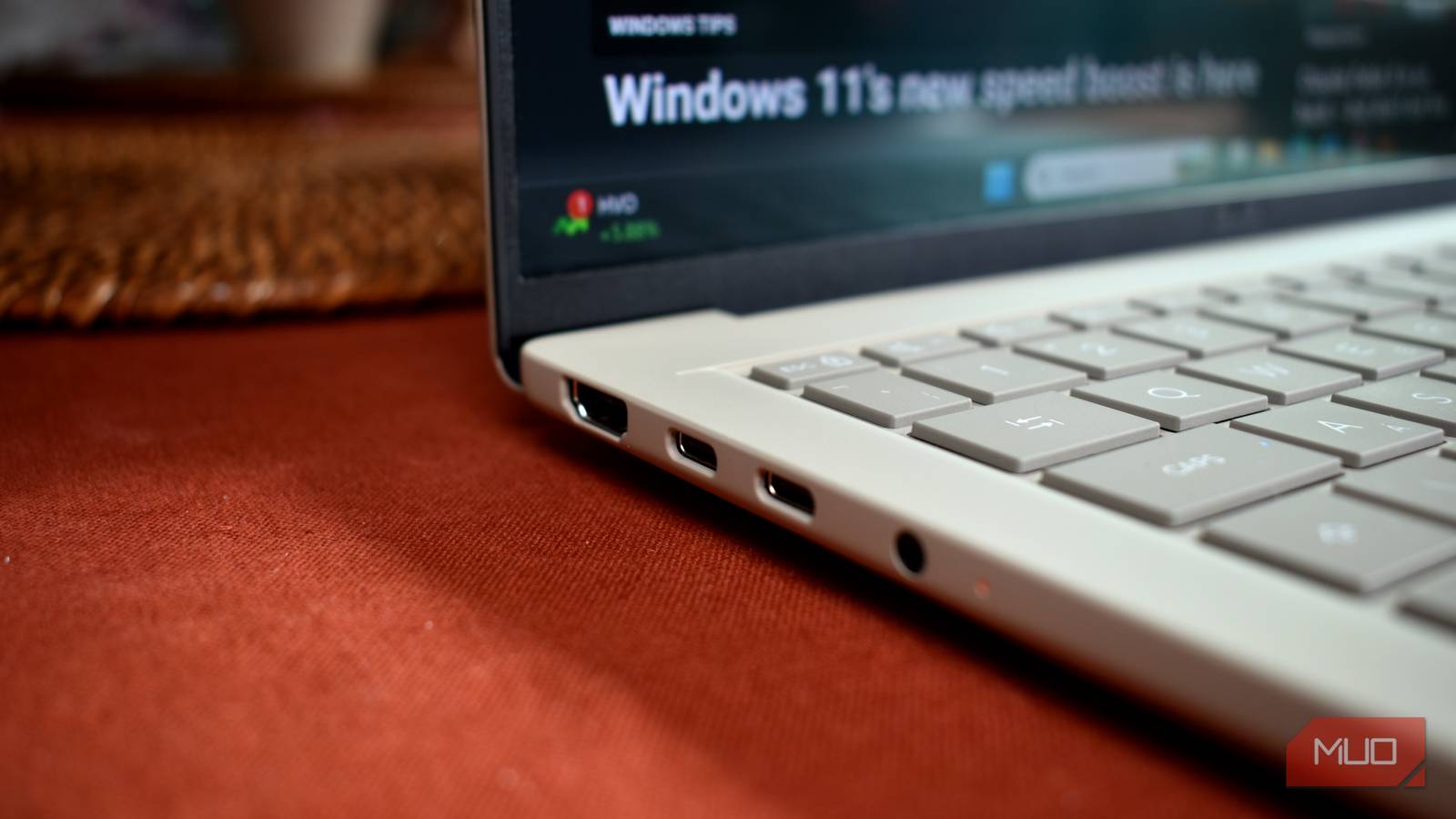

Why does USB-C have to be so confusing? Years after its launch, I’m still plugging in cables and getting the wrong charging speed, video output, or otherwise, despite how useful it is.
Case in point: I recently plugged a fast external SSD into a laptop port with USB4, but I didn’t get the ultra-fast speeds I expected. That’s when I learned that USB4 isn’t a speed; it’s a standard that covers everything from 20Gbps to 80Gbps — but there is almost no way to tell what you’ll get at a glance.
USB4 doesn’t guarantee one transfer speed
The standard covers multiple bandwidths
USB4 is built on the Thunderbolt 3 protocol and uses the USB-C connector, which is why a single port can carry data, video, and power. Depending on the hardware, USB4 can support data transfer speeds of 20Gbps, 40Gbps, or even 80Gbps.
The first version of the spec supports 20Gbps and 40Gbps. The next-generation USB4 v2 offers up to 80Gbps and can even push that up to 120Gbps in one direction when a task needs it, such as driving a high-resolution display. Now, an 80Gbps connection theoretically offers four times the bandwidth of a 20Gbps one. If you regularly transfer large video files or work with external SSDs, that extra bandwidth can make a huge difference.
The problem is that manufacturers don’t always make these differences obvious. The connector itself won’t help you either. You’ll find the same oval USB-C shape on USB 2.0, USB 3.2, USB4, and Thunderbolt 4/5 ports. This can become frustrating when you’re shopping for a laptop. You might compare two models, notice that both advertise USB4, and assume they will offer similar connectivity. However, one might support 20Gbps while the other supports 40Gbps or 80Gbps.
Why you can’t just read the label
Your USB-C port won’t tell you its speed

One of the biggest problems with USB4 is that you can’t find a visual difference between ports supporting different speeds. The USB Implementers Forum (USB-IF) tried to fix this by shifting to speed-based names like “USB 20Gbps”, “USB 40Gbps,” and “USB 80Gbps” rather than confusing technical numbers like USB 3.2 Gen 2×2. That seems to be a big improvement, at least in theory. However, you will see plenty of spec sheets still mention only “USB4” or “USB-C,” and many laptops have no port at all.
Comparatively, Thunderbolt is clearer, up to a point. Here’s how the labels compare:
|
Standard |
Guaranteed minimum speed |
Top possible speed |
Other guaranteed minimums |
Catch |
|---|---|---|---|---|
|
USB4 (no speed label) |
20Gbps |
40Gbps |
10Gbps USB 3.2 data, one display with no minimum |
The spec only mandates 20Gbps; 40Gbps is optional, so assume the lower number |
|
USB4 40Gbps |
40Gbps |
40Gbps |
Same data and display baseline as USB4 |
The speed label is the only promise. The USB-IF logo program is built around the speed, either 20 or 40Gbps |
|
Thunderbolt 4 |
40Gbps |
40Gbps |
32 Gbps PCIe data, two 4K displays, and charging of up to 100W on at least one PC port |
Intel certification is what enforces these minimums |
|
USB4 v2 (80Gbps) |
80Gbps, but only if the port or box carries the USB 80Gbps logo |
120Gbps |
None beyond the speed label. Features that Thunderbolt 5 guarantees are only optional in USB4 v2 |
USB-IF wants shoppers to go by the speed logo, not the version number, and the 120Gbps mode is an optional asymmetric setup that keeps 40Gbps in the other direction |
|
Thunderbolt 5 |
80Gbps |
120Gbps |
64 Gbps PCIe data, dual 6K displays, and charging of up to 140W on at least one PC port |
The 120Gbps Bandwidth Boost mode sends 120Gbps one way and receives 40Gbps, so it’s aimed at displays, not file transfers |
If you see a Thunderbolt logo, you can trust the speed. If you see only “USB4,” you have to dig.
How to check your laptop’s USB4 capabilities
Here’s how I checked what I had

The first and most reliable way to identify your laptop’s USB4 bandwidth is to check its official technical specifications. I’m talking about the manufacturer’s spec page, and not the retailer’s listing. You can search for your exact laptop model on the manufacturer’s website and navigate to its connectivity section. Look for an explicit transfer speed, such as 20Gbps, 40Gbps, or 80Gbps. If the spec page says only “USB4,” assume the lower tier, i.e., 20Gbps until you can prove otherwise.
The second way is to ask the operating system. If you own a Mac, open Apple menu -> About This Mac -> More Info -> System Report, then check the Thunderbolt/USB4 section. You will see connected devices along with their link speed. If you’re on Windows 11, head to Settings -> Bluetooth & devices -> USB4 to see information about detected USB4 hubs and connected devices, including their capabilities.
Third is to run a real copy test. I copied a large video file to the SSD and watched the speed. A drive rated for several gigabytes per second that tops out around 400MB/s is behaving like a 5Gbps USB 3 connection, which points straight at the cable or the port.
Your USB4 cable and devices could be the bottleneck
Every component needs to support the same speed

Your laptop’s port isn’t the only thing that determines transfer speeds. The cable you’re using and the devices you’ve connected matter just as much. Let’s say your laptop supports 80Gbps, but you won’t get that bandwidth if your cable or peripheral supports a lower speed.
USB-C cables also have different data transfer capabilities: 20Gbps, 40Gbps, or 80Gbps. Their charging capacity doesn’t tell you how quickly they can transfer data. For instance, if your cable supports 240W charging, it doesn’t automatically mean it will also support 80Gbps data transfer.
The same thing applies to your external SSDs and other peripherals. For example, if your laptop supports 80Gbps USB4, but your external SSD supports only 20Gbps. You will get the maximum bandwidth of 20Gbps, no matter which cable you use.
So, before you go after faster USB4 accessories, check the specifications.
You might not need 80Gbps USB4 anyway
Go for the speeds that you actually need

It’s very easy to assume that higher bandwidth is always better, but not everyone needs an 80Gbps connection. It all depends on your workflow. For me, I mostly connect a mouse, keyboard, flash drive, or a standard SSD. In this case, a 20Gbps connection might suffice. I can do my everyday tasks like browsing files and backing up smaller folders without the need for extra bandwidth.
The difference becomes more apparent if you’re working with large video projects or using demanding docking setups. Think of two high-resolution displays plus fast storage on one cable, an external GPU enclosure, or a pro-level NVMe drive you use for editing video directly off the disk. That’s where I’d want a guaranteed 40Gbps or 80Gbps.
