


I’ve spent a lot of time using my home Wi-Fi this fall. First, I walked my third-floor office with AirPort Utility’s hidden scanner to hunt down dead zones. Then I finally read the Private Wi-Fi Address screen my iPhone had been showing me for years. Both times, I only cared about the network I was actually on.
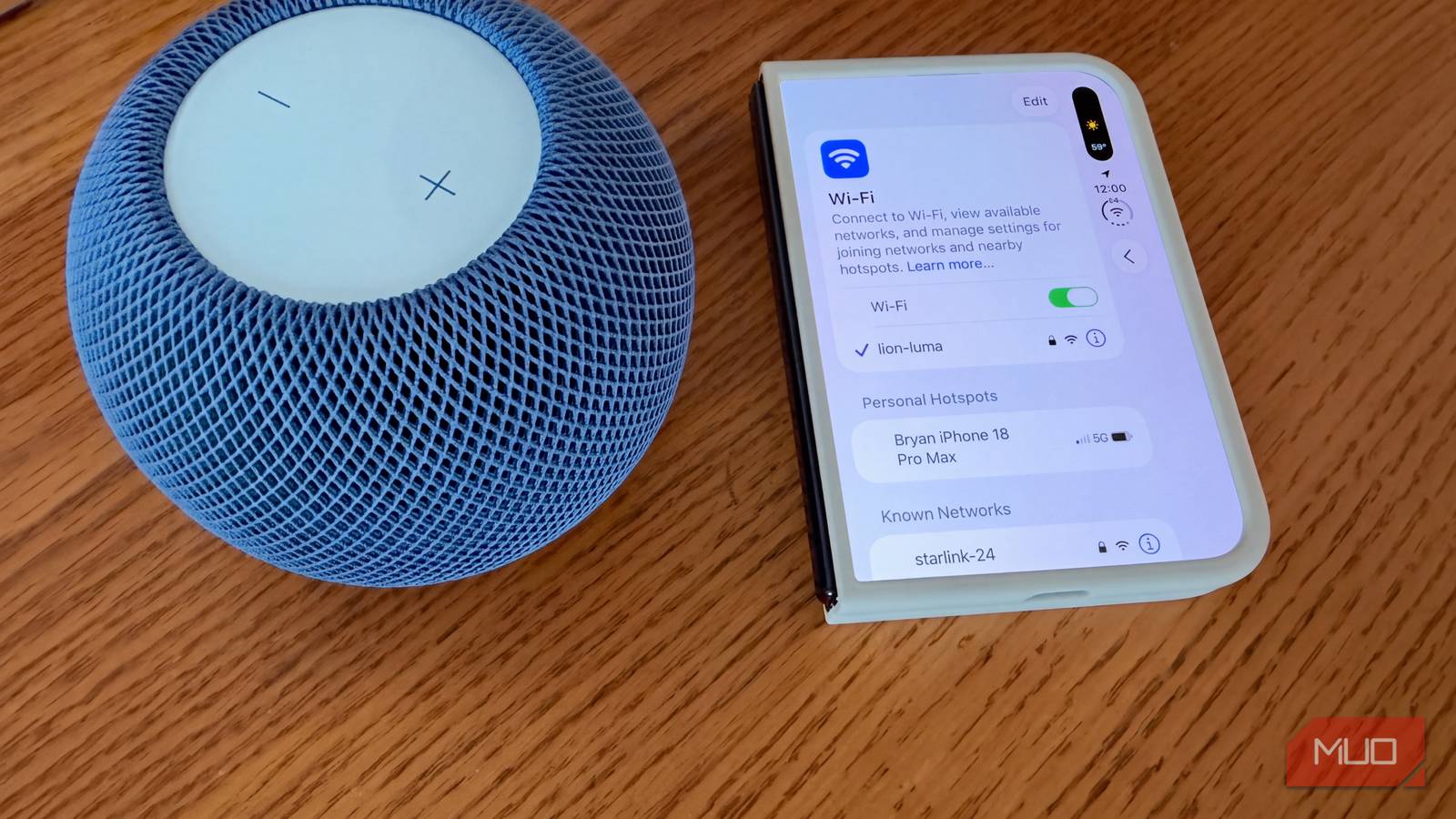
The networks I wasn’t on never crossed my mind until I tapped a small Edit button at the top of my iPhone’s Wi-Fi settings. After Face ID (Touch ID on my new iPhone Duo), a list called Known Networks was loaded with nearly 20 entries. I recognized some right away, including a hotel in Austria I stayed at almost two years ago. I couldn’t place a few at all.
Scrolling through it felt like reading a travel log I never meant to keep. So, I started digging into who else could read it.
Where to find every Wi-Fi network your devices remember
Apple put the full list behind a button most people never tap
Apple added this list in iOS 16. Open Settings > Wi-Fi, tap Edit in the upper-right corner, and authenticate. You’ll see Known Networks, which you joined yourself, and Managed Networks, which your carrier or a configuration profile added.
Tap the info button next to any known network, and its saved password is right there. On iOS 18 and later, the Passwords app has a Wi-Fi section with the same list.
With iCloud Keychain on, Known Networks also includes networks your other Apple devices have saved. I spotted three entries on my iPhone that I’d only ever added on my MacBook Air.
Other platforms keep the same kind of list:
- Mac: Open System Settings and find the Advanced button in your Wi-Fi settings.
- Windows: Go to Settings > Network & internet > Wi-Fi > Manage known networks.
- Android: Look for Saved networks under Network & internet. The path varies by manufacturer.
What your saved Wi-Fi network list reveals about you
Every network name points to a real place

One entry on its own doesn’t say much. “Home” or “ATTwifi” could belong to anyone. Read the names together, though, and they start forming a map.
Mine still had the Wi-Fi from a car I no longer own, my old home network, and that Austrian hotel. Anyone reading it could figure out where I’ve traveled, where I used to live, and even what I used to drive.
People also type strange things into network names. Researchers at the University of Hamburg who recorded Wi-Fi traffic from passersby found passwords, email addresses, and vacation spots in the network name field.
Personal hotspots make this worse. Your iPhone’s hotspot is named after the phone itself, so it usually carries your first name, like “Bryan’s iPhone.” Borrow a friend’s hotspot once, and their name can stay in your list for years.
Then there’s WiGLE, a crowdsourced database built by volunteers who log Wi-Fi networks along with GPS coordinates. Search for “Guest,” and you get a useless pile of results. A distinctive hotel name, or a network named after a family, can lead straight to a pin on the map.
Every saved network also keeps its password. Apple locks them behind Face ID or Touch ID, but Windows is far more relaxed. One netsh command in Command Prompt shows any saved network’s password in plain text. A few unsupervised minutes at your unlocked laptop is all someone needs.
Does your phone broadcast your saved Wi-Fi networks?
Modern iPhones mostly stay quiet, with one big exception

This is where a lot of scary headlines get it wrong. Older phones called out the names of remembered networks while searching for them, so anyone nearby with a packet sniffer could read part of your list. In the Hamburg study, about 23% of captured requests contained those names.
Newer phones send a blank request and wait for nearby routers to answer. Apple’s platform security guide says an iPhone only includes a network’s name if the network is hidden, and “not otherwise.”
Hidden networks are the catch. If your phone has one saved, it asks for that network by name everywhere you go. For this reason, Apple recommends that people not hide their network names.
Outdated gear is the other weak spot. Android 8 treated any network you added by hand as hidden, and old laptops and smart-home gadgets that stopped getting updates may still broadcast names, too.
Saved public Wi-Fi networks make evil twin attacks easier
Auto-join trusts a name, and anyone can copy a name

Nothing ties a network name to a specific router. Any device with a Wi-Fi radio can broadcast “Airport Free WiFi” or a hotel chain’s name.
An evil twin attack exploits that. A fake access point copies the name of a network your device already trusts, and your phone or laptop connects automatically. Security researchers have demonstrated this for years with tools like the Hak5 Wi-Fi Pineapple.
The trick mostly works against open networks, the ones with no password. If an attacker doesn’t know your home Wi-Fi password, a copy of your home network can’t fool your phone. The free hotel and coffee shop networks lingering on your list are real exposure.
How to clean up your known Wi-Fi networks list
A few minutes of deleting closes most of the gaps

I went through my list one entry at a time. Here’s what I’d recommend:
- Delete networks you won’t use again. On iPhone, tap Edit in Wi-Fi settings. On Windows, select Forget in Manage known networks. On Mac, use the Known Networks section.
- Keep the public networks you’ll actually use again, but switch off Auto-Join for each one. Tap the info button beside the network name and turn the toggle off. The password stays saved, but your phone won’t join that network until you tap it, so a lookalike can’t connect you automatically.
- Remove saved hidden networks. If your own router hides its name, unhide it and rely on a strong WPA3 or WPA2 password instead.
- Leave Private Wi-Fi Address on for networks you don’t control. I covered the trade-offs in my piece on Apple’s hidden Wi-Fi menu.
- Check what your hotspot is called. On iPhone, it uses the name in Settings > General > About > Name. Mine gets my first name and the model, like Bryan’s iPhone Duo, so I can tell them apart without broadcasting my last name.
- Install updates on everything, including the old smart plug behind the TV.
For a clean slate, Settings > General > Transfer or Reset iPhone > Reset > Reset Network Settings wipes every saved network at once. It also clears VPN and Bluetooth settings.
My Wi-Fi list is a lot shorter now
By the time I finished, I’d deleted 12 of those nearly 20 networks. A current iPhone isn’t shouting your history at strangers. The bigger issue is the pile of old entries your devices still trust, plus the password tucked behind each one. If you haven’t looked in a while, open your Wi-Fi settings and tap Edit.
