


I got my first Kindle earlier this year, and I’ve really been enjoying it. Although it’s not perfect or as open a platform as I would like, it suits my needs, allowing me to conveniently read the books I want, anytime and anywhere, and comfortably thanks to its E Ink display. One thing I especially appreciate about Amazon’s Kindle devices is how frequently they receive updates.
Earlier this summer, Amazon released an update for its Kindle devices that added new spacing options, and recently, it released another update that introduced a new Assistive Reader feature, which reads your books aloud, and an accessibility feature that enlarges the font across the entire Kindle user interface to make it easier to see.
While these updates are helpful, and I appreciate that Amazon is rolling them out, I’ve noticed my Kindle always takes a long time to actually receive them. When a Kindle update was released in June, my device took weeks to get it, even though it was always connected to the internet and fully charged. Even when I went to the software updates screen and tried to start the update, I saw a pop-up saying it was already up-to-date, even though I knew it wasn’t, since others had received the update and it was listed on Amazon’s website.
To fix this, I decided to learn how to manually update my Kindle. This means downloading the update directly from Amazon and starting the process myself, instead of waiting for it to happen automatically. To my surprise, the process was very simple, and it made my Kindle much easier to use.

- Storage
-
16GB
- Screen Size
-
6-inch E Ink (300ppi)
- Connections
-
USB-C
Amazon’s base-level Kindle ships with 16GB of storage, a 6-inch E Ink display, and a ruggedized exterior shell that can withstand the elements.
How to update your Kindle e-reader
Access the latest features first

If you’re interested in learning how to update your Kindle yourself, it’s a relatively easy process that doesn’t require you to be a tech guru, and by doing so, you’ll gain access to all the latest features on your Kindle.
It’s important to note that Amazon officially supports this, so there are no hacks or tricks involved. The updates are officially available for download on Amazon’s website, and Kindle devices are designed to allow users to safely update them themselves.
If you have an older Kindle, you may not be able to download the latest Kindle update, as it’s only available for 11th and 12th-generation Kindles, the Kindle Scribe, and the Kindle Colorsoft.
To get started, you’ll need your Kindle, a computer, and a USB-C cable (the cable that came with your Kindle). Once you have all those assembled, here’s what to do:
1. On your computer (Mac or Windows works), visit Amazon’s official website for Kindle updates, located here.
2. Locate your Kindle under the listed devices on Amazon’s site and download the latest update. For instance, I have an 11th-generation Kindle, so I downloaded the latest version for that model. Remember where you downloaded it to on your computer.
3. Once you’ve downloaded the update file, connect your Kindle to your computer with a USB-C cable. When connected, your Kindle should appear as an external drive labeled “Kindle.”
4. Drag and drop the update file you just downloaded into the “Kindle” drive.
5. Once the file has transferred successfully to your Kindle, disconnect it from your computer. On my Kindle, I simply tapped Disconnect on the screen.
6. On your Kindle home screen, tap the Menu icon (the three dots) and choose Settings.
7. Then, tap the Menu icon again and choose Update Your Kindle.
Now that I know how to update my Kindle manually, I’ll do this every time a new update is released instead of waiting forever for it to arrive automatically.
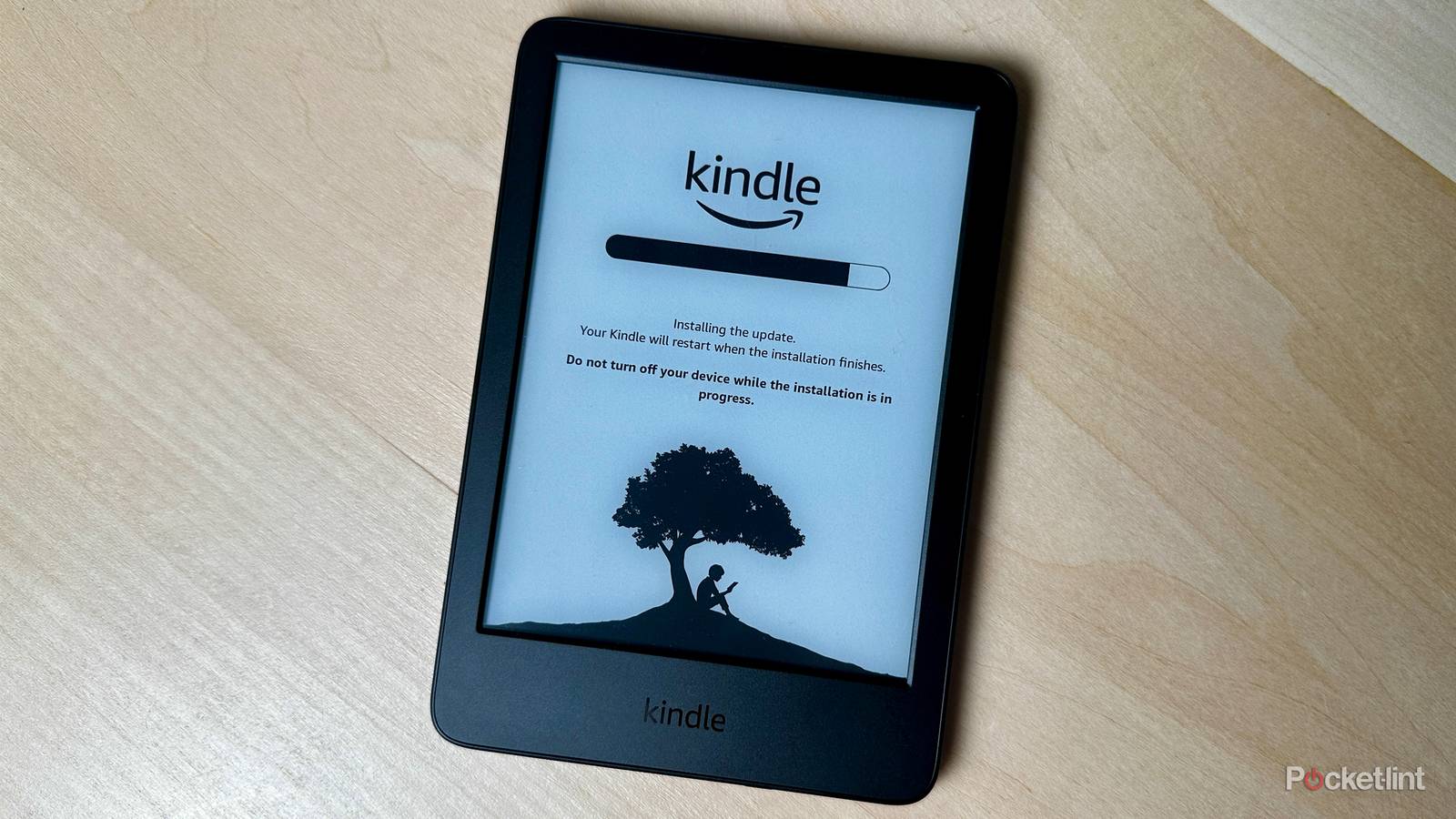
Once you start installing the latest update on your Kindle, you’ll see a progress bar appear on the display along with a message that indicates it’s updating. When it’s finished, your Kindle will restart, and you’ll be able to enjoy the latest update.
At the time of writing, the latest update, version 5.18.4.0.1, introduces a new Assistive Reader feature that essentially turns supported Kindle books into audiobooks, with a generic AI voice reading them aloud that you can follow along with. If it’s been a while since your Kindle was updated, there are also new options to customize how books appear, so if you want to adjust the amount of space between each character, word, and paragraph exactly to your liking, you can.
Now that I know how to update my Kindle manually, I’ll do this every time a new update is released instead of waiting forever for it to arrive automatically. I enjoy testing the latest features that enhance my Kindle, and manually updating it allows me to do that faster. Now, you can too.
