

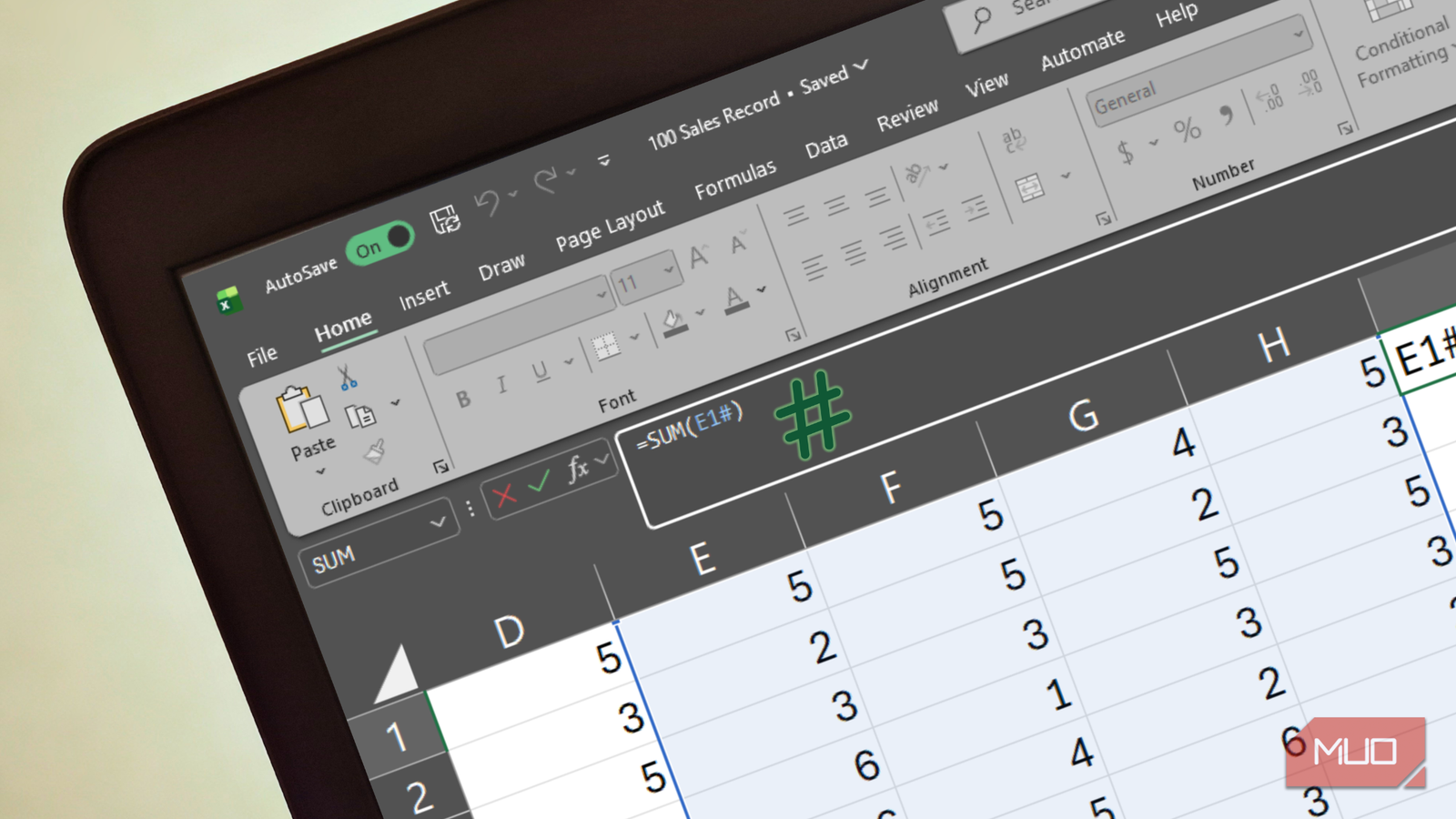

You can use Excel for years without ever noticing the # symbol, let alone understanding what it does. That changes when you inherit a workbook, spot a formula with a cell reference ending in #, and assume it’s a mistake. It feels natural to delete it, but that’s usually when things start to break.
At first glance, the symbol doesn’t look like much, but in modern Excel, it’s quite important. I use it to reference entire spill ranges from Excel’s dynamic array functions, and it has made working with formulas far more flexible and far less error-prone.

If You’ve Never Used Excel’s FILTER Function, You’re Seriously Missing Out
Stop manually sorting spreadsheets when Excel’s built-in FILTER does the heavy lifting.
The meaning of the # in your Excel cell references
It turns one cell into a doorway to an entire dynamic result

Imagine you open a spreadsheet and spot a formula like this:
=SUM(E1#)
Your first instinct might be to assume there’s a typo or that someone accidentally hit the Shift key. However, that # symbol is called the spilled range operator, and it’s an important part of modern Excel.
To understand why, you first need to know about dynamic arrays. Starting with Excel 365 and Excel 2019, Microsoft introduced functions such as SEQUENCE, FILTER, UNIQUE, and SORT that behave differently from traditional formulas. Instead of returning a single value, these functions can return multiple results at once across many rows.
Let’s say you enter the following formula in cell D2 in a compatible version of Excel:
=UNIQUE(A2:A50)
Excel won’t just populate D2. Instead, it automatically spills the list of unique values into the cells below. That expanding block of results is called a spill range.
This is where the # symbol comes in. When you write D2#, you’re telling Excel: “Give me everything generated by the formula in cell D2.” Rather than pointing to a single cell, you’re creating a dynamic reference to an entire spill range, even if you don’t know in advance how large that range will be.
With a traditional reference, you’d have to specify a fixed range and hope it remains accurate as your data changes. If the list grows or shrinks, those references can become outdated and start producing incorrect results. By contrast, D2# automatically expands and contracts with the spill range, so the reference always reflects the current data without requiring any manual updates.
Modern Excel finally made sense to me after I learned how arrays and ranges are different
The smartest thing Excel does happens in places you can’t see.
Why the # operator matters in Excel
Building live, self-updating reports without manual maintenance

One of the most powerful uses of the spilled range operator is chaining formulas together. Imagine you have a messy sales dataset with hundreds of duplicate entries. You can start by generating a clean, deduplicated list with the following formula in cell O2:
=UNIQUE(A2:A100)
Then, in a separate cell, you can immediately sort that entire result alphabetically:
=SORT(O2#)
The # operator is what makes this possible. It tells the SORT function to use everything that the UNIQUE function has spilled onto the sheet, regardless of how many rows that ends up being.
This kind of chaining makes it possible to build automated reporting systems that previously would have required a developer. You can create live sales dashboards, KPI trackers, and dynamic dropdown menus that automatically adjust as data changes, all without manual upkeep. As your underlying dataset evolves, the outputs update accordingly.
If you’re a data analyst, there’s even more you can do with the spill range operator. You can build forecasting models, budget summaries, and transformation pipelines directly in the spreadsheet grid by linking dynamic array formulas. Because the # operator automatically adapts to changing data sizes, these models remain reliable as new data flows in.
That said, the spilled range operator also has some limitations, as does practically any good tool. It only works with dynamic array outputs. If you manually type values into a column and try to reference them using #, Excel won’t recognize it as a spill range. The operator is designed specifically to reference results produced by functions like FILTER, UNIQUE, or SEQUENCE.
Excel’s new group of functions will break your brain in a good way
Once you grasp these, spreadsheets feel alive.
A tiny symbol that changes everything
The hash sign is easy to overlook. It sits at the end of a cell reference and is easy to mistake for a typo. However, it’s a significant shift in how Excel spreadsheets work.
Instead of relying on fixed, manually defined ranges, the # operator allows formulas to reference blocks of data that automatically grow and shrink. The result is a spreadsheet environment that feels more dynamic, more responsive, and far more automated than the traditional approach ever allowed.

- OS
-
Windows, macOS
- Supported Desktop Browsers
-
All via web app
- Developer(s)
-
Microsoft
- Free trial
-
One month
- Price model
-
Subscription
- iOS compatible
-
Yes
Microsoft Excel is a powerful spreadsheet application used for data organization, analysis, and visualization. It supports formulas, functions, pivot tables, and charts to process complex datasets efficiently. Widely used in business and education, Excel also integrates with other Microsoft 365 apps for collaboration, automation, and real-time data insights.
