


Anyone who’s traveled for work knows what it’s like to go through an airport with a laptop. At one airport, you take it out of your bag and put it in its own tray. At the next one, they don’t even care about it.
I had some important work deadlines coming up when I accidentally knocked my laptop off a table. I’d never done that before. I froze, my mouth dropped open, and I heard it hit the ground in a way that told me it wasn’t okay.
That snap was not a normal laptop sound.
And just like that, my laptop was broken. I was able to get everything onto the cloud, but I still had a question hanging over me. What was I supposed to do about my deadlines?
That’s when I remembered another piece of electronics I was traveling with. I’d gotten myself a Steam Deck for Christmas to encourage myself to play more of my favorite games while traveling. I’d heard something online about it having a Desktop Mode. With no other computer, I had to dive right in.
How to switch your Steam Deck to Desktop Mode

If you’ve only ever played games on your Steam Deck, you might never have had a reason to look for Desktop Mode. It’s in the same menu you use to turn the Deck off or restart it.
- In Gaming Mode, press the Steam button on the left side of the handheld.
- Select Power, then Switch to Desktop.
- Give it a moment to close Gaming Mode and load the desktop.
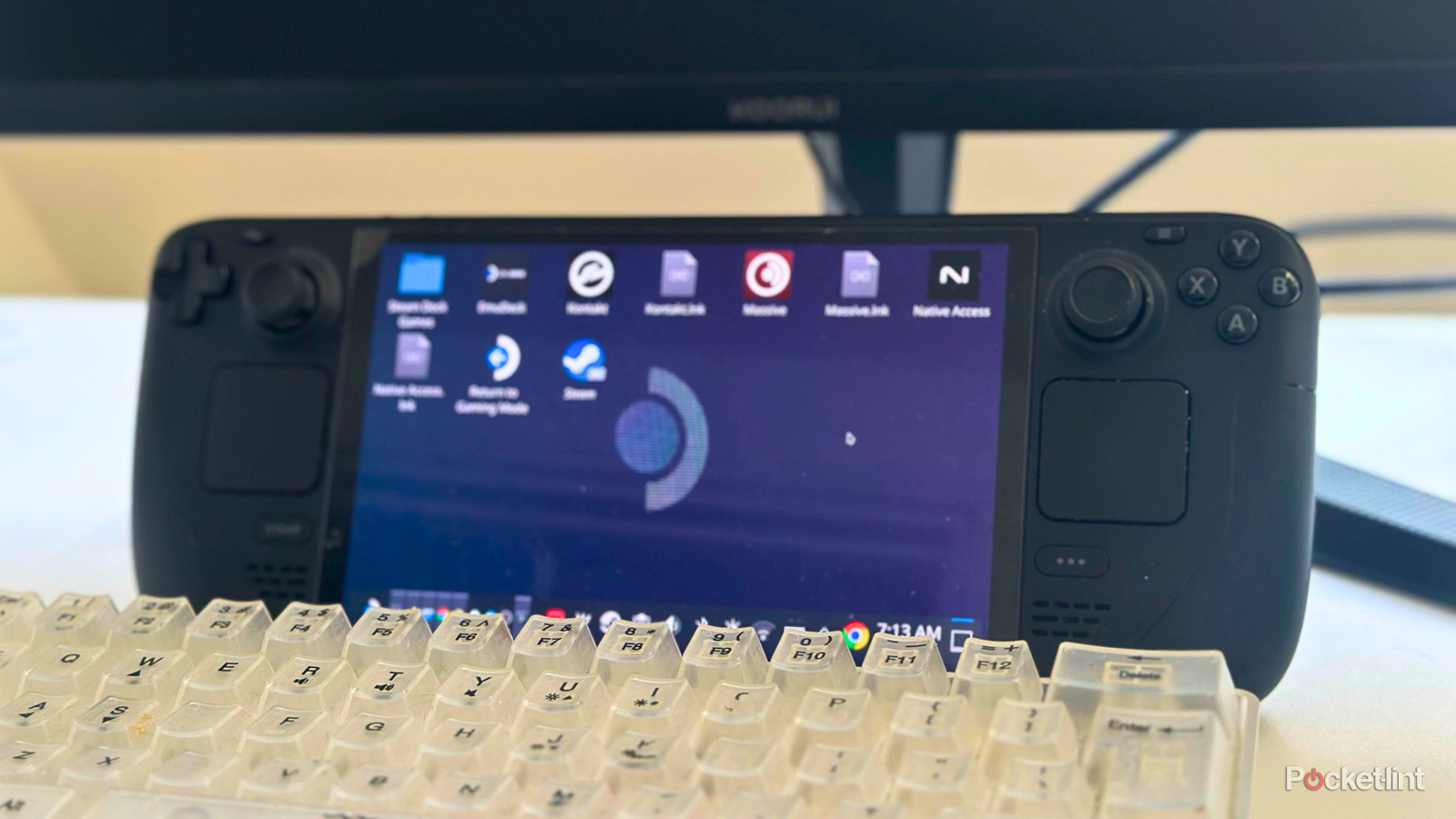
When you get there, you may look down at the console in your hands and ask yourself, Oh, is this an actual desktop? You’ll see a taskbar at the bottom, a wallpaper, and some desktop icons. Congratulations, you’ve arrived at Desktop Mode. It may seem a little meager when the screen is only a few inches tall.
On my Deck, I use one trackpad to move the mouse and the other to scroll. I use the triggers to left and right-click.
Pro-tip: When you’re scrolling, think in circles instead of swiping up and down. Trust me, this will come in handy later.
A dock gave me room to work
I could plug in the things I already used with my laptop

I have a JSAUX dock that holds the Steam Deck upright and plugs into its USB-C port. From there, I can connect an external monitor, a keyboard, and a mouse. I can plug in a USB hub if I need more ports for a webcam or whatever else I’d normally connect to a computer.
When I first broke my laptop and set up the Steam Deck, I had a few writing assignments. Nothing too complicated. I needed to connect my keyboard, open Google Docs, and process some images in Canva. Chrome and Firefox both worked for me, and I could get to the files I’d put in the cloud.
Not a terribly complex order for a literal computer, but it showed me there was a lot more to this desktop side than I thought. I started wondering, What else can I do on this? Then I started downloading things like OBS Studio for recording and streaming and REAPER for composing and producing music.
I also like that the Steam Deck has its own little monitor. It’s big enough to keep Discord or Slack open so I can see messages as they come in. On the bigger monitor, I can keep writing, work on music, or watch a YouTube video. And the little screen is still a touchscreen. I also find the two trackpads handy for scrolling and clicking. Sometimes I prefer using them to reaching for my mouse.
Then I had to learn a little Linux
Discover is where I go for apps

Here’s where the learning curve came in for me. SteamOS is based on Linux, and I was used to doing things a certain way. I’ve had to figure out display scaling and, at one point, how to get my taskbar onto the monitor where I actually wanted it.
If you’re just starting in Desktop Mode, the first thing I’d look for is the Discover Software Center. It’s a lot like any other app store. You can search for programs, see reviews, and download free apps that actually come in handy. VLC, the one with the orange traffic cone, makes it easy to watch videos I’ve saved to the Deck. I can install it without typing a single command.
Once I was ready to get into commands, I found I could do a lot more. I used the terminal to get my digital audio workstation set up and get some virtual instruments I’d previously only used on Windows working on the Deck. By now I’ve composed and produced countless songs in REAPER in Desktop Mode.
And when I’m all done, I can click Return to Gaming Mode on the desktop and start playing my favorite games again. I bought the Deck so I’d play more of them while traveling. I had no idea I’d make music on it, use it to meet work deadlines, and leave my laptop at home on some trips.
