

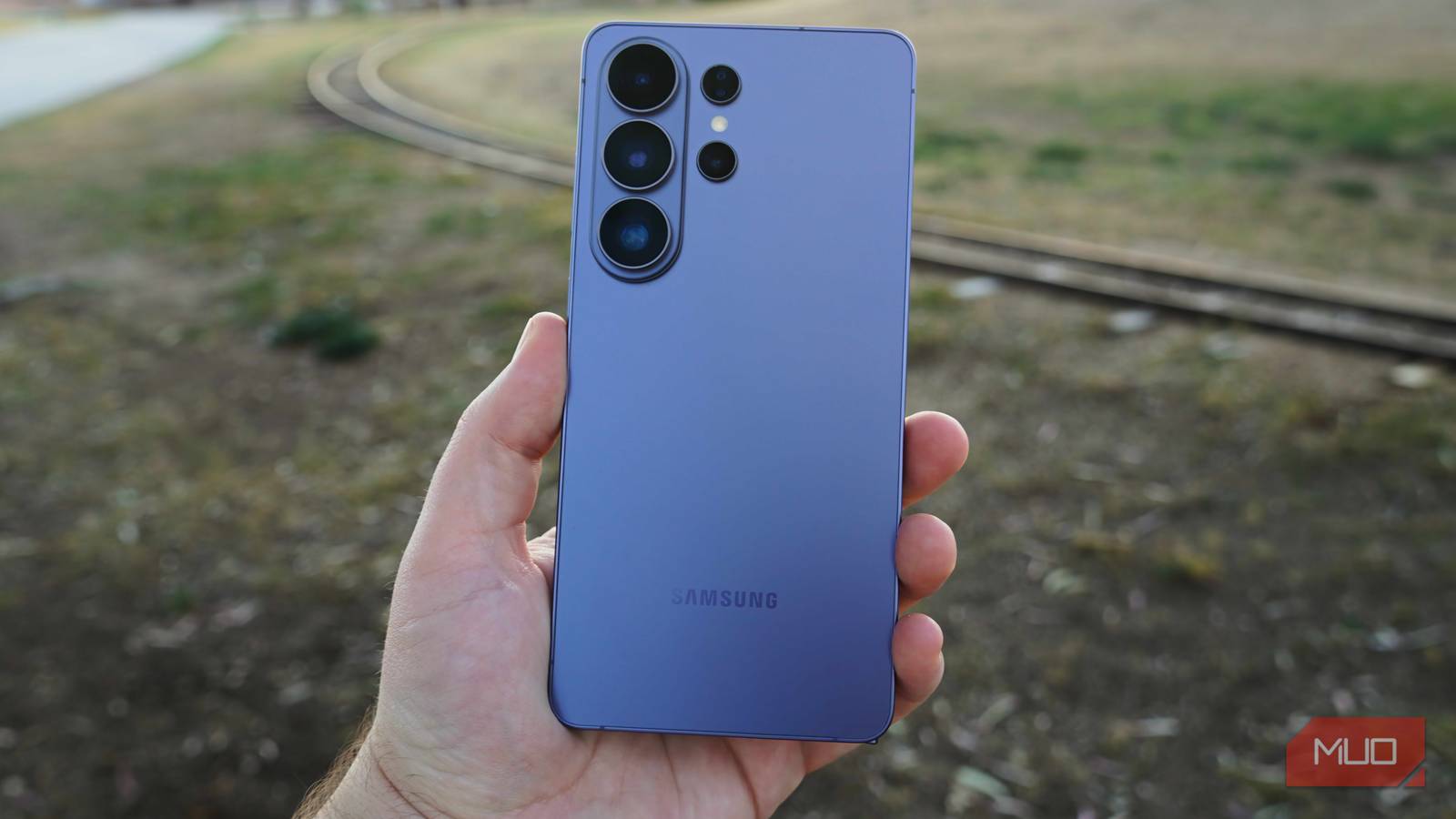

You take a photo; it looks great on your phone, and then you revisit it later, and something feels off. The colors are too warm; the skin looks over-sharpened, and the whole image has a processed quality you didn’t notice when you pressed the shutter. Samsung’s camera app rewrites the photo before it’s saved to your gallery.
I spent months blaming my angles and lighting before I realized the default camera settings were the real problem. Four changes, and I barely touch my photos after I take them.
Turn off Scene Optimizer
Let your colors stay closer to reality
Scene Optimizer is the first thing I turned off. Samsung uses it to recognize what’s in the frame, then boosts color and contrast to match. That sounds helpful, but it often made my photos look less like the moment in front of me. For example, food shots came out with a strong orange cast. It also cranked up the reds and oranges in sunsets, so the softer detail in the sky was gone.
More importantly, the camera saves those changes directly into the photo. You can’t remove Scene Optimizer like a filter later. Instead, you have to pull down saturation or correct the white balance yourself, and that defeats the point of getting a good shot straight from the camera. Open the Camera app, tap the settings gear, and go to Photo enhancer. Look for Scene detection and turn it off. On older Galaxy phones, it’s called Scene Optimizer.
Bump up your photo resolution
Save more details for crops and zooms
Samsung’s standard Photo mode saves 12MP images by default, even on phones with a 50MP or 200MP main camera. That works well for everyday shooting because the phone combines pixels to capture more light, which helps most indoors and at night. But in bright daylight, the extra detail a higher resolution captures is worth having.
I use 50MP for anything I might want to crop later, like landscapes, architecture, or street photography. Textures like leaves, brickwork, and distant signage stay sharp even when you zoom in. 200MP mode works best in bright outdoor scenes with little movement.
To change it, open the Camera app and tap the resolution control at the top of the screen. Select 50MP or 200MP. Then go to Camera settings, scroll to Settings to keep, and save your resolution preference. Otherwise, the app resets to 12MP every time you reopen it.
Galaxy S26 phones also get a 24MP option. Install Samsung’s Camera Assistant app from the Galaxy Store or through Good Lock, enable 24MP in its Advanced resolution options, and it will appear in your regular Camera app. The S25 series gets 24MP through Expert RAW, a separate camera app on the Galaxy Store.
Dial back the artificial sharpening
Keep skin texture natural, not exaggerated

Samsung often adds a strong sharpening effect to its photos. It can make a photo look crisp, but in portraits, skin ends up looking rough, and hair turns unnaturally sharp, with edges that were not visible in real life.
Camera Assistant gives you a way to rein that in. Open the app, find Photo softening, and set it to Medium. Samsung turns this feature off by default, so it applies its full sharpening to every shot. Medium pulls back the harshest edge enhancement while keeping photos clear.
Despite the name, Photo softening doesn’t add a beauty filter or blur the shot. It reduces how much sharpening Samsung adds after you press the shutter. With Scene Detection off and this set to Medium, portraits look more natural.
Switch from JPEG to HEIF
Save space without sacrificing image quality

This setting won’t change how your photos look, but it can cut storage use roughly in half. JPEG has been the default format for years, and it works everywhere, but HEIF delivers similar image quality in a much smaller file, which makes a real difference at 50MP or 200MP.
To switch, open the Camera app, tap the settings gear -> Photo format -> enable High efficiency pictures. The camera saves in HEIF from that point on.
I leave HEIF on for almost everything. Most apps, social platforms, and modern operating systems handle it fine. If you do run into something that doesn’t accept the format, open the photo in Samsung Gallery, tap the three dots, and select Convert from HEIF to JPEG. It takes two taps, so you’re never stuck with a file you can’t share.
Still not a manual camera
These four settings fix most of what I dislike about Samsung’s Photo mode. Still, the camera decides the exposure, white balance, and shutter speed. In tricky light, the phone can underexpose a photo or push the colors in the wrong direction.
When that’s not enough, I switch to Pro mode. It lets me adjust exposure and white balance before I shoot. Pro mode also lets me save RAW copies, which need editing, but gives me more room to fix a shot.


8.5/10
- SoC
-
Snapdragon 8 Elite Gen 5
- Display
-
6.9-inch Dynamic Super AMOLED 2X
- RAM
-
12 or 16 GB
- Storage
-
256GB, 512GB, or 1TB
The Samsung Galaxy S26 Ultra isn’t a massive leap in specs compared to the previous generation Samsung Galaxy S25 Ultra, but it boasts improvements in every aspect. The major differentiators are two features that will appeal to power users and content creators, called Privacy Display and Horizontal Lock.
