


Whenever I finally sit down to relax in the evening, there are always two things waiting for me on the couch: my Roku remote and my iPad Air. After a long day, it’s become a routine to kick my feet up, scroll through the news, check social media, and watch a few videos on my iPad before settling in to watch something on my Roku Ultra.
As someone who loves tinkering with tech, I’ve done everything I can to make my Roku Ultra deliver the best streaming experience possible. I’ve customized the home screen to remove unnecessary clutter, including the new Top Picks for You and Quick Access sections Roku recently added, and I’ve made the app tiles larger, so my favorite apps stand out more. I even connected a portable hard drive to my Roku Ultra via its USB port, giving me easy access to my old movie collection so I can watch local media instead of relying entirely on streaming services.
But it wasn’t until recently that I tried one more tweak. Remember that iPad I mentioned? It’s always within arm’s reach whenever I’m watching TV, whether it’s beside me on the couch or sitting on the coffee table. So I figured, why not make it part of my Roku setup? I paired the two together to see if it could make my streaming experience even better, and the result? Let’s just say I wish I’d done it years ago.
My iPad made my Roku even better
The Roku app makes this all possible

The key to turning my iPad into the perfect companion for my Roku Ultra is Roku’s free mobile app, available on the App Store. It lets you control nearly every aspect of your Roku directly from your iPad, from launching apps and navigating the interface to using exclusive features like Headphone Mode.
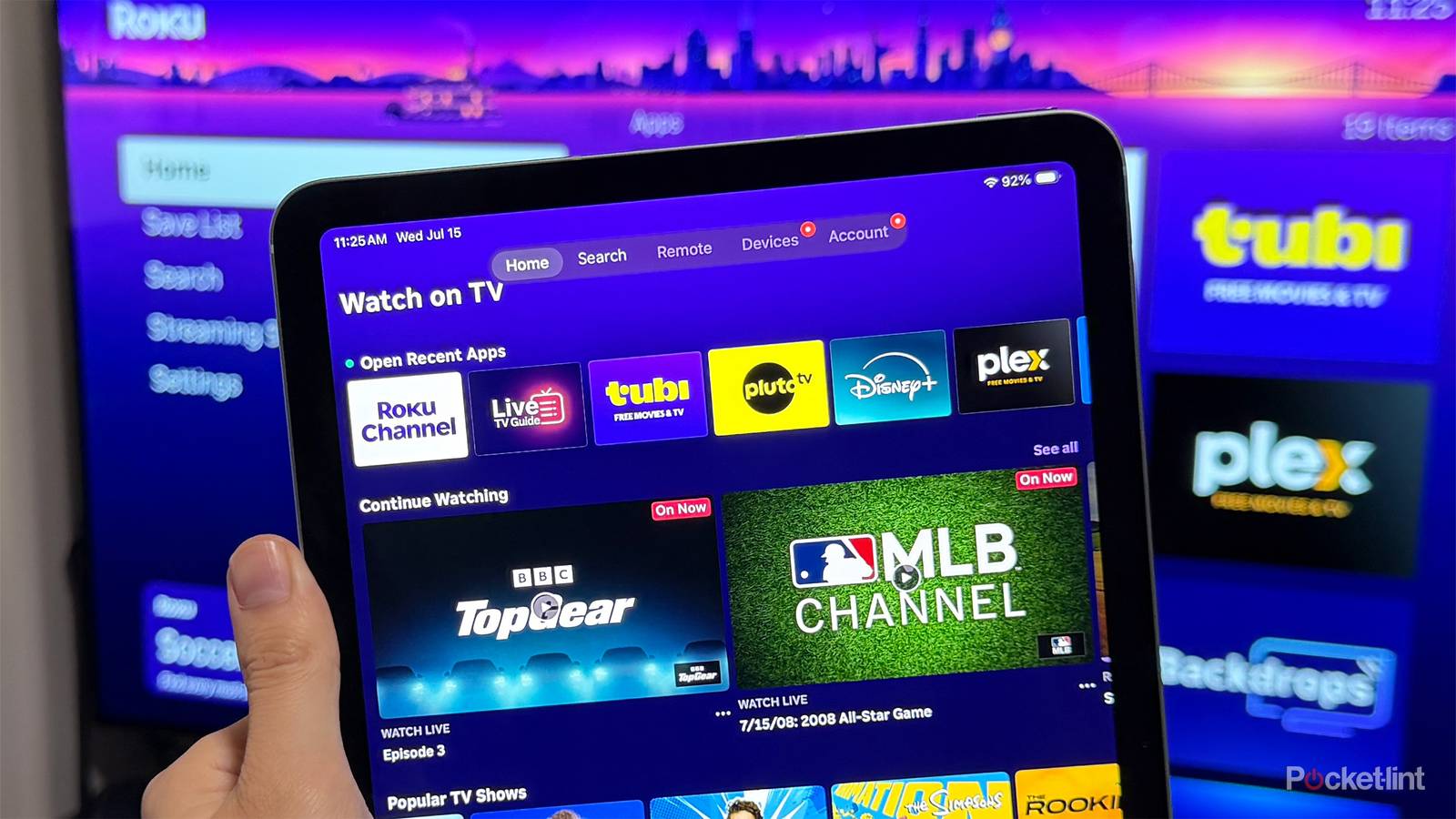
After pairing the app with your Roku for the first time, you’re greeted with a home screen that lets you jump straight into finding something to watch (as you can see in the image above). You can quickly open apps you’ve used recently or pick up where you left off with any of the free Live TV channels you regularly watch on The Roku Channel, all without touching your TV remote.

The real highlight, though, is the built-in remote. It recreates the physical Roku remote almost perfectly on your iPad, complete with directional buttons, playback controls, a Home button, and quick access to the Live TV guide. It also includes a full keyboard, making it much faster to type into search fields than slowly navigating the on-screen keyboard on your TV with a remote. And if you’d rather skip typing altogether, there’s even a voice search button that lets you speak to your iPad to instantly search for movies, TV shows, and apps on your Roku.
What really sold me, however, is how easy it is to launch apps. The Roku app lets you view your device’s entire app library, so instead of scrolling through menus on the TV, I can simply tap Netflix, Disney+, Prime Video, HBO Max, or whatever I want to watch, and the app opens instantly on my Roku. Then, since the Roku app also doubles as a remote, I can control playback and navigate everything from the same screen on my iPad without ever picking up the physical remote.
Headphone Mode is the cherry on top
You can easily listen to your Roku with your AirPods.

One of my favorite parts of using my iPad with my Roku has been Headphone Mode. If you’re not familiar with it, it’s a feature in the Roku app that lets you listen to whatever you’re watching through Bluetooth headphones or speakers connected to your iPad or iPhone instead of your TV’s speakers or sound system. In other words, if you want to watch something with your AirPods, it’s incredibly easy to do.
I have a habit of binging TV shows later into the night than I probably should, so being able to switch on Headphone Mode and listen through my AirPods without disturbing anyone else in the house has been a game-changer. If you’re a night owl like me, I think you’ll get a lot of use out of it.
I’ve also found that watching TV through my AirPods is far more immersive than I expected. Dialogue comes through crystal clear, and it’s much easier to pick up subtle background sounds that I’d normally miss through my TV speakers. It ended up being an unexpected bonus that made me enjoy watching my Roku even more.
All you have to do to enable Headphone Mode in the Roku app is simply tap the headphone icon on the remote screen.
How to pair your iPad with your Roku
It only takes a few seconds

If you want to try using your iPad with your Roku as I did, getting started is incredibly easy. All you need to do is download the free Roku app from the App Store.
The first time you open the app, you’ll be prompted to sign in to your Roku account. From there, as long as your iPad and Roku are connected to the same Wi-Fi network, the app will detect your device, whether you have a Roku Ultra, Roku Streaming Stick, or Roku TV. Simply head to the Devices tab in the app, select your Roku, and you’re ready to go.
I did this with my iPad, but you can also do it on your iPhone or on an Android phone/tablet by downloading The Roku App from the Google Play Store.
Once paired, you can use the Remote tab to control your Roku entirely from your iPad, launch apps, type with the on-screen keyboard, and enable Headphone Mode.
Overall, since my iPad is almost always beside me when I’m watching TV, pairing it with my Roku just made sense. It’s made controlling my Roku Ultra much more convenient, and thanks to Headphone Mode, it’s even improved how I watch movies and TV shows. Best of all, the Roku app is completely free, so if you already own an iPad and a Roku, there’s really no downside to giving it a try.

- Developer
-
Roku
- Subscription cost
-
No
