


The Google Pixel 10 Pro has been my primary phone for quite a while now, and despite everything I like about it, I’ve learned to live with the fact that it’s far from perfect. Now and then, I’ll notice the interface slowing down, apps taking longer than usual to respond, or the phone charging at a frustratingly slow pace. But if there’s one issue that has consistently bothered me, it’s overheating.
I tried all the usual fixes — I tweaked battery settings, went through the apps running in the background, and made a few other changes that I hoped would help. Nothing really explained why the phone kept getting so warm. After plenty of trial and error, I stumbled upon a free app that finally gave me a much clearer idea of what was actually going on.
Your battery knows more than you think
The dashboard explained what my phone couldn’t

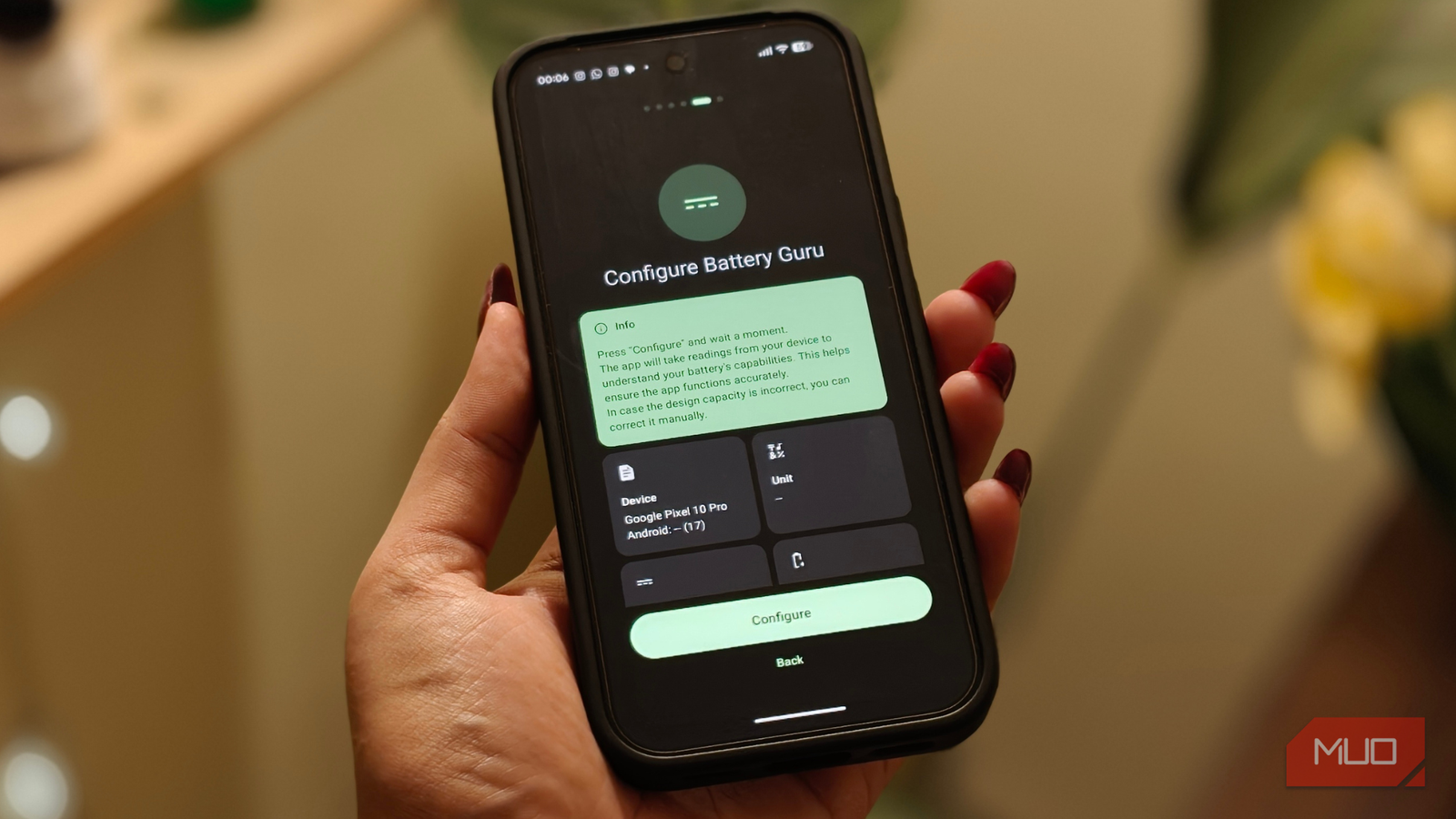
Getting started was refreshingly simple — I downloaded Battery Guru from the Play Store, granted it the permissions it needed, and then just left it alone for a couple of minutes. While it was busy figuring out my phone, I wasn’t expecting much. I assumed it’d be another battery app with a percentage, graph, and maybe a couple of notifications trying to scare me. I couldn’t have been more wrong.
Once the setup was complete, I was greeted by a dashboard that looked more informative than I expected. Instead of throwing random numbers at me, it actually started answering questions I’d been asking myself for weeks.
The first thing I opened was the battery health section. It showed how my battery’s current capacity compared to what it was designed to deliver when it was new. Since overheating was the biggest reason I’d installed the app in the first place, my eyes immediately went to the temperature monitor. It tracks your phone’s temperature in real time and even keeps a 24-hour history, which made it much easier for me to notice exactly when the phone was heating up.
I also found myself checking Charging Insights. I’ve switched between chargers and cables more times than I can count, always wondering if one was better than the other. I’ve swapped between different chargers and cables more times than I can count, always wondering whether any of them made a difference. This feature finally gave me a clear answer by showing charging speed and current in real time.
Drain Detection, on the other hand, quickly became one of my favorite parts of the app. It lists the apps and system processes running in the background that are eating into your battery life. There are also handy charging alarms that let you know when it’s time to unplug, along with low-battery alerts if you’re the kind of person who somehow always ends up at 5% (like me).

I also appreciated that the app doesn’t just show you data. It includes a battery health guide with simple tips to help extend your battery’s lifespan. It’s nothing overly technical, but it’s useful if you’re trying to build better charging habits.
If I had to nitpick, it’d be the ads. Since Battery Guru is free, I expected them to be there, and thankfully, they never interrupt what you’re doing or make you sit through a countdown. They’re mostly tucked away around the edges of the interface. Still, I’m someone who likes clean, distraction-free apps, so I couldn’t help wishing the dashboard looked a little less cluttered. Even with that minor annoyance, it never felt like enough to take away from what is otherwise one of the most useful battery apps I’ve used in a long time.
The culprit wasn’t my Pixel.
A week later, the app pointed somewhere unexpected

One thing I learned pretty quickly is that this isn’t the kind of app you install and judge within five minutes. If you decide to try Battery Guru, I’d suggest giving it at least a week before drawing any conclusions. It needs a bit of time to learn your charging habits, monitor battery usage, and build enough data to give you insights that actually mean something.
That’s exactly what I did. I installed the app and then more or less forgot about it for a week. When I opened it again, the dashboard was far more detailed than it had been on day one, and that’s when I started connecting a few dots.
To my surprise, the biggest problem wasn’t my Pixel 10 Pro after all. It was the charger I had been using. I’d been charging the phone with a third-party adapter that wasn’t even from a Google-certified brand. The charging data and temperature readings made me question whether the adapter was contributing to the excessive heat I’d been experiencing.

So, I switched to a compatible charger from a reputable brand. After using it for about a week, I noticed the phone wasn’t heating up as often while charging, and the overall experience felt much more consistent. That was the moment Battery Guru really proved its worth to me. It helped me identify something I probably wouldn’t have thought of checking on my own.
These days, I open the app every couple of weeks just to see how things are going. It’s about understanding how my phone behaves over time. Even if you never run into a major issue, having that extra visibility into your battery’s health can be surprisingly reassuring.
The detective work paid off
For now, my overheating issue is largely under control, and that’s a huge relief. More than anything, Battery Guru helped me understand what was actually going on instead of leaving me to guess. And honestly, that’s what I ended up appreciating the most.
I’m sure I’ve only scratched the surface of what the app can do. The longer I use it, the more data it’ll collect, and I’m curious to see what else it uncovers about my phone over the next few weeks.
If your phone has been heating up, draining the battery faster than usual, or just not feeling quite right, this app is definitely worth a look. And even if everything seems perfectly normal, it’s still a great way to get a better understanding of your phone’s battery health and charging habits. You might not discover a major problem as I did, but you’ll at least know what’s happening, and that’s never a bad thing.
