


Even though I use a flagship Galaxy S26, that doesn’t necessarily guarantee smooth performance all the time. There’s usually a point after which every phone starts feeling a little “off.” Sometimes it’s apps piling up, storage getting cluttered, memory filling up, or just the occasional software hiccups that slows things down.
The good thing is, I don’t have to worry about fixing things manually when this happens. Samsung phones include a Device Care feature that can optimize the entire device with a tap. And to make the whole thing even more convenient, I’ve even added the Device Care widget directly on my home screen so I can tap it whenever it feels necessary.
8 Settings That Actually Make Your Samsung Phone Run Faster
Make your high-end phone actually feel high-end.
Device Care optimization can fix a lot of things at once
Restore performance in seconds

A lot can affect your Galaxy phone’s performance over time. Things like background apps, cluttered storage, misbehaving apps, and sometimes even malware can creep in and slow everything down. This is usually why phones never really feel as fast as they did on day one. And honestly, things only get worse if you don’t act.
On most Android phones, fixing this means figuring out what’s actually causing the problem and then acting on it. But Samsung phones make the whole process much easier with the Device Care feature.
It’s essentially a maintenance tool that’s designed to find and fix everything that can hurt performance. That includes closing background apps, detecting excessive battery usage, flagging app crashes, checking for storage issues, finding apps using too much memory, scanning for malware, and even identifying apps sending excessive notifications.
Using Device Care is easy as it gets
Maintenance made simple
Samsung’s Device Care is all about simplicity. To use it, all you have to do is head to Settings > Device Care and hit the optimization button. It only takes seconds to run and takes care of anything that might be dragging the performance. It also gives you a Care report after the scan is complete. Here, it basically lists any issues it has detected over the past 30 days. I find it handy because it makes patterns easier to spot. For instance, if a specific app is constantly crashing or draining the battery, it’ll show up here.
Although RAM cleaner apps have existed for years, using a built-in feature like Device Care feels much safer. Those cleaning apps often act aggressively and can sometimes even kill important processes. Ironically, that can make things worse as Android has to reinstate those important services all over again. Also, most of these RAM cleaners are filled with ads and unnecessary scare tactics.
With Device Care, I don’t have to worry about any of that. One of the things I like about this feature is that it won’t show you the option to optimize things if your Galaxy phone is already in top shape. It’s a small detail, but it makes sense since closing apps aggressively on Android can cause more harm than good.
One tap is all it takes

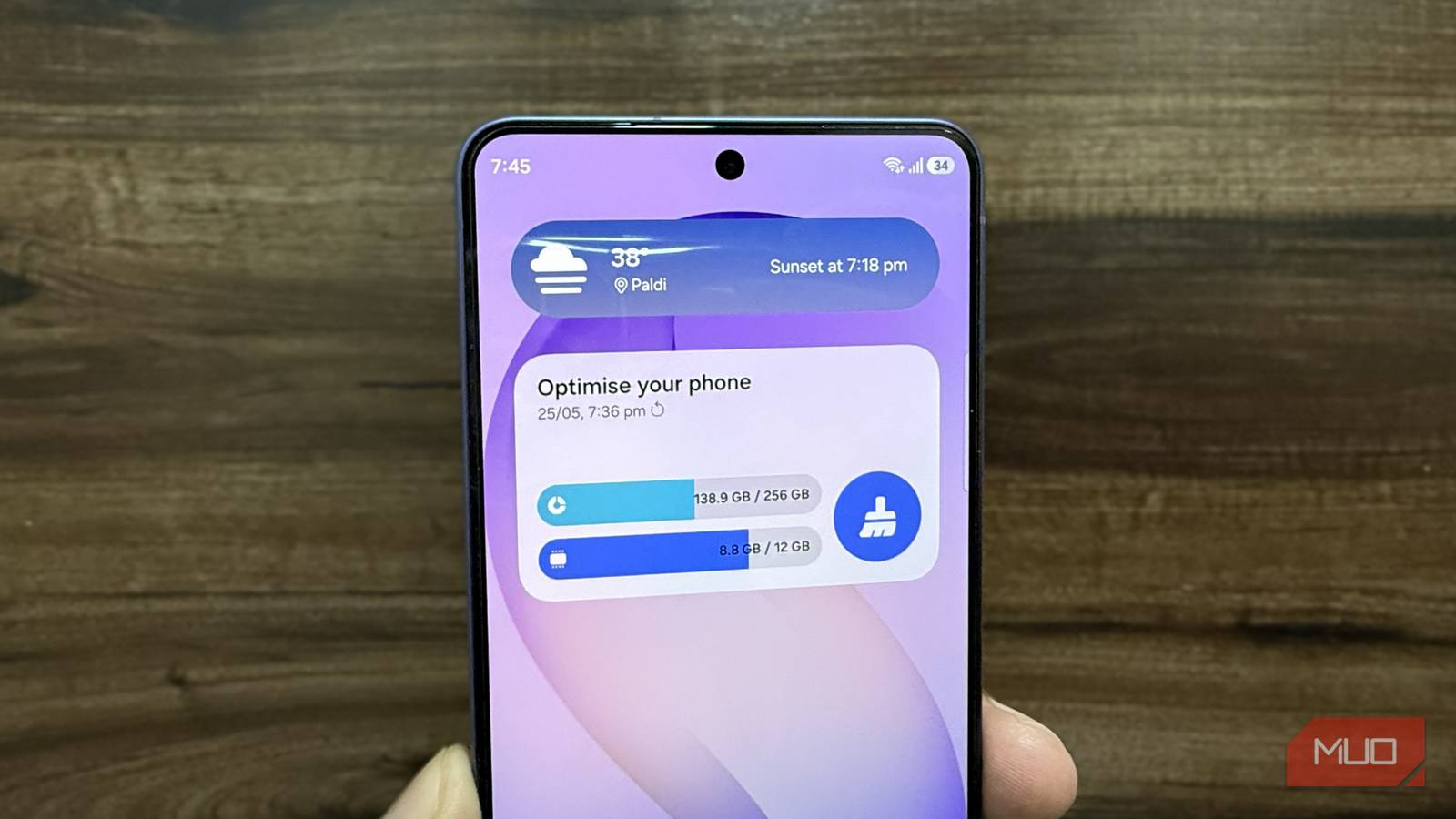
Using the Device Care feature is easy enough, but it still requires me to open the Settings menu manually. And honestly, most of the time I’d often forget about it until my phone started feeling sluggish again. To avoid that, I’ve simply added the Device Care widget on my home screen. It lets me check the storage and RAM situation at a glance, and more importantly, optimize my phone with a tap.
Adding the widget is simple too. Long press anywhere on the home screen, tap Widgets, scroll down to Device care, and pick your preferred size. Of course, the trick is to not overdo. I usually only run Device Care when it feels necessary.
Your Galaxy phone can also optimize by itself
Besides Device Care, Samsung phones also include a feature called Auto Optimization. This basically helps your phone run in the best condition by restarting it from time to time. Yes, a good old reboot is still the best way to fix minor slowdowns and give your phone a fresh start.
To set it up, head to Settings > Device care > Auto optimization > Auto restart and enable Restart when needed. This lets your phone reboot on its own whenever it thinks it’s necessary. One UI is also smart about it. Your Galaxy phone will only reboot when you’re not using the device, the screen is off, and the battery level is above 30%. So no, you don’t have to worry about this feature rebooting your phone when responding to a text or using Google Maps.
There’s also a Restart on schedule option if you’d rather pick a specific time yourself. For example, you could set your phone to reboot every other day in the middle of the night. This is the option I find the most convenient, as it allows my Galaxy phone to optimize overnight.
