


Secure Boot is a security standard developed by members of the PC industry to help make sure that a device boots using only software that is trusted by the Original Equipment Manufacturer (OEM). The old Secure Boot Certificates will expire in June 2026. To get the new Secure Boot Certificates, the Secure Boot should be enabled. You can enable or disable it in your system’s BIOS. Some users complain that, despite enabling Secure Boot in BIOS, the Secure Boot State is OFF in System Information. This article lists some effective fixes to resolve this issue.
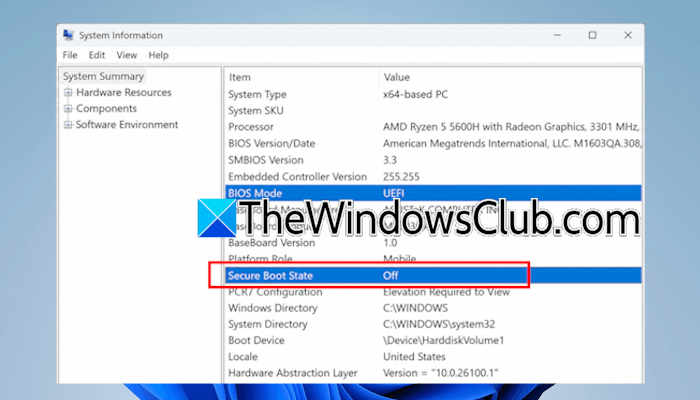
Secure Boot state off in System Information, but on in BIOS
Use the following fixes if the Secure Boot state is OFF in System Information, but ON in BIOS.
- Check the Secure Boot status again in BIOS
- Change your BIOS mode and restore the factory keys
- Reset your BIOS to factory default settings
All these fixes are explained in detail below.
1] Check the Secure Boot status in BIOS
The first step is to check the Secure Boot status in your BIOS again. You might have forgotten to save changes after enabling Secure Boot in the BIOS. If you find it off, turn it on and save changes.
2] Change your BIOS mode and restore the factory keys
BIOS of some computers has two modes, Standard mode and Custom mode. If your BIOS is set to Custom mode, you may see the Secure Boot status OFF in System Information despite turning the Secure Boot ON in BIOS. Check this in your system BIOS and change the BIOS mode from Custom to Standard. However, if the Secure Boot mode is already set to Standard, follow these steps:
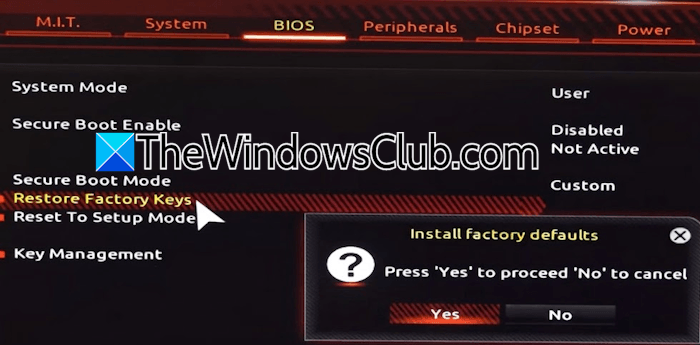
- Disable the Secure Boot.
- Change the Secure Boot mode from Standard to Custom.
- Click on Restore Factory Keys or a similar option.
- Click Yes to confirm.
- Enable Secure Boot.
- Change the Secure Boot Mode to Standard.
- Save changes and exit.
The methods for accessing the Standard and Custom modes in BIOS vary by motherboard brand. Therefore, you need to refer to your system’s user manual or your computer manufacturer’s support website.
3] Reset your BIOS to factory defaults
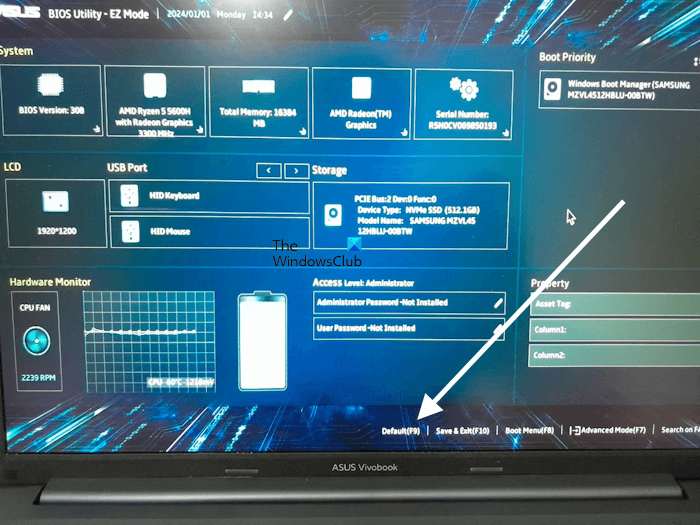
If the issue still persists, the last resort is to reset your BIOS to the default. Resetting the BIOS to the default option also works if you have converted your disk partition style from MBR to GPT. Secure Boot cannot be enabled on an MBR disk. If you do so, your system will enter an infinite boot loop. To resolve this problem, you need to convert the MBR disk into a GPT disk. After successfully converting your disk partition style, Secure Boot can be enabled. However, after successfully enabling Secure Boot, Windows sometimes shows its status as off in System Information. In such cases, resetting the BIOS helps.
That’s it. I hope this helps.
Why is my Secure Boot off, but BIOS says it is on?
When you enable Secure Boot in the BIOS, but Windows System Information still shows it as off, the problem may be with the BIOS keys. The Secure Boot keys might not be loaded properly. That’s why the System Information is still showing you the incorrect information. Another cause is the incorrect BIOS mode. To fix this problem, reset your BIOS to the default.
What to do if my Secure Boot state is off?
Enter your system BIOS using the correct BIOS key, then look for the Secure Boot setting. Turn the Secure Boot ON. Before turning it ON, make sure that your disk has the GPT partition style. If the disk has an MBR partition style, convert it to GPT first.
Read next: GPT header corruption has been detected.
