


When I got my first 4K TV with HDR (High Dynamic Range), I was blown away by how much more lifelike the picture looked. The eye-popping colors made movies and shows look more vivid than ever, and when I got my first OLED TV last year, it took HDR to a whole other level.
But while movies and shows looked fantastic with HDR, especially with Filmmaker Mode enabled, I always felt something was off when gaming, whether on my PS5, Switch 2, or PC. Don’t get me wrong, games still looked great with HDR, and it was a huge step up from SDR. However, I could never quite get the calibration right, particularly when it came to setting peak brightness and black levels. Even after going through the HDR calibration process, I often found that games looked too bright and overexposed in certain areas.
In search of a fix, that’s when I discovered a key HDR feature called HGiG (HDR Gaming Interest Group). It’s a setting on some smart TVs that hands control of HDR tone mapping entirely over to your console or PC, rather than letting your TV handle the processing. This allows your console to accurately manage brightness and black levels based on the game you’re playing, without your TV trying to override those settings with its own tone mapping and potentially ruining the picture. In a way, you can think of it as Filmmaker Mode, but for gaming.
So if you’re looking to get the best HDR experience out of your TV while gaming, especially if you’re playing GTA 6, here’s how to enable HGiG and properly calibrate your console to get the best possible HDR picture.
How to enable HGiG
You’ll need to readjust HDR on your console after enabling it

HGiG is supported on a lot of modern smart TVs, including sets from LG, Samsung, Sony, Panasonic, and Philips, so if you’ve bought your TV within the past few years, or if it’s an OLED model, chances are it should have it.
That said, to find HGiG on your TV, first make sure your console is connected and being displayed. From there, go to your TV’s HDR settings, usually found under Picture in the settings menu, and look for an HDR Tone Mapping or a Game Mode setting. This is where you can turn your TV’s HDR tone mapping on, off, or set it to HGiG.
For example, on my LG TV, I found it by going to Settings > Picture > Advanced Settings > Brightness > Dynamic Tone Mapping. By default, my LG TV had Dynamic Tone Mapping turned on, so I switched it to HGiG (as you can see in the image above).
Once you’ve found and enabled HGiG on your TV, the next step is to recalibrate HDR on your console. When you first connect a console to your TV, it typically prompts you to calibrate HDR. However, if you did this before enabling HGiG, you’ll want to run the calibration process again to make sure HDR looks as good as possible.

On the PS5, you can recalibrate HDR by going to Settings > Screen and Video > Video Output, selecting Adjust HDR under Color, and following the on-screen instructions. On Xbox Series X/S, you can do the same by going to Settings > General > TV & display options > Calibrate HDR for games. On Switch 2, go to System Settings > Display > Adjust HDR.
It’s also best to calibrate HDR in the specific game you’re playing, if it supports it. In GTA 6 you can do this in-game by going to Settings > Display > Calibrate HDR.
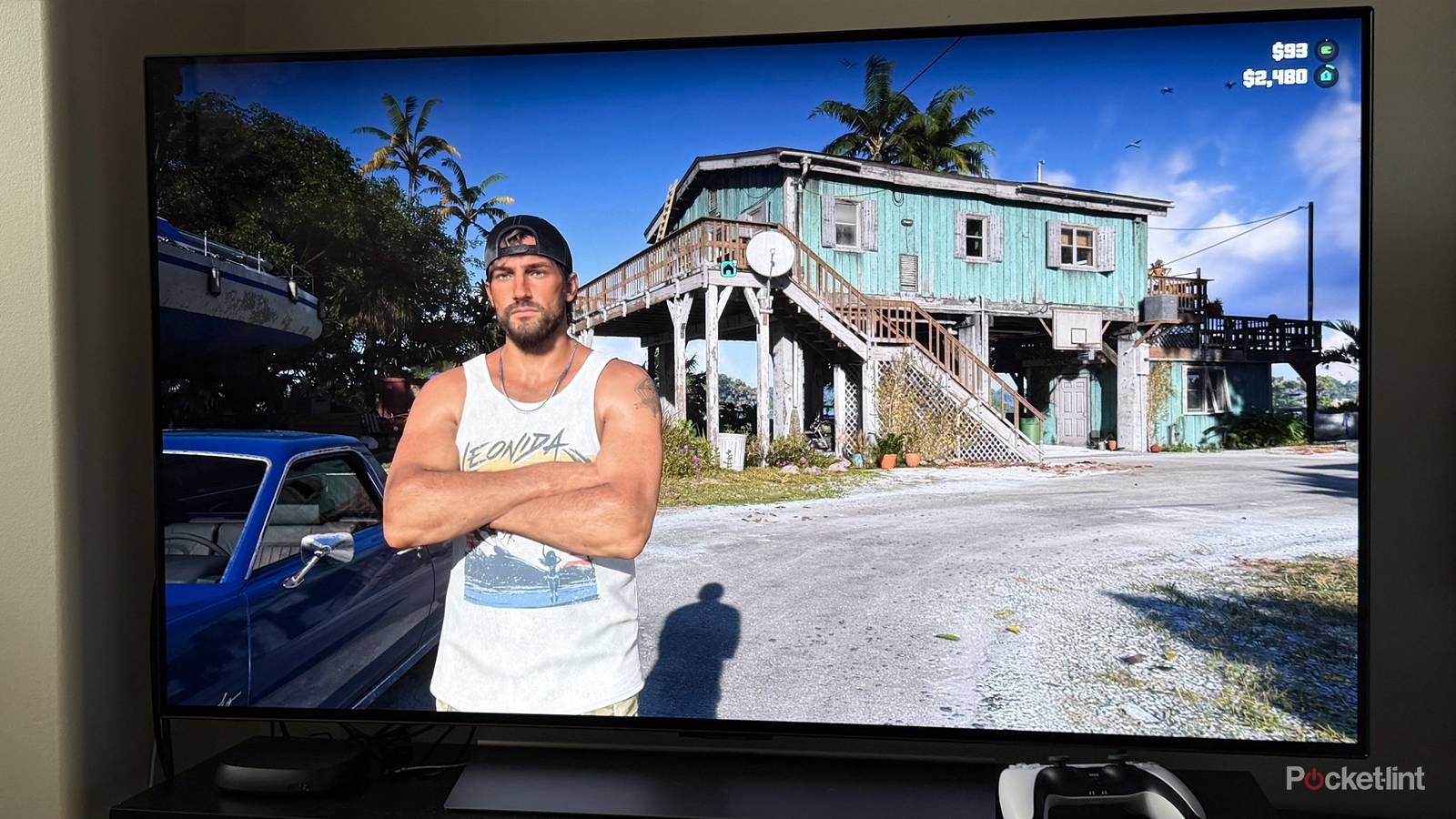
With HGiG enabled and your console’s HDR recalibrated, games should immediately look more accurate in terms of color, brightness, and black levels. That’s because your console now has complete control over tone mapping, allowing it to handle HDR as the developers intended, rather than letting your TV decide what’s best. I’ve been playing GTA 6 on my PS5 Pro with HGiG enabled on my LG C5 TV, and it looks absolutely incredible. If you’ve been having issues with HDR while gaming on your TV, I highly recommend trying HGiG, as it can truly make a world of difference.
