


Webcam access is one of the primary worries when it comes to secret, silent malware. The idea that someone is switching your webcam on without you knowing and peering into your life is deeply unsettling — especially if you have your laptop in the bedroom, around your kids, and so on.
But it’s not always about malware. Sometimes, apps you’re not expecting may also access your webcam without you realizing. While most apps make it clear that webcam access is required, some less scrupulous apps may not.
Thankfully, your webcam keeps a record of every app that’s accessed it. On top of that, Windows stores all timestamps in the background, and they can all be accessed easily in Windows 11.

The easy way to see who is accessing your webcam
Privacy settings give you good information

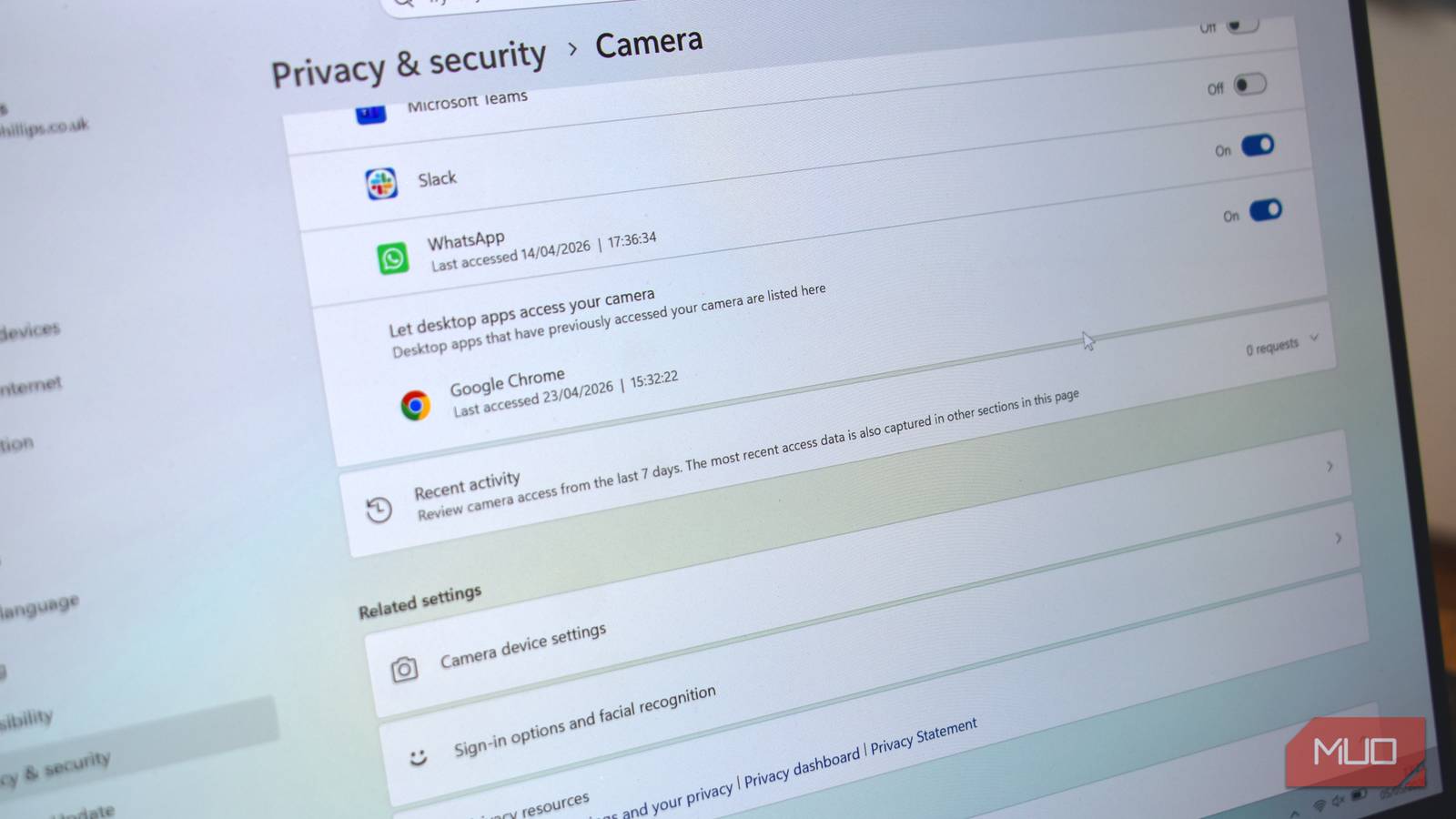
There are a couple of ways to see who or what has been accessing your webcam. The easiest option is Windows integrated privacy settings, which gives you a full list of any apps that accessed your webcam in the past seven days.
- Press Win + I to open Windows Settings
- Head to Privacy & security, then scroll down to App permissions
- Open the Camera option, followed by Recent activity
The dropdown list will show you all of the apps that have access to your camera, along with the exact date and time it last accessed the camera. If something is actively using your webcam right now, you’ll see Currently in use in red beneath it.
Check down the list to make sure you recognize them. If you don’t have a good think about why the app may be on there, and also double-check that it’s an app you recognize installing to begin with.
I like that Windows 11 has an option to do this in the operating system. In fact, Microsoft first rolled out camera access as a privacy feature in Windows 10, so it has been around for a good while, but it’s still really useful, especially as it shows traditional and Windows Store apps separately.
My only real gripe is that seven days doesn’t feel long enough; a slightly longer history of camera access would give you even better insight into what or who is accessing your webcam. Even upping it to 30 days would make a big difference.
The slightly more advanced way to see who is accessing your webcam
This gives you a deeper view, with more information

As I mentioned, the Settings app doesn’t provide the full picture. On the one hand, anything malicious accessing your webcam is highly unlikely to stay out of view for long. On the other hand, the Windows app doesn’t return everything, as some apps will try to stay hidden for longer and use different methods to gain access to your webcam.
That’s where the Windows Registry and PowerShell/Terminal are required. Windows stores information on every app and process that uses the webcam in a registry key:
HKEY_CURRENT_USER\Software\Microsoft\Windows\CurrentVersion\CapabilityAccessManager\ConsentStore\webcam
But reading that on its own is a pain, so it’s easier to use a PowerShell command to unlock the data you really want: app names and times. So, on my Windows 10 PC, this list shows all the apps going back to 2020 (yes, six years), while on my much newer Windows 11 laptop, I only have dates from 2026 (because I bought this in December 2025).

So, fire up PowerShell or Terminal and input the following command:
Get-ChildItem -Path "HKCU:\Software\Microsoft\Windows\CurrentVersion\CapabilityAccessManager\ConsentStore\webcam" -Recurse | Get-ItemProperty | Select-Object PSChildName, @{Name="LastUsed";Expression={if($.LastUsedTimeStart){[DateTime]::FromFileTime($.LastUsedTimeStart)}}} | Where-Object {$_.LastUsed} | Sort-Object LastUsed -Descending
That’ll output readable timestamps and sort by most recent first — the top of the list is whatever accessed your camera last.
So, on my Windows 10 machine, which I use daily, I can see multiple entries for Discord, Exodus, Slack, and similar, as each version creates its own entry. Whereas on my Windows 11 machine, all I can see is Chrome, WhatsApp, and Windows 11 itself.
But the same rules apply. If you see an app on this list that you don’t recognize, you need to act.
Try these other PowerShell camera privacy commands

While you’re rooting around in PowerShell, there are some other useful commands you can run to uncover more information on camera access.
The following command shows every plug-and-play camera that Windows recognizes, and should also reveal virtual cameras. In that, if you see a virtual camera you don’t remember installing, that’s an immediate red flag worth checking out.
-
Get-PnpDevice -Class Camera | Select-Object FriendlyName, Status, InstanceId
Then, you can also use PowerShell to check which apps have camera access granted, not just the ones that have used your camera. It gives a handy indicator as to the current permission status for the app, which is also important.
-
Get-ChildItem -Path "HKCU:\Software\Microsoft\Windows\CurrentVersion\CapabilityAccessManager\ConsentStore\webcam" -Recurse | Get-ItemProperty | Select-Object PSChildName, Value
Again, worth a check.
Always check who has access to your camera
If you see an app in either list that you don’t recognize or can’t account for, the steps are the same: cancel its access immediately, then figure out exactly what the app is.
If you don’t understand or recognize what it is, remove the app entirely, and set about cleaning up your system with a malware scan and so on.
Remember that the webcam history log isn’t a comprehensive security tool, but given it takes 10 seconds to check, it’s highly worth doing.

- OS
-
Windows
- Minimum CPU Specs
-
1Ghz/2 Cores
- Minimum RAM Specs
-
4GB RAM
- Software Version
-
24H2
