


While many apps and services leverage cloud processing to offload the heavy lifting to servers, this isn’t ideal for sensitive data. The most personal information your smartphone handles should stay on your device whenever possible. This includes your private conversations, but if you use a transcription or translation app, they could be sent to the cloud for processing. By default, popular translation apps use a mix of on-device and off-device processing.
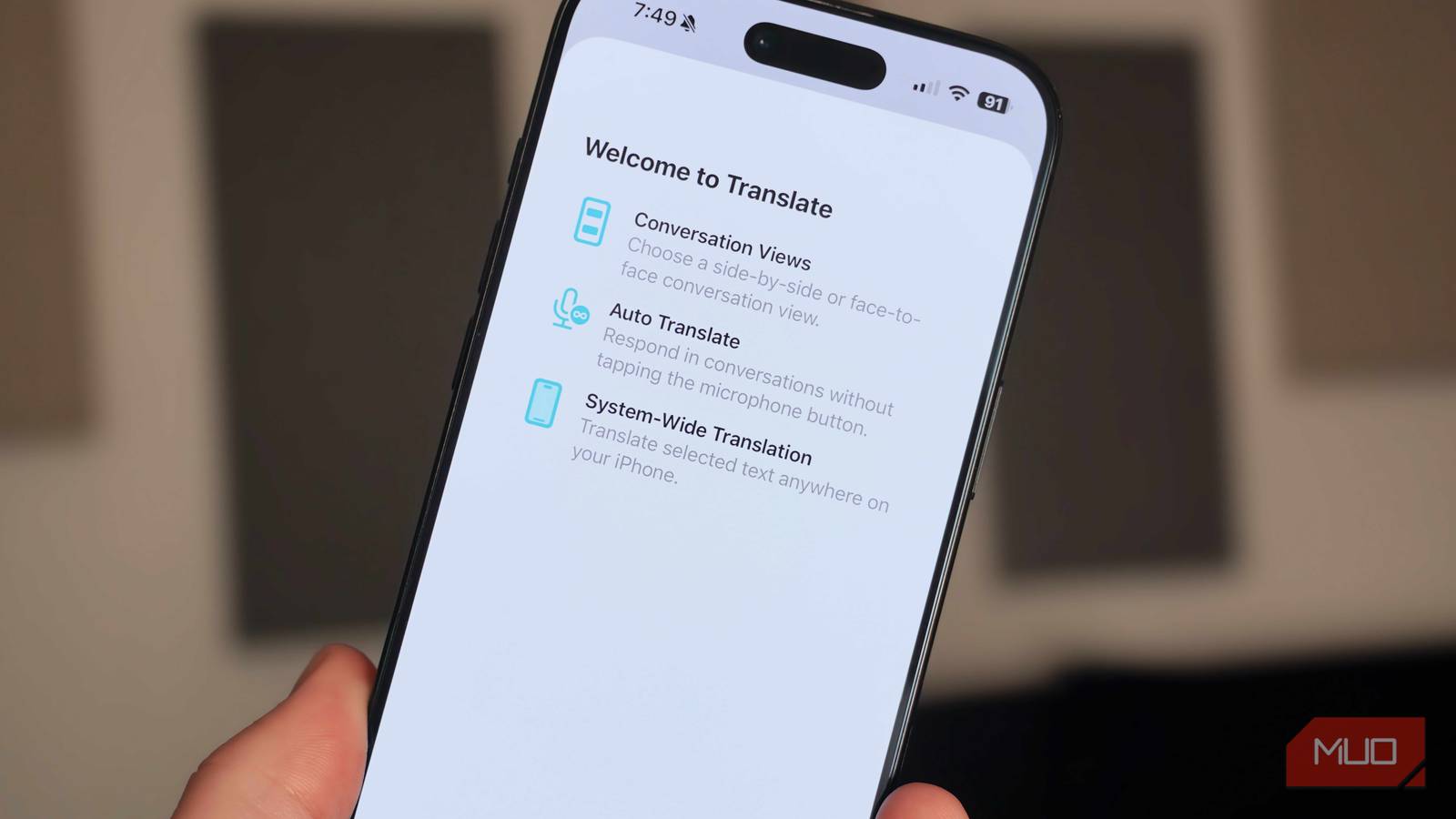
Apple Translate has an on-device translation mode that ensures recordings, text, or images are never sent to the cloud. Since everything is happening on your device, translations can be quicker without the latency involved in cloud processing. Throw in Translate’s camera and live translation modes, and the default iPhone translation app is solid for privacy-conscious users. Here’s how it all works.
I’d given up on dictation until this new Google app changed my mind
Google AI Edge Eloquent finally brings voice-to-text transcriptions into the modern era using on-device Gemma models. Here’s how it works.
Apple offers on-device translation
Flip a toggle, and you’re ready to get private translation
Apple Translate has three main modes: Translate, Camera, and Conversation. The primary Translate mode takes text or speech and converts it into another language, while the Camera mode translates text found in your environment. The Conversation mode is Apple Translate’s live feature, which allows two people to speak naturally as the app translates the chat in real time. While it only takes a few seconds for the app to translate, there’s advanced on-device processing going on behind the scenes.
When speaking to Apple Translate, your iPhone first uses local dictation models to convert your speech to text. The iPhone’s Neural Engine — called a neural processing unit (NPU) on Android phones and PCs — transcribes your spoken words without them ever leaving your phone. For now, the transcribed text remains in its original language.
The next step is powered by specialized Apple Intelligence models with language packs tuned to the languages you need to translate to or from. These language packs tell the Apple Intelligence models how to analyze and translate the text, including critical pieces of the puzzle, like vocabulary, syntax, and contextual slang. For this all to work on-device, you need to download the packs for both the input and output languages of a translation request.
Once the translation is processed, it’ll appear on your iPhone’s screen. When using audio modes, there’s an extra step. Your phone will take the translated output and convert it back into audio form for playback. So, your iPhone is converting speech to text, processing the translation, and converting it back to speech every time you use Apple Translate on-device.

By default, Apple Translate uses cloud processing when connected to the internet. You can enable on-device mode by navigating through Settings → Apps → Translate and flipping the toggle beside On-Device Mode. Next, you’ll want to tap the Languages tab and download the ones you want to use for translation. Unfortunately, there are only 21 languages available for download.
Apple says on-device translations might not be as accurate as cloud-based translations. Keep in mind that Siri and Safari will always use the cloud for translations, even when on-device mode is active. Open the Apple Translate app to ensure your translations stay on your iPhone.
Live Translate with AirPods is hands-free
Get translations in your ear as someone speaks to you
For basic translation, competitors like Google Translate will likely beat Apple Translate. Apple’s alternative shines is in first-party iOS apps. In these apps, the Live Translation feature is available, which allows your iPhone to translate between languages in real time. Pair AirPods to your iPhone, and you can use the Translate app’s Live mode to get started — this mode only appears when a compatible iPhone and set of AirPods are connected.
Alternatively, you can say something like, “Siri, start Live Translation” to begin. Or, you can hold down the stem of both earbuds to activate Live Translate. With this feature active, someone can speak to you in their preferred language, and you’ll hear the translated version in your preferred language. If both people have AirPods, they can hold a conversation with Live Translate, breaking language barriers.
Live Translate also follows you around iOS, and it’s helpful. For instance, you can tap a contact’s profile in Apple Messages and press the Automatically Translate button. Apple Intelligence will figure out which other language is used in the iMessage chat and suggest translating it to your preferred language. This happens entirely on-device, all the time.
Something similar happens in the Phone app. When you’re calling someone that doesn’t speak your preferred language, you can tap Live Translation to receive spoken translations on each side of the call. You can also view the text version of the translation on your screen. This works in FaceTime, too. Whether you’re using Live Translation on AirPods, Messages, Phone, or FaceTime, the processing always happens on your iPhone.

6 Google Translate tricks tourists never find until the trip is over
Google Translate does basic language-to-language translations via text and voice, but it does so much more you should explore before your next trip.
Is Apple Translate as good as the alternatives?
Your mileage may vary, but supported languages are limited

A perk of using Apple Translate is that it can be configured to always process your data on-device, which is excellent for privacy. However, it’s not the only app to offer this feature. Other apps, like Google Translate, have on-device modes as well — and more supported languages and regional dialects.
Apple Translate’s killer feature is not on-device processing in itself, but rather how it integrates with other iOS apps on your iPhone. Being able to access real-time translations from your AirPods or within an iMessage chat is incredibly convenient. The fact that it all happens without relying on cloud processing is just icing on the cake.

- OS
-
iOS
- Price model
-
Free
- App Type
-
Translation app
Apple Translate is a translation app that supports on-device processing for downloaded languages. Translations can be handled on your device for privacy and speed. However, the list of supported languages is short, and it doesn’t support regional dialects as well as Google Translate.
