

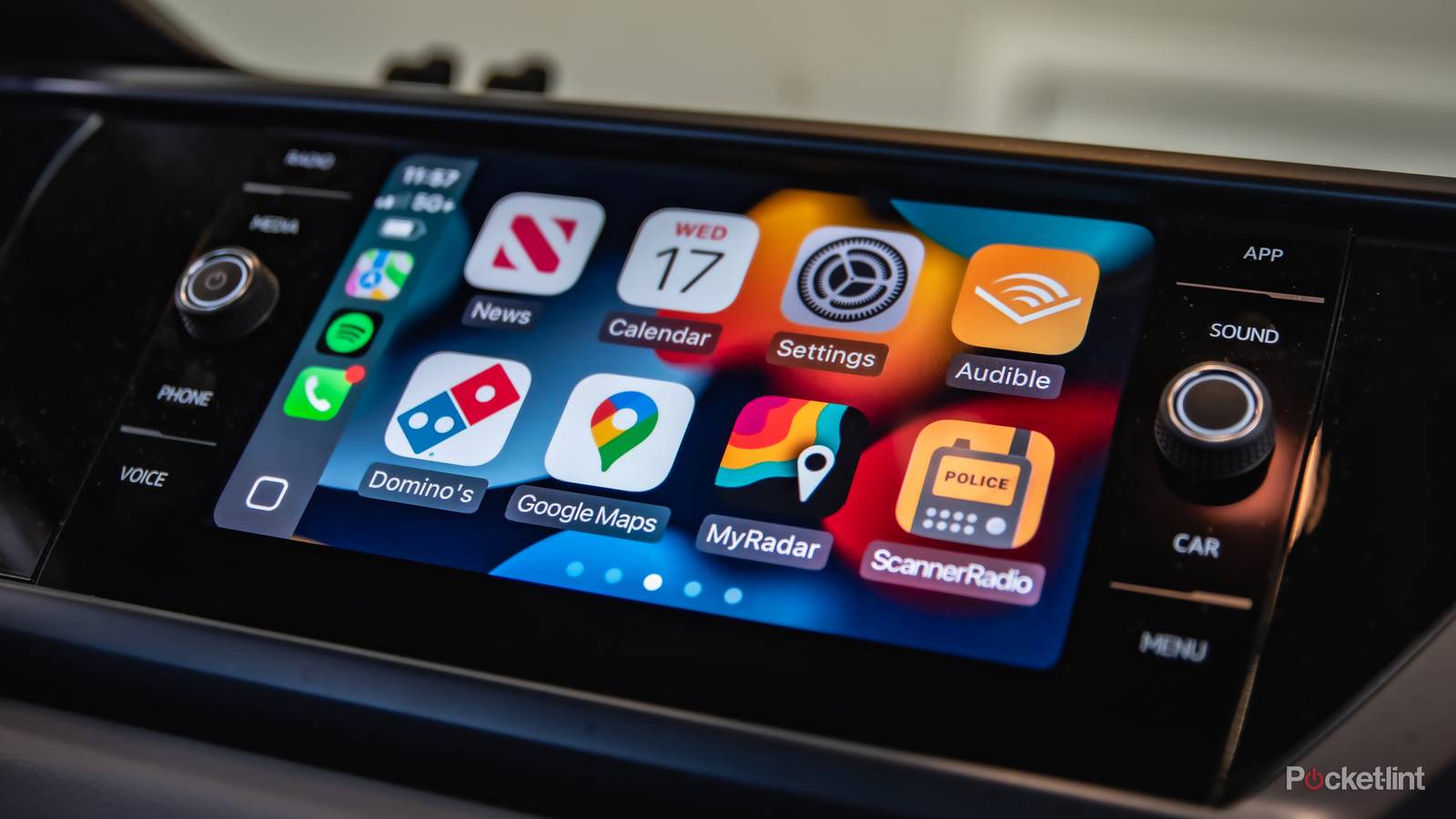

One of the more harrowing driving experiences I had was with a former friend who, for some reason, thought it was perfectly safe to type out a text message while driving us down Texas roads. I might not have been so concerned except that she didn’t even have a smartphone — she had to use the old T9 texting system. If you’re too young to remember it, simply tapping out “hello” might’ve taken 10 seconds that way. You can’t afford to take your eyes off the road for that long, unless perhaps your car is self-driving.
For that reason, I’m a big fan of the voice commands in Apple CarPlay and Android Auto. Both of those allow you to do plenty without diverting your attention, and they’re only getting better with the addition of options like Google Gemini and ChatGPT. If you’re new to CarPlay, or just haven’t bothered with Siri much, here are some of the commands you need to know beyond the basic “get directions to [blank].”
Adding a stop to your route
Always easier than touch

One of my biggest gripes about any navigation app is adding a stop mid-drive. It’s doable with touch controls, but convoluted enough that if I’m driving with my wife, I’ll ask her to do it for me. Mercifully, there are some scenarios in which you can skip around this problem by saying “Add [blank] to my route.” This should work with the major three navigation apps, namely Google Maps, Apple Maps, and Waze.
There are a few catches here, all related. You’ll need to confirm the detour, which will naturally force you to look at your dash to verify that you’re headed to the right place, and that the routing isn’t nonsensical. If your EV has enough battery to make it to a hotel charger, it probably isn’t worth a 10-mile side trip to make it to an Electrify America station.
It’s best to reserve voice-triggered stops for those times when you need something urgently, rather than as an alternative to planning out routes ahead of time.
Really, unless you have a very specific address in mind, you may need to place some blind trust in your commands. Saying something like “add a charging station to my route” will probably present you with multiple options. Cycling through them will take a moment, and may not be of much help anyway if you’re not familiar with an area. It’s best to reserve voice-triggered stops for those times when you need something urgently, rather than as an alternative to planning out routes ahead of time.
Sending complete text messages
No taps required if you do it right

You’re probably well aware that Siri can send text messages. But you may not be familiar with the full functionality Apple has added over the years, which makes it possible to carry out whole conversations without once tapping onscreen.
To start with, you can now send texts not just via Messages to people in your Contacts app, but often to people in third-party apps like WhatsApp and Facebook Messenger, as long as you get their associated nickname right. If there’s some overlap with Messages/Contacts, it’s best to specify the app you want to use — for instance by saying “Send a Messenger message to Winston Smith” instead of just “Send a text to Winston Smith.” If you don’t specify the app, Siri will likely prompt you to tap on a preferred option.
You can now send texts not just via Messages to people in your Contacts app, but often to people in third-party apps like WhatsApp and Facebook Messenger.
Perhaps more importantly, Siri is intelligent enough to accept an opening line in the same command used to start a text. When you’re headed back home, for instance, you might say “Send a message to Winston Smith, ‘I’m on my way home’.” You’ll still have to confirm the contents, but that’s better than having to wait for Siri to ask what you want to say. Remember to spell out punctuation, especially if it’s needed to make a message sound clearer or less impersonal. When I’m driving back from the gym or EUC practice, my wife would probably rather I use “I’m coming home exclamation mark” to show I actually care about seeing her.
Location-based reminders
A lifesaver for the forgetful or easily distracted

My memory is terrible. I am functional — but due to a combination of issues, including ADHD, I can sometimes forget what I said within a conversation, never mind events that happened months or years ago. As I get older, then, I’m finding the Notes and Reminders apps for iOS to be invaluable.
There are a lot of possibilities with location-based reminders. If you haven’t used these before, these trigger whenever you enter a geofence around a particular address or point of interest. Apple’s fencing is seemingly arbitrary, but in my experience, it’s tight enough that it’s hard to trigger by accident.
Be sure to set Home and Work locations for yourself as necessary, preferably by editing your personal card details in Contacts.
Some common reminders people like to set are things like “Remind me to buy eggs when I get to HEB,” or “Remind me to talk to Steve when I get to work.” But when you’re driving, you might also use these to help you with trip details, such as “Remind me to look for parking on Red River when I get to Stubb’s,” or perhaps “Remind me about room number 237 when I get to the Overlook Hotel.”
Be sure to set Home and Work locations for yourself as necessary. You can do this through Apple Maps settings, or (preferably) by editing your personal card details in Contacts. At the moment, at least, the Reminders app can’t pull address labels from third-party apps.
Avoiding tolls and highways
No need to permanently alter your trips

It’s common for navigation apps to offer settings for avoiding tolls and highways, which I certainly appreciated while I was living in Austin. The tolls there were rarely worth it, and I’d rather take the back roads than get stuck on MoPac or I35 during rush hour. If you leave these settings on permanently, however, they can accidentally wreak havoc. There’s no sense avoiding highways when you’re coming back from a concert at 2AM, for instance, and on long trips, a toll road can save you hours, not minutes.
When asking for directions, you can add “avoid tolls” or “avoid highways” to your voice commands for one-time exceptions.
The trick here is that when asking for directions, you can add “avoid tolls” or “avoid highways” to your voice commands for one-time exceptions. Indeed something I’m hopeful for is that with generative AI becoming standard, it should become relatively easy for apps to avoid specific roads by name. This doesn’t seem to be a thing yet — but then, even Gemini in Android Auto is a relatively recent addition. It remains to be seen if the upgraded version of Siri coming in iOS 27 will make this leap, especially since Apple Maps continues to lag behind Google Maps in some areas.
