


I have a couple of budget laptops from the past decade. Some I’ve given away, others I’ve kept as backup. However, laptops are often reliable hardware, so they can easily last a decade and only stop being relevant if they stop receiving the latest software updates. Case in point being Windows 11.
While these Windows laptops with 8GB of RAM and slower HDDs are not enough for my current workflow, they can be surprisingly useful for dedicated single-use projects. Whether you are looking to self-host your password manager or create a network-wide adblocker, these five free apps make an old laptop worth keeping around.
Jellyfin
A personal media server that costs nothing
Turning your old laptop into a media server might be the best use case for the hardware if you are looking to build one. Instead of scattering your movies, music, and photos across external drives and cloud storage, a media server puts everything in one place, making it easy to stream from any device on your home network.
Jellyfin is a free, open-source media server that runs surprisingly well on modest hardware. You don’t need a powerful machine either. A Core i5 with 8GB of RAM is more than enough, since the laptop only needs to stream, not do heavy processing.
Setting up Jellyfin is like installing any other Windows program. Download the installer, run it, point it at your media folders, and Jellyfin takes care of the rest. It auto-scans your files, pulls in artwork and metadata, and makes everything available through a clean web interface or its mobile apps. Other options like Plex and Emby exist too, but Jellyfin’s appeal is that it has no hidden costs and no features locked behind a paywall. The entire package is free.
The trade-off is that Jellyfin’s interface is less polished than Plex, and remote access outside your home network requires some tinkering with port forwarding. For in-house streaming, though, it works out of the box.
AdGuard Home
A network-wide ad blocker for every device

Using a laptop to create a network-wide ad blocker might sound like overkill, because even a Raspberry Pi could do it. But if you already have a laptop lying around, why spend money on another device?
AdGuard Home is a free, open-source DNS-based ad and tracker blocker. Once you set it up on your old laptop and point your router’s DNS settings to it, every device on your network gets ad blocking without installing anything individually. Your smart TV, your phone, your tablet, even that IoT device that loves phoning home with telemetry data.
The setup involves installing a virtualization platform like Proxmox on the laptop, spinning up an AdGuard Home container, and then changing your router’s DNS settings to point to your laptop’s IP address. The process is well documented, so you can get it up and running with minimal hassle.
Once it’s running, you need to configure your upstream DNS servers, enable DNS filtering, and add blocklists. The Hagezi lists are a popular choice for a solid all-around setup, and you can add extras for smart TV ads, regional ad lists, and security-focused filtering.
The one thing you need to get right is giving AdGuard a static IP, so it doesn’t shift around on your network. You also want a secondary DNS as a fallback in case the laptop ever goes offline; otherwise your entire network loses DNS resolution.
Vaultwarden
A self-hosted password manager on your own hardware

If you like to get hands-on with your tech, you can revive your old laptop by turning it into a password cloud server and replace your expensive password manager with a self-hosted service using Vaultwarden.
Vaultwarden is a lightweight, open-source reimplementation of the Bitwarden server written in Rust. It speaks the same API as Bitwarden’s official server, so it works with all the Bitwarden apps and browser extensions you already know. The difference is that Vaultwarden uses a fraction of the memory that Bitwarden’s own server would, making it perfect for older hardware.
The core appeal is the security model. Vaultwarden inherits Bitwarden’s zero-knowledge encryption, so your passwords are encrypted on your device before they ever touch the server. Since that server now lives on your own machine, no third party holds your vault. Setting up Vaultwarden with Docker is easy if you already know your way around Docker.
The trade-off, however, is self-hosting. Which means you are now responsible for your own security hardening, including enabling two-factor authentication, disabling open signups after your first account, keeping the software updated, and backing up your data folder regularly. Your vault is also only accessible while the laptop is running, and reaching it from outside your home network requires extra setup. For local use, it just works.
Zorin OS or ChromeOS Flex
A guest laptop
Some of my relatives and guests occasionally need access to a computer, and I am not very comfortable having them work on my main machine. So, I’ve kept one of my old laptops with a lightweight operating system just for guests.
Both Zorin OS and ChromeOS Flex are excellent choices here. Zorin is a Linux distribution designed specifically for people coming from Windows. Its appearance manager lets you switch the desktop layout to closely resemble Windows or macOS, so guests don’t have to learn anything new. Software installs through a proper app store, and common apps like a web browser, document editor, and media player come pre-installed. For machines up to 15 years old, there’s a lightweight Zorin OS Lite variant that runs on minimal hardware.
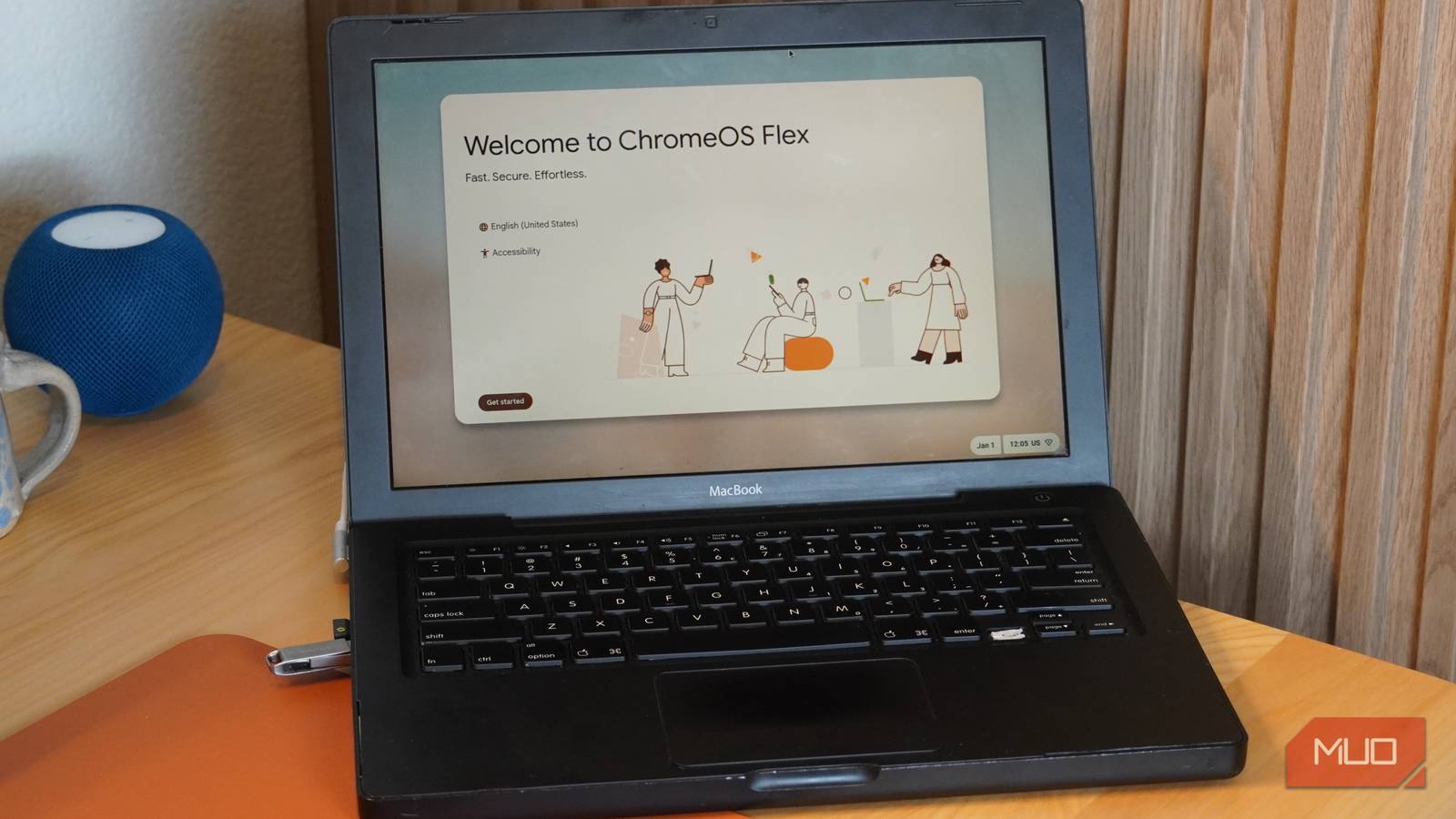
ChromeOS Flex, on the other hand, is Google’s free version of ChromeOS for old PCs and Macs. If your guests mostly need a browser for email, documents, and video streaming, ChromeOS Flex is hard to beat. It installs from a USB drive in no time, boots noticeably faster than Windows ever did on the same hardware, and Google provides up to 10 years of updates. It’s secure by design, and there’s very little a guest can accidentally break.
Which one you pick depends on your needs. If you need to install desktop apps or work offline, go with Zorin OS. If web browsing and Google Workspace are enough, ChromeOS Flex is the simpler option.
One old laptop with many use cases
All these apps are free, and none of these setups need powerful hardware. An old laptop with a dual-core processor, 8GB of RAM, and a bit of available storage is enough for any of them. The only real requirement is that the laptop works and can stay connected to your home network, ideally over Ethernet for anything running as a server.
I’ve mainly kept one as a guest PC and then deployed AdGuard Home to block ads and trackers across my entire network without per-device extensions. These are non-critical tasks, so if the laptop stops working tomorrow, it’s nothing that I can’t restore.
