

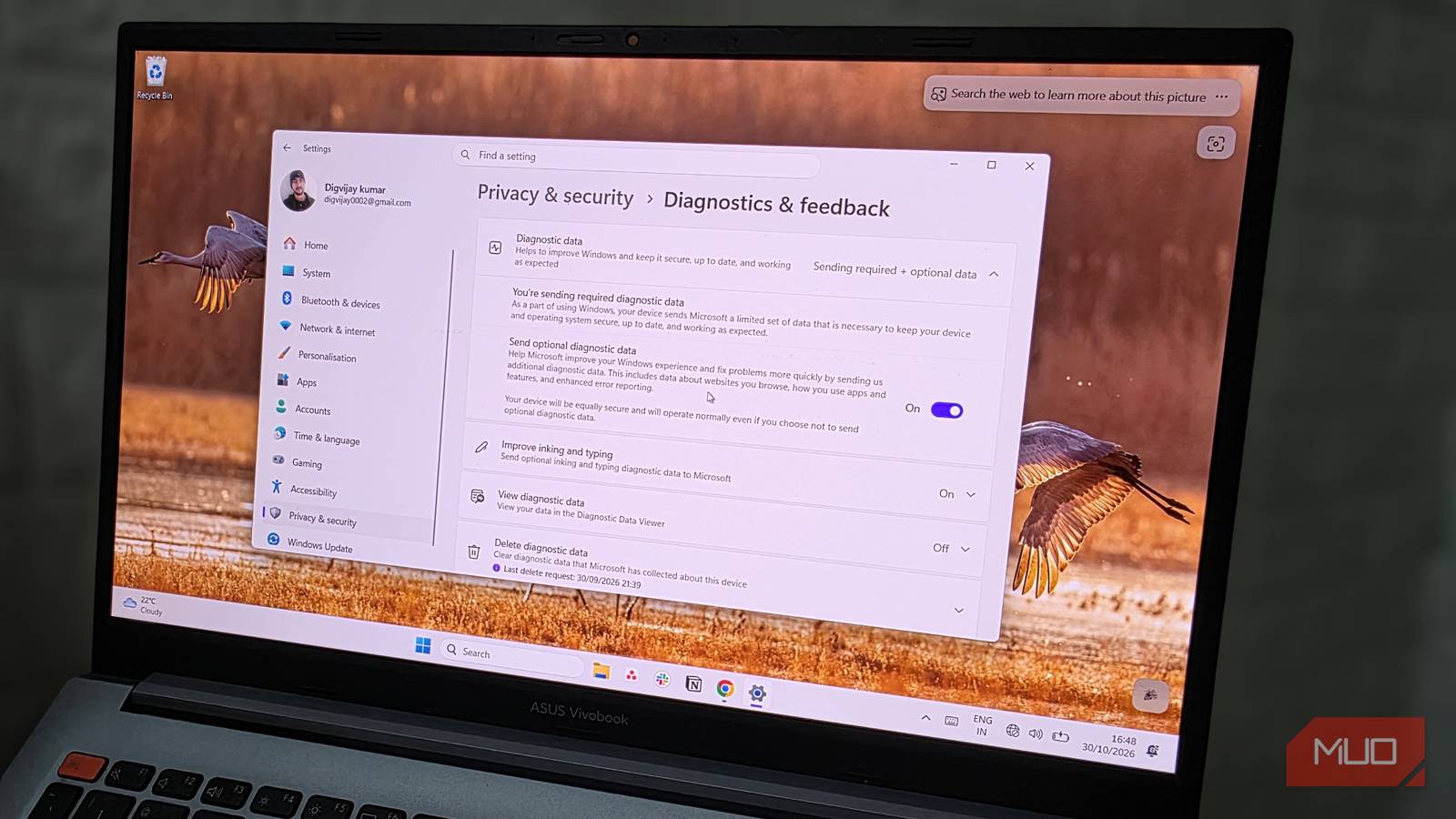

There’s a setting in Windows 11 that has been quietly logging words it doesn’t recognize since the day you set up your PC. Everything gets saved to a file on your hard drive, and nothing about it alerts you that it’s running. Because the label doesn’t raise any flags, it stays on even after a thorough Windows privacy cleanup, while a second setting buried in another menu is actually doing something worse.
Your PC keeps a list of words you type
A silent log of unfamiliar words

Whenever you type something that Windows doesn’t have in its built-in dictionary, it adds it to a local word list. That’s Inking & typing personalization at work. The name suggests pen and touchscreen input, so anyone who’s never picked up a stylus would just scroll past it. But it runs on every keyboard your PC recognizes.
Over time, it collects names, nicknames, slang, technical jargon, even consistent typos. That list has been growing since your first login, and Windows never asks you about it during setup. You can go through every privacy prompt on a new PC and choose the most restrictive option each time, and this setting is still running once you’re done.
Everything it saves ends up in a plain-text file inside your user profile folder. Windows stores it as default.dic, and even though the extension looks unfamiliar, it’s just a regular text file. Anyone who can log into your account can open it in Notepad and scroll through every word Windows has collected.
How to stop the collection and wipe data
Two toggles, two very different jobs
The data Windows collects from your typing only moves in one direction. Turning a toggle off stops new data from piling up, but anything gathered so far stays where it landed. To stop this one, open Settings, go to Privacy & security, and look for Inking & typing personalization. You’ll see a toggle for Customized inking and typing dictionary near the top of that page. Once it’s off, Windows stops collecting new words and wipes the list it built. If you decide you want the convenience back later, turning the toggle on starts a fresh dictionary. Nothing from the old list carries over.
But that only stops the local collection. There’s a second toggle under Diagnostics & feedback in the same Privacy & security menu. Improve inking and typing has been sending samples of your typing and handwriting to Microsoft’s servers. Microsoft says it strips out identifiers, email addresses, and numeric values before processing, but fragments of what you type still make it to their server. Turn this one off, and your typing data stops leaving your machine. If the toggle appears greyed out, it likely means Send optional diagnostic data is already disabled on your PC, which turns this one off automatically.
What Windows has sent doesn’t disappear with the toggles. On that same Diagnostics & feedback page, scroll down to Delete diagnostic data. Hit the button to clear what’s still stored on your machine. Anything that reached Microsoft’s servers can be wiped through Microsoft’s privacy dashboard.
The real trade-off for better privacy
Touch keyboard users feel it most

Once the custom dictionary is off, the touch keyboard is where you’ll feel it. Predictions stop learning from what you type and rely on a generic built-in word list instead, so words that used to appear as suggestions won’t show up anymore. The built-in handwriting recognition takes a hit too, especially if you’ve developed your own shortcuts or writing style with a stylus.
If you’re mostly on a physical keyboard and rarely touch the on-screen one, turning off both settings barely changes anything. But if you rely on touch predictions or handwriting, keep Inking & typing personalization on and only disable Improve inking and typing. Your dictionary keeps growing, and autocorrect learns the way you write.
Windows feature updates can reset some of these privacy toggles back to their defaults, so make sure to recheck them after a major update. Big releases also tend to introduce fresh privacy settings, and they almost always come turned on.
And while you’re back in that menu, scroll through the rest of it. Activity history, advertising ID, and speech recognition are all in the same Privacy & security area, and they’re on from the start. If you’d rather not click through every submenu, typing privacy in the Settings search bar pulls most of these toggles up at once. You’ll probably find a few more you’d rather have off.
