

Close Menu

    Subscribe to Updates

    Get the latest Tech news from SynapseFlow

    What's Hot

    Oppo Find X10 series launch date, colors and storage options revealed

    September 14, 2026

    Could Galaxy S27 Ultra bring zoom camera upgrades? New leak has bad news

    September 14, 2026

    NASA’s Chandra Spots Galactic Gem

    September 14, 2026
    Facebook X (Twitter) Instagram
    • Homepage
    • About Us
    • Contact Us
    • Privacy Policy
    Facebook X (Twitter) Instagram YouTube
    synapseflow.co.uksynapseflow.co.uk
    • AI News & Updates
    • Cybersecurity
    • Future Tech
    • Reviews
    • Software & Apps
    • Tech Gadgets
    synapseflow.co.uksynapseflow.co.uk
    Home»Software & Apps»Secure Boot state off in System Information, but on in BIOS
    Secure Boot state off in System Information, but on in BIOS
    Software & Apps

    Secure Boot state off in System Information, but on in BIOS

    The Tech GuyBy The Tech GuyJune 12, 2026No Comments4 Mins Read0 Views
    Share
    Facebook Twitter LinkedIn Pinterest Email
    Advertisement


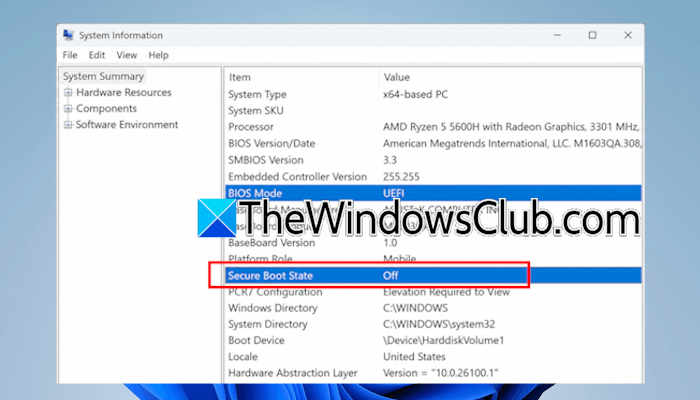
    Secure Boot is a security standard developed by members of the PC industry to help make sure that a device boots using only software that is trusted by the Original Equipment Manufacturer (OEM). The old Secure Boot Certificates will expire in June 2026. To get the new Secure Boot Certificates, the Secure Boot should be enabled. You can enable or disable it in your system’s BIOS. Some users complain that, despite enabling Secure Boot in BIOS, the Secure Boot State is OFF in System Information. This article lists some effective fixes to resolve this issue.
    Advertisement

    Secure Boot state off in System Information, but on in BIOS

    Secure Boot state off in System Information, but on in BIOS

    Use the following fixes if the Secure Boot state is OFF in System Information, but ON in BIOS.

    1. Check the Secure Boot status again in BIOS
    2. Change your BIOS mode and restore the factory keys
    3. Reset your BIOS to factory default settings

    All these fixes are explained in detail below.

    1] Check the Secure Boot status in BIOS

    The first step is to check the Secure Boot status in your BIOS again. You might have forgotten to save changes after enabling Secure Boot in the BIOS. If you find it off, turn it on and save changes.

    2] Change your BIOS mode and restore the factory keys

    BIOS of some computers has two modes, Standard mode and Custom mode. If your BIOS is set to Custom mode, you may see the Secure Boot status OFF in System Information despite turning the Secure Boot ON in BIOS. Check this in your system BIOS and change the BIOS mode from Custom to Standard. However, if the Secure Boot mode is already set to Standard, follow these steps:
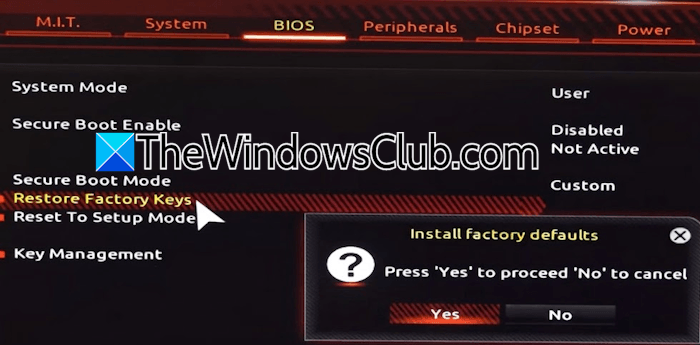
    Restore Factory Keys in BIOS

    1. Disable the Secure Boot.
    2. Change the Secure Boot mode from Standard to Custom.
    3. Click on Restore Factory Keys or a similar option.
    4. Click Yes to confirm.
    5. Enable Secure Boot.
    6. Change the Secure Boot Mode to Standard.
    7. Save changes and exit.

    The methods for accessing the Standard and Custom modes in BIOS vary by motherboard brand. Therefore, you need to refer to your system’s user manual or your computer manufacturer’s support website.

    3] Reset your BIOS to factory defaults
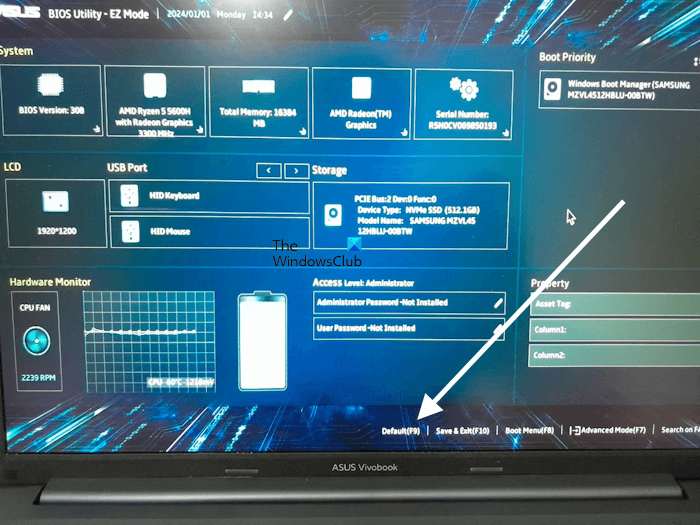
    Reset ASUS BIOS

    If the issue still persists, the last resort is to reset your BIOS to the default. Resetting the BIOS to the default option also works if you have converted your disk partition style from MBR to GPT. Secure Boot cannot be enabled on an MBR disk. If you do so, your system will enter an infinite boot loop. To resolve this problem, you need to convert the MBR disk into a GPT disk. After successfully converting your disk partition style, Secure Boot can be enabled. However, after successfully enabling Secure Boot, Windows sometimes shows its status as off in System Information. In such cases, resetting the BIOS helps.

    That’s it. I hope this helps.

    Why is my Secure Boot off, but BIOS says it is on?

    When you enable Secure Boot in the BIOS, but Windows System Information still shows it as off, the problem may be with the BIOS keys. The Secure Boot keys might not be loaded properly. That’s why the System Information is still showing you the incorrect information. Another cause is the incorrect BIOS mode. To fix this problem, reset your BIOS to the default.

    What to do if my Secure Boot state is off?

    Enter your system BIOS using the correct BIOS key, then look for the Secure Boot setting. Turn the Secure Boot ON. Before turning it ON, make sure that your disk has the GPT partition style. If the disk has an MBR partition style, convert it to GPT first.

    Read next: GPT header corruption has been detected.

    Advertisement
    Share. Facebook Twitter Pinterest LinkedIn Tumblr Email
    The Tech Guy
    • Website

    Related Posts

    I went looking for obscure open-source apps and found 6 that are way too good to be this unknown

    September 14, 2026

    5 horror movies to scratch the Resident Evil itch while you wait

    September 13, 2026

    I’ve tried dozens of Android launchers, but I always end up reinstalling this one

    September 13, 2026

    Windows Authentication SMS not received or working

    September 12, 2026

    Ryobi, Milwaukee, and DeWalt aren’t really selling you tools anymore

    September 12, 2026

    Windows Hello Enhanced Sign-in Security not working with external camera

    September 12, 2026
    Leave A Reply Cancel Reply

    Advertisement
    Top Posts

    You don’t need a NAS to self-host — I proved it with hardware from my closet

    June 7, 2026391 Views

    Spotify is giving one of its best playlists a big visual upgrade to give subscribers ‘a closer connection’ to its New Music Friday curators — and I think it could be the update it’s always needed

    June 12, 2026210 Views

    The iPad Air brand makes no sense – it needs a rethink

    October 12, 202517 Views
    Stay In Touch
    • Facebook
    • YouTube
    • TikTok
    • WhatsApp
    • Twitter
    • Instagram
    Advertisement
    About Us
    About Us

    SynapseFlow brings you the latest updates in Technology, AI, and Gadgets from innovations and reviews to future trends. Stay smart, stay updated with the tech world every day!

    Our Picks

    Oppo Find X10 series launch date, colors and storage options revealed

    September 14, 2026

    Could Galaxy S27 Ultra bring zoom camera upgrades? New leak has bad news

    September 14, 2026

    NASA’s Chandra Spots Galactic Gem

    September 14, 2026
    categories
    • AI News & Updates
    • Cybersecurity
    • Future Tech
    • Reviews
    • Software & Apps
    • Tech Gadgets
    Facebook X (Twitter) Instagram Pinterest YouTube Dribbble
    • Homepage
    • About Us
    • Contact Us
    • Privacy Policy
    © 2026 SynapseFlow All Rights Reserved.

    Type above and press Enter to search. Press Esc to cancel.

    Ad Blocker Enabled!
    Ad Blocker Enabled!
    Our website is made possible by displaying online advertisements to our visitors. Please support us by disabling your Ad Blocker.