

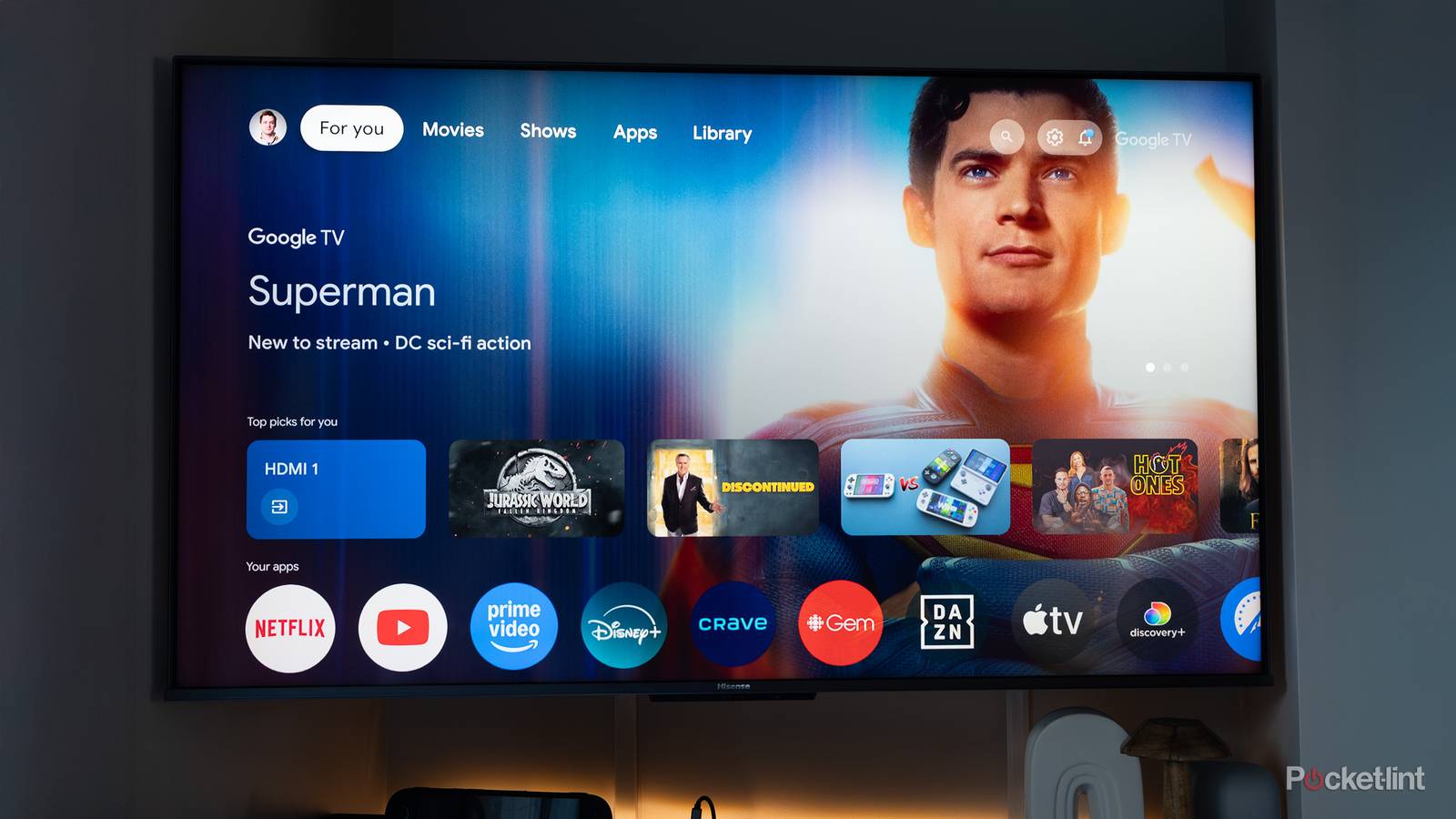

In the world of Android smartphones and tablets, third-party launcher applications have been a platform staple since the very beginning. For the uninitiated, launchers are essentially full-blown home screen replacement apps, complete with their own distinct (and oftentimes highly novel) user interface paradigms to boot.
While far from a quirk-free experience, launchers undeniably add a flair of personality and customizability to the Android operating system as a whole, allowing for developers to flex their creative muscles, and for end-users to curate the precise home screen setups they yearn for.
Naturally, Android launchers are synonymous with mobile devices, but lesser known is that they can also be downloaded and installed directly onto Android TV and Google TV smart television sets. For anyone bored by Google’s default TV launcher interface, launcher apps are the ideal antidote. Plus, third-party launchers are often free, open-source, and entirely devoid of advertisements.

- Dimensions
-
6.4 x 3 x 1-inch
- Connective Technology
-
Wi-Fi, Bluetooth
- Brand
-
Google
- What’s Included
-
Remote
- Bluetooth codecs
-
Bluetooth® 5.1
Launcher apps elevate the Android TV experience
Forgo the default home screen in favor of a cleaner, ad-free alternative

There are a variety of third-party launcher applications out there for the Android TV / Google TV software platform. Some launchers specialize in offering a clean, bloat-free user experience, while others reference speed and agility as a selling point. There are even launchers designed to emulate other big-screen interfaces like that of the Apple TV. In other words, there’s a launcher app out there for everyone.
Some of my personal favorite launcher applications for Android TV / Google TV include:
Of course, there’s nothing inherently wrong with using Google’s stock TV launcher, which itself is well-refined, smooth, and curated with content suggestions and niceties. That being said, algorithmically generated suggestions can sometimes feel overbearing and intrusive. Seeing as how Google is ultimately an advertising company, its interface priorities may not align with those of all users at the end of the day.
On my Google TV Streamer, my go-to launcher app of choice is currently Projectivity. I value its clutter-free interface, its lack of any and all home screen advertisements, its zippy performance, and its general customizability. Going back to Google’s launcher feels like a step backwards, with my installed apps and services feeling less front-and-center than I’d like.
How to set up a third-party launcher on Android TV / Google TV
The process differs from that of Android-based smartphones and tablets

On Android phones and tablets, switching to a third-party launcher is as simple as setting it as your default home screen application from within Settings. Unfortunately, Google makes it more difficult to switch default launchers on its TV platform, which is a frustration I hope to see the company address at some point in the near future.
Being Android, there’s nothing technologically prohibiting the use of third-party home screen alternatives, but the home screen shortcut button on Android TV and Google TV remotes is hard-mapped to Google’s own TV launcher. Even without hacky workarounds, however, it’s easy enough to use an app like Button Remapper to bind a specific remote control button to your launcher of choice.
Some launchers (like the aforementioned Projectivity Launcher) even offer their own native bypass software to override the default home screen right out of the box, which is much appreciated. Such solutions generally require diving into settings to grant specialized permissions in order to take effect, which is a small price to pay for complete control over the look and feel of your Android-powered smart TV, set-top box, or streaming stick.
