

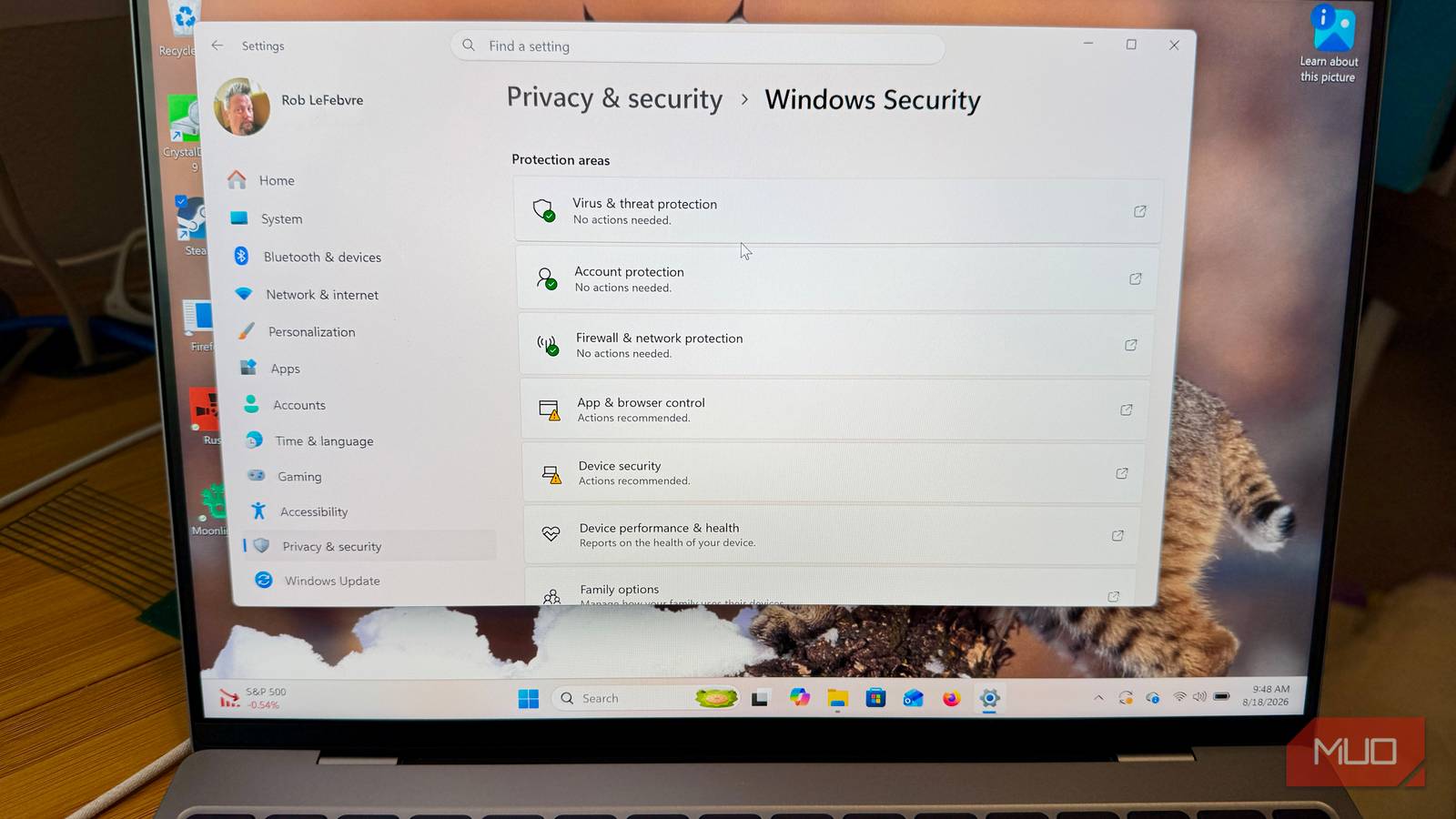

After hearing about a new “no antivirus detected” warning on Windows 11 PCs, I went to my own to see if I’d gotten the error. I didn’t, but plenty of other folks did.
The warning is showing up on Windows 11 24H2 and 25H2 (I have the latter) machines, especially ones that picked up recent Insider Release Preview builds, and it’s almost certainly wrong: Microsoft Defender is still running underneath it. It’s a reporting glitch between Defender and the Windows Security Center UI, not proof your PC is unprotected, and as of this writing, Microsoft hasn’t listed it as a known issue.
Here’s what you need to know in case you see this issue on your own machine.
What the warning says
Why you might be seeing it

On affected machines, some users are reporting a notification saying “Turn on virus protection” from Windows Security, even though Microsoft Defender is confirmed to be running. It’s been tied to recent Windows 11 builds, including one report that traced it to an update on August 4. It can appear whether you use Windows Defender on its own or along with a third-party anti-virus app along with it.
The reports tend to cluster around builds from the Windows Insider Release Preview channel in July of this year (26100.8968/26200.8968, then 26100.8973/26200.8973 via KB5101684). Some other reports come from users that aren’t in the Insider program, so the issue might not be Insider-exclusive.
Windows Security Center reads the virus status from either Defender or a third-party antivirus app and then displays the warning. If that sync misfires, the UI can misreport an error. Microsoft notes, “If you do disable the Windows Security app, or configure its associated Group Policy settings to prevent it from starting or running, the Windows Security app might display stale or inaccurate information about any antivirus or firewall products that are installed on the device.”
Microsoft hasn’t acknowledged the issue yet on its official known issues pages for 25H2 or 24H2. That doesn’t mean it’s not happening, but rather that it hasn’t reached a threshold for the company to officially respond. Plenty of Windows bugs go unlisted for weeks before Microsoft catches up.
How to make sure you’re actually protected
Start with Windows Security itself
Head into Settings > Privacy & security > Windows Security > Virus & threat protection > Virus & threat protection settings. Check and see if the real-time protection set up says you have an issue or not. Typically, you don’t need a third-party antivirus app, but some folks like to have the protection. You can of course run a quick scan here, or download an EICAR test file to make sure the detection is functioning.
You can also check PowerShell for a second opinion. Open a PowerShell window as admin, then run
Get-MpComputerStatus,check AntivirusEnabled and RealTimeProtectionEnabled — both should read True.
If you want to try and get the incorrect warning to clear, you can reset the Windows Security app: Settings > System > System components > Windows Security > Advanced options > Reset (or Repair first).
If none of that works, you can file an issue via Feedback Hub (Win + F) so it adds to the data that could help it become a known issue.
If Get-MpComputerStatus returns a “False” value, a scan won’t run, or the toggle won’t stay on after multiple attempts, treat it as real and act on it (reinstall/repair, check for malware that disabled protection, or reach Microsoft Support directly).
The warning is probably false, but it’s good to check anyway
The bug here is mostly just a mistake in notifications, not an actual virus infection. Defender keeps working even if the banner or icons say otherwise. Don’t uninstall or reinstall your antivirus or panic-buy a subscription if you see this warning. Instead, verify with the steps above. Your PC’s security is always something to take seriously, though, and you can definitely take steps to keep it up to date.
