


Are your Bluetooth headphones sounding unusually quiet without any apparent reason? Before you decide that the unit you received may be faulty, or the model has not been tuned well, make sure to check out a few key settings on your Android device.
I was recently facing a similar issue. To fix it, I had to access an option that is usually hidden by default and needs to be unlocked manually.
Unlock Developer options to access hidden settings
Developer options will show up under System options

By default, Developer Options are not visible on most Android handsets. When enabled, you get access to a host of additional settings which can possibly fix the sound quality of your Bluetooth device.
- Open the Settings app.
- Navigate to the About Phone section.
- Search for the Build number or Software information.
- Tap Build number seven consecutive times.
Enter your password if prompted. After confirmation, you should get a notification confirming Developer Options can be accessed. These options can usually be found under System or an equivalent section.
Absolute volume syncs audio between devices
It can cause volume issues in some cases
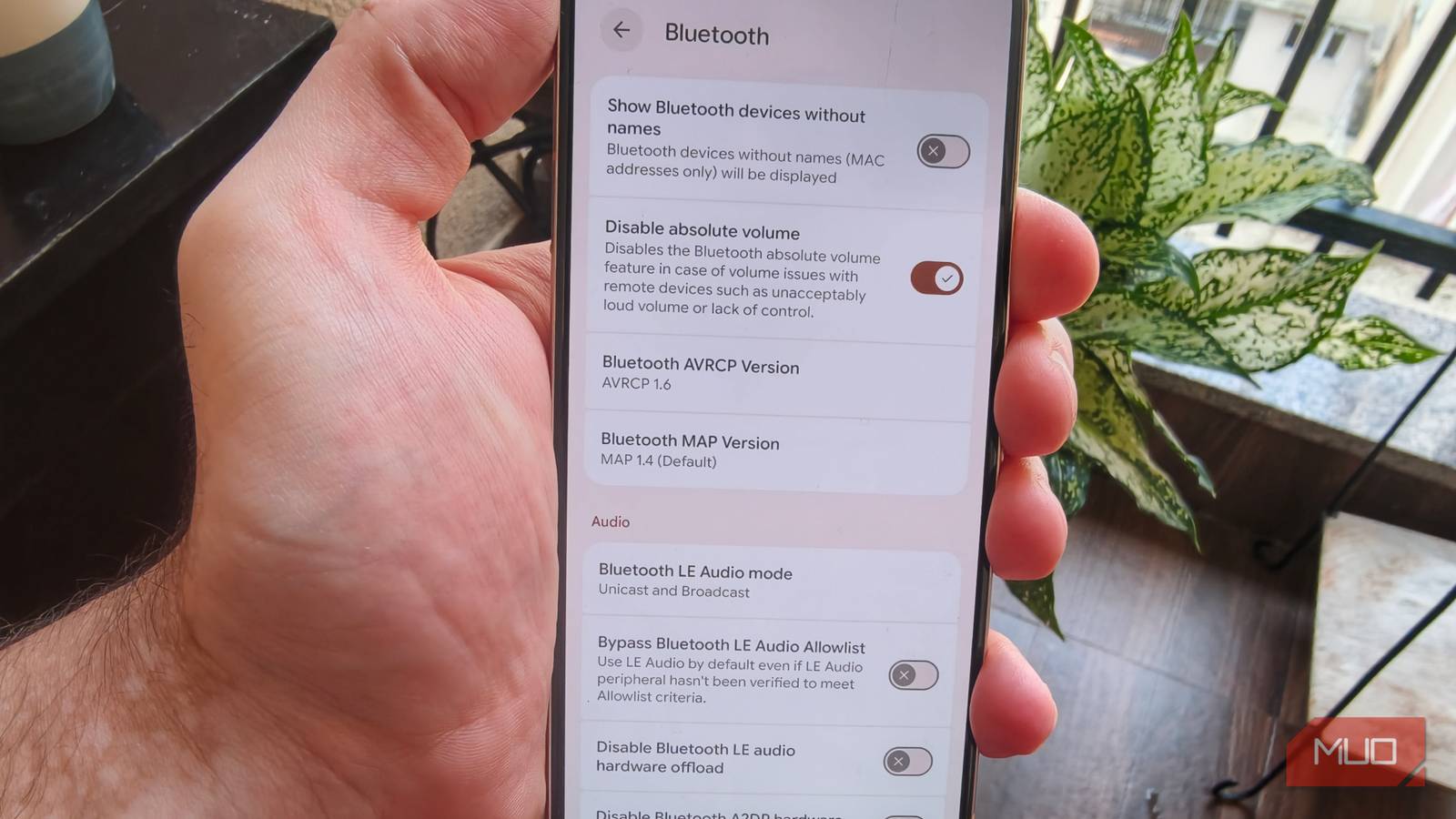
The setting that fixed the issue for me was disabling absolute volume. Android usually syncs the phone’s media volume with the volume of the connected wireless headphones.
What this essentially means is that your Android device and Bluetooth headphones share the same volume level. Whether you increase or decrease the volume using your phone or the headphones’ controls, the change is reflected on both devices.
There is no denying the fact that this can be a convenient solution. But the way the system eventually behaves can vary depending on the devices, Android version, Bluetooth compatibility, and the exact headphones you’re using.
At times, your phone may have different volume steps in comparison to the headphones, which can cause some issues when the levels don’t match perfectly.
Your Bluetooth headphones could sound quieter because Android thinks they have already reached maximum volume, even though the headphones may still have additional volume headroom.
Thankfully, Android allows you to separate the two volume controls by following a few simple steps.
- Open the Settings app on your device.
- Tap on System or an equivalent option.
- Navigate and tap on Developer options.
- Navigate to the Networking section.
- Look for the Disable absolute volume option.
- Tap the toggle next to it to turn it on.
After disabling Absolute volume, restart your Bluetooth headphones and reconnect them to your phone. You should then be able to maintain separate volume levels for your phone and Bluetooth headphones.
For me, the difference was pretty noticeable, and I managed to restore the volume of the headphones back to its peak.
Use the highest quality codec available for your connection
Other important settings to check

In case disabling the absolute volume feature does not work for you, there are other options you can check out. The Bluetooth Audio Codec is one such important setting, as codecs are responsible for how audio is encoded and decoded.
Depending on the make of your Android device and headphones, you may see options such as SBC, AAC, aptX, or LDAC. Your device should normally select a compatible codec automatically, but you can check what is being used under Developer options > Bluetooth Audio Codec. Choose the highest quality codec available for your connection.
Another option to check out is the Bluetooth A2DP hardware offload. When enabled, your phone handles Bluetooth audio processing tasks via a separate chipset instead of your phone’s main SoC.
While this can save battery life, it can also cause your device’s audio quality to be muddy. So try disabling this feature by going to Settings > System > Developer options > Disable Bluetooth A2DP hardware offload, then turn the toggle on and restart your phone.
You can also choose the number of Bluetooth devices that can connect to your smartphone at once. You can reduce the value if you feel your smartphone ends up connecting to an unintended device. Under developer options, you can also select the sample rate and choose between mono and stereo channels as per your preferences.
Developer options are home to technical settings, so only change them when you’re sure of what you’re doing. Otherwise, you could end up breaking something you didn’t mean to.
Cross-check everything before blaming your Bluetooth headphones
Compared to wired headphones that are plug-and-play, Bluetooth devices have a number of factors that can end up affecting the audio quality. Disabling the Absolute Volume option fixed the issue for me.
Be sure to tweak the different settings one by one. Chances are you should be able to fix the issue. Another option to try is connecting your headphones to a different phone or tablet. If it works well, it means the issue is limited to your smartphone.
