

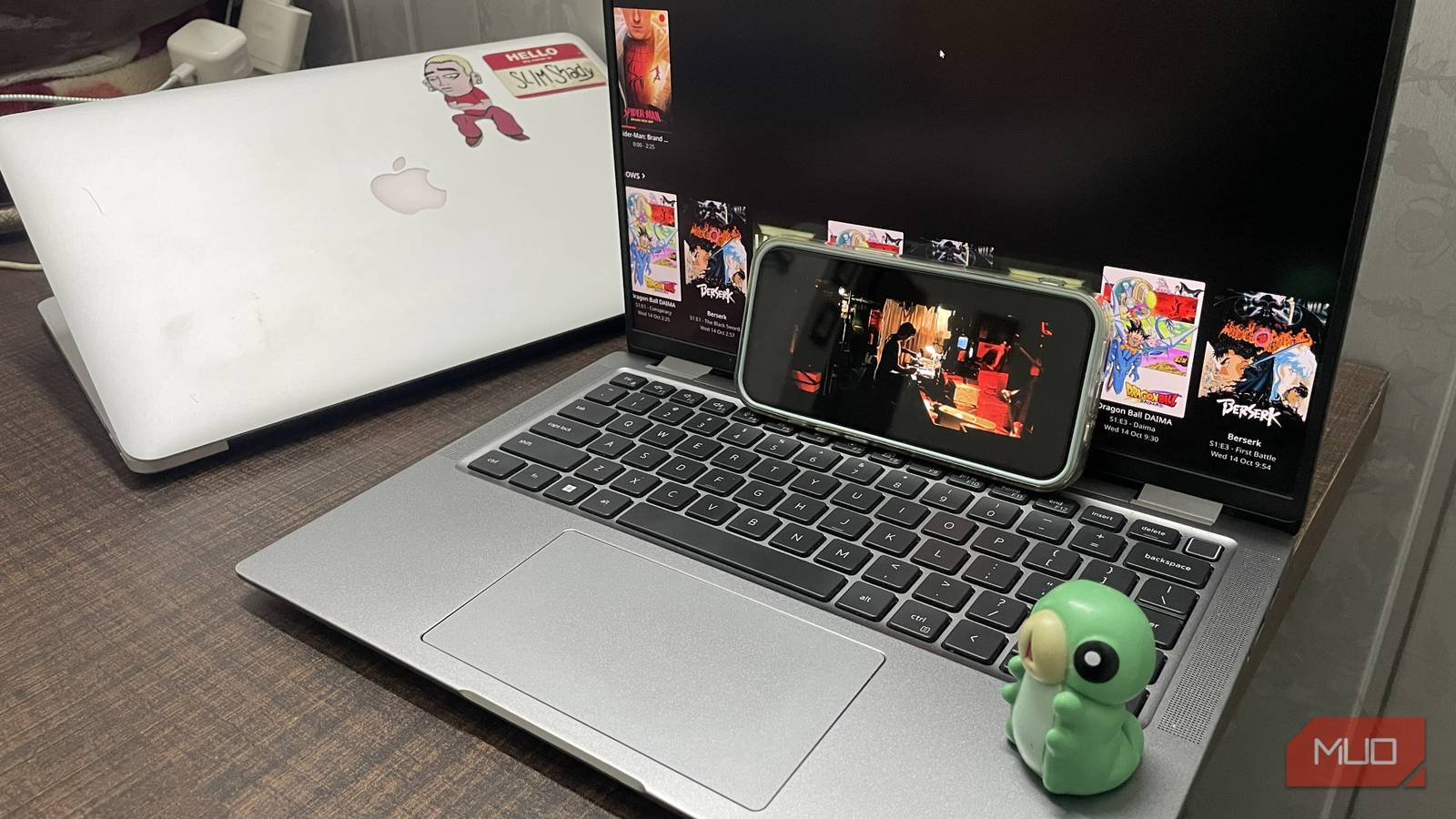

Jellyfin was one of the boxes I left unchecked in my home self-hosted setup until recently. It’s wonderful to have every piece of media you own at your disposal and stream it from any device connected to your network.
However, managing my library of over a decade of content is still pretty rough, but there’s a way to ease the endless doomscrolling of trying to pick something to watch in Jellyfin.
Pairing Jellyfin with ErsatzTV, an open-source personal TV server, lets me create my very own TV channel that broadcasts my favorite childhood shows 24/7, replicating the feel of the good old TV days when I wouldn’t have to pick anything myself.
Set up Jellyfin on spare hardware
My 2015 MacBook Pro hosts the whole library

Setting up Jellyfin is relatively easy. First, you’d need hardware to set up the media library, and I recommend repurposing old computers or a NAS setup, preferably anything with decent storage so you can store the gigabytes of media you’d want. Personally, I’ve set up my Jellyfin on my 2015 MacBook Pro, which I use for nothing except experimenting with lightweight Linux distros or occasionally watching movies.
Then, it’s as simple as downloading Jellyfin on the host computer, adding the media library to the host, and saving it as the content type it is, e.g., movie, TV Show, music. Jellyfin pulls posters automatically if the metadata is correct, but if it isn’t, you can type in the correct name for the content or link to the IMDb page to sync the metadata. From there, you can add custom posters and names for the content as well.
Add ErsatzTV to turn your library into a TV station
ErsatzTV pulls media straight from your Jellyfin server

Jellyfin is just a library, and several apps can enhance it. For building a 24/7 TV channel, ErsatzTV is a great option that makes your library feel IPTV-like. To set it up, download ErsatzTV, then create an API key from Jellyfin → Dashboard → API Keys, and enter it in ErsatzTV alongside the URL address in the Jellyfin section under Media Sources on ErsatzTV when setting up.
Then, sync the libraries and build a personal collection from the content so you can pull it up easily when setting up your TV channel from the Dashboard → Media → Collections.
To ensure ErsatzTV has everything it needs to run properly, check the Health Check under Support in the sidebar to see if you’re missing anything.
Unless you select a hardware acceleration method, ErsatzTV will still transcode on the CPU, but that strains performance. Be sure to select the right type for your GPU under Settings → FFmpeg Profiles.
How to create a channel in ErsatzTV
Build the schedule that runs your channel

To set up your personal TV channel, expand the dashboard and open Channels. From there, create a new channel and configure it as you like. However, creating a channel alone won’t broadcast anything; you’ll need to create a collection from the Jellyfin library in the Media tab and build collections from the content so it shows up when you configure what to play on the channel.
Now to set up what you want to play on your channel, go to Schedules under Scheduling in ErsatzTV and configure the TV Channel to your liking. From there, enter the items you want to play, and choose how you want to set them.You can either choose Strict or Flexible Time Behavior. Strict means the desired content plays at the exact time, even if the previous content you were watching isn’t finished. Flexible lets the previous content finish before playing what’s next.Since I don’t know the exact run time for all the content, I’ll be selecting Flexible for my TV channel so a show/movie doesn’t end on a cliffhanger.
Create a playout to put the schedule on air
Previewing the channel on ErsatzTV confirms it plays

After saving the schedule, edit Schedule Items, then add the content that will play in that schedule. Under Collection Type, choose what you want the channel to play: movies, TV Shows, or More, then scroll down to add content to the Collection.
Next, create a Playout that tells ErsatzTV to use that schedule for the TV channel. You’ll find Playout under the same Scheduling tab; add a new Playout and, from there, add the channel you want, and select the Classic Schedule.
Before going to Jellyfin to stream the channel, go back to Channels under the sidebar and try Preview it to see if it works.
Connect ErsatzTV to Jellyfin Live TV
The M3U and XMLTV URLs supply the channel and the guide
After confirming, go back to Jellyfin, then follow these steps: Dashboard → Live TV → Add Tuner Device, and enter ErsatzTV as an M3U tuner. The address will be http://YOUR-SERVER-IP:8409/iptv/channels.m3u.
Also add the XML URL under TV Guide Data Providers to enter program listings. The XML URL will be something along the lines of http://YOUR-SERVER-IP:8409/iptv/xmltv.xml. Now refresh the guide data in Jellyfin to update the programs.
Live TV will then appear in your Jellyfin home. You can open Jellyfin from home, and whatever content you’ve scheduled for that time will be playing.
Watch your channel away from home
Tailscale avoids port forwarding behind CGNAT

It’s fun to have personal live TV running 24/7, but what good is it if people outside your network can’t access it? You can make this configuration work remotely as well. To do so, enable remote connections on Jellyfin under the Networking tab, and then configure port forwarding for TCP port 8096 (the port Jellyfin uses) to your host server’s local IP.
The person on the other end can then type in your public IP address with the :8096 port at the end to open Jellyfin and log in with a separate account and view the channel alongside you. This makes hosting watch parties convenient, where everyone sees the same live broadcast, so no one has to sync playback.
Direct port forwarding for Jellyfin over unencrypted HTTP may expose your computer, so I advise using a reverse proxy with HTTPS or Tailscale, which you will need anyway if your router uses CGNAT.
Make the most out of Jellyfin
If you’re repurposing an old computer like mine as a Jellyfin server, you likely won’t be able to use the laptop for much else, since hosting alone will overwhelm the machine. Still, it’s one way to repurpose them. While I will always choose Jellyfin over Plex, you can use a different app for a better interface, like Kodi or Findroid for Android.
Once you set up your own media server, live TV is just one of the few upsides. Other extensions, apps, and features let you do way more, like Intro Skipper, which lets you skip intros; Findroid, which is highly optimized for Android devices; and Syncplay, which lets you create a watch party.
