

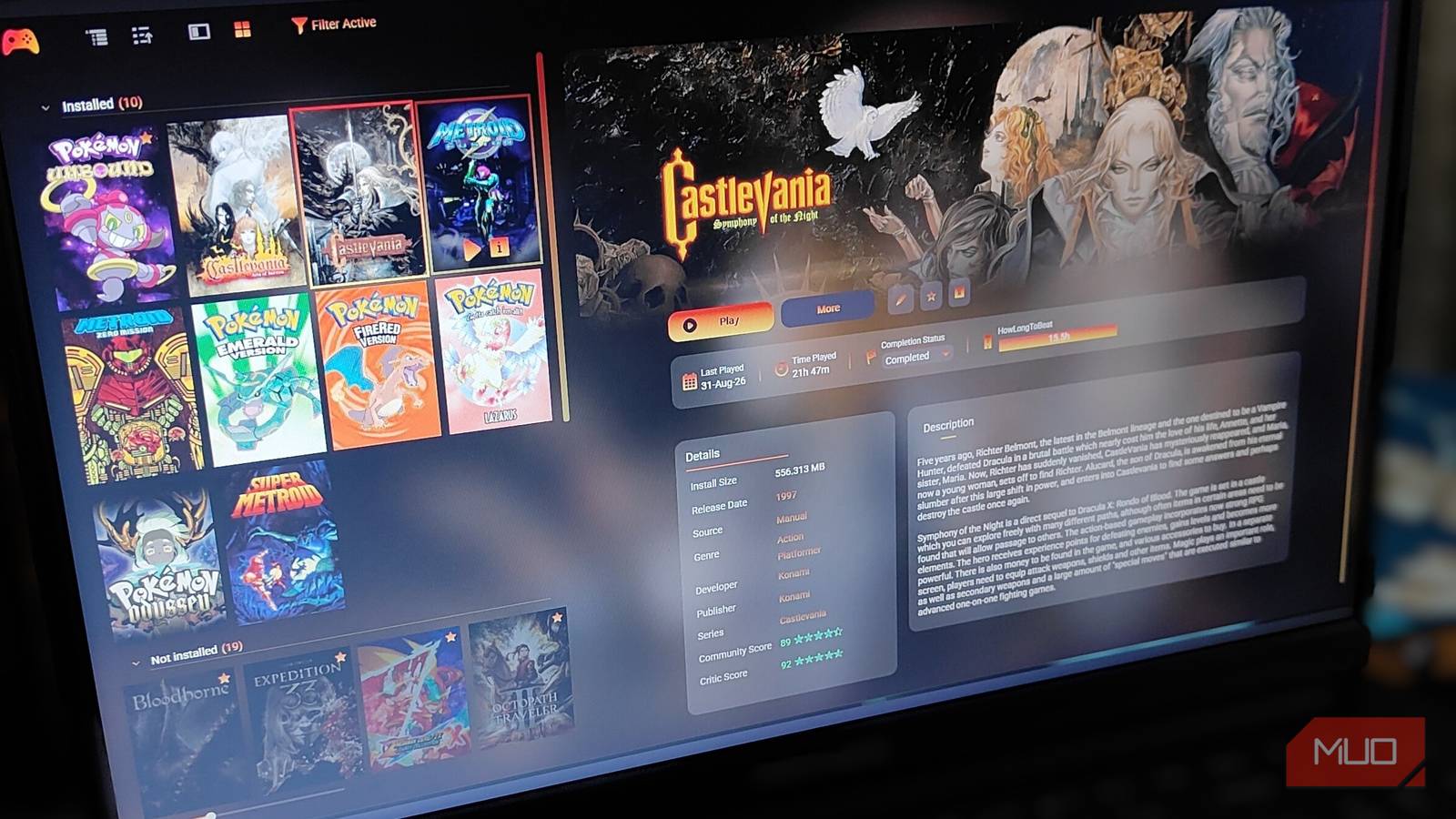

For a good part of my life, Steam has been the only PC game launcher that I’ve known and used. While I did try out other launchers, including Ubisoft Connect and, yes, the Epic Games Store, none of them kept me coming back like Steam.
Well, that was until I found out about Playnite. It’s essentially a free PC game launcher that offers the same level of customization as Steam (if not more) and is significantly lighter than any other PC launcher I’ve ever used, not to mention that it also supports emulators.
In fact, after a month of using Playnite as my primary gaming launcher, I don’t even see myself launching Steam except for occasional friend invites and store browsing.
Installing and setting up Playnite is extremely easy
And so is setting up your games on it
As much as I like playing my games on PC, I very much detest having to manage multiple launchers. In fact, at this point, if a game isn’t native to Steam, which essentially means that it doesn’t need an additional launcher installation, I just don’t even bother buying it on PC. Yes, I can add additional launchers/games to Steam under the “Non-Steam Games” banner. However, it still means having to deal with said launchers. Not to mention, the ugly Non-Steam Games tab on Steam.
Now, Playnite doesn’t necessarily solve this “launcher epidemic.” However, it streamlines my library, which is scattered across Steam, Ubisoft Connect, GOG, and Epic Games Launcher.
Also, installing and setting up Playnite is way easier than I imagined. The launcher includes options for additional plugins right from the initial installation. This means you can connect your Steam, Battle.net, Xbox, EA, Epic Games Store, and more accounts during installation. The only process that needs some additional work is setting up emulators.
Now, to install Playnite:
- Head to Playnite and download the installer.
-
Next, head to the folder where you downloaded the installer and launch it.
- The installer is just a trigger that starts downloading and installing the full app on your PC.
- Windows might block the installation if you aren’t logged in with an administrator account. You can bypass the UAC prompt or log in with the admin account and complete the installation.
-
Right at the start, Playnite will give you the option for a portable installation. I highly recommend checking the Portable box.
- Portable mode essentially keeps all Playnite-related files, such as config files and game databases, under the main application folder.
- This makes it way easier to move the app around different PCs without having to install and set it up every time.
- Additionally, this also makes uninstalling the application and removing its files much, much easier.
-
Next, you will be prompted to choose and subsequently connect your preferred PC launchers/clients to Playnite.
- You can also choose to skip this step and connect the clients later.
And that’s it; you’ve successfully installed Playnite on your PC. That said, one thing to note about Playnite’s installation is that it doesn’t create a desktop shortcut, if that’s something of import to you. Instead, you need to manually dig into the app’s installation directory, which defaults to C: > Users > Username > AppData > Local > Playnite, and create a desktop shortcut.

- OS
-
Windows
- Developer
-
Josef Němec
- Price model
-
Free
- GENRE
-
PC Game Launcher
Playnite is a free, open-source video game library manager for Windows PC that unifies all your games into one interface. It automatically imports titles from Steam, Epic Games, GOG, and emulators. With controller-friendly fullscreen mode and extensive theme customization, it cuts launcher fatigue while keeping data local and lightweight.
The best thing about Playnite isn’t even the launcher
It’s the security features it has to offer

A big part of why I prefer Playnite over other PC launchers is its presentation and the ability to club emulators alongside my Steam games. However, there’s one other reason it beats launchers like GOG, LaunchBox, or even Steam. And that’s essentially the security feature of the app. Unlike proprietary launchers like GOG or Steam, Playnite is not connected to any online server. It’s a completely offline launcher that keeps all the data stored locally on your own PC.
All the account-related security concerns are handled by the respective PC clients where your games are originally stored. This not only makes Playnite more secure than proprietary launchers, but it also makes it way more “portable.”

Also, if you were wondering, yes, Playnite supports controllers. But if you’re playing your Steam games, you’re better off using Steam Input anyway. The controller support on Playnite is very rudimentary, relying on Windows’s default controller configurations, which means it only natively supports Xbox controllers. Now, Xbox controllers are quite good, especially the Xbox Series Elite 2.
However, on PC, you aren’t relegated to just using Microsoft’s proprietary controllers. If you want to use your DualSense, DualSense Edge, or any other third-party controller, it’s best to just use Steam Input.
Playnite is my primary launcher, but Steam isn’t going anywhere

While I have settled for Playnite for what seems to be the foreseeable future, that doesn’t mean I have completely abandoned Steam. It’s still my go-to platform for PC games and socializing. While Playnite certainly offers a better and more compact “games library experience” on PC, it’s not a replacement for Steam. Instead, Playnite serves as the singular hub for all my games on PC, including the huge library of emulators and retro games.
And the best part: I don’t even need to make yet another online account to use the Playnite launcher. My only gripe with Playnite is that it’s not available natively on Linux (and SteamOS).
I would’ve really liked to spice up my Steam Deck with Playnite’s launcher. While SteamOS on my Steam Deck certainly has its charm, I’ve become so used to Playnite that I don’t even think about going back to anything else. That said, if you are looking for a third-party launcher for your Steam handheld, you can try the Heroic Launcher, which has native Linux support and works quite well on the Deck.
