

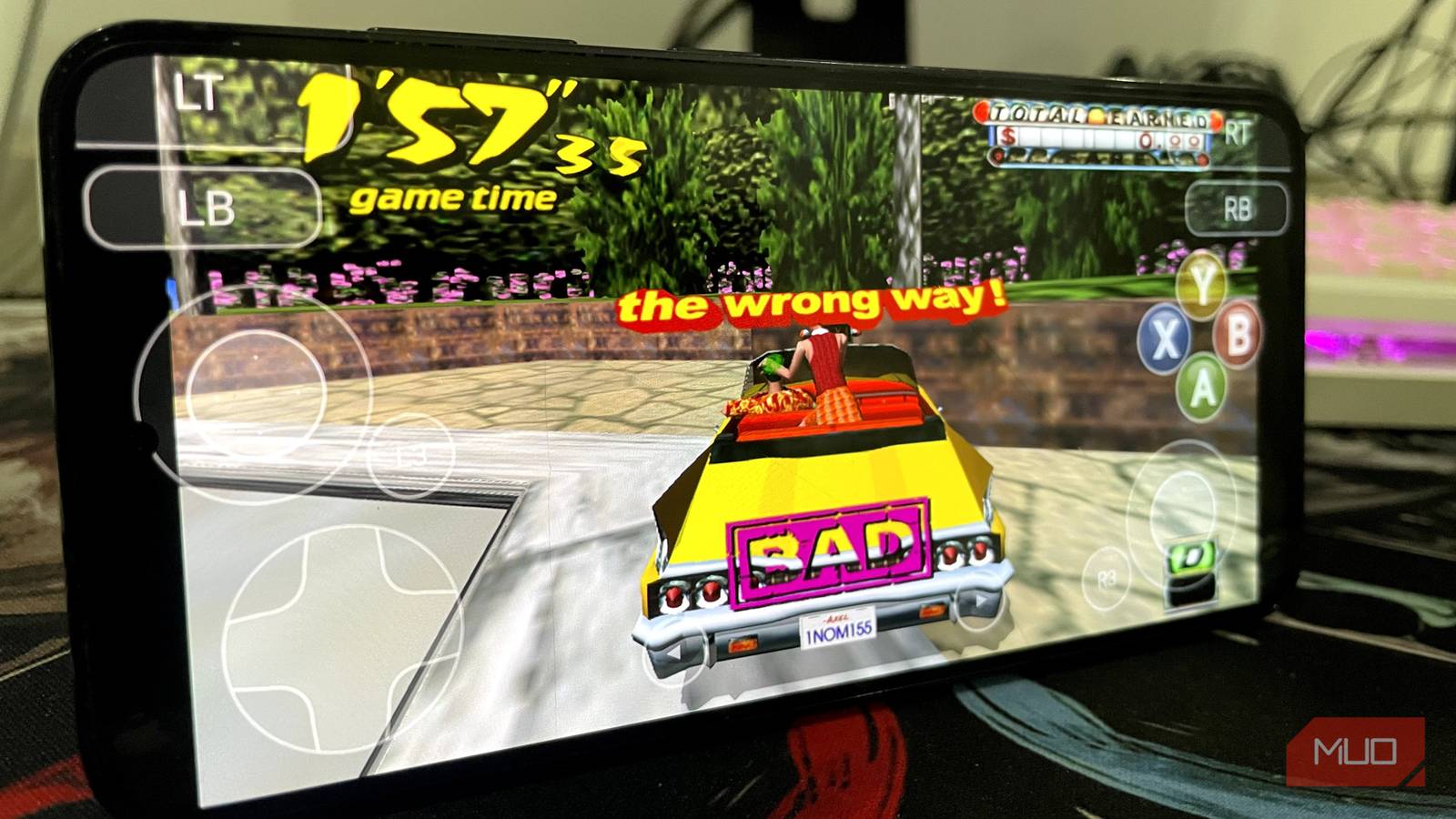

It still feels wild how much smartphones have evolved in just a few years. These days, you can easily run AAA games like Cyberpunk 2077 and newer Resident Evil remakes on newer iPhones, devices that aren’t even explicitly designed for gaming.
However, despite their capabilities, most of the gaming library for consoles and PCs still hasn’t been ported to mobile phones, and there’s so much potential to run both older and newer titles.
Fortunately, hardware advancements haven’t left software behind. Recently, a surge of Xbox 360 emulators has hit the Android market, letting you play a growing number of games from that generation. One of the most promising Xbox 360 emulators is XenDroid, which delivers the best performance, running games at 60 FPS, and here’s how to set it up on your Android device.
What your phone needs to run XenDroid
The Snapdragon 8 Gen 2 and Adreno 740 are the starting point

To run Xbox 360 games via XenDroid on an Android device, you need capable hardware.
The emulator lists Snapdragon 8 Gen 2 and later, with Adreno 740 (which is exactly what my Samsung Galaxy S23 has) and newer GPUs, as requirements for running these games, although devices with A6XX GPUs can also run lighter titles fine.
XenDroid is free, and you won’t need Xbox 360 firmware or a BIOS to start playing. Like any other emulator, XenDroid supports .iso formats, but .xex, .zar, or .god (which Xbox 360 uses to store games on the HDD) also work fine.
Install XenDroid and add your games
Sideload the APK, grant storage access, and point it to your game folder

Once you’re past the requirements, setting up XenDroid is fairly easy: install the app and get your game files, and that’s it. To do so, follow these steps:
- Download the .apk from XenDroid and install it. Since this is sideloading, you must first enable permissions for your web browser or file manager to install unknown apps.
- After installation, grant it storage permissions so it can access files on your phone.
- Place the game files in a specific folder titled Games (or anything else for convenience).
- Point the emulator to the game folder so XenDroid can scan the installed games, since it won’t check the entire Android device and then run the game.
With the emulator installed and the game running, most of the setup is done. However, you still need to adjust a few settings to get XenDroid running properly, improve performance, and remove any remaining issues like artifacts, game crashing, etc.
To get Xbox 360 games, dump your own Xbox 360 discs to play on your phone, and don’t download copies from the internet, which is illegal and a huge safety risk either way.
Tune XenDroid for higher frame rates
A custom Turnip driver and a few display tweaks do most of the work
Modern smartphones are far more capable than the original Xbox 360, but they can’t natively run games designed for PPC (PowerPC) on ARM. Hence, you need additional configuration for a much smoother translation.
For starters, Qualcomm’s drivers are fine for most Xbox 360-emulated games. Still, if you run into issues like stuttering, poor performance, visual artifacts, or similar problems, the developer recommends installing custom Turnip drivers.
To load these drivers, follow these steps:
- Download the custom Turnip driver — either Whitebelyash or StevenMXZ builds.
- Open XenDroid and go to settings.
- Under Vulkan, you’ll find the option for a Custom Vulkan driver.
- Enter the path to the custom driver you just installed.
XenDroid still has a ton of settings you can tweak to further improve performance. The emulator lets you enable AMD’s FSR upscaling technology in Scaling & Sharpening under Display for better performance. Then, you can also configure the FPS cap to match your screen’s refresh rate.
For better throughput, you can enable max GPU clocks under Vulkan to get the most out of your device, but be aware this will drain the battery faster and can make your phone run very hot.
How Xbox 360 games run on my Samsung Galaxy S23
Perfect Dark and Crazy Taxi played with a DualShock 4
XenDroid can run almost any Xbox 360 game, but I used to run slightly less demanding titles. I installed Perfect Dark and Crazy Taxi, Xbox Live Arcade titles I loved as a kid.
Might I dare say these titles ran better than a native Android game? I paired a DualShock 4 to my S23 to use as a controller for both these Xbox games (weird times, I know). Though the on-screen touch controls work well too, since I have larger hands, they don’t fit well on such a small phone.
I’m excited to try more titles and go through my childhood games again, one by one, starting with Halo 3 and then replaying Toy Story 3 on my phone.
Childhood favorites are now playable on the go
Emulators aren’t anything new. My first experience was emulating PSP games with PPSSPP on my Nokia X back in 2014 (which wasn’t even a full Android), and fast-forward to 12 years later, I’m revisiting my favorite childhood games on the go.
Setting up XenDroid is pretty straightforward, and if you’ve missed the Xbox 360 experience, I recommend exclusives like Forza Horizon, Halo 3, and more, all of which can easily run on supported smartphones.
