

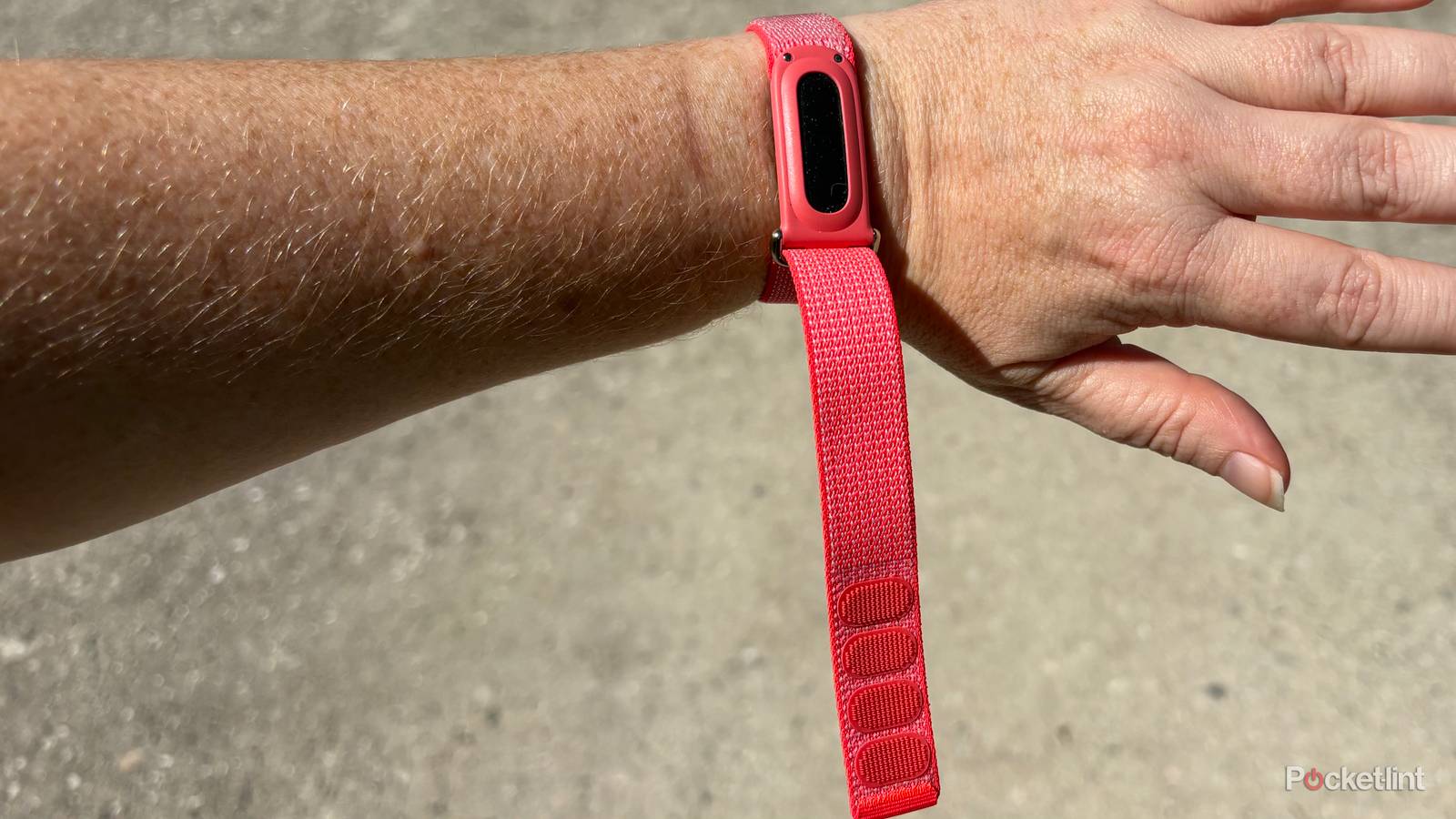

To say that I’ve been impressed with the Google Fitbit Air is a bit of an understatement. To date, it is the only tech device in 2026 that I’ve awarded a perfect score to, thanks to its combination of functionality, affordability and utility. Put simply, it’s a device that does everything it needs to, with no extra bells and whistles, at exactly the right price point.
However, as I enter my third month with the device, there are some things that I’ve noticed about my time with the Google Fitbit Air that I wish I would have known on day one. I still stand by my original perfect score, but if you’re thinking about picking up one of these lightweight trackers, knowing some of these additional details ahead of time could make all the difference in how much you get out of your device.
Where you wear it matters
Don’t skew your data

One of the things I loved about the Fitbit Air initially was that I could strap it on my wrist and start using it immediately. However, what I didn’t know was that to get the most accurate results you need to set which hand you wear it on in the Google Health app. In order to fix this error, I simply had to tap the device icon in the upper-right corner and then select Device preferences followed by Wrist preference. I wear my Fitbit Air on my left hand, so I needed to select Non-dominant from this menu since I am right-handed.
Don’t put it on too tight
It’s not comfortable, and your readings will be skewed

Though it is tempting to wear a Google Fitbit Air as snugly as possible against your wrist, doing so can not only cause discomfort, it can also mess up your heart rate readings as well. Google recommends that users the band loosely enough that it can move back and forth on your wrist during the day and during light workouts like walking. A good rule is to ensure that there is enough room to fit a pinky under the strap when it is being worn during everyday use.
During heavier exercises, when the looser fit might interfere with your activity, users can move the band higher on their wrist (2-3 finger widths above the wrist bone) to get a better fit so it’s secure. Once finished though, it is important to remember to lower the band on your wrist and loosen it after exercise.
You can customize Google Health’s interface
Get a glance at the information you need

When I first started using the Google Health app I was a little overwhelmed by all the information that I could access. I spent a long time going through the various menus and metrics, and important numbers often required several taps to find. However, I recently learned that you can customize the app’s interface to prioritize the metrics on the home page that matter most to you.
To do this, tap the edit button in the Today view, then choose between Standard and Expanded. From here you can add extra focus targets, remove unwanted metrics, or rearrange how the data is presented. Then tap the back arrow to save your layout.
Specific workouts need to be started in the Google Health app
The Google Fitbit Air can detect when you walk or run, but not much else

Another thing that I loved about the Fitbit Air right out of the box is that it automatically detects when I’m out for a walk or a jog, which are my two most popular workouts. However, if you’re doing something outside of these two activities that you want specifically tracked, like kayaking or weightlifting, you’ll need to start your workout in the Google Health app first, as the Fitbit Air isn’t the best at automatically sensing these kinds of activities.

- Heart Rate Monitor
-
Yes
- Notification Support
-
No
- Battery Life
-
7 days
- Integrations
-
Google Health
- Display
-
none
- Mobile payments
-
No
