

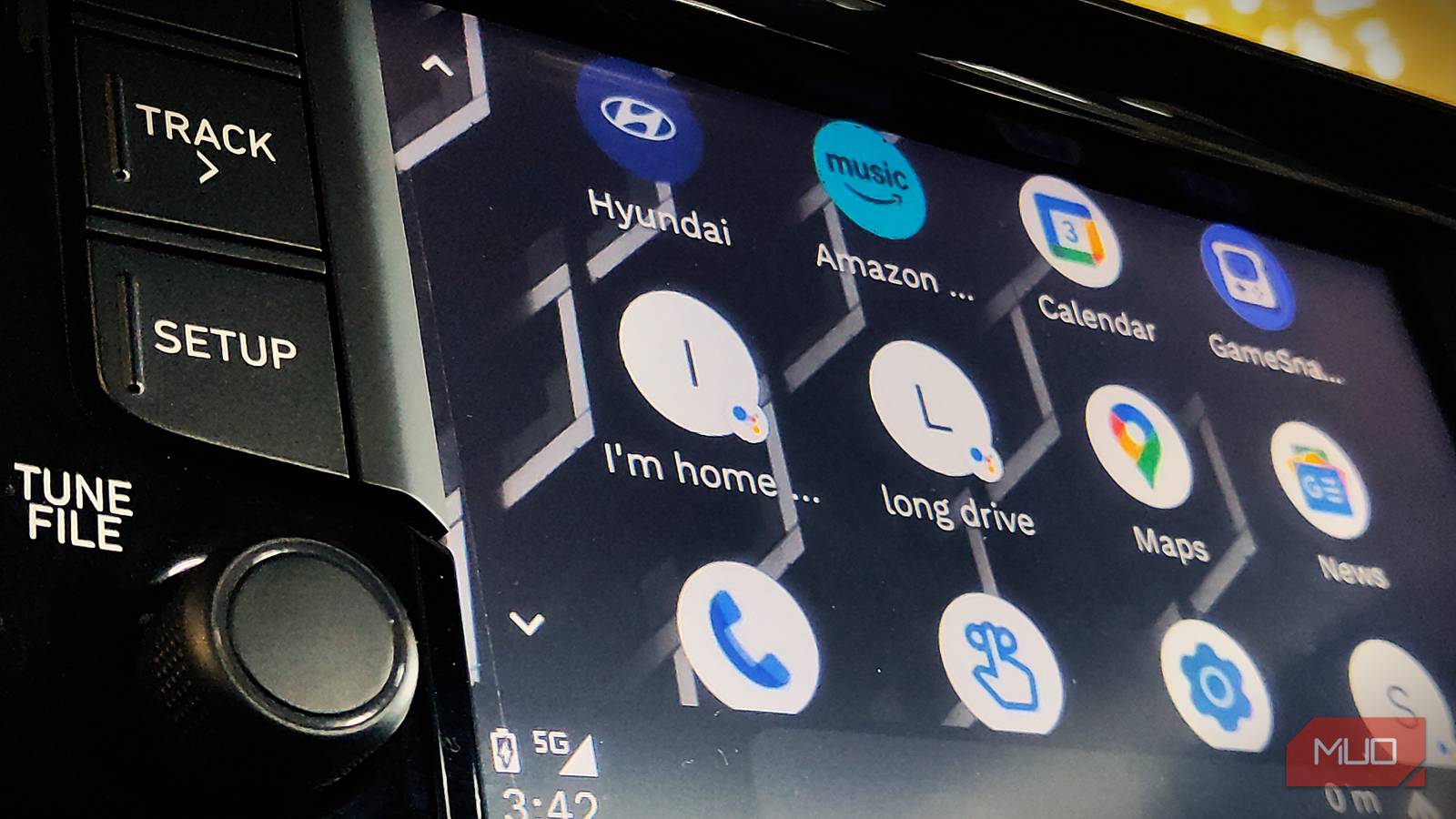

One of the best Android Auto features has been hiding from you in plain sight: Google Assistant routine shortcuts. These allow you to streamline and automate repetitive tasks with a single tap or command. While you might have used them on your phone, they’re also available as shortcuts within Android Auto’s launcher.
Just like the best fun Android Auto apps, having these shortcuts on hand unlocks a smoother in-car experience. I’ve been using Assistant routines in the car for a while, with several of them that I can’t live without.
Create new Assistant routines
Before we jump to the list of routines, let’s take a quick look at how to add a routine to Android Auto. First, you will need to add a routine to the Assistant; later, you can link it to Android Auto.
On your Android device, go to Settings > Google > All services > Search, Assistant and Voice > Google Assistant > Routines.
Now, tap + New in the top right corner and select Personal.
Here, you’ll add the Starters (prompts that initiate the routine) and Actions (the items that make up the routine) of your choosing for each routine. These are up to you; I’ll walk you through some of my favorites below. Make sure to give the routine a clear name (at the top) so you can identify it among others.
Once created, you can easily launch the Assistant routine by saying “Hey Google, [Starter phrase].” And for when you’re in the car, you can also add a one-tap shortcut to the Android Auto launcher.
Add a routine to Android Auto
To link your routines to Android Auto, head to Settings > Connected devices > Connection preferences > Android Auto > Customize launcher > Add a shortcut to the launcher.
In the pop-up, select an Assistant action and add the exact starter phrase you used in the routine, along with the desired label, and tap CREATE SHORTCUT. And that’s it—you have an Assistant routine shortcut on your Android Auto launcher.
One of the best Android Auto tips is rearranging your apps for easy access; make sure you do that to keep your new routine shortcuts within easy reach.
The best Assistant routines for Android Auto
An Assistant routine can be anything you like. Here are five of my favorite amazing routines that will help you, along with their suggested starters and actions. Feel free to modify them as you see fit.
A starter phrase can be anything that vibes with you. These are just a few ideas to get you moving.
Morning work commute routine

With this routine, the Assistant sets navigation to my workplace, allowing me to see my ETA. Then the Assistant checks my calendar for today’s tasks and events, followed by loading an upbeat playlist on YouTube Music. This routine not only helps me reach work faster, but also helps me plan my day with a great start.
Starter phrase: Start my morning work commute
Actions:
- Get directions to work.
- Read calendar events for the day.
- Play the Good Morning playlist.
The shopping routine
When you trigger this routine, it informs you about the weather, navigates you to the nearest supermarket, and reads your Keep checklist aloud. So when I go out, I have an idea of the weather and I remember what I’m out for. This adds convenience to the shopping experience, from the moment I leave my home until I reach the supermarket.
Starter phrase: Start my grocery run
Actions:
- Tell me what the weather is like
- Navigate to the nearest open supermarket
- Read the grocery list from Google Keep
The long drive routine

I love going on solo drives, which is why this is my favorite routine despite it being triggered less often than the others. Every time I scream, “Hey Google, it’s go time!” this routine tells me the weather conditions at my destination, the estimated time of arrival, and the traffic situation on the way. Then it plays the latest episode of my favorite podcast.
Starter phrase: It’s go time!
Actions:
- Navigate to [your destination]
- What’s my estimated time of arrival at the destination?
- What’s the weather like at the destination?
- Are there any traffic jams on the way to my destination?
- Play the latest episode of [favorite podcast]
The pickup routine
Picking up and dropping off our loved ones is something many of us do daily. For me, routines like this can sometimes be overshadowed by other important tasks that come up. I created this routine because of delays created by those circumstances, or traffic or weather conditions.
It tells me the traffic conditions on my way, gives the weather forecast, and finally runs a nice, chill playlist so we can jam together while coming or going to the destination.
You can create multiple routines using this concept by customizing them for each drive. In this routine, customize the Starter and Actions based on where you often go and set the playlist to one that suits your vibe.
Starter phrase: Start [name’s] pickup routine.
Actions:
- Tell me what the weather is like
- Navigate to the [destination]
- Play the latest pop hits playlist
The reaching home routine
Finally, the “reaching home” routine includes all the rituals I perform both before and when I arrive home. When this routine is triggered, the Assistant automatically opens the garage door, turns on the air conditioner, and starts playing music on my Nest, creating a cozy and comfortable environment.
Starter phrase: I’m reaching home.
Actions:
- Open the garage door
- Turn on the living room AC
- Play my jazz playlist on the living room Nest
Make your tasks quicker while driving with routines on Android Auto
There’s no need to pick up your phone, fiddle with your car console, text with Android Auto, or give multiple commands to play music, set navigation, and trigger activities. With the Assistant routines on Android Auto, you can accomplish all these tasks with just one tap or voice command. It’s an excellent upgrade to Android Auto that everyone should take advantage of.
