


In this guide, we will show you how to separate numbers from text in Excel on a Windows 11/10 PC.
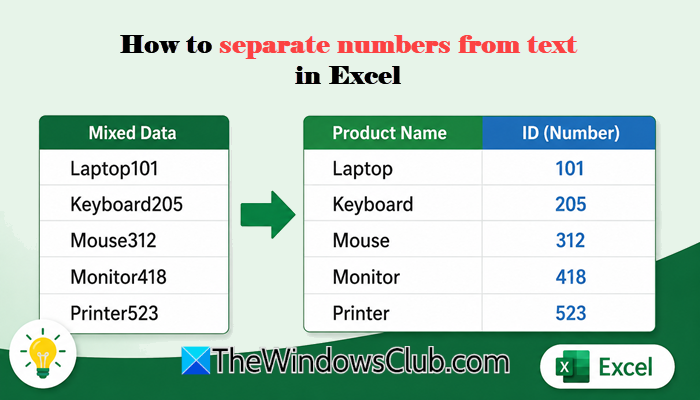
While working with Microsoft Excel, you may come across data that consists of mixed strings in a single column. For example, a product name and its quantity may be stored together in the same cell. Before performing calculations or analysis, you may need to separate the numbers and text from those strings and place them into different columns. While Excel does not offer a dedicated option to extract numbers or text from mixed strings, there are several ways to accomplish this task.
How to separate numbers from text in Excel
To separate numbers from text in Excel on a Windows 11/10 PC, use these methods:
- Use Flash Fill
- Use Text to Columns
- Use Formulas
- Use Power Query
Let us see these methods in detail.
1] Use Flash Fill
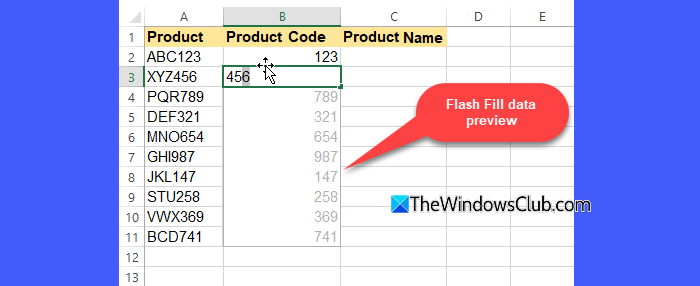
If your data follows a consistent pattern throughout the worksheet and is unlikely to change later, you can use Excel’s Flash Fill feature to separate numbers from text. Flash Fill automatically recognizes patterns in a given dataset and fills the remaining cells accordingly.
Open your Excel worksheet containing the mixed strings. Insert a new column next to the source data. In the first cell of the new column, manually type the numbers you want to extract from the corresponding cell. For example, if A2 contains ABC123, enter 123 in B2.
Select the next cell below (B3) and start typing the expected result for the next entry. Excel will display a preview of the extracted values for the remaining cells. Press Enter to accept the suggested results.
Alternatively, after entering a few examples, select the column where you want the results to appear and go to Data > Flash Fill, or press Ctrl + E. Excel will automatically extract the numbers from the remaining cells based on the pattern you provided.
Note: To extract only the text portion, repeat the same process but enter the text part (such as ABC from ABC123) as your sample value. Flash Fill will then separate the text from the remaining entries.
2] Use Text to Columns
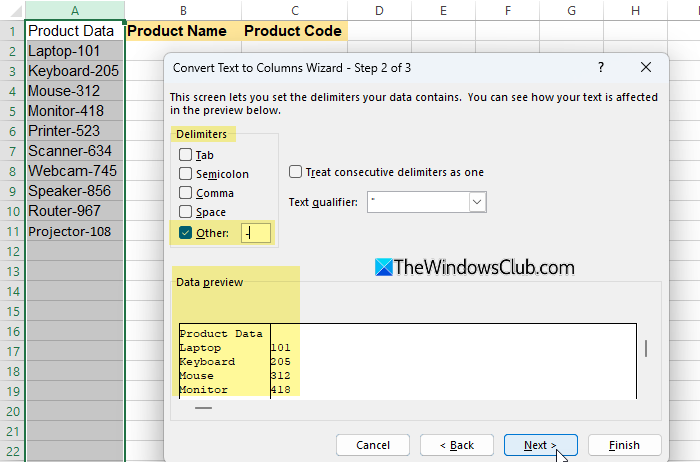
If the text and numbers in your data are separated by a consistent delimiter (such as a space, hyphen, comma, or underscore), you can use Excel’s Text to Columns feature to split them into separate columns.
For example, if your data contains values such as Product-123, Laptop-101, or Printer-523, Text to Columns can quickly separate the product names from their corresponding IDs.
To use Text to Columns, select the cells containing the mixed strings and go to the Data tab. Click Text to Columns in the Data Tools group.
In the Convert Text to Columns Wizard, select Delimited and click Next. Choose the delimiter used in your data and click Next again.
Select the destination for the separated data, then click Finish. Excel will split the text and numbers into separate columns.
3] Use Formulas
If your data changes frequently and you want the results to update automatically, you can use Excel formulas to separate numbers from text. Depending on how your data is structured, you can use either of the following approaches.
A] For strings where text appears first, and numbers appear at the end
For values such as: Product123, Laptop101, or Mouse456, use the following formula to extract the numeric portion:
=RIGHT(A2,LEN(A2)-MIN(FIND({0,1,2,3,4,5,6,7,8,9},A2&"0123456789"))+1)
Replace A2 with the cell containing your mixed string and press Enter. Excel will return the numeric portion of the string.
To apply the formula to the remaining entries, select the cell containing the formula, move your cursor to the small square in the bottom-right corner of the cell (the fill handle), and drag it down the column. Excel will automatically extract the numbers from the corresponding cells.
To extract the text portion, use the following formula:
=LEFT(A2,MIN(FIND({0,1,2,3,4,5,6,7,8,9},A2&"0123456789"))-1)
B] For strings where numbers can appear anywhere
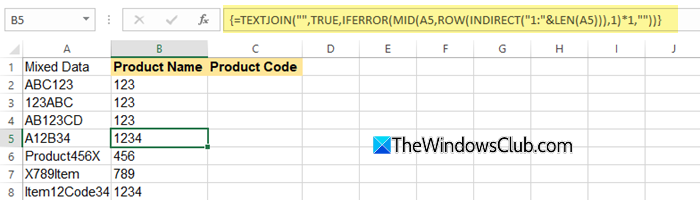
If your data contains numbers in different positions, such as ABC123, 123ABC, AB123CD, or A12B34, use the following formula:
=TEXTJOIN("",TRUE,IFERROR(MID(A2,SEQUENCE(LEN(A2)),1)*1,""))
Replace A2 with the cell containing your mixed string and press Enter. Excel will examine each character in the string, keep only the numeric values, and combine them into a single result.
The SEQUENCE function is available only in Excel 365 and Excel 2021. If you use Excel 2019, use this formula instead:
=TEXTJOIN("",TRUE,IFERROR(MID(A2,ROW(INDIRECT("1:"&LEN(A2))),1)*1,""))
Note: In Excel 2019, the formula must be entered as an array formula. After typing the formula, press Ctrl + Shift + Enter instead of just Enter. Excel will automatically place curly braces around the formula in the Formula Bar.
Once the formula returns the desired result, drag the fill handle downward to apply it to the remaining cells in the column.
4] Use Power Query
If you work with large datasets or need to separate numbers from text regularly, Power Query can automate the process. It allows you to create a transformation that can be refreshed whenever the source data changes or new data is added.
Select the cells containing your data and go to Data > From Table/Range. When prompted, click OK to convert the selected range into a table and open it in the Power Query Editor.
In the Power Query Editor, select the column that contains the mixed strings. Then go to Add Column > Custom Column.
To extract only the numbers, enter the following formula in the Custom Column Formula box:
Text.Select([Column1], {"0".."9"})
Replace Column1 with the name of your column if it is different.
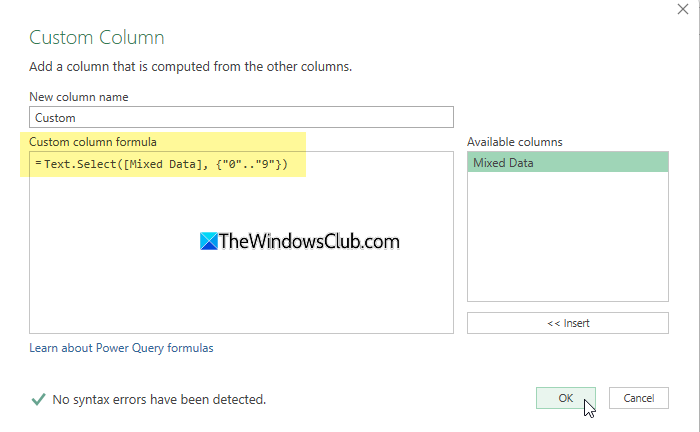
Click OK. Power Query will create a new column containing only the numeric characters from each entry.
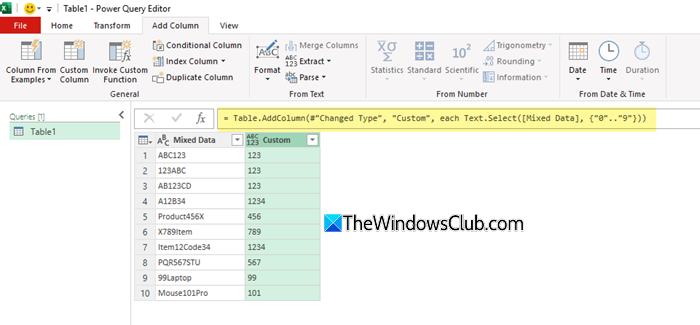
If you want to extract only the text portion, create another custom column and use:
Text.Remove([Column1], {“0”..”9″})
Once you are satisfied with the results, click Home > Close & Load to load the transformed data back into Excel.
I hope you find this useful.
Read: How to split Text to Columns in Excel and Google Sheets.
How to separate numbers from text?
You can separate numbers from text in Excel using Flash Fill, Text to Columns, formulas, Power Query, or a custom VBA function. The best method depends on how your data is structured and whether you need the results to update automatically. For simple one-time tasks, Flash Fill is often the quickest option.
How to split 1 cell into 4 in Excel?
Excel does not support splitting a single cell into multiple cells the way Microsoft Word does. However, you can split the contents of a cell into adjacent columns by using Data > Text to Columns, Flash Fill, or the TEXTSPLIT function (in Excel for Microsoft 365 and Excel for the web). You can also insert additional rows or columns to store the separated data.
Read Next: UNIQUE function not working in Excel.
