

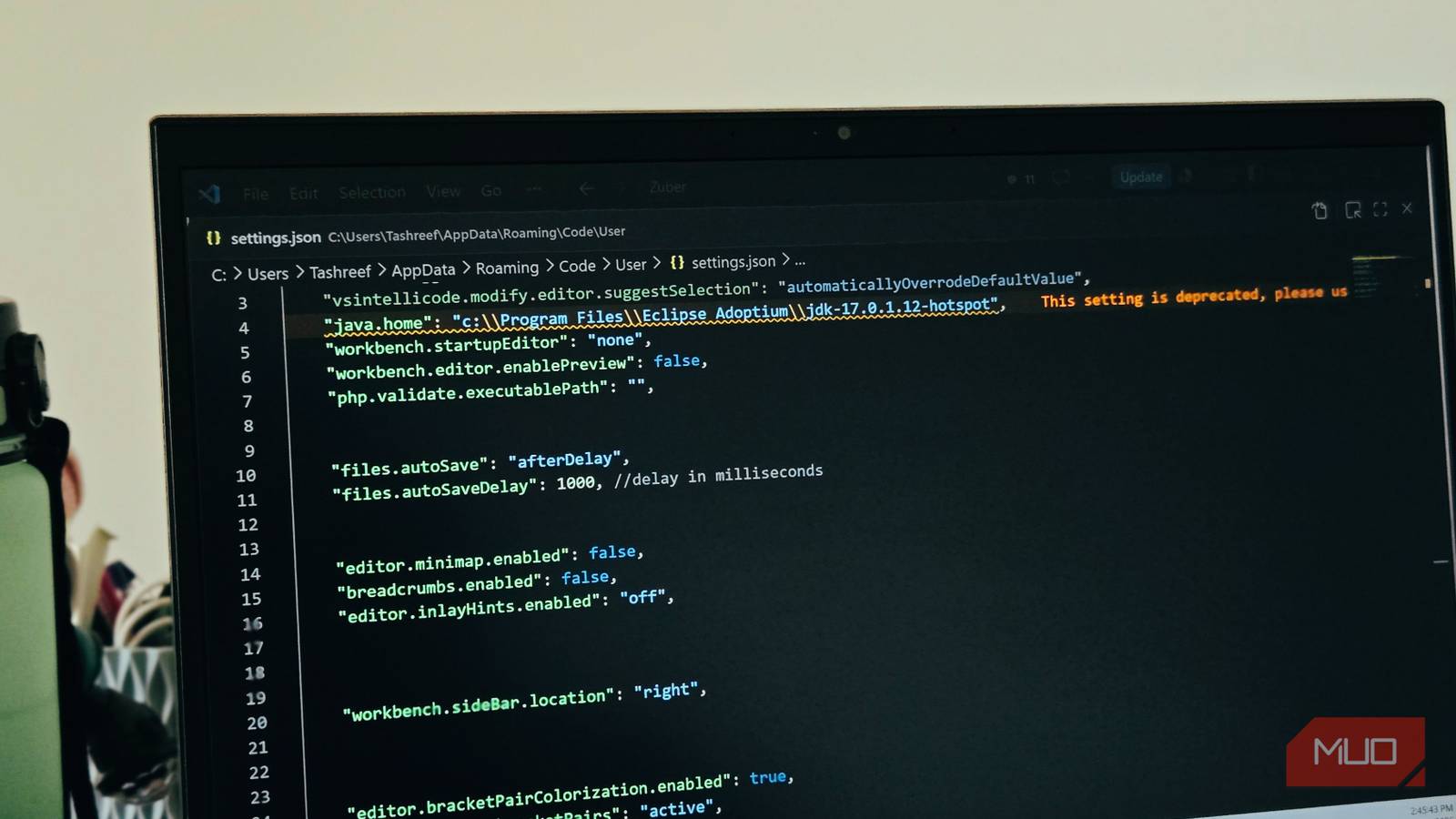

VS Code has been my code editor of choice for almost a decade now. Out of the box, the code editor comes with some good default settings, but over time I’ve made a few tweaks to make it fit my workflow better.
From disabling the minimap and enabling autosave to moving my primary sidebar to the right, these small VS Code settings have made using the tool far less annoying.
Render and clean up whitespace
Make invisible formatting problems impossible to miss
Any file that’s been modified by multiple people looks fine on the first surface, but if you turn on whitespace rendering, you’ll see tabs mixed with spaces, trailing spaces clinging to line ends, and indentation that can’t seem to agree with itself.
Mixed indentation doesn’t break your code, but it pollutes your diffs and annoys every teammate who opens the file after you. My fix was to set editor.renderWhitespace to all in my settings, and those invisible characters suddenly show up as faint dots and arrows. It felt noisy for the first hour, but then I started catching formatting issues I’d been blind to for years.
The second part of this is enabling files.trimTrailingWhitespace. With this turned on, VS Code strips any extra spaces at the end of lines every time you save.
{
    "editor.renderWhitespace": "all",
    "files.trimTrailingWhitespace": true
}
Autosave not to lose any code again
Let VS Code handle saving so you can focus on writing

Autosave has been a lifesaver for me, both when writing articles and when working on code. Imagine spending twenty minutes debugging an issue, only to realize the file you changed was never saved. While VS Code supports autosave, it comes disabled by default.
The setting you want is files.autoSave, and I have mine set to afterDelay with a one-second delay. Every time I stop typing for a second, the file saves itself. No more Ctrl+S muscle memory, no more unsaved-file surprises when you switch branches or restart the editor.
If constant saving makes you nervous, especially when working with build tools that watch for file changes, you can set it to onFocusChange instead. This way, VS Code only saves when you switch to a different tab or click away from the editor. It’s a middle ground that still keeps your work safe without triggering a rebuild every time you pause to think.
{
    "files.autoSave": "afterDelay",
    "files.autoSaveDelay": 1000 // delay in milliseconds
}
Disable or aggressively shrink the minimap
Reclaim the screen space your code deserves

The minimap is that thin scrollable preview on the right side of your editor. Some swear by it for navigating large files, and I get the appeal. For me, though, it’s a visual distraction that takes up space without much use for it.
I keep mine disabled entirely with editor.minimap.enabled set to false. And I can do everything it can with Ctrl+G (go to line) or Ctrl+Shift+O (go to symbol). If you’re not ready to remove it completely, you can shrink it by setting editor.minimap.maxColumn to something low, like 50, so it takes up less room.
While you’re decluttering, consider turning off breadcrumbs (breadcrumbs.enabled: false) and inline hints (editor.inlayHints.enabled: off). These are features that VS Code enables by default to be helpful, but they add more bloat to an interface that already shows you a lot.
{
    "editor.minimap.enabled": false,
    "breadcrumbs.enabled": false,
    "editor.inlayHints.enabled": "off"
}
Stop your code from shifting every time you toggle the file explorer

By default, VS Code puts the sidebar, your file explorer, source control panel, and extensions on the left. The problem is that every time you open or close it, your code shifts horizontally. Your eyes lose their place, and you have to re-orient yourself.
Move the sidebar to the right side, and your code stays pinned to the left edge of the screen. Open the sidebar, close it, toggle it ten times. Your code never moves. You can do this from the Command Palette by searching for Toggle Primary Side Bar Position, or by right-clicking the Activity Bar and choosing Move Primary Side Bar Right.
{
    "workbench.sideBar.location": "right"
}
Bracket pair colorization and guides
Follow nested code without counting braces on your fingers

If you’ve ever stared at a block of nested JavaScript or HTML trying to figure out which closing brace matches which opening one, bracket pair colorization is for you. VS Code now has this built in. Just make sure editor.bracketPairColorization.enabled is set to true in your settings.
With this on, each pair of matching brackets gets its own color. The outermost pair might be yellow, the next level blue, the next magenta, and so on. Pair it with editor.guides.bracketPairs set to active, and you get a vertical line connecting each bracket to its match, highlighted when your cursor is inside that block.
This is especially useful in languages like TypeScript where you can end up with three or four levels of nesting inside a single function. Between the colors and the guides, you stop counting braces and start reading structure.
{
    "editor.bracketPairColorization.enabled": true,
    "editor.guides.bracketPairs": "active"
}
Enable font ligatures with a suitable font
Turn multi-character operators into clean, readable symbols

This one needs a font that supports ligatures, like JetBrains Mono, Cascadia Code, or Fira Code. Once you’ve installed one, set it as your editor font and turn on editor.fontLigatures in your settings.
What ligatures do is combine certain character sequences into single, more readable glyphs. The arrow operator => becomes a proper arrow. The inequality operator !== turns into a single symbol that clearly says “not equal.” The pipe operator |> renders as a clean directional glyph.
It can feel like it’s hiding what was really in your files. But after a week with JetBrains Mono, operators that used to take a fraction of a second to parse now register instantly, and if you spend all day scanning through code, this can help.
{
    "editor.fontFamily": "JetBrains Mono",
    "editor.fontLigatures": true
}
Use the simple file dialog for faster navigation
Skip the slow OS file picker and stay on the keyboard

Every time you open a folder or save a file in VS Code, it launches your operating system’s native file dialog by default. On Windows, that means the standard Explorer dialog, which is mouse-heavy, sometimes slow to load, and breaks your keyboard flow.
Enable files.simpleDialog.enable, and VS Code uses its own built-in file picker instead. It’s a quick-filter dialog that lives right inside the editor, responds to keyboard input instantly, and doesn’t need to load an entire OS widget just to let you pick a folder. If you spend most of your time on the keyboard and use Ctrl+O or Ctrl+K Ctrl+O frequently, this setting removes a small but repeated friction point.
It won’t matter much if you only open a project once in the morning and leave it running all day. But if you jump between projects, open individual files, or use VS Code as your main writing tool, the built-in dialog is noticeably faster and keeps you in the flow state instead of pulling you out of it.
{
    "files.simpleDialog.enable": true
}
Small tweaks to make V Code less annoying
These tweaks have helped me make my coding workflow better and more pleasant. Whether it’s the shifting layout, the invisible formatting mess, or the extra keystrokes I didn’t need to be pressing. The editor ships with sensible choices, but sensible for everyone isn’t the same as ideal for you. So make the changes, keep what works, and undo what doesn’t.
