

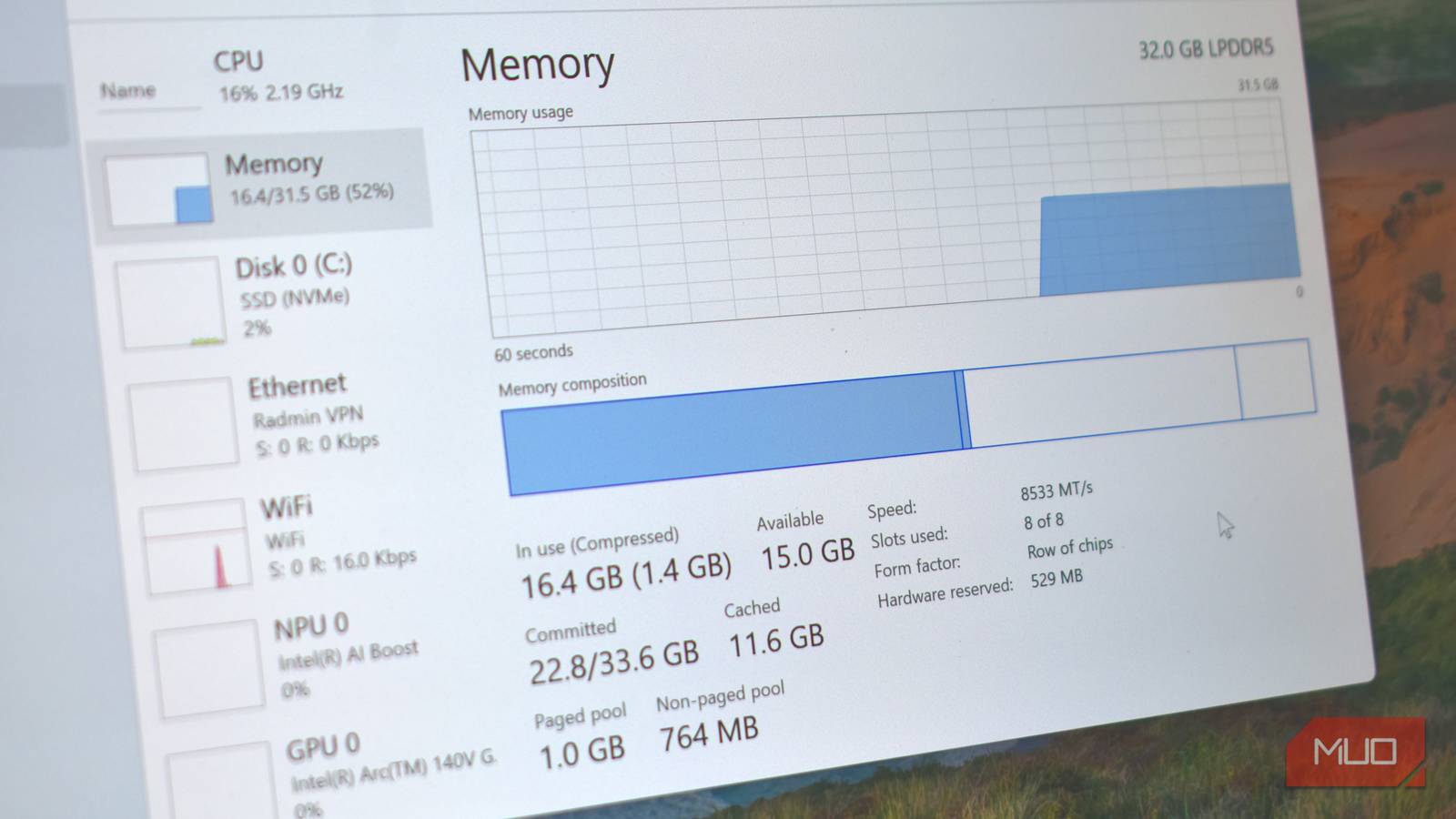

I did the thing every Windows user eventually does after a random stutter and opened Task Manager, ready to judge a wall of numbers I only half trusted. That’s when I realized I had been reading the memory page wrong. Before I had launched anything heavy, several gigabytes of my 16GB of RAM were already marked as in use, even though nothing was rendering, compiling, exporting, or melting the CPU in the background.
My first reaction was to assume some app had gone feral and was eating memory for sport. But my better instinct was to figure out what Windows was actually doing with that RAM before I started disabling useful services, congratulating myself, and calling it optimization.
The missing RAM was not as missing as it looked
Your RAM is busy, not kidnapped
Windows treats free memory as a missed opportunity. Instead of leaving RAM empty, it fills unused space with recently opened files, application components, and background data that it can quickly reuse later. This is standby memory, and in Windows 10 and Windows 11, Task Manager folds it into the same “in use” or “cached” figure rather than treating it as wasted space.
I should note that this is standard behavior because most of the time you want your RAM actively caching data you’re going to use next; that’s what keeps your system performance snappy. You can find your current cache RAM figure in the Task Manager Performance tab, underneath the performance graph.
However, that’s also why closing a program doesn’t always reduce your RAM usage as you expect. Windows often keeps some of that data nearby instead of throwing it away immediately. It is a bit like a librarian leaving a returned book on a cart because someone may ask for it again soon. If another app needs the space, Windows can return it. This behavior looks more alarming on systems with less RAM. A 64GB workstation can cache 15GB and barely raise an eyebrow. On a 4GB or 8GB laptop, the same logic can make Task Manager look busy before you have even opened anything demanding.
This isn’t the same as hardware-reserved memory, which is set aside for features such as integrated graphics or firmware. It is also different from committed memory, which is closer to a promise Windows has made to applications rather than a live count of physical RAM in use. Memory compression is another separate trick, where Windows squeezes inactive pages into less space instead of writing them to disk.
The useful question is whether Windows can return that memory to another app when it needs it. Cached and standby memory usually can. A memory leak or an overloaded system will not be nearly as cooperative.
SysMain is not the villain, but it can get clingy
Superfetch grew up, changed its name, and kept the habit

SysMain is the current name for a service most Windows users still know as Superfetch, renamed a few feature updates back, though the job has not changed since Vista. It tracks which apps and files you use most, learns your habits over time, and preloads that data into memory before you ask for it, so a familiar app opens from warm RAM rather than a cold drive.
On my main Windows PC, with an NVMe drive and RAM to spare, I could not tell that SysMain was running. On an older laptop with a mechanical hard drive, the disk light would likely stay solid for some moments after waking from sleep: SysMain guessing what you would open next, whether you wanted it to or not.
On slow drives, low-RAM systems, or machines already under pressure, that guessing competes with whatever you are trying to do, and some people notice disk churn or CPU spikes at boot or after waking. None of that makes it malware or a conspiracy, just a legitimate service that’s not always necessary on modern hardware.
Treat disabling it as an experiment, not a fix. Open Services from the Start menu or by running services.msc, find SysMain, right-click it, and choose Stop. Then use the PC normally. Launch your usual apps and watch disk usage, CPU activity, and responsiveness. If the machine immediately feels calmer, especially on a hard-drive laptop grinding at 100 percent disk usage, then changing SysMain’s Startup type to Disabled can be reasonable. If nothing improves, turn it back to Automatic and move on. Disabling SysMain will not add new RAM, and on some systems, it can slow repeated app launches.
The better cleanup starts outside SysMain
Freeing memory starts with evicting freeloaders
Most of the memory pressure that actually slows a PC down has nothing to do with caching. It comes from everything you have given permission to run in the background. A few places worth checking:
- Startup apps: Check Task Manager’s Startup tab and disable anything you do not need launching at login.
- System tray: Printer utilities, cloud sync clients, RGB software, and updaters pile up. Uninstall what you no longer recognize instead of hiding the icon.
- Browser tabs and extensions: Both add up fast. Most browsers can now automatically suspend or discard inactive tabs.
- Launchers and creative suites: Steam, Discord, and Adobe’s Creative Cloud helper often run without being asked. Check whether each needs to start with Windows.
- Virtual machines and emulators: WSL2, VirtualBox, and Android emulators commit memory on launch. It’s not reclaimable cache, so shut down what you are not using.
If usage will not settle after you close everything, or a process keeps growing without leveling off, that points to a leak rather than normal caching, and a reboot is a fair diagnostic step, not a daily ritual. Resource Monitor’s Memory tab separates standby and modified pages, and Microsoft’s free RAMMap tool goes even deeper. While RAMMap looks intimidating, skip the tab count and head straight to Use Counts. You’re looking for the Standby number, where higher values are better.

- OS
-
Windows
- Price model
-
Free
RAMMap is a free Sysinternals tool that provides a detailed breakdown of how Windows allocates physical memory, showing usage by processes, files, drivers, and the kernel.
Windows can keep the cache, but not the clutter
I came out of this less worried about the number beside “in use” and more critical of my own Startup tab. A few gigabytes of cache is Windows doing its job well, making the next launch faster. Four background updaters, two launchers I had not opened since spring, and one process I could not name were not caching anything. They were just clutter. Check your memory if it helps, but direct your suspicion toward what you let start, not at what Windows chose to remember.
